
Setting up SDK
Follow our setup guide to integrate the Reteno SDK with your app.
After building in Unity open the Xcode Workspace and follow these setups.
Click on "Unity-iPhone" on the left and select the Signing & Capabilities tab.
If you'd like to make provisioning your app easier, you can check Automatically manage signing, on the prompt click Enable Automatic, and select your Team. Otherwise you can do this manually.
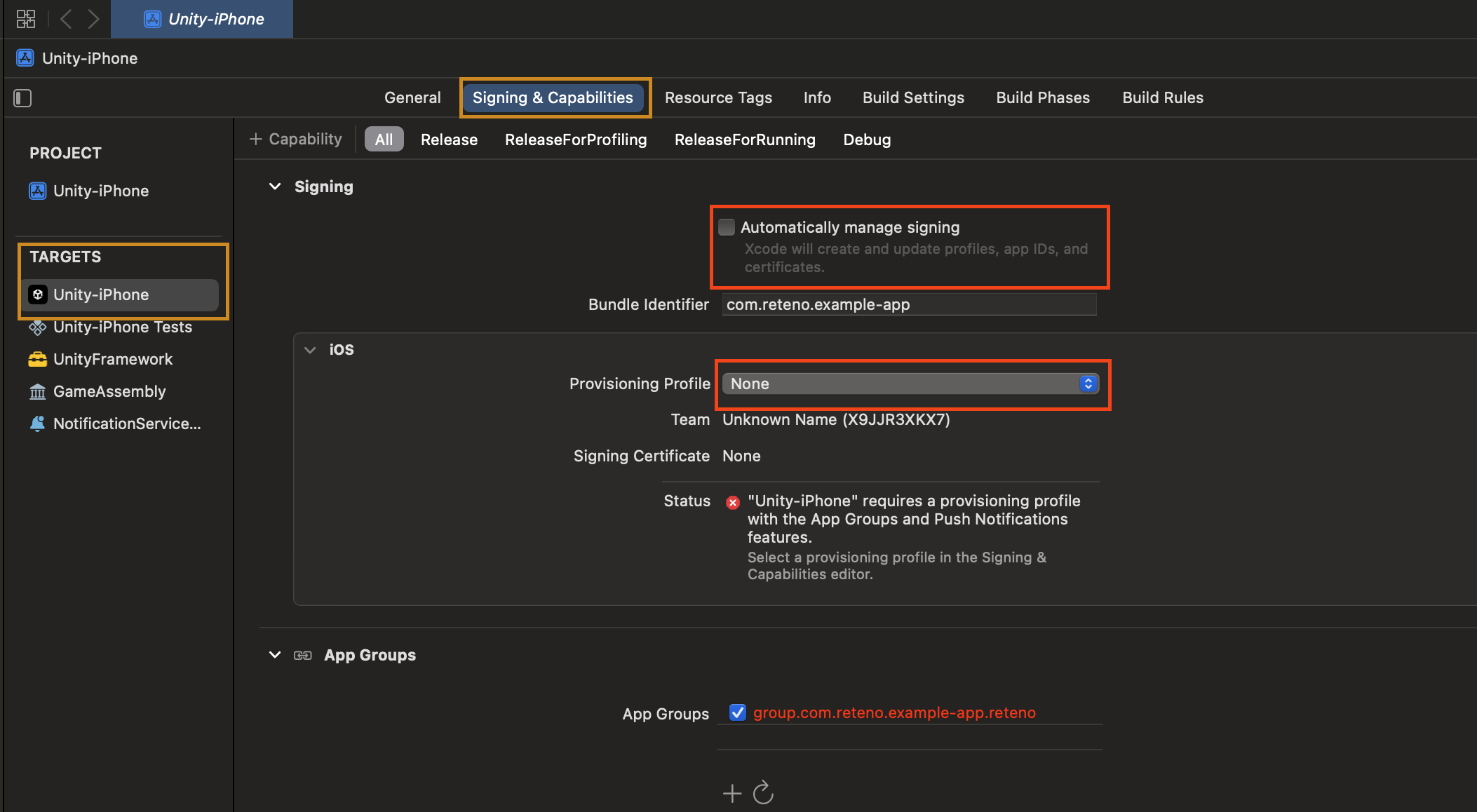
Scroll down to App Groups and click on the refresh button.
NOTEYou may have to press this a few times as it will ask you for each signing type.

Repeat the same steps above but for the NotificationServiceExtension target this time.
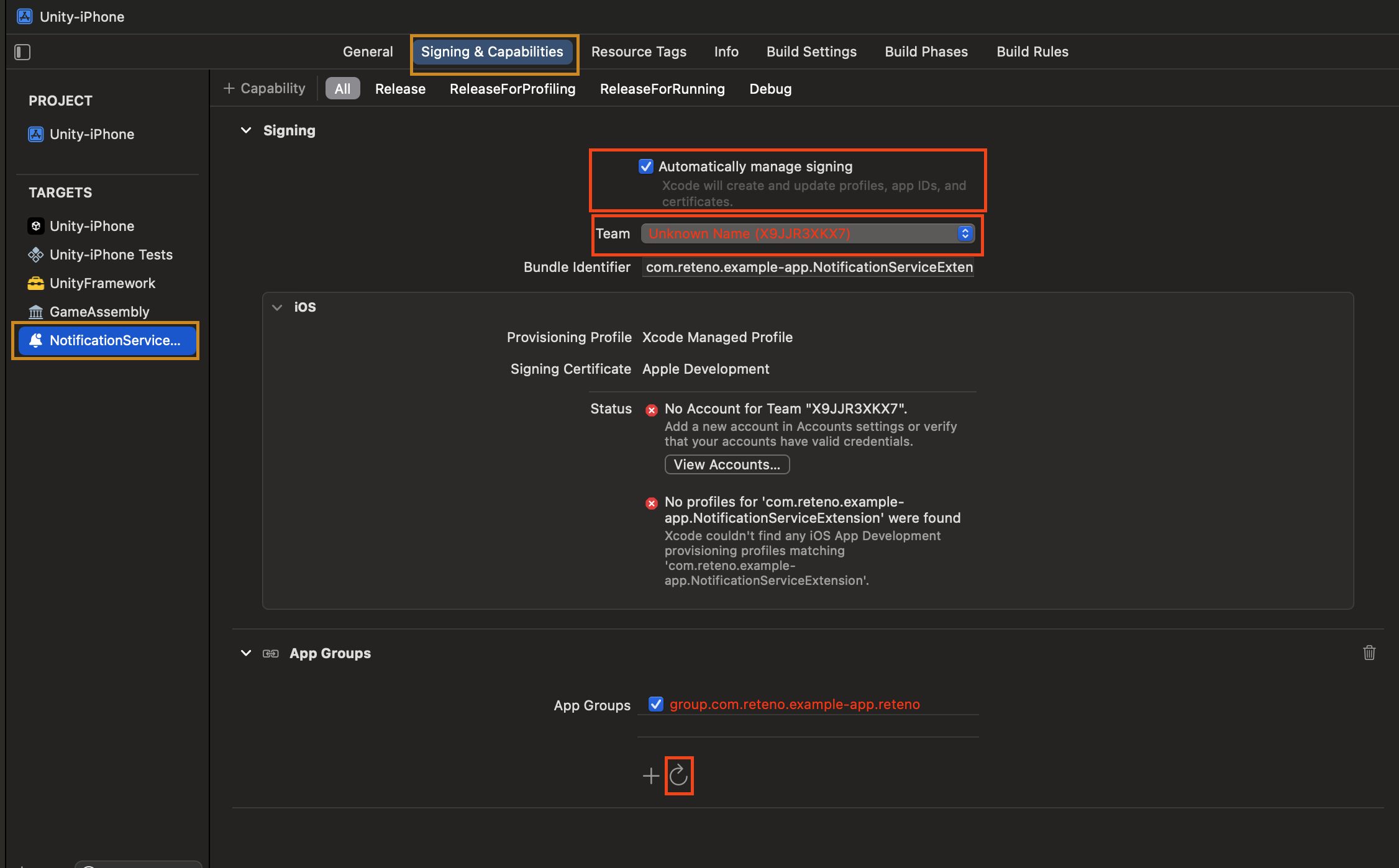
App Groups should now be provisioned for you going forward for your iOS bundle id, even on clean builds.
NoteiOS Debug Mode enables you to ensure that all events and user properties are logged correctly.