
Short Links Settings
By default, Reteno uses the domain esclick.me to shorten links in messages. However, you can make communication with subscribers more recognizable and build the reputation of your own campaigns without the influence of other companies using a common domain. To do this, add your own domain for shortening links, for example, yourbrandname.link.
NoteA custom short link domain is used only for tracked and shortened links in messages. It does not authenticate the sender domain, replace SPF, DKIM, or DMARC setup, or warm up the sender domain used in the From address.
To use a custom short link domain, add a domain or subdomain that you control and create the DNS CNAME record generated in Reteno. The subdomain does not have to host a website, but it must be configured in DNS and point to the target shown in your account. A single CNAME record is enough — no TXT, A, or MX records are required.
Allocate a separate subdomain for short links. Don't use a domain or subdomain already assigned for sending emails (it has an MX record) — for such a domain, verification fails with the
cname requirederror.A link whose address is built by an expression rather than starting with a protocol — a Velocity variable, for example — is not shortened: it gets no identifier, so there is no short key to build. See Short Links and Dynamic URLs for workarounds.
For email, tracked URLs are shortened in both the HTML content and the automatically generated
text/plainpart. This keeps click tracking consistent when an email client displays the plain-text version instead of HTML.The label in your default
esclick.mesubdomain (e.g.,xxx.esclick.me) is generated from the Name field entered when your account/workspace was registered. It can't be changed from account settings — contact Reteno support if you need it updated. Changing it breaks the short links in messages that have already been sent: those links keep pointing at the old subdomain.One short link domain — the default
esclick.mesubdomain or a custom domain — is used per account and applies to all shortened links in the account. It cannot be selected dynamically per message or per project; if you run several brands or projects, use a separate account for each.
Adding a Custom Domain
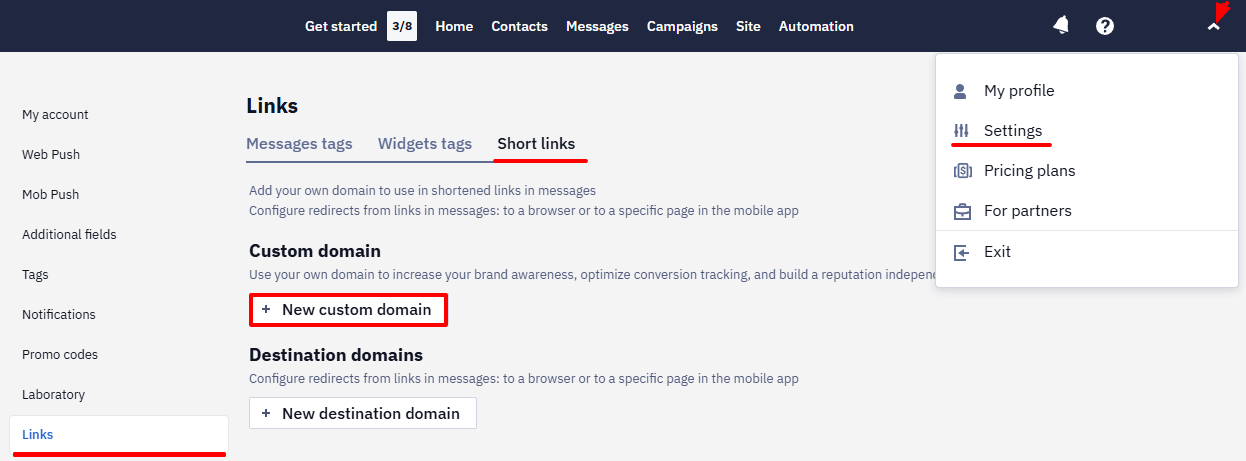
- Go to your account settings → Links → Short links tab and click New custom domain.
- Enter your domain name and click Done. The type, host, target, and SSL certificate are generated automatically; you only need to set up a DNS CNAME record pointing to our secure server.
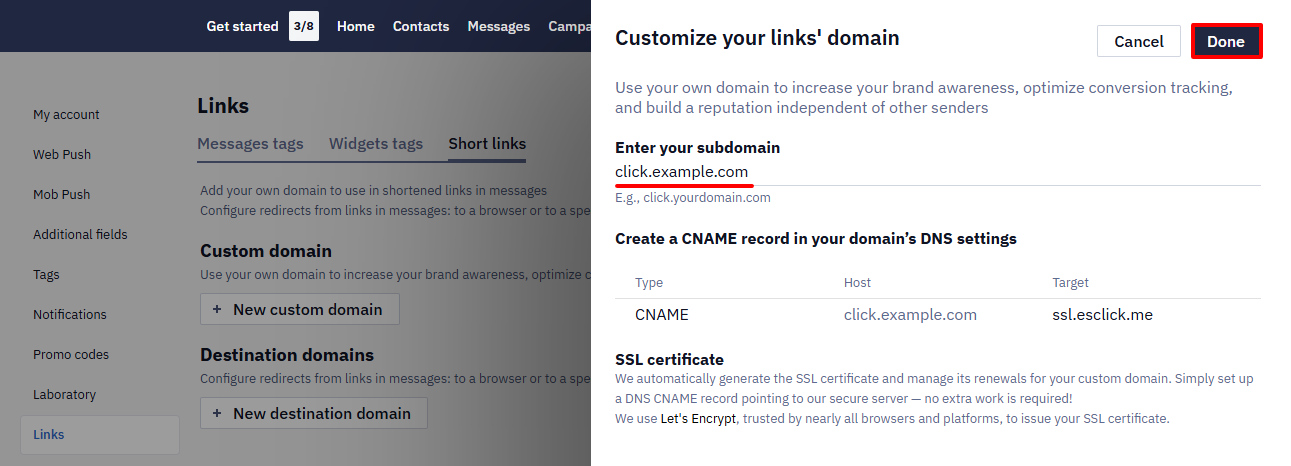
NoteDNS changes can take up to 48 hours to propagate. After that, press Update / Verify domain in Reteno to re-check the record.
If your DNS is hosted on Cloudflare, records that must point directly to Reteno must not sit behind the Cloudflare HTTP proxy — set the relevant
CNAMEto DNS only (grey cloud), not Proxied (orange cloud).Before re-checking, confirm the public DNS answer through an external resolver rather than relying on the DNS provider's own panel.
Adding a Destination Domain (Deep Links)
If you need the links to direct users to specific content in the app, create a destination domain.
The association file is served from your own short-link domain only. If no custom domain is set up in the account, the interface still lets you upload the file, but a request to /.well-known/apple-app-site-association returns 404. Set up the short-link domain first, then add the association file.
You can add multiple destination domains.
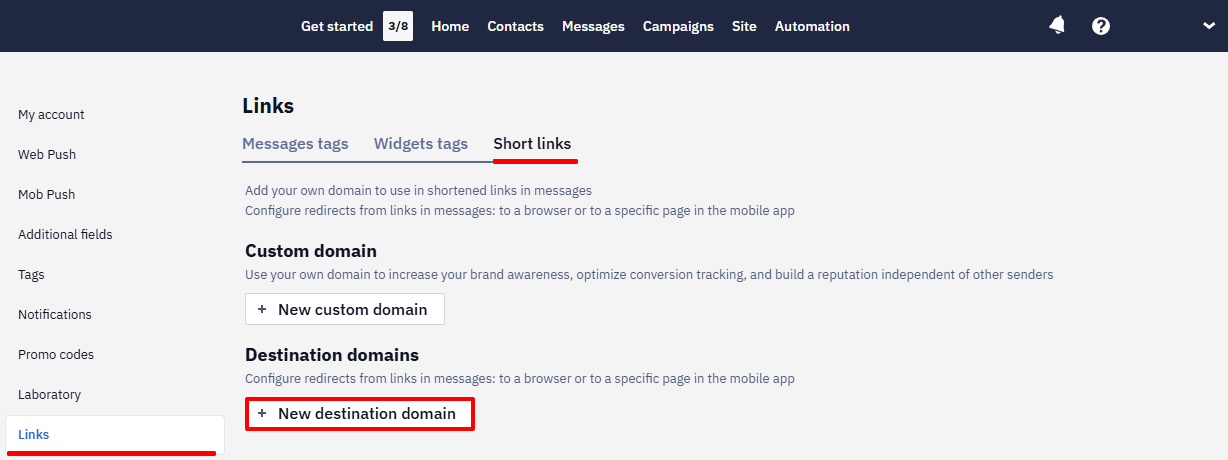
- Click New destination domain.
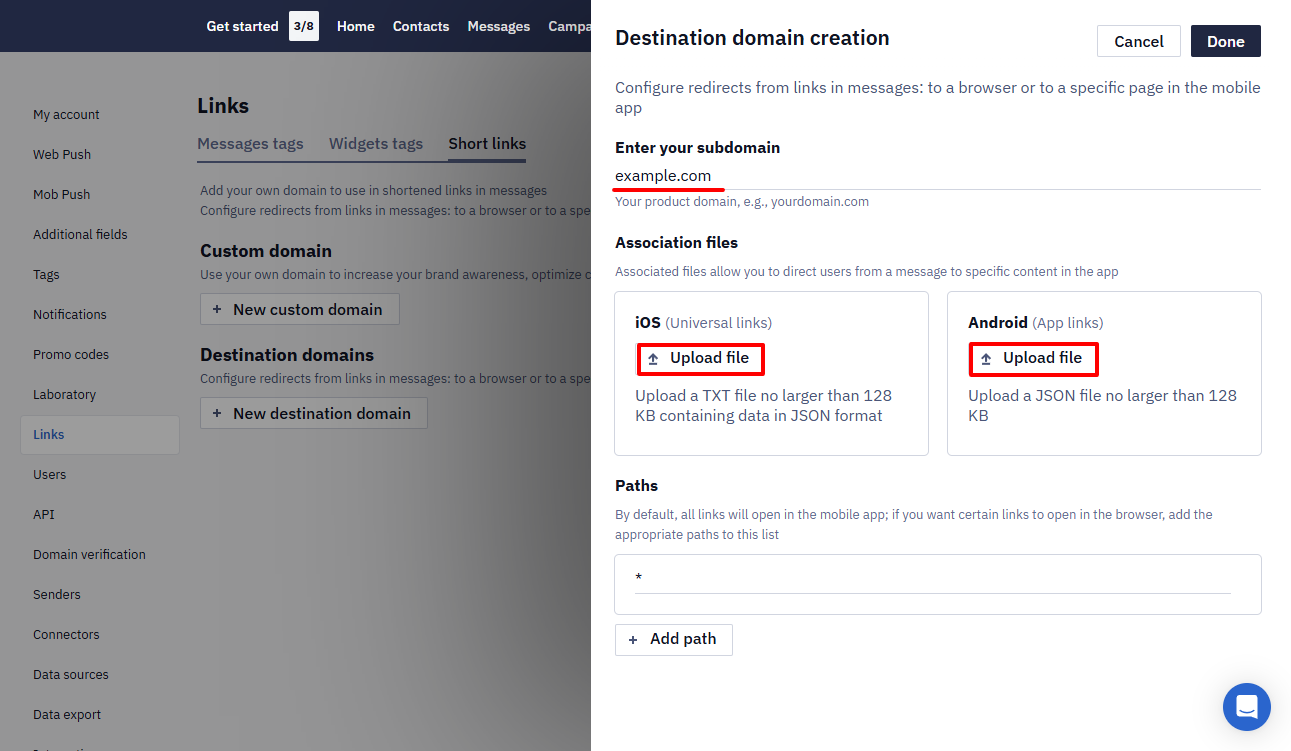
- Enter the domain name and upload the associated files:
- For iOS: a
TXTfile (no larger than 128 KB) containing data inJSONformat. - For Android: a
JSONfile (no larger than 128 KB).
Defining Paths to Open Links in a Browser/App
The paths specified in links allow you to determine where to open them, in a browser or in a mobile app.
The paths in links are processed in the following channels:
In channels such as Mobile Push and In-App, links to Android apps require special processing settings.
Paths for opening links in Android apps must be added in the association file that you upload to Reteno, as such settings are made in the AndroidManifest.xml file.
Paths for opening links in iOS applications can also be added to the association file, or specified directly in the Reteno settings:
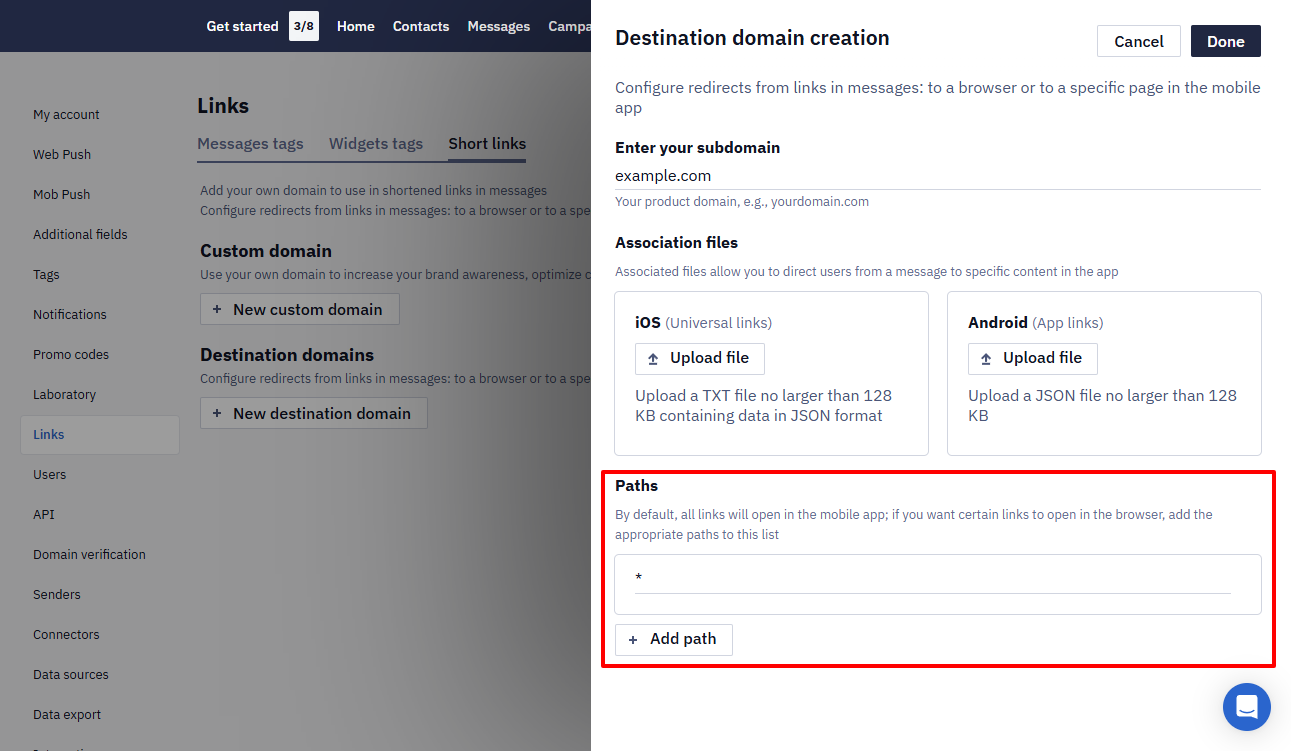
Paths examples
You can use the * symbol instead of the domain name — then the path will work for all destination domains created in your account.
| Example | Description |
|---|---|
NOT /unsubscribe* | Links starting with /unsubscribe (e.g., /unsubscribe, /unsubscribe-now) always open in the browser. |
/faq/* | Links that start with /faq/ (e.g., /faq/123, /faq/general) always open in the app. |
/about | The specific path /about opens in the application. This rule does not affect other paths, such as /about/team. |
/contact* | Links that start with /contact (e.g., /contact, /contact-us) always open in the app. |
NOT /*/external* | Links that start with /contact (e.g., /contact, /contact-us) always open in the app. |
/products/*/details | Links that match the pattern /products/[any path]/details (e.g., /products/123/details, /products/toys/details) always open in the app. |
NOT /promo* | Links starting with /promo (e.g., /promo, /promo/offer) always open in a browser. |
NoteThe examples above do not work in the system by default — you must specify similar paths in the association files or in the Reteno settings.
Other features of the functioning of the paths:
- Any other links that do not meet the rules specified in the paths will open in the app.
- An associated file that does not have a path specified cannot be downloaded.
- At least one path must be specified in the account settings.
- The letter u is added to links that open in the application, for example,
https://click.example.com/u/jh3kkj3kl.
Domain Activating, Deactivating and Deleting
Only one custom domain can be active. The active URL-shortening domain applies to all senders in the account; separate shortening domains for different senders are not supported. If several are registered in the account, the last one created will be added to the top of the list and activated. You can deactivate a domain and activate any of the listed ones instead.
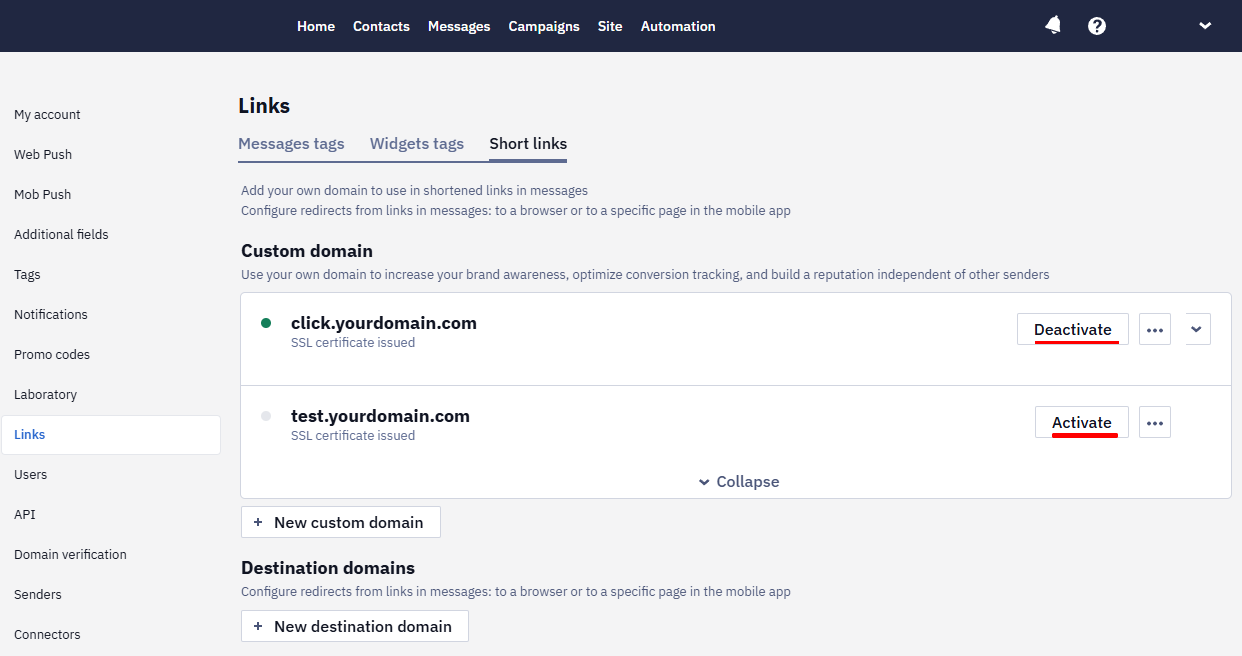
NoteLinks wrapped in the esclick.me domain that were sent earlier will continue to work.
Deactivating or switching away from a custom domain does affect messages that were already sent: links using a domain that's no longer active stop working once you switch to a different one. If you need links in previously sent messages to keep working, keep the original domain active instead of switching to a new one.
To delete a custom domain, click on the three dots opposite its name and choose the corresponding option.
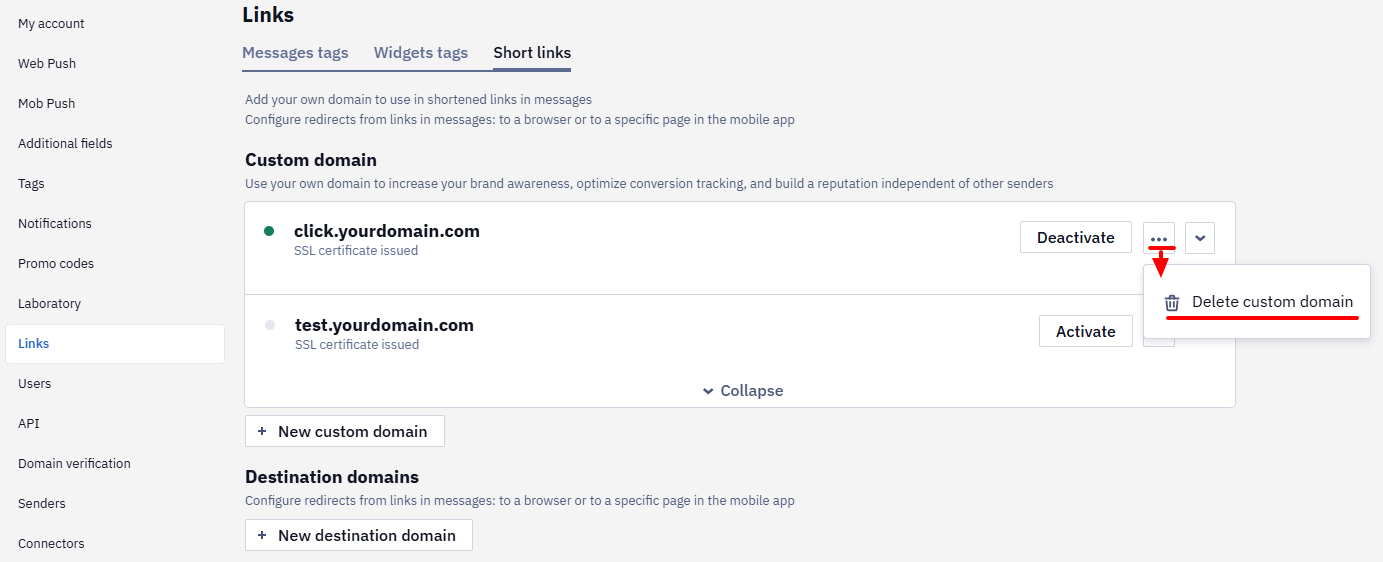
Note that links using this domain in already sent messages will stop working after it is deleted.
Updated 17 days ago