
Using Velocity in Messages
See how to create email template with dynamic variables
Velocity lets you render contact data, event parameters, and external source data directly in message templates. This article walks through the core techniques — variables, objects, arrays, loops, and conditions — using an invoice email as a practical example.
All directives in email HTML must be wrapped in comments to keep the markup valid: <!--#if(...)-->, <!--#foreach(...)-->, <!--#end-->. In SMS, Mobile Push, Web Push, and App Inbox, directives are used without comments.
Data Sources in Messages
Three types of data are available in message templates:
Contact fields — available in any message, pulled from the contact profile at send time.
Event parameters — available in triggered messages, passed through the workflow that the event launched.
External sources — available when a message uses a connected external data source, such as Google BigQuery, Google Sheets, or HTTP-based sources.
All of these values are accessed with Velocity.
The main difference is not the syntax itself, but where the data comes from, how it is structured, and in which context it is available.
Note
- Event parameters are available only in the triggered context where the event was passed.
- External source data is available only when the source is connected to the message.
Use Case: Invoice Email
We'll build a subscription invoice email using the following event payload:
{
  "eventTypeKey": "InvoiceCommon",
  "keyValue": "87420539",
  "params": {
    "time": "2026-01-03T10:00",
    "externalCustomerId": "87420539",
    "billingCountry": "US",
    "firstName": "John",
    "lastName": "Item",
    "email": "[email protected]",
    "items": [
      {
        "product": "One-month main_subscription",
        "afCurrency": "USD",
        "dateOfTransaction": "2026-01-03",
        "paymentType": "auto-renewal",
        "billingType": "paysafecard",
        "orderId": "6c60e1a3",
        "priceWithoutTaxes": 15.19,
        "renewalDate": "2026-02-03",
        "price": 15.19,
        "priceToBeBilled": 30.99,
        "subscriptionPeriod": "30"
      }
    ]
  }
}
The email has two blocks: contact details and invoice items.
Block 1: Contact Details
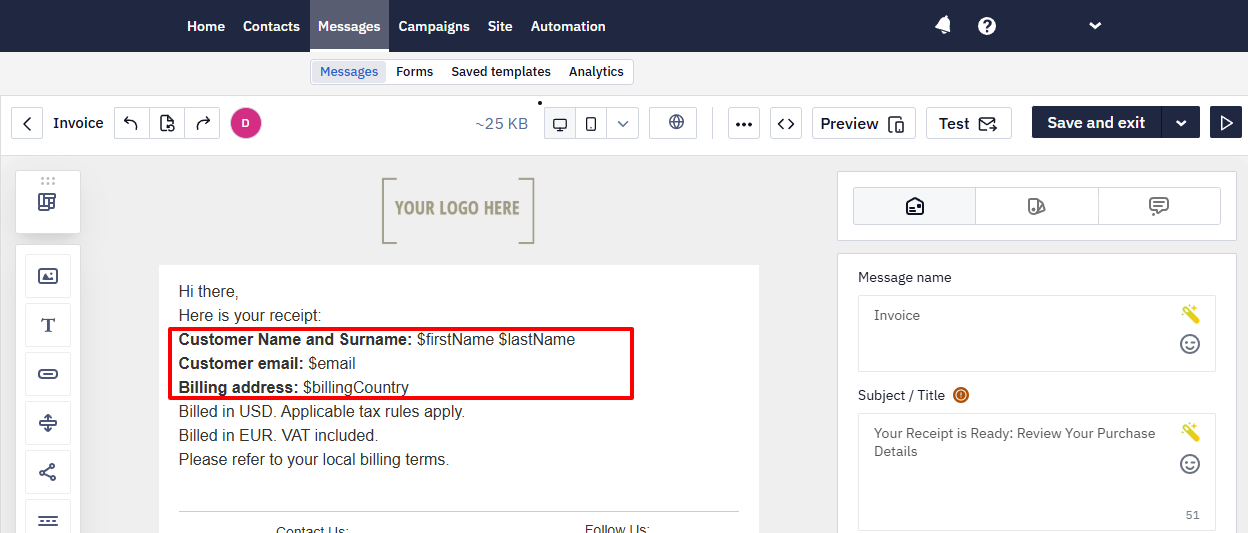
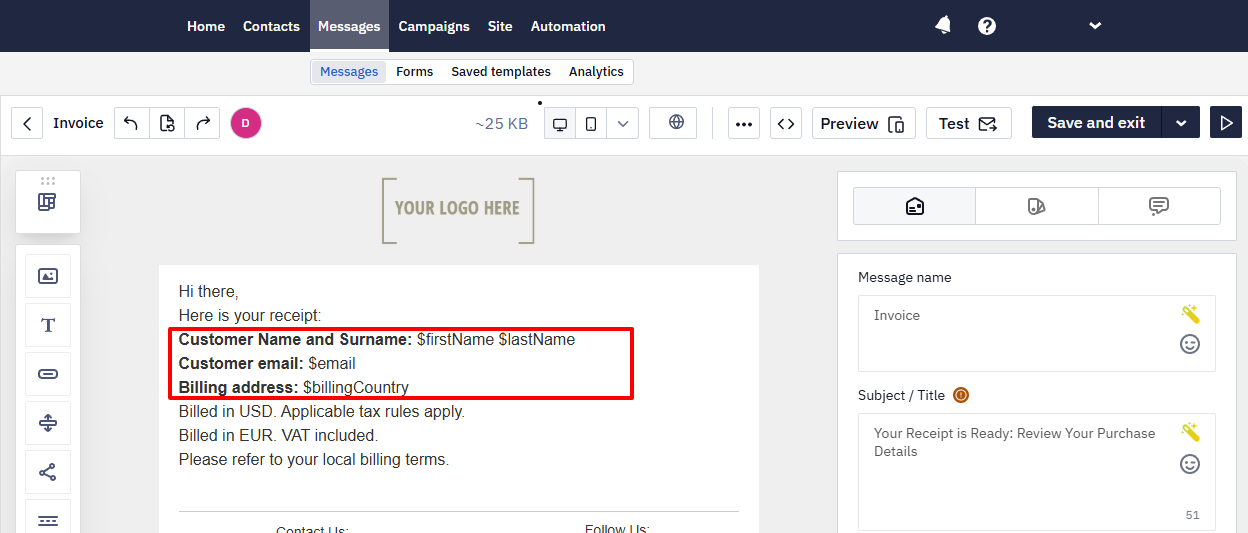
Simple top-level parameters map directly to variables:
| Parameter | Variable |
|---|---|
firstName | $firstName |
lastName | $lastName |
email | $email |
billingCountry | $billingCountry |
Example in email:
Block 2: Invoice Items
The items parameter is an array — it can contain one or many products. Use #foreach to loop through all items regardless of how many there are.
Step 1: Loop boundaries
<!--#foreach($item in $items)-->
  ...
<!--#end-->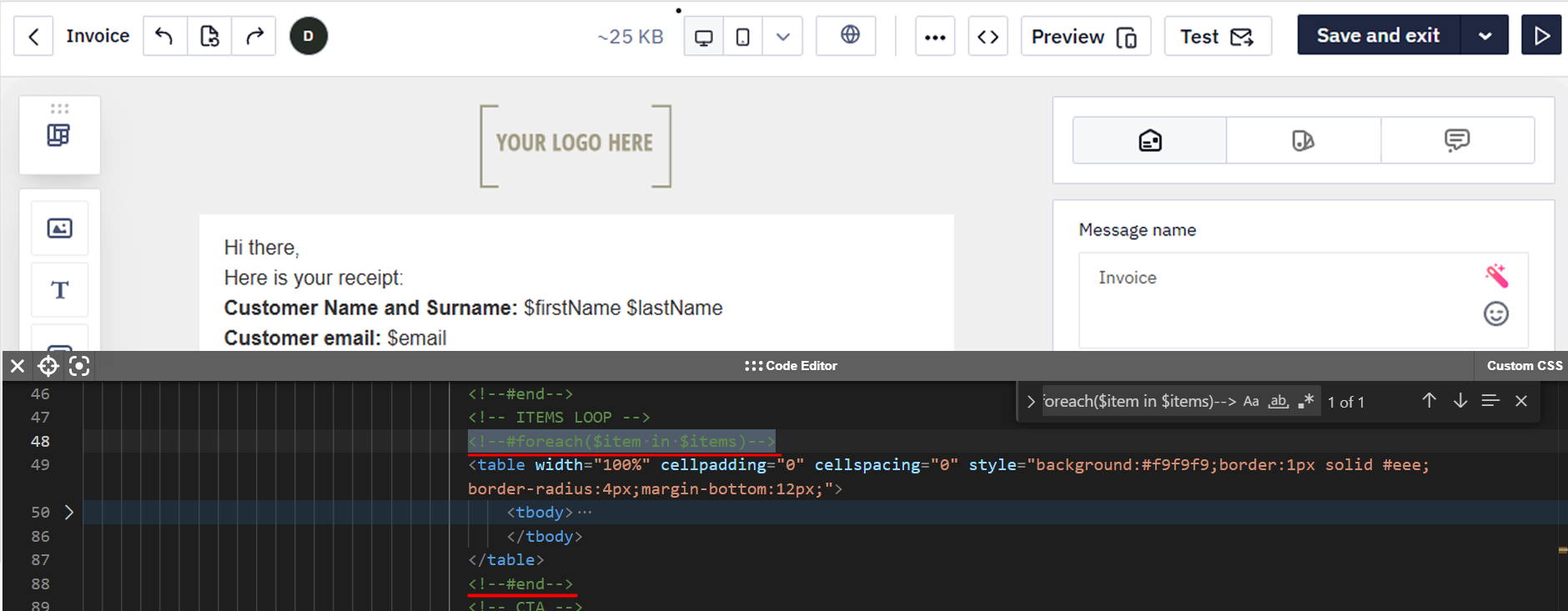
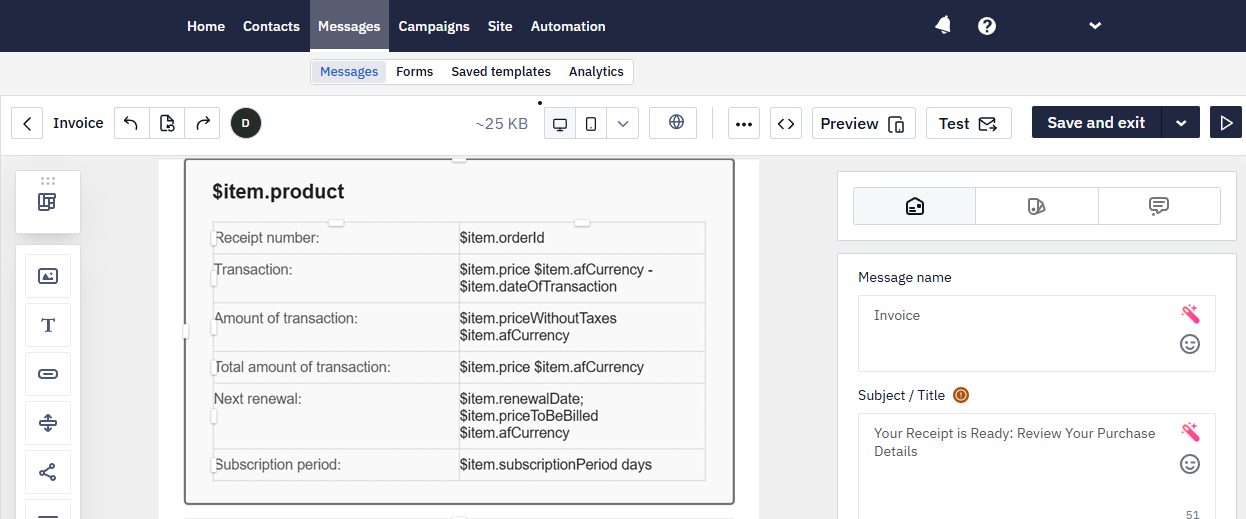
Step 2: Variables inside the loop
Inside the loop, reference each field using $item.<fieldName>:
| Field | Variable |
|---|---|
| Product name | $item.product |
| Order ID | $item.orderId |
| Price | $item.price |
| Currency | $item.afCurrency |
| Transaction date | $item.dateOfTransaction |
| Price without taxes | $item.priceWithoutTaxes |
| Renewal date | $item.renewalDate |
| Amount to be billed | $item.priceToBeBilled |
| Subscription period | $item.subscriptionPeriod |
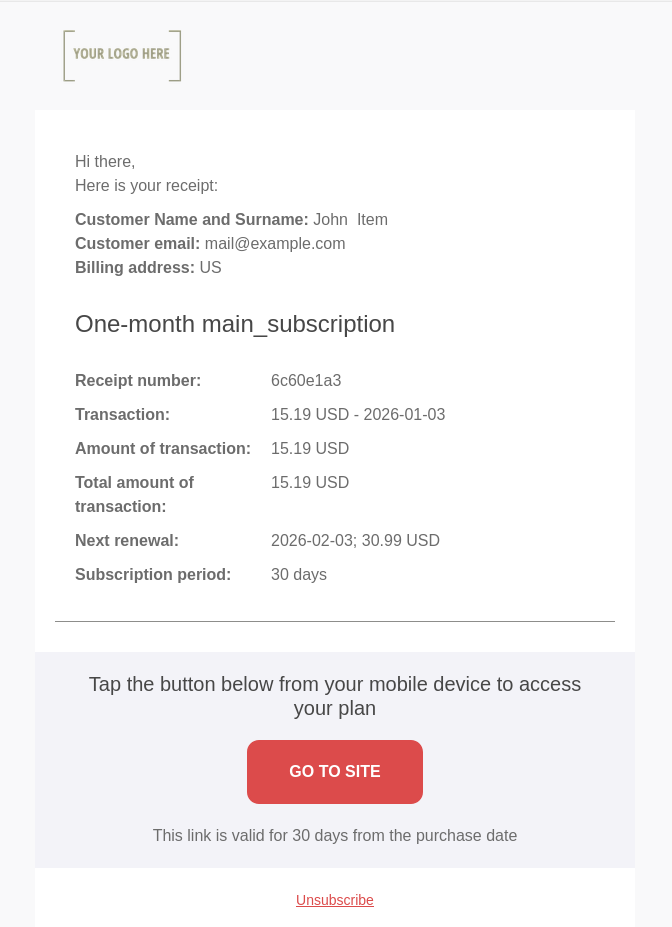
The result will look as follows:
Conditions
Use #if / #elseif / #else to show or hide content based on a value:
<!--#if($billingCountry == 'US')-->
  <p>Billed in USD. Tax rules apply.</p>
<!--#elseif($billingCountry == 'DE')-->
  <p>Billed in EUR. VAT included.</p>
<!--#else-->
  <p>See your local billing terms.</p>
<!--#end-->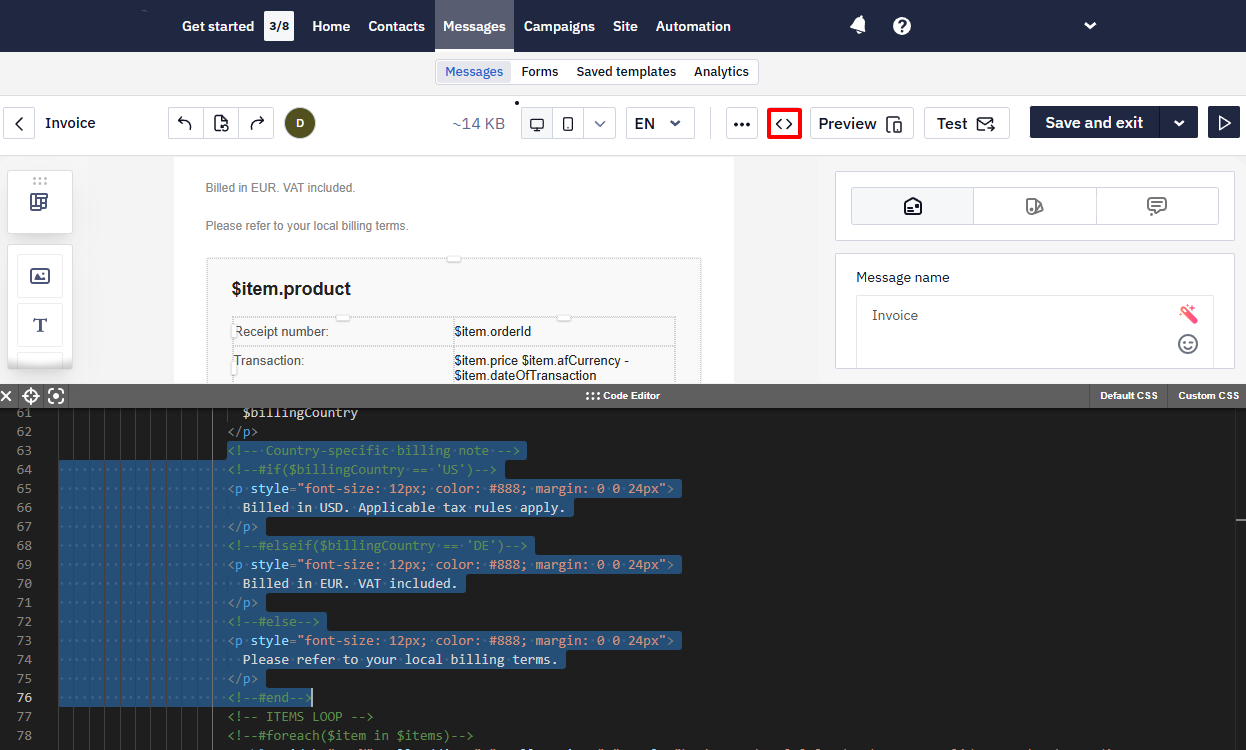
Use #if to hide a block entirely when a value is missing:
<!--#if($!{item.renewalDate})-->
  <p>Next renewal: $item.renewalDate</p>
<!--#end-->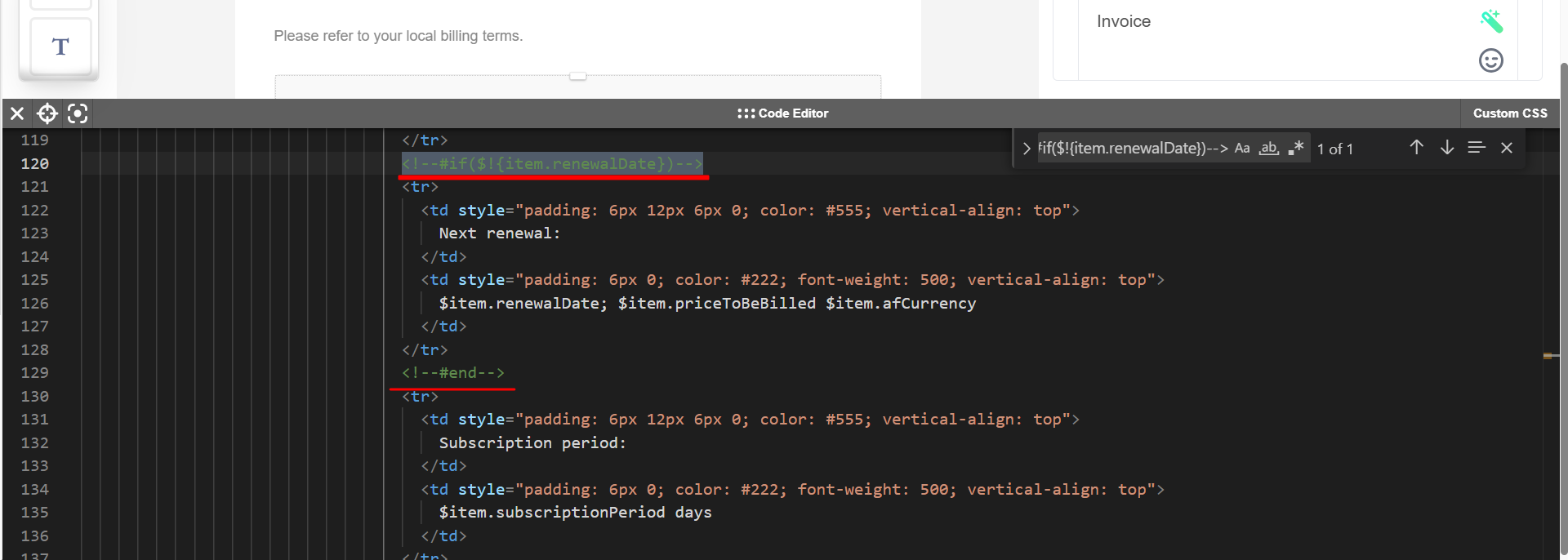
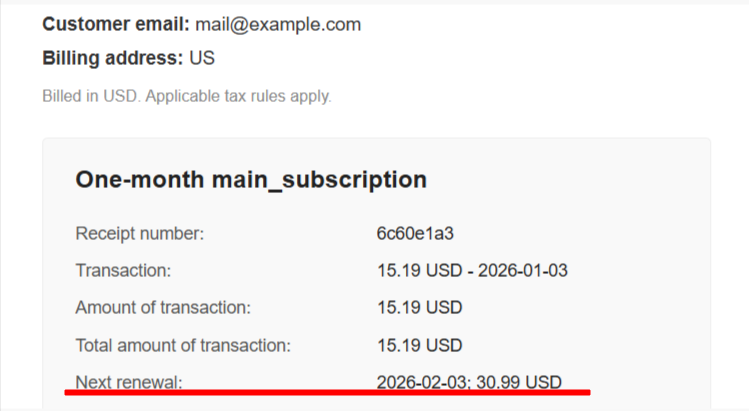
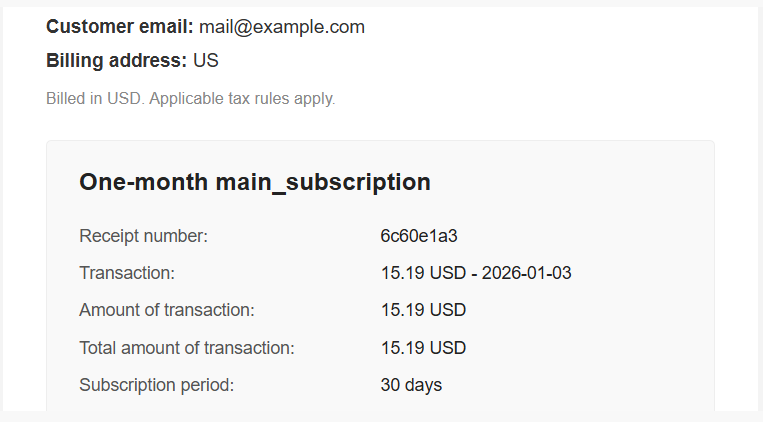
Below are two rendered email variants — one with renewal date block visible, one without.
Accessing a Single Item from an Array
If you need only the first item from an array without a loop, use the index:
$items[0].product$items[0].subscriptionPeriod
Note
- This example uses the event where
itemsis a plain array. In some events the same data may be wrapped inside an object — for example,"items": { "array": [...] }. In that case the correct path is$items.array[0].subscriptionPeriod. Always check the actual structure of your event payload before referencing array elements. You can copy real parameters from Automation → Event history.- Accessing an array by a fixed index is safe only when you know the array always contains that element. If the index does not exist in the array at send time, an error will occur and the message may not render. Use
#foreachwhen the number of items can vary.
This is useful when you know the array always contains exactly one item, or when you only need to reference the first entry.
NoteIn short-form channels such as Mobile Push, SMS, Web Push, and App Inbox, it is often better to reference a specific array element instead of rendering the full array with
#foreach. This keeps the message concise and better suited to the channel format.
Safe Output
Apply the same safe patterns as with contact fields:
$!{item.renewalDate}— silent if missing${item.product|'Subscription'}— fallback value
Use these patterns whenever a value may be missing or optional in the payload.
Known Limitations & Edge Cases
Events sent via the old v1/event API. If custom events are still being sent through the legacy v1/event endpoint, event parameters arrive nested inside a json object rather than at the top level. Reference them with $!data.get('json').get('paramName') instead of the usual $paramName / $!data.get('paramName').
Literal dollar sign before a value. To show a literal $ right before a merge tag (for example, a price like $13.99), use the Velocity escape ${esc.d} — for example: ${esc.d}${price}. Writing $ directly before a variable can be misinterpreted as part of the Velocity syntax.
Pipe (|) fallback syntax inside a URL. The ${variable|'fallback'} default-value syntax is not reliable inside href attributes — it can break the link. Inside URLs, use an #if/#else block to choose between the real value and a fallback, or turn off link tracking for the message if the issue persists — that switches off click tracking for all of its links.
Values from the product feed. Velocity reads contact fields, event parameters, and connected external sources. The product feed is not one of them, so a product attribute that exists in the feed but not in the event — an SKU, for example — can't be substituted into the message. Pass it as a parameter of the event that launches the message.
Testing Your Template
Before sending, use Additional settings → Configuring dynamic content in the message editor to preview the result with real data. Paste a JSON object with the parameters you want to test and click View message.
You can copy parameter values directly from Automation → Event history — open any event and copy the contents of its params object. This is the easiest way to verify field names, array paths, and conditions before sending.
Next Steps
- Using Velocity in Workflows — branching, calculations, and writing values to contact fields
- Velocity Reference — full syntax reference
- Testing & Troubleshooting Velocity — how to debug substitution issues
Updated 29 days ago