
Workflow Troubleshooting
If you have some problems with the workflow functioning, check the following typical setup issues
Workflow Does Not Launch
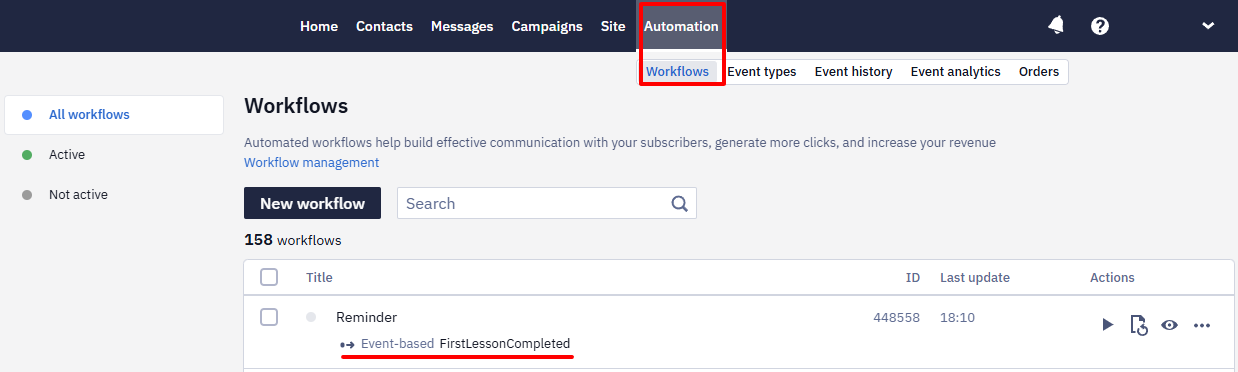
- Check your workflow status in the workflow list (Automation → Workflows).
It should be Active (a green indicator is displayed next to the name).
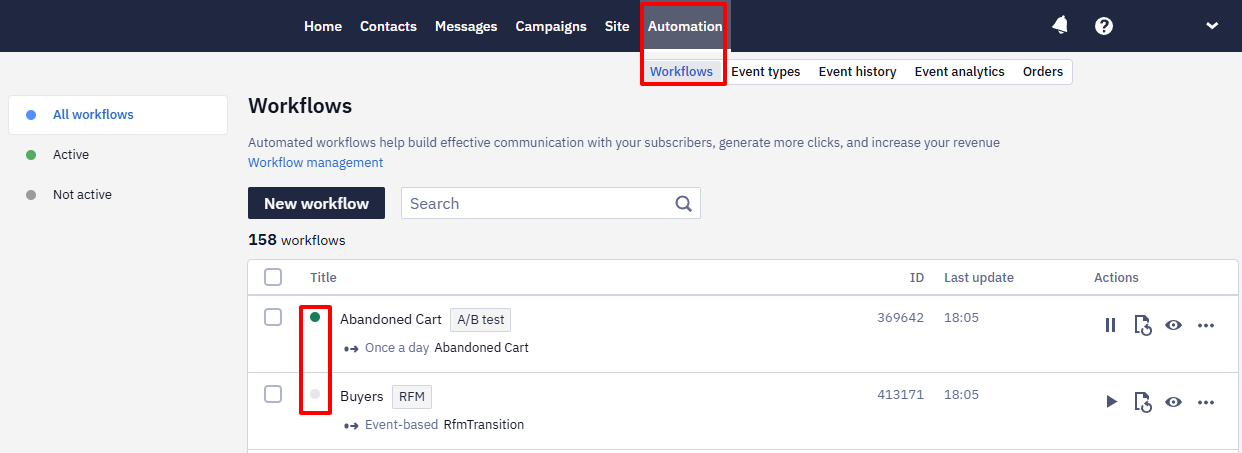
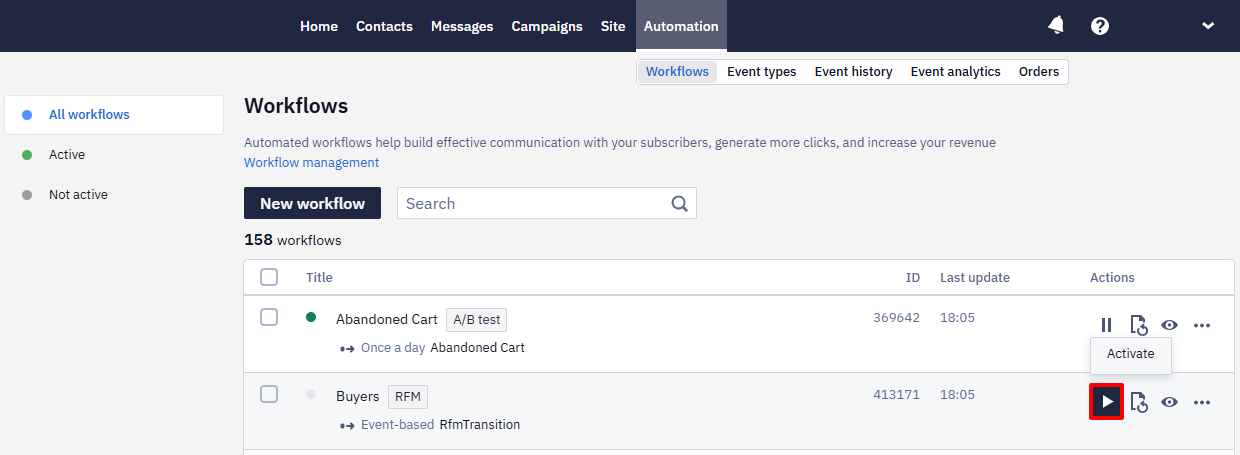
If it’s Not active, click the Activate button.
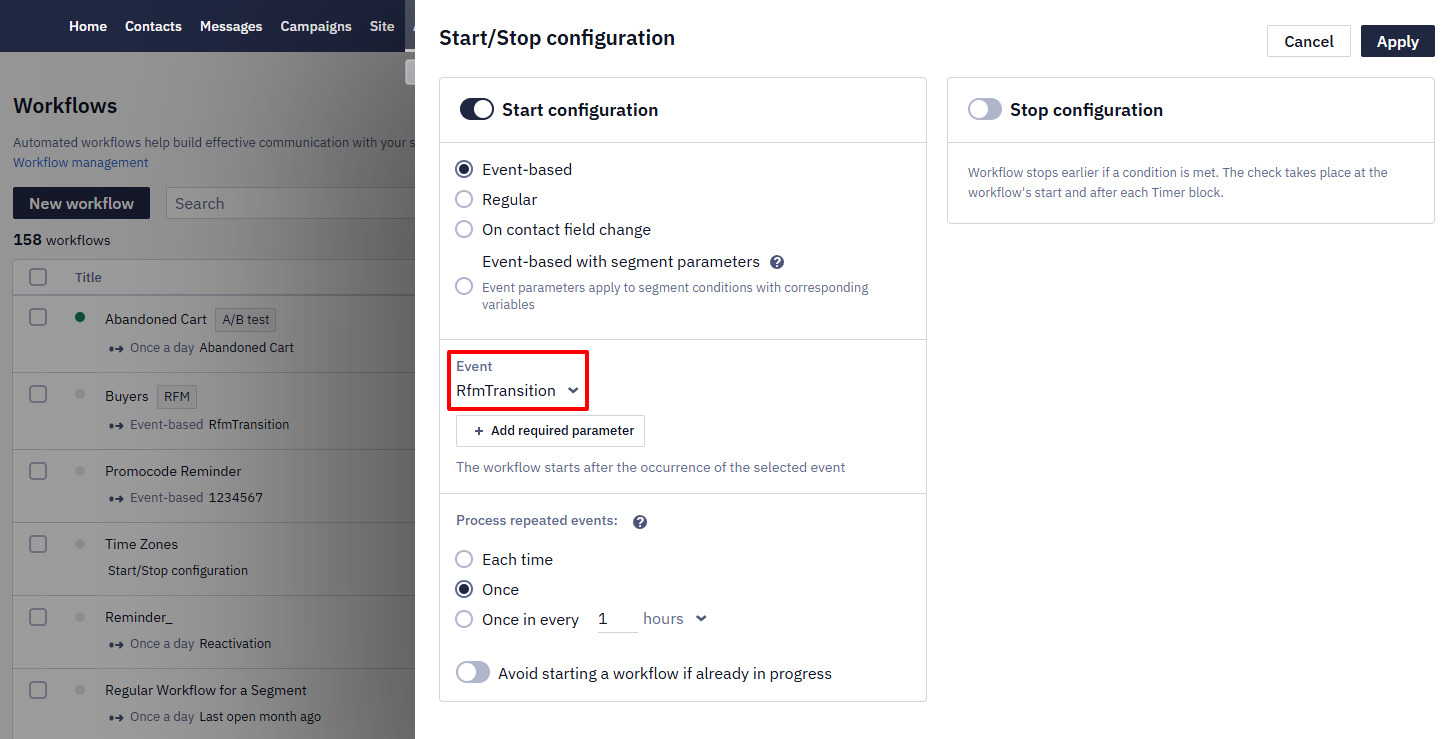
- Check the event launching a workflow. If the workflow should be launched by the event transferred via API, make sure you transfer it and select it in the dropdown list in the Start configuration.
- Check if the workflow launches were registered in the system.
See the workflow statistics.
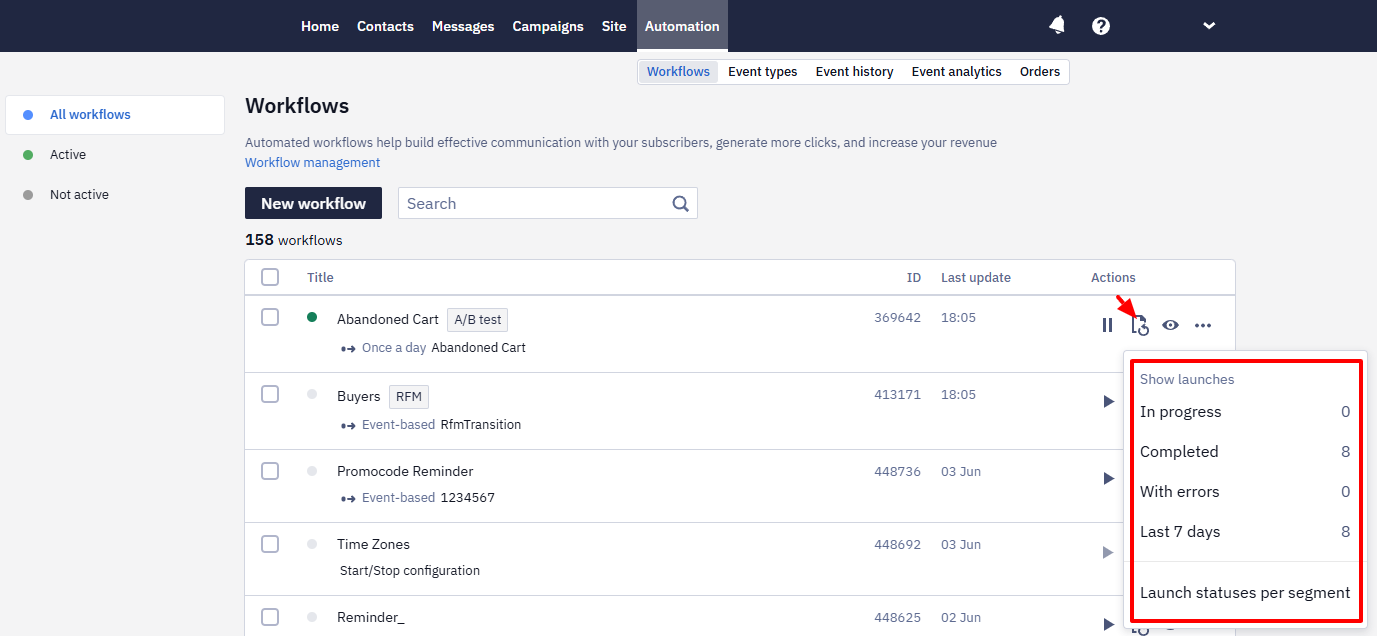
If all statistics values are zero, the workflow was never run.
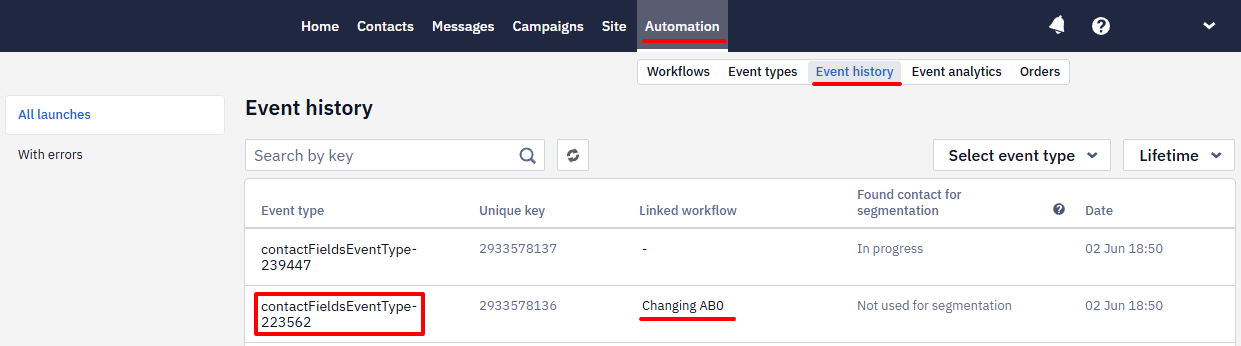
- Make sure there is an event that should launch the workflow in Automation → Event History. See whether the event is linked with the corresponding workflow.
- If the event is triggered by clicking on the button in the message, check whether the event and the button are linked.
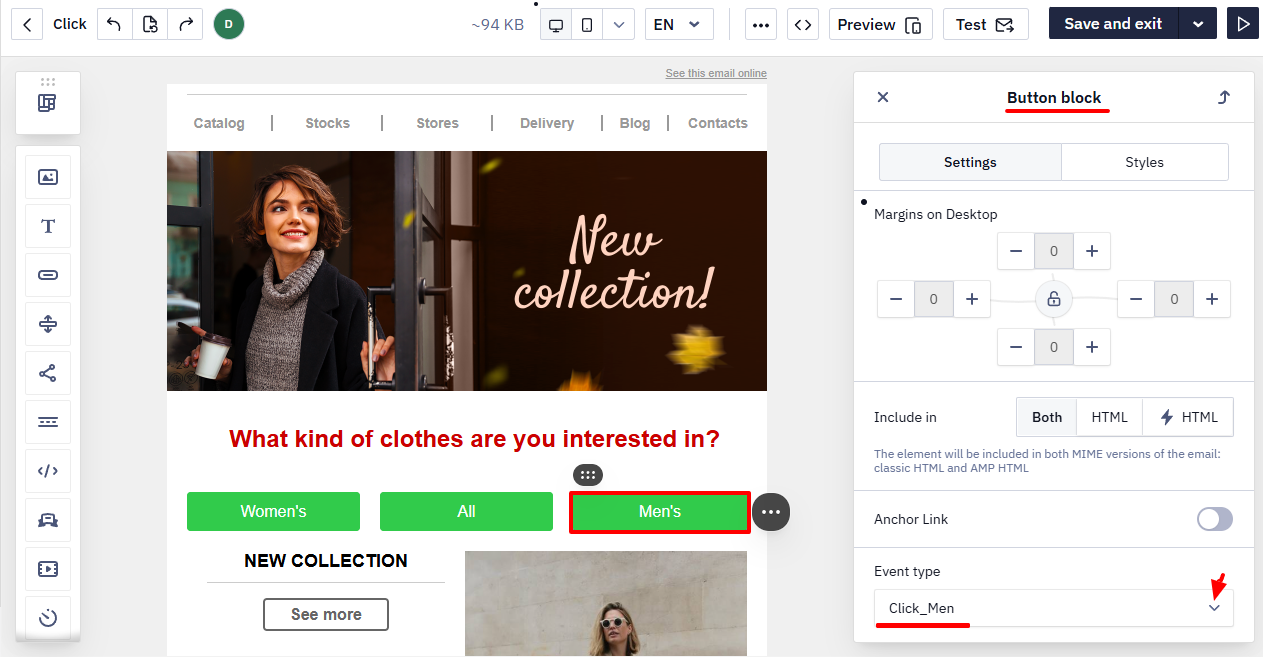
Ensure that events in trigger configuration and in the message corresponding to each other.
- If the event is in Event history but the workflow produced nothing, check the order in which the contact and the event were sent. A workflow runs for a contact: when the event arrives first, the launch is recorded, but the blocks that need a contact have none — a sending block with the Email and Contact ID fields empty ends with the
Empty contact mediaerror.
The same error appears when the event that started the workflow carries no contact identifier in params. The event's keyValue doesn't identify a contact, so pass externalCustomerId, email, or phone in params.
Send the event only after the contact creation request is confirmed, or add a short delay between the two requests.
NoteThere's no dedicated system alert if a workflow launch is blocked because your account or group has hit its contact-count limit. The warning email about the base approaching the plan limit is a separate thing — see Billing Notifications. To catch the sends stopping, set up trigger control for messages carrying this workflow's tag: the notification arrives once they stop coming at the usual rate.
Workflow Launch, but Works Incorrectly
- Check the settings of the workflow blocks.
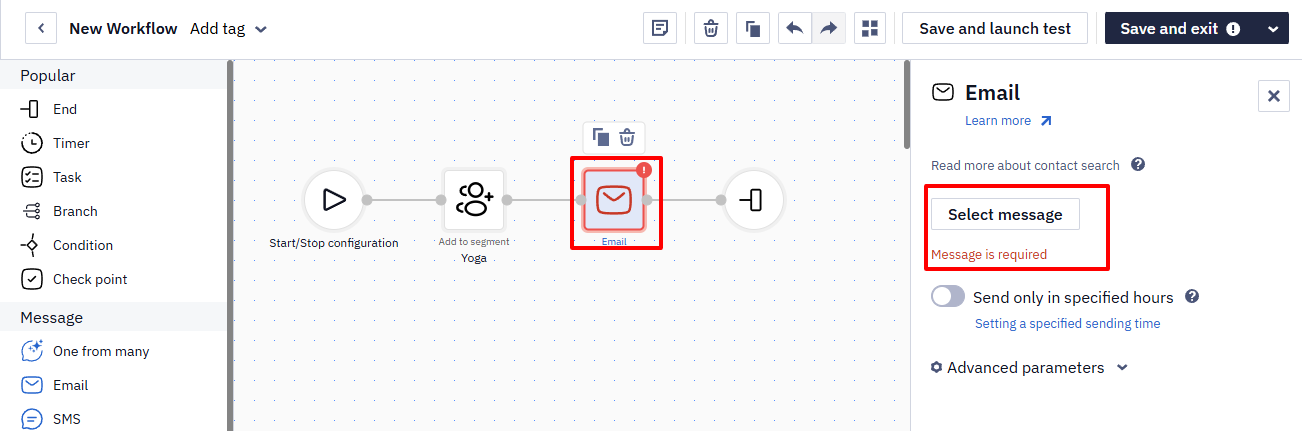
Enter the workflow, click on each block and inspect its settings:
- Have you selected the message in the Message field?
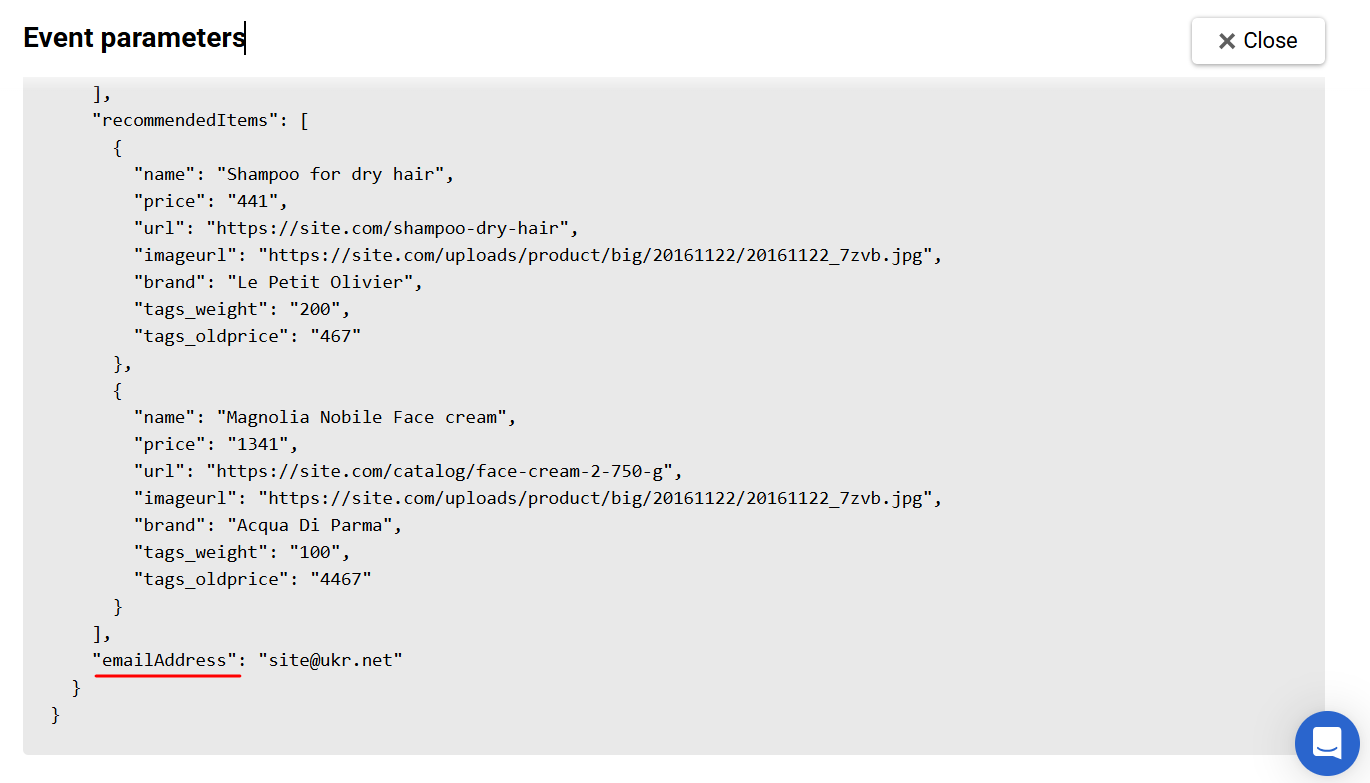
- Have you specified the correct variable in the Email field?
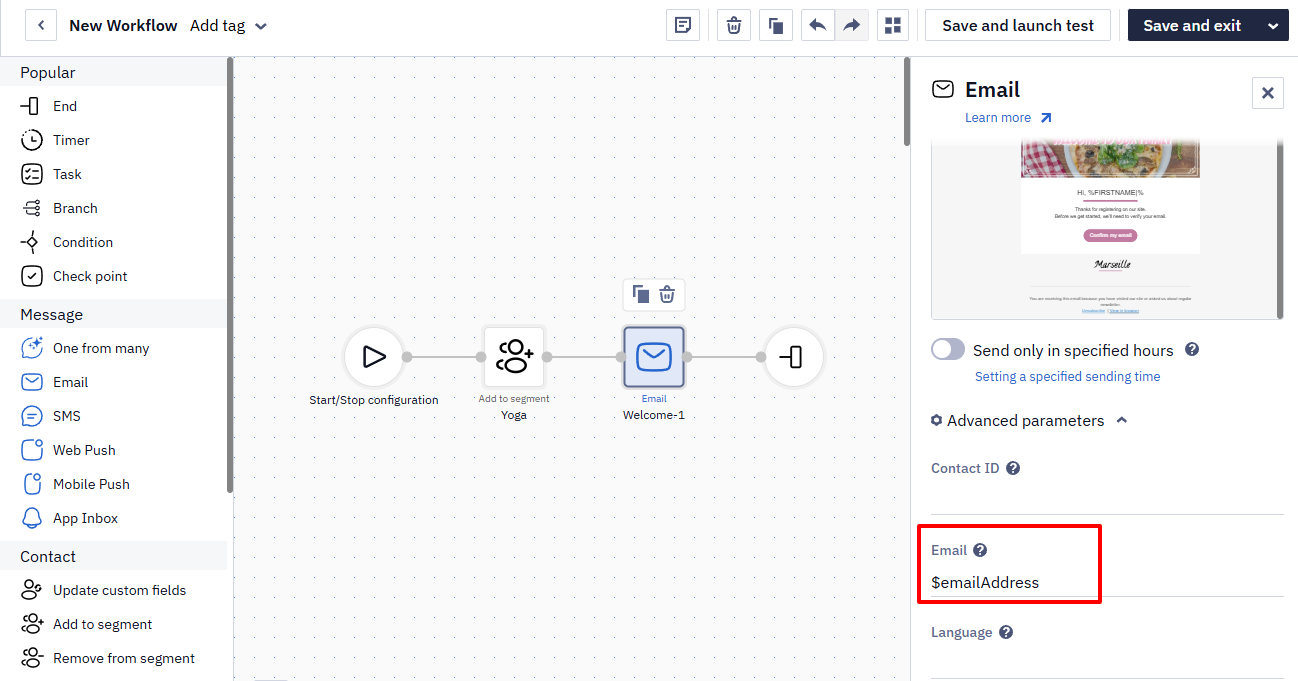
It should match the variable you pass in the event (you can see your event parameters in Automation → Event history).
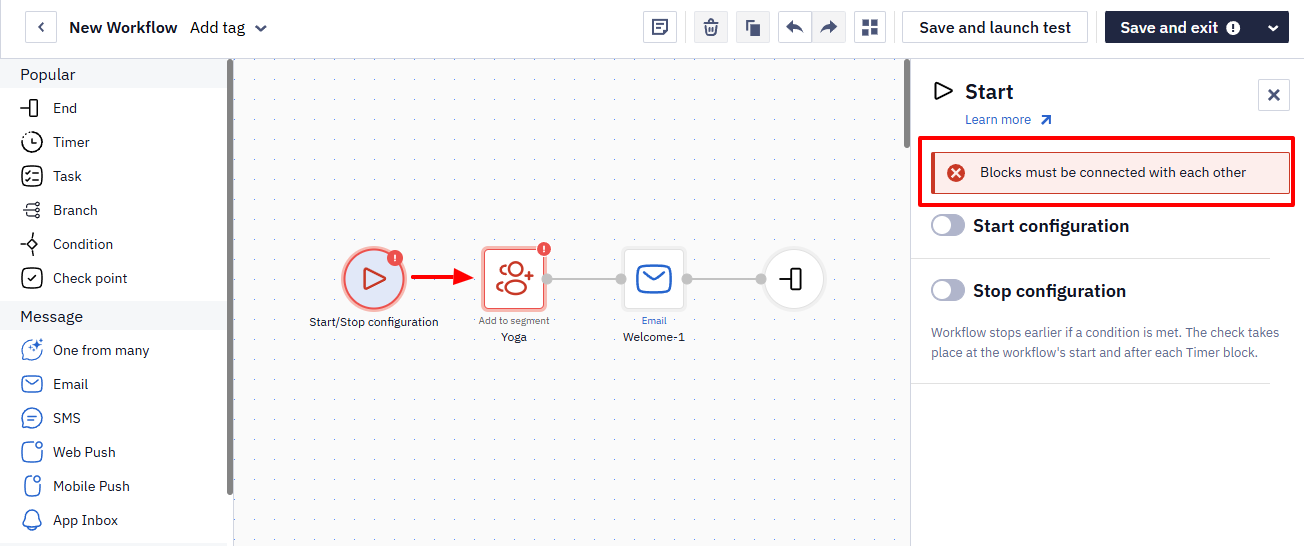
- Check the correctness of the workflow structure. All blocks should be connected to each other. For example, a common mistake is to connect two blocks through another one.
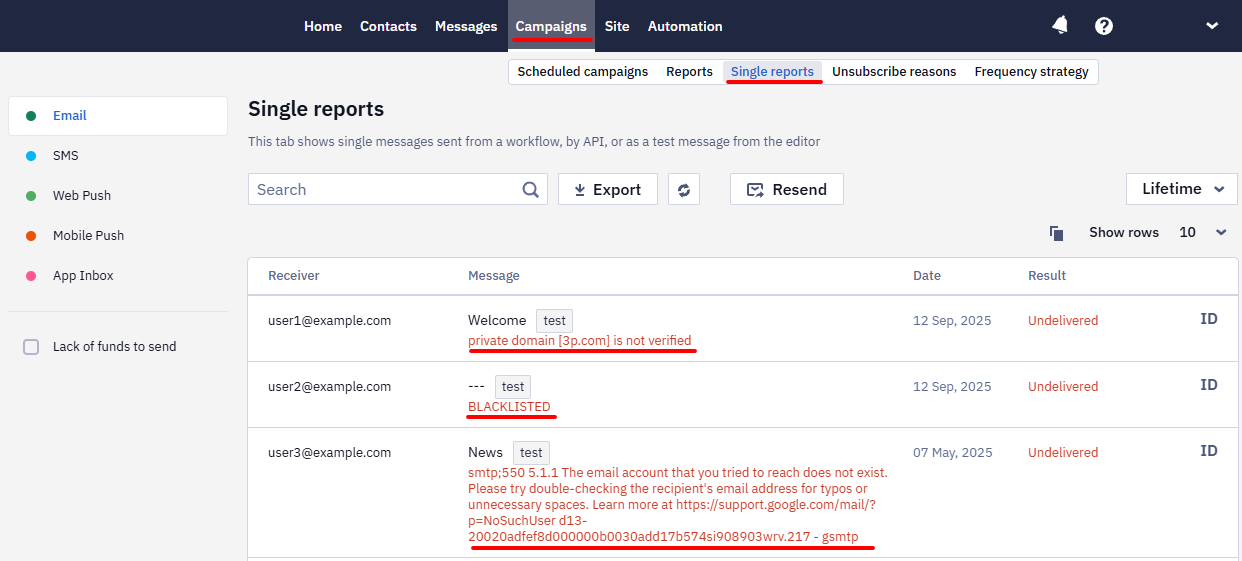
- If all settings are correct, but some users didn’t receive the messages from the workflow, inspect the contact information of these users. Maybe they are unsubscribed, blacklisted, over your sending limit, and so on. You can see this information in the Campaigns → Single reports section. Enter the contact ID in the search bar and see the details of delivery errors. Also, you can see contact information in Contacts → All contacts section.
Delay Before a Triggered Email Arrives
A noticeable delay between the trigger event and the email arriving doesn’t always come from the recipient’s mail server. It can also originate inside the platform, while the message is queued for sending.
NoteThis is the explanation of a single incident, not a service level guarantee. Reteno doesn’t publish p50/p95 figures for event ingestion, internal queueing or acceptance by the recipient’s mail server.
To have a specific delay investigated, send our support team the delivered .eml file with its full Received headers. You can also check the status of an instant message through the API.
These are the basic settings that you should check if you encounter problems. If, after review, you still have troubles, please contact our support team.
Updated 2 days ago