
Integrating AppsFlyer Deep Linking with Reteno
Use this integration when you want AppsFlyer OneLink routing (App / Store / Web), and you also want to keep Reteno click tracking enabled on links you send in Reteno messages across channels.
AppsFlyer supports this via ESP integration, which applies OneLink routing to links wrapped in an ESP's click-tracking domain (CTD). The integration involves three steps: setting up Reteno click tracking, configuring AppsFlyer ESP integration, and switching DNS routing.
Prerequisites
Make sure you have:
- Asset: a branded subdomain for the CTD (e.g.,
click.yourdomain.com) - AppsFlyer access: permission to manage OneLink templates and Engage → ESP integration
- AppsFlyer plan: ESP integration is a Premium feature
- AppsFlyer SDK: must be integrated in your mobile app for OneLink deep linking to actually work
- DNS access: ability to create/update a CNAME record for the CTD
How Integration Works
User clicks a link in a Reteno message
→ Your CTD: click.yourdomain.com
→ AppsFlyer-generated ESPClicks domain (after the DNS switch)
→ AppsFlyer applies ESP integration logic (OneLink routing + measurement)
→ AppsFlyer redirects to the Reteno endpoint (ssl.esclick.me) as required by the integration flow
→ Destination: App (deep link) / Store / Web
flowchart LR
  A[User clicks a link in a\nReteno message] --> B[Your click-tracking domain\nCTD: click.yourdomain.com]
  B --> C[AppsFlyer-generated\nESPClicks domain\nCNAME target after switch]
  C --> D[Reteno endpoint\nssl.esclick.me]
  D --> E{OneLink outcome}
  E -- App installed --> F[fa:fa-mobile Open app\ndeep link]
  E -- App not installed --> G[fa:fa-shopping-bag App Store /\nGoogle Play]
  E -- Browser-only path --> H[fa:fa-globe Open in browser]
Note: ssl.esclick.me is the Reteno endpoint used for setup/validation and as the ESP integration endpoint in AppsFlyer. Once the DNS switch is made, your CTD no longer points to ssl.esclick.me directly — it points to AppsFlyer (ESPClicks), which then forwards traffic to ssl.esclick.me as part of the integration flow.
In this integration flow, AppsFlyer applies OneLink routing to links passing through your CTD, so you can continue using regular destination URLs in Reteno messages. Test this behavior with your configured OneLink template before rollout.
This is the one case in which the CTD may point somewhere other than the host shown in your account settings. Any other target takes the click away from us, and campaign reports show none.
OneLink is also what carries a link through an app installation: Reteno has no deferred deep linking of its own, so a link that has to open the right screen after the user installs the app from the store goes through OneLink.
DNS Setup (Stage A)
Before AppsFlyer validation, your CTD must point to Reteno:
click.yourdomain.com→ CNAME →ssl.esclick.me
DNS propagation note: After you create or change the CNAME (Stage A or Stage B), allow time for DNS propagation before validating or testing. Propagation time depends on your DNS provider and TTL settings — it’s often updated within minutes to a few hours, but can take up to 24–48 hours in some cases. If validation fails right after a change, wait and retry.
Tip: You can check whether the change has propagated by querying the CNAME record (for example, via a DNS lookup tool or dig/nslookup) and confirming it resolves to the expected target for the current stage.
Reteno Setup
In Reteno, your goal is to enable tracked links using a CTD. This is the domain that will appear in your message URLs when link tracking is enabled.
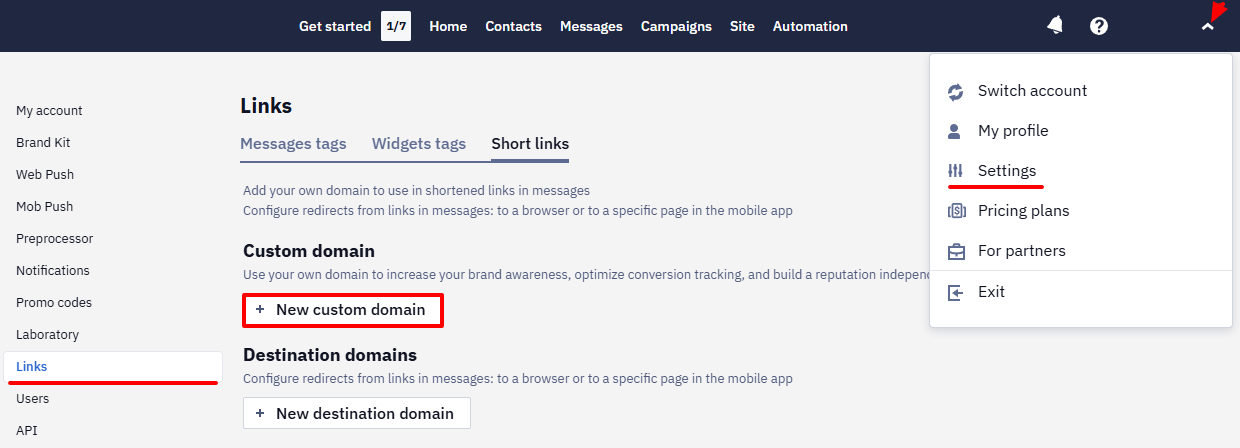
For the full Reteno procedure, follow the Short Links Settings guide.
Browser-only links
Some URLs should always open in a browser (the classic example is unsubscribe). In Reteno's Short Links settings, add a Paths rule for each URL that must stay web-only — for example, a rule matching /unsubscribe* — and configure it to open in the browser. See Defining paths to open links in a browser/app for details.
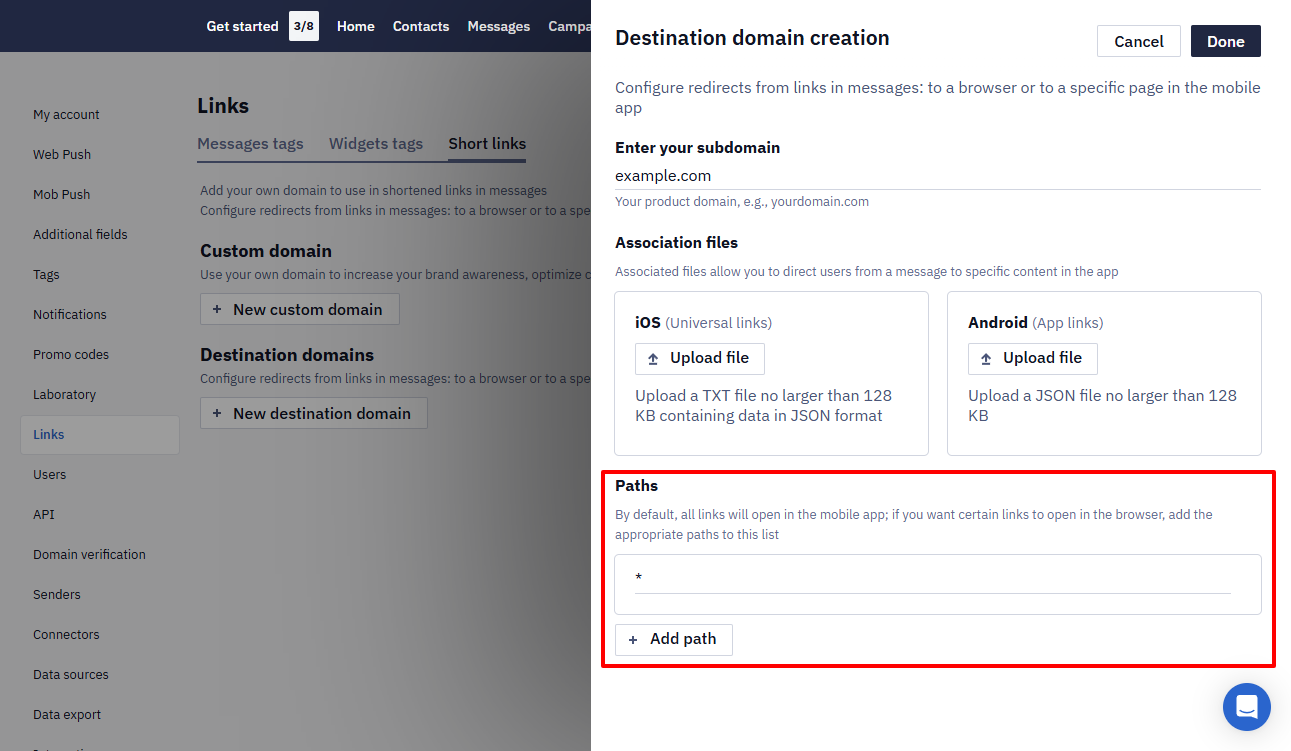
Complete and confirm this setup before moving to the AppsFlyer Setup section.
AppsFlyer Setup
Once Reteno click tracking is in place, configure AppsFlyer so it can apply OneLink behavior to clicks coming from your tracked links.
Recommended: Create a new CTD for this integration. Reusing an existing CTD can affect traffic routing for active campaigns.
In AppsFlyer, this is done in one connected flow:
-
Select or create a OneLink template (with Universal Links/App Links configured under When app is installed).
-
Set up ESP integration and choose Reteno as your ESP.
-
Enter:
- CTD: your branded domain (e.g.,
click.yourdomain.com) - ESP endpoint: use
ssl.esclick.meduring initial validation
Note: At this stage, links may appear as HTTP rather than HTTPS — this is expected and will be resolved once the ESP integration is complete.
- CTD: your branded domain (e.g.,
-
Click Validate connection.
-
Once validation is confirmed, copy the Route link traffic to AppsFlyer DNS instructions (you'll use them in Stage B) and proceed to Stage B DNS Setup.
App configuration (developer task): For deep linking to work, your mobile app must be configured to resolve wrapped links. Pass your CTD to the SDK API resolveDeepLinkURLs before SDK initialization, then handle deep link data via the Unified DeepLinking API. See AppsFlyer's developer documentation for implementation details.
For the exact field names and screenshots, use AppsFlyer's Set up your ESP integration with AppsFlyer guide as the source of truth.
DNS Setup (Stage B)
After you complete the ESP integration in AppsFlyer, AppsFlyer provides an AppsFlyer-generated ESPClicks domain and instructs you to update your CNAME so that click traffic is routed to AppsFlyer first.
click.yourdomain.com→ CNAME →<AppsFlyer ESPClicks domain from the AppsFlyer UI>
Allow time for DNS propagation before testing.
Test Checklist
After the DNS switch (Stage B), test with real messages sent from Reteno:
- App installed: the link opens the app and routes to the intended content (OneLink deep link behavior).
- App not installed: the link follows your OneLink fallback (store or web, depending on your OneLink settings).
- Browser-only link (unsubscribe): opens in a browser and is not intercepted as an app link.
- Reteno tracking: confirm the click is tracked in Reteno message analytics.
Learn how to test messages in Reteno:
Updated 4 days ago