
Reminder about Promo Code from Gamified Subscription Form
Gamified widgets attract more users with gameplay and chances to win. Set up automatic prize reminders to increase promo code usage after a giveaway.
Below are the reminder settings for new subscribers in the Subscription form.
Read about setting up reminders for existing subscribers at the link.
Features of Prize Reminders from Subscription Forms
The Subscription form is a widget that collects contact information from site visitors. To receive the welcome series, the user must confirm their email address.
You can then personalize the welcome messages based on the prize the user won:
- Substitute a specific code and its value into the message using dynamic variables.
- Use the Branch block if different contacts and prizes require different content or reminder frequencies.
NoteYou can use any channel for reminders. In this article, we will look at the settings for the Email.
Substituting Promo Codes with Dynamic Variables
When to choose this approach:
- You plan the same logic for a series of reminders for all recipients.
- Only the promo code and discount percentage will differ in the messages, and all other content will be the same.
Setup sequence:
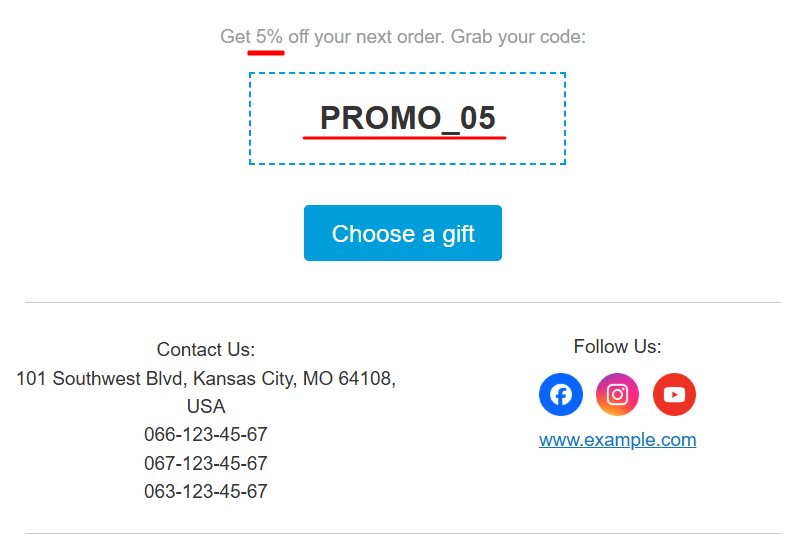
- Prepare a universal template or series of messages in advance: write dynamic variables in the necessary places that will substitute the values of standard parameters from the event after filling out the form (the event format is described in step 5 of the settings):
$!promoCode%— for the"promoCode"parameter,$!promoCodeLabel— for the"promoCodeLabel"parameter.
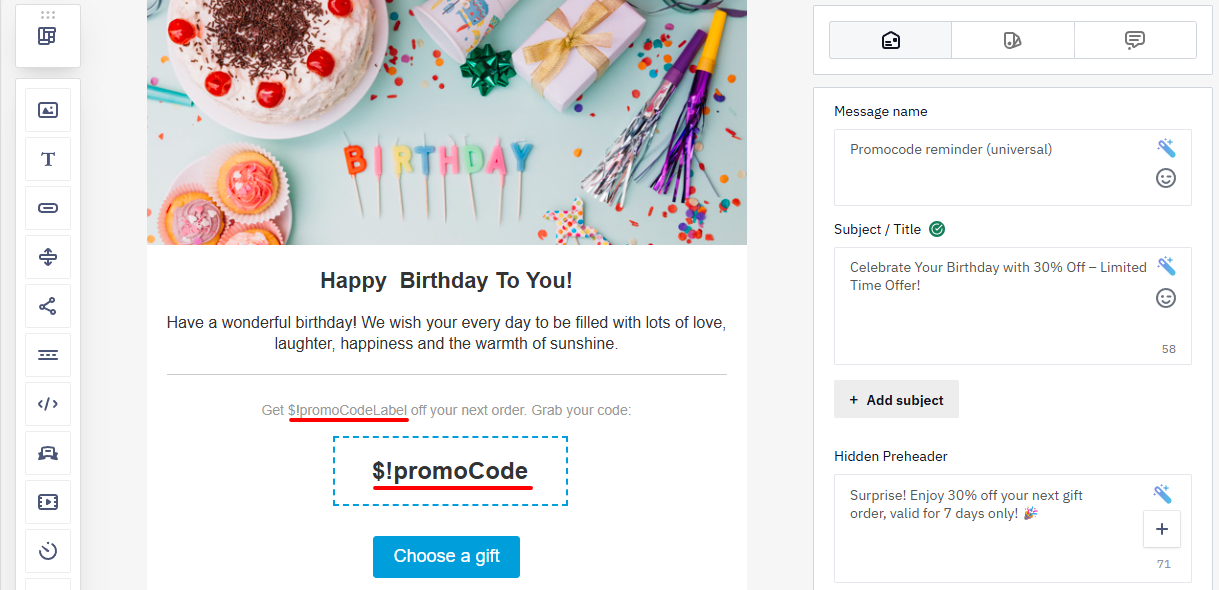
If you send a single message, specify it in the actions after subscription. If a series, add it to the welcome workflow.
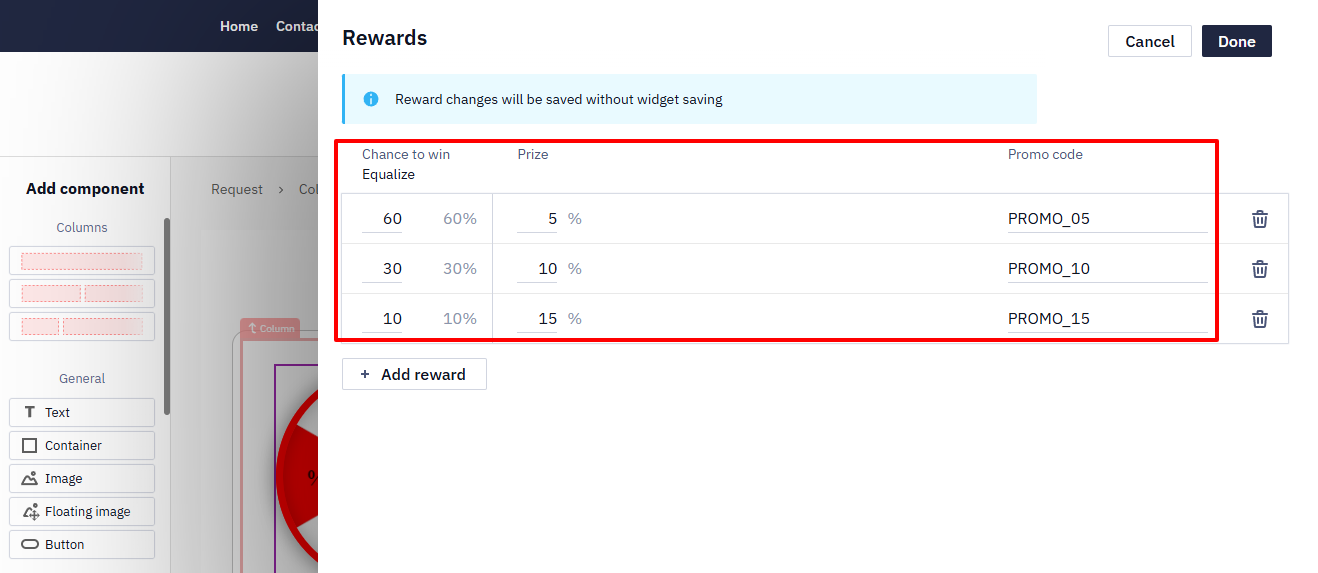
- Create a Subscription form with prizes.
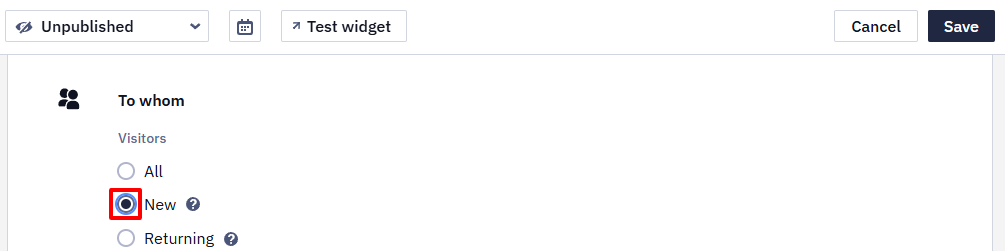
- In the To whom section of the display rules, select New.
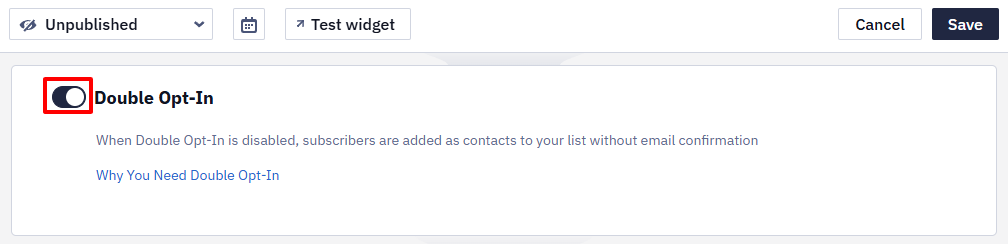
- Activate the subscription confirmation (Double Opt-in, DOI), which is mandatory for new subscribers (details). You can leave the email set in the form settings by default and replace it later if necessary. Read about customizing the system DOI workflow at the link.
- Turn on the Onboarding option and select:
- Send welcome email — choose the email with dynamic variables you created if you only need to send one reminder about the promo code.
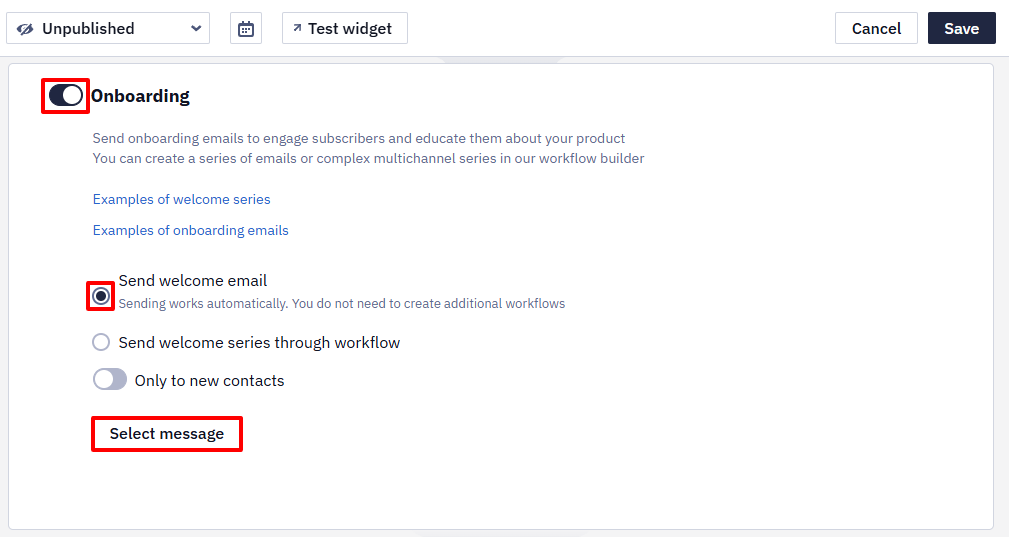
- Send welcome series through workflow — select or create an event type generated after the subscription is confirmed; then, build a welcome workflow and specify this event in the launch configuration.
After filling out the form, Reteno will receive an event containing parameters with the promo code’s value ("promoCode") and label ("promoCodeLabel"), which the user sees in the gamified component. Example:
{
  "params": [
    {
      "name": "email",
      "value": "[email protected]"
    },
    {
      "name": "contactId",
      "value": "2779059128"
    },
    {
      "name": "promoCode",
      "value": "PROMO_05"
    },
    {
      "name": "promoCodeLabel",
      "value": "5"
    }
  ]
}
Note
- The event’s values
"promoCode"and"promoCodeLabel"are set in the form settings.- You can save the prize data to the contact profile. Learn more about storing data from gamified widgets >
Workflow Branching Depending on Promo Codes Received
When to choose this approach:
- Depending on the prize, you need different messages: a different tone, arguments, and banners/designs.
- The series' logic is different: you want a longer chain or a different interval between messages for a bigger discount.
Setup sequence:
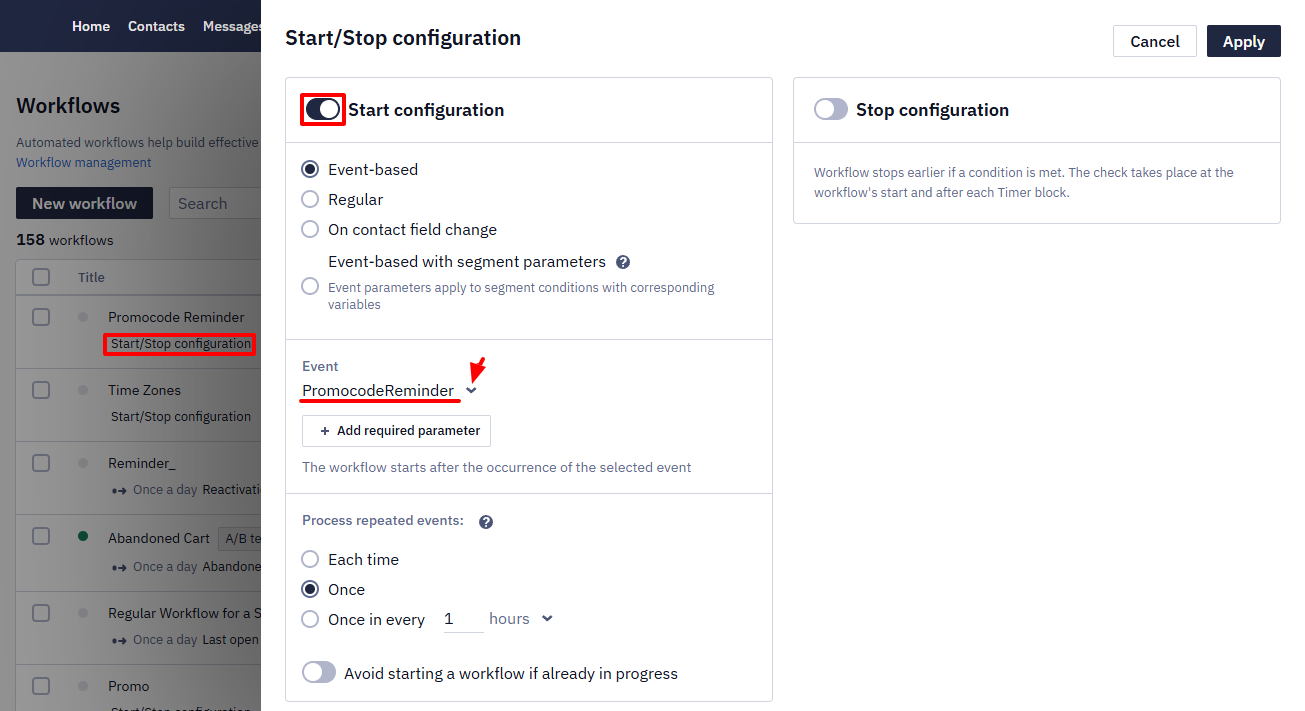
- Create a Subscription form with rewards for the new audience as described above. In the form settings, select Send welcome series through workflow and an event that will confirm the contact.
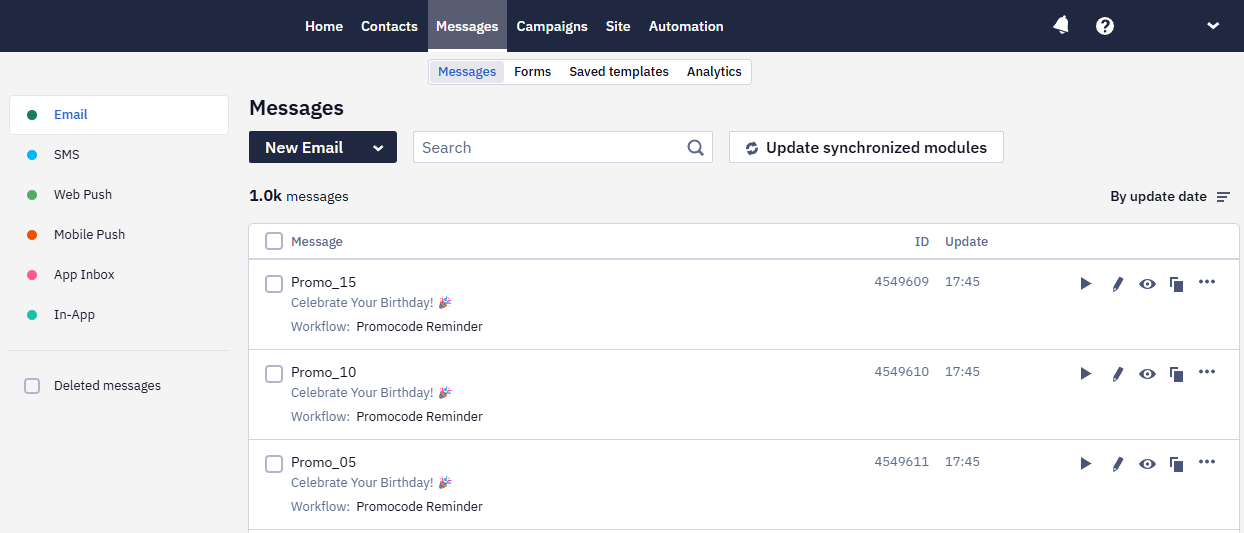
- Prepare messages for each prize variant (with different themes, banners, CTAs, and delivery schedules). There is no need to use dynamic variables to substitute promo codes, as the workflow will send the appropriate message based on the prize won.
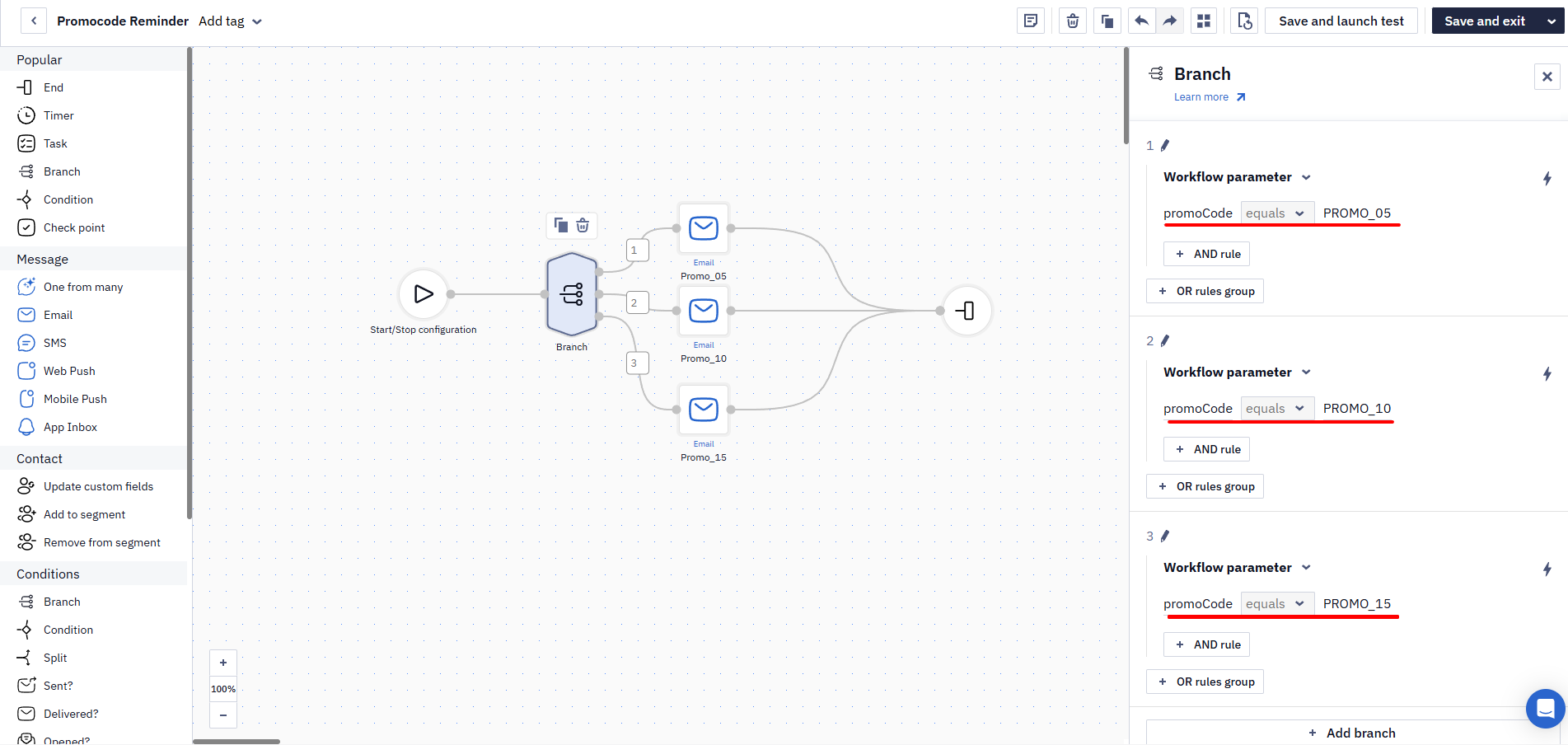
- Create a workflow triggered by an event after the form is filled out.
- Add the Branch block, which validates the
promoCodeand/orpromoCodeLabelevent parameters, and the corresponding message or series for each branch.
- Specify the appropriate event in the workflow launch settings.
Users will receive a message or a chain of reminders depending on the prize received in the request form.
Updated 3 months ago