
Setting Up the Reteno MCP Server in Cursor
Cursor connects directly to your Reteno account through the Reteno MCP (Model Context Protocol) server. Once connected, you can manage email templates, contacts, segments, events, and analytics from Cursor, without opening the Reteno platform.
This guide covers the Cursor editor. To connect from Cursor CLI — or from Claude Code or Codex CLI — see Setting Up the Reteno MCP Server in the Terminal.
A direct connection gives tools without skillsThis setup connects the agent to the Reteno MCP server on its own. Use it for developer tasks — integrating the mobile SDK and checking that registration and push notifications work.
To create and edit segments, emails, and workflows, install the Reteno plugin instead: it carries the skills that guide the agent through those tasks. See Claude Code and Claude Cowork or OpenAI Codex.
For a full list of what the agent can do, see Integrating Reteno with AI Agents. For the server endpoint, authentication, and the full list of tools, see the Reteno MCP Server reference.
Research Preview This integration is available as a research preview. Expect iteration and evolving capabilities.
Requirements
- An active Reteno account
- A current version of Cursor (remote MCP support is built in)
Add the Reteno MCP Server
- In Cursor, open Settings → Tools & MCPs.
- Click Add Custom MCP.
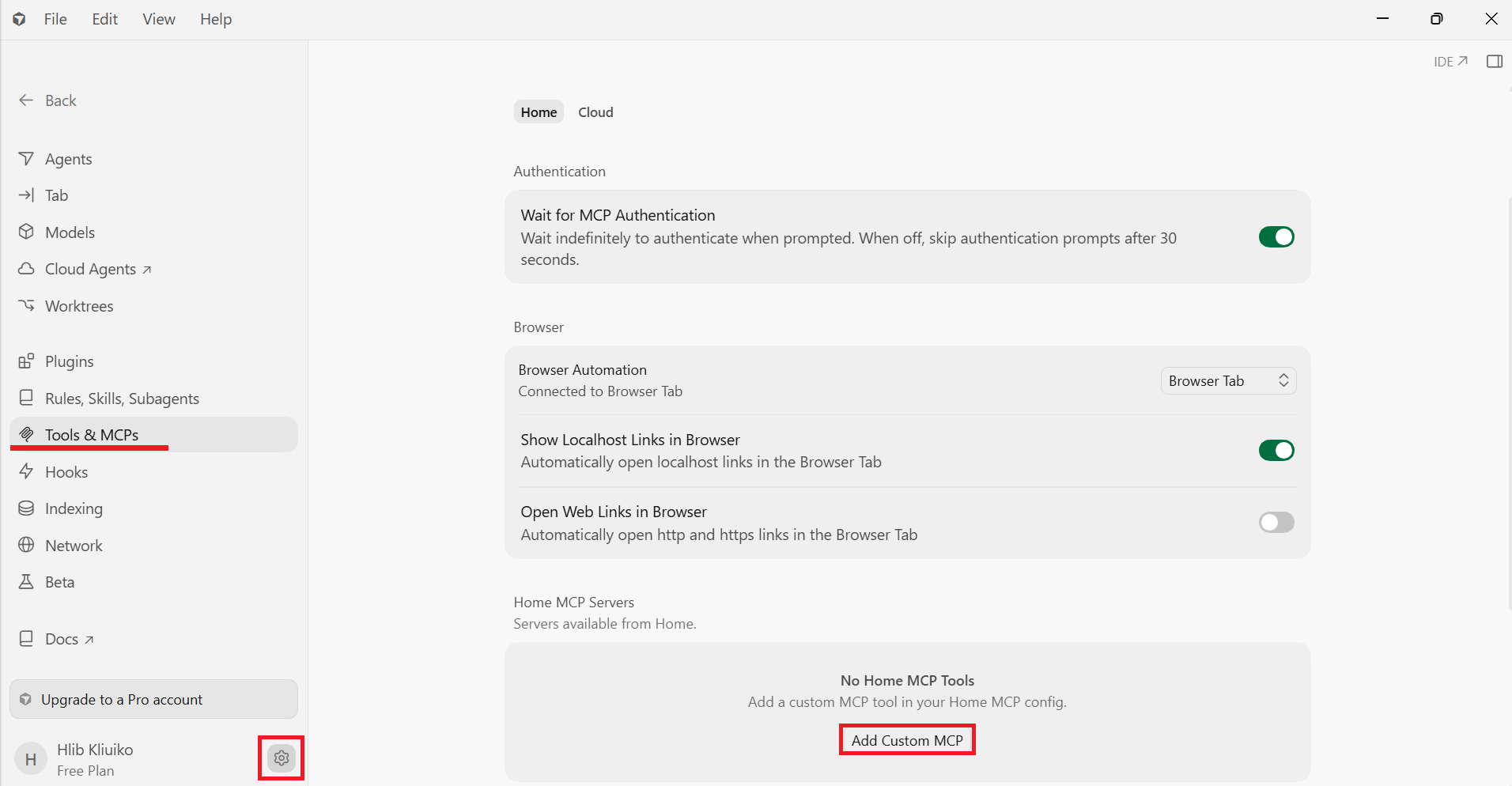
- Cursor opens the
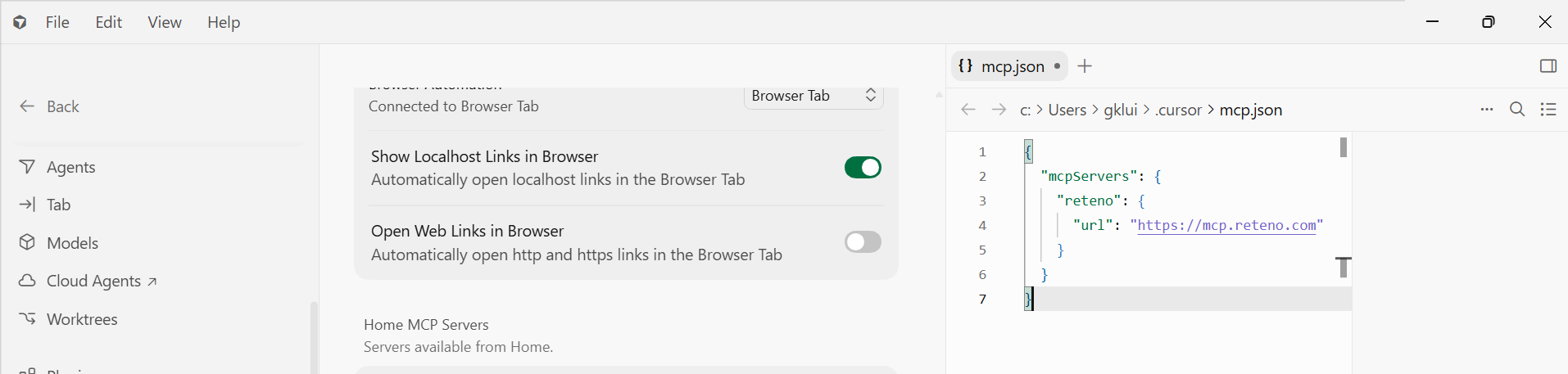
mcp.jsonconfiguration file. Add the Reteno server:
{
  "mcpServers": {
    "reteno": {
      "url": "https://mcp.reteno.com"
    }
  }
}
- Save the file (Ctrl+S, or ⌘S on macOS).
- Restart Cursor.
- After the restart, open Settings → Tools & MCPs again and click Connect next to the Reteno server.
- Sign in with your Reteno account and grant access.
That's it — no extra configuration is needed. The agent acts with your Reteno account's permissions and can read your account data, including contact personal data.
Cursor supports remote MCP servers configured with a url in mcp.json. For more, see Cursor's MCP documentation.
Verify the Connection
Ask Cursor to list what it can do, for example:
List the available Reteno MCP tools.
If the connection works, Cursor returns the Reteno tools grouped by area (contacts, segments, events, templates, analytics, and more). The first time the agent runs a tool, Cursor asks you to approve the tool call.
Troubleshooting
- The server doesn't appear after restarting — check that
mcp.jsonis valid JSON (no trailing commas or missing brackets), then reopen Settings → Tools & MCPs and click Connect. - Sign-in doesn't complete — click Connect again and finish signing in the browser window; make sure pop-ups aren't blocked.
- No tools are listed — confirm the Reteno server shows as connected and enabled, and that your Reteno account has the access rights for the tools you need.
- To see what's happening — open Cursor's MCP logs (in the Output panel) to view connection and tool-call details.
What to Do Next
- Integrating Reteno with AI Agents — the full list of capabilities and limitations
- Reteno MCP Server — the endpoint, authentication, and available tools
- Setting Up the Reteno MCP Server in the Terminal — connect from Cursor CLI, Claude Code, or Codex CLI
- Reteno Agent in Slack: Use Cases — practical examples of what the agent can do
Updated 20 days ago