
Business Profile Settings
A business profile is a centralized storage for your company’s brand assets in Reteno. It can store logos, fonts, colors, button styles, contact details, links, and Brand voice settings so future messages look consistent.
Business profile assets can be used in the email editor and for AI message generation. If your account has no product feed, Reteno can also generate sample products from your website for creating email content.
The business profile stores your brand assets for reuse in Reteno, but it does not generate a downloadable brand guidelines document (for example, a PDF summarizing your design styles for external designers or agencies to follow). This is not currently available.
What the Business Profile Includes
The business profile includes four groups of settings: General, Business info, Visual identity, and Brand voice.
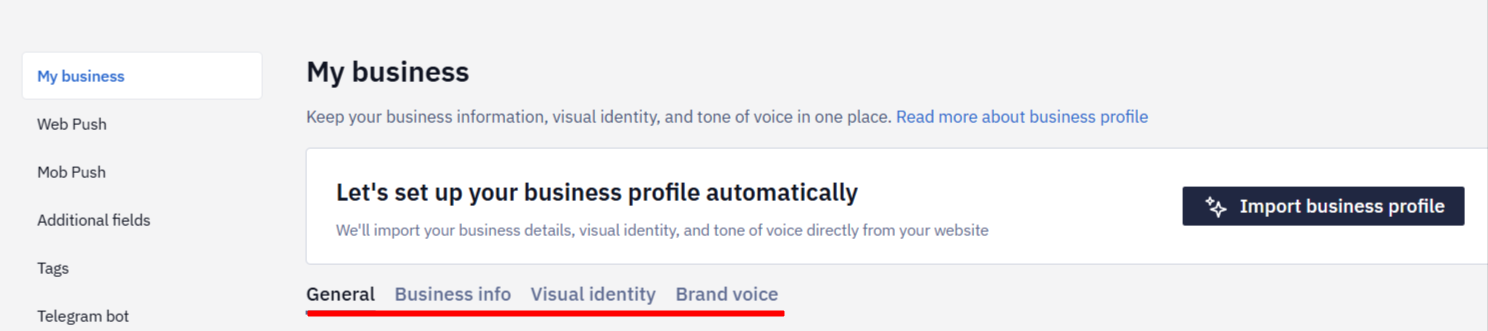
General
- Name — the name of your organization in the system.
- Website address — the page your contacts are redirected to if the system becomes unavailable.
- Time zone — the time zone of the account. Each user can also set a personal one, see User/Account Time Zone Settings.
- Country — the country your business operates in.
- Audience communication language — the default language for multilingual messages.
- Currency symbol and Currency format — the symbol and its position relative to the amount. This is the default format for ecommerce emails; the Price block in the email editor offers additional options.
- Email addresses for notifications — comma-separated addresses that receive notifications about balance and overages.
Business Info
- Menu links — navigation links that take recipients to key pages.
- Contacts — company email addresses, phone numbers, and addresses that can be added to messages.
- Social links — social media profiles for use in messages.
Visual Identity
- Logos — used in message headers, footers, and templates. For best results, use SVG for crisp scaling or PNG with a transparent background. JPG is also supported but may not preserve transparency. The maximum file size is 3 MB.
- Fonts — typography for headings and body text in message content. The agent applies them to headings, body text, and buttons in the emails it creates and edits.
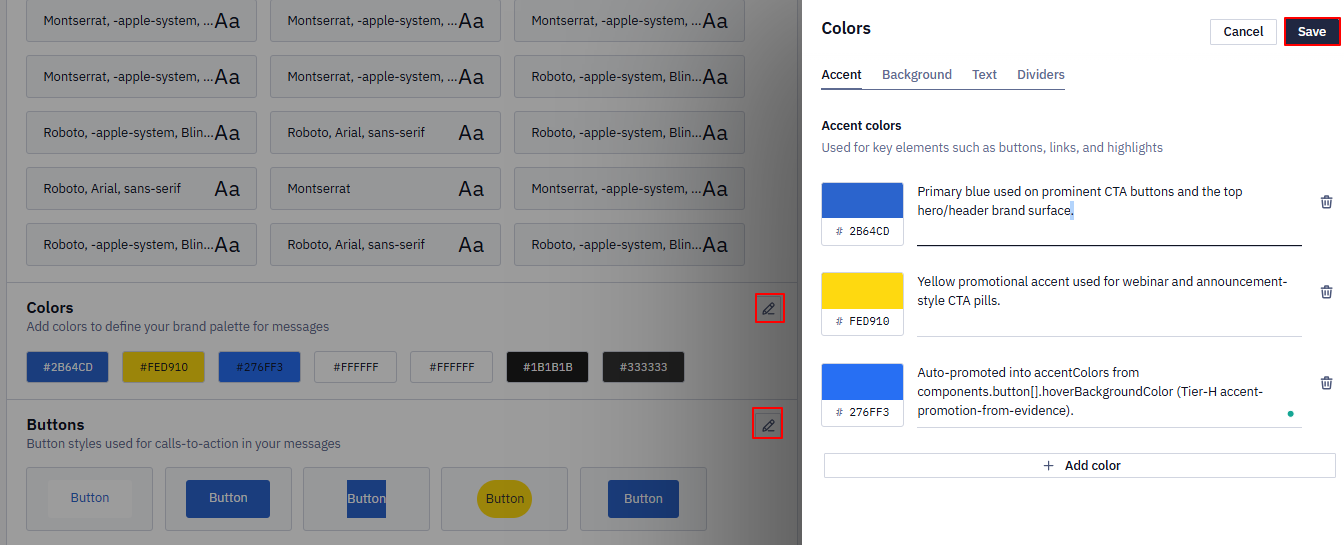
- Colors — the brand palette for messages: accent colors, background colors, text colors, and divider colors.
- Buttons — button styles for calls to action.
When using custom fonts, keep in mind that some email clients may not support them. In such cases, a fallback font will be used. To ensure consistent rendering across all providers, use web-safe fonts.
Brand Voice
Brand voice defines how AI should write texts for your brand.
- Tone of voice — the preferred emotional tone of messages.
- Rules to follow — mandatory requirements for generated text, for example, using only sentence case or adding fallback values for variables.
- Hooks — creative topics or tone variations that AI can randomly use to diversify content.
- Languages — languages AI should support when generating content.
How to Set Up the Business Profile
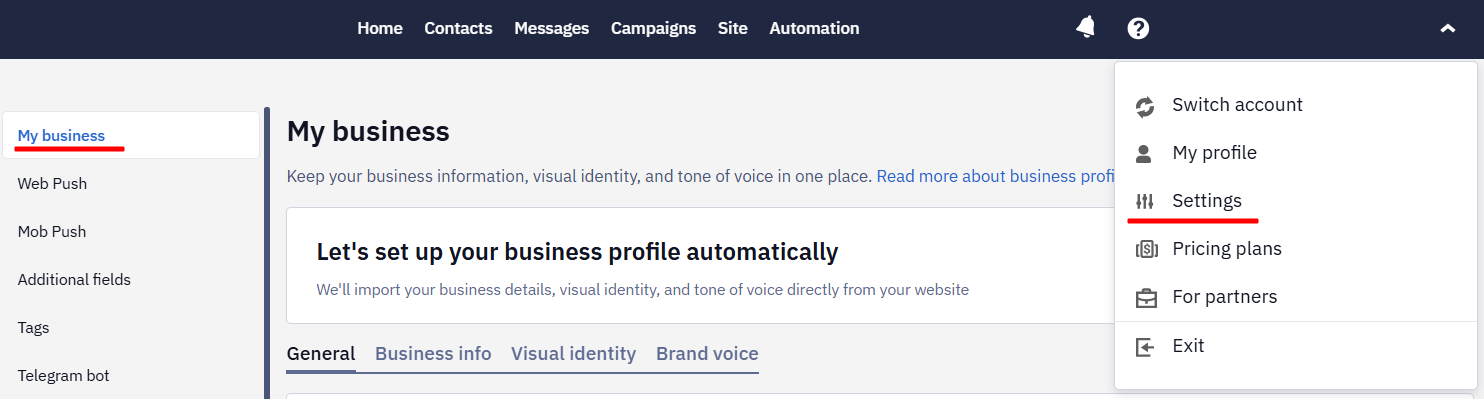
The business profile is configured automatically based on data from your website. You can start the import during account creation or later in Settings → My business.
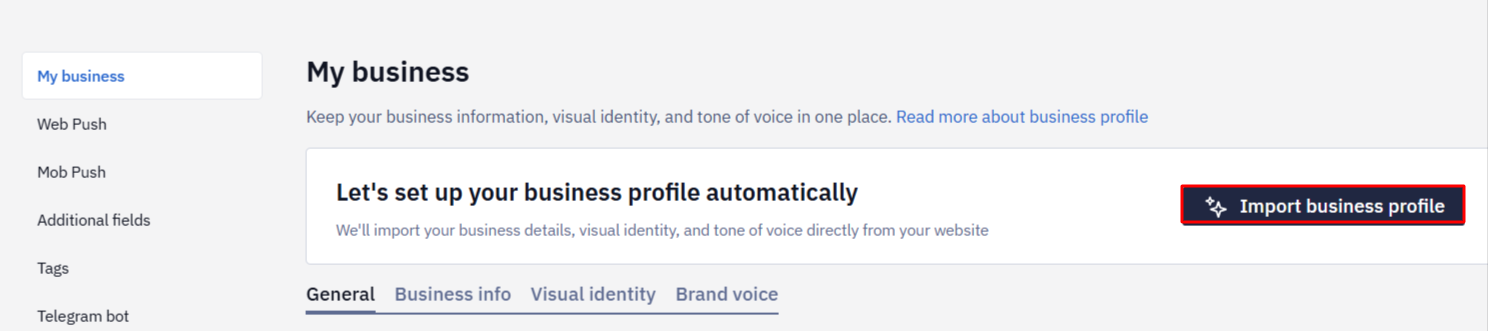
Click Import business profile, enter the website URL, and click Scan website. The system will automatically detect logos, colors, fonts, and other brand elements.
The import may take some time. While the system scans the website, you will see the current process status. If needed, you can stop the process by clicking Stop import.
After the import, you can review the detected assets and edit or add them manually if needed. Click Save to apply manual changes to your business profile.
Updating the Business Profile from the Website
To update the business profile after changes on your website, use the Update from website button.

Updating will overwrite all previously configured settings.
Sample Products for Email Content
If you have scanned your website for the business profile and have no product feed, Reteno generates up to 10 sample products during business profile setup or regeneration. Generated data can include product names, images, prices, and old prices.
The email editor and AI message generation use these products to create content relevant to your catalog. Sample products are intended for creating and previewing email content and do not replace real product data — set up a product feed before sending a campaign.
Business profile support will continue to expand to other communication channels.
Updated 11 days ago