
Display Conditions for Email Template Elements
Display conditions in Reteno let you show different content to different recipients without creating separate emails for each segment. For example, show one set of workout programs to users focused on weight loss and another to those building muscle.
You can use the following as a condition source:
- contact fields — available in any message;
- event parameters — available when the email is sent from a triggered workflow;
- external data sources (BigQuery, others) — available when an external source is connected to the message.
A condition can be applied to a container, structure, or stripe (see email structure for details).
NoteThis is also how to personalize content by authorization status — for example, showing a "Log in" block to anonymous contacts and a different block to authorized ones. Use a contact field or event parameter that reflects the contact's authorization status as the condition source; a proxy domain (used for URL shortening) is unrelated to content personalization. For In-App messages, the equivalent is targeting each message to a separate segment in the To whom section instead of conditioning elements within one message — see In-App Publishing and Triggering Rules.
How to Apply a Condition
- Open the email template and select the structure, stripe, or container you need.
- In the right panel, enable the Display Conditions toggle.
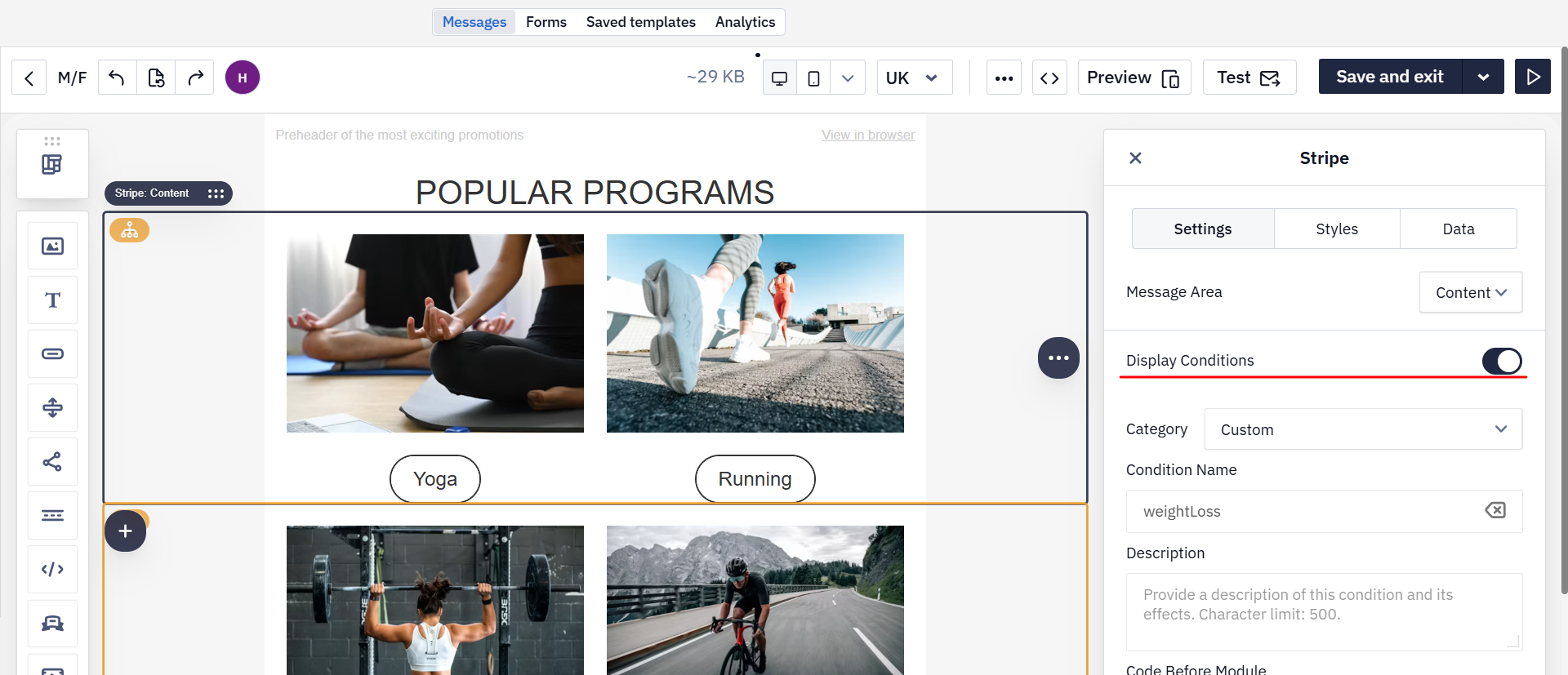
- Fill in the fields:
| Field | Description |
|---|---|
| Condition name | Any name that helps you identify the condition |
| Description | Optional field for notes |
| Code before module | Opening condition tag |
| Code after module | Closing condition tag |
In the examples below, personal is the name of the contact field list that the fitnessGoal field belongs to. The list name and field name in the variable must match the names in the system (case-insensitive).
Example for weight loss:
- Code before module:
<!--#if($personal.fitnessGoal=='weightLoss')--> - Code after module:
<!--#end-->
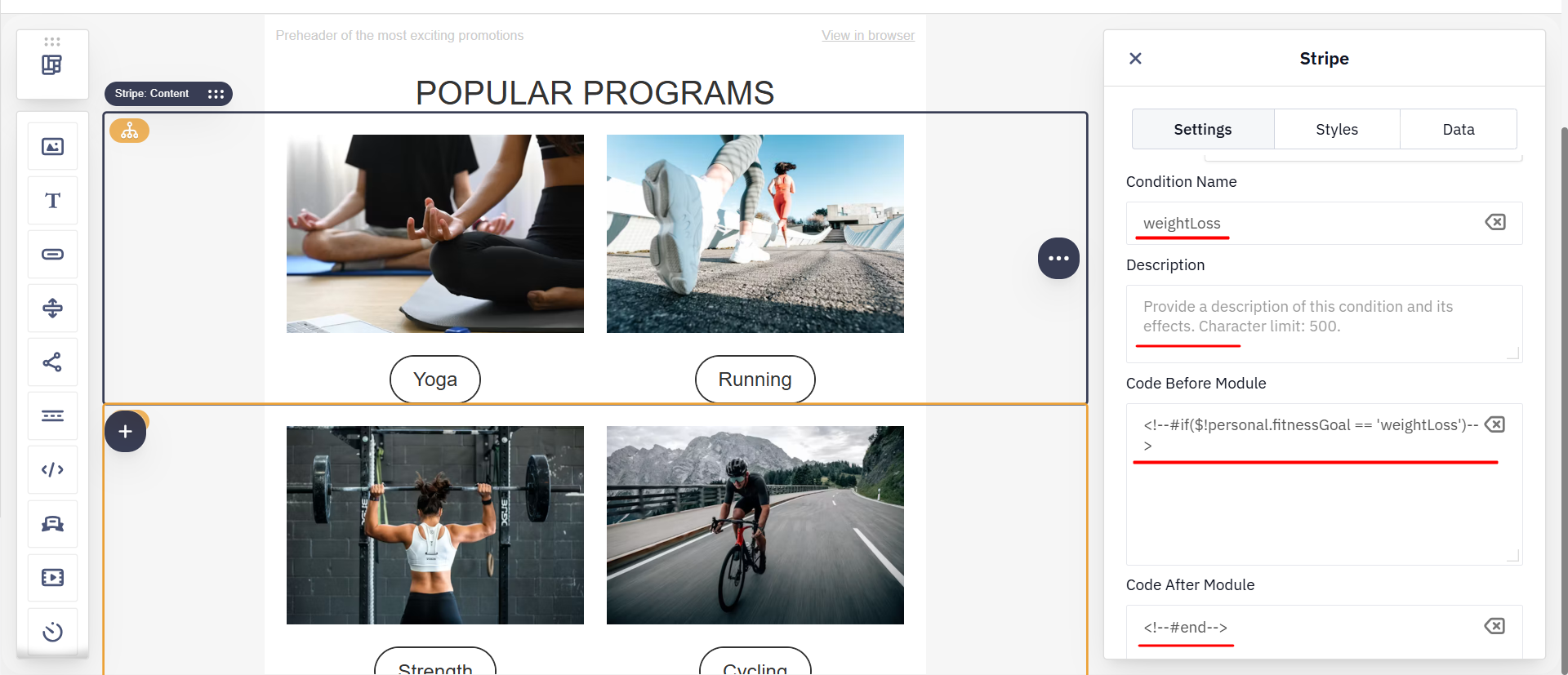
Example for muscle gain:
- Code before module:
<!--#if($personal.fitnessGoal=='muscleGain')--> - Code after module:
<!--#end-->
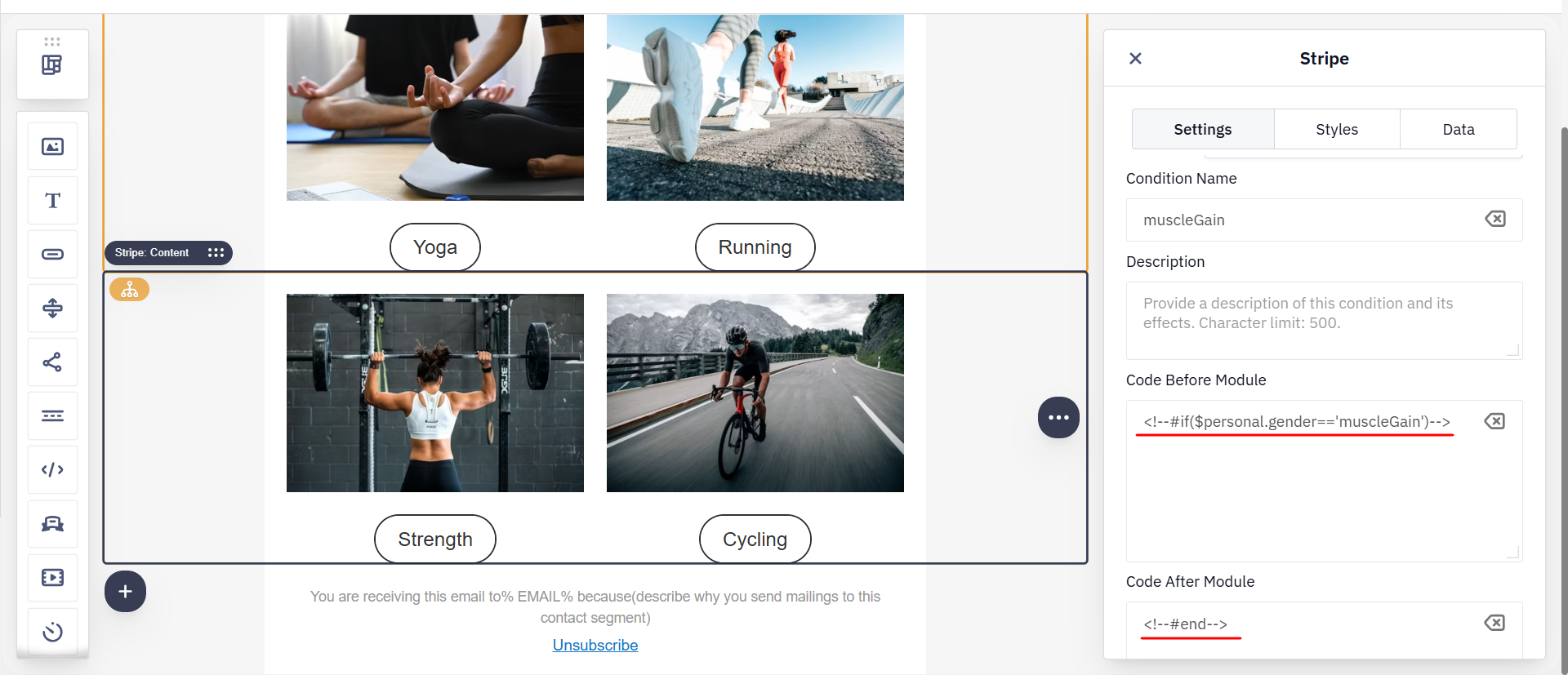
Note
The value in the condition must exactly match the value stored in the data source:
- For contact fields — check the value in the contact profile or in the field settings; field names are case-insensitive (
$personal.fitnessGoal=$personal.FITNESSGOAL);- For event parameters — the value is passed in the event payload; parameter names are case-sensitive (
$subscriptionPlan≠$SubscriptionPlan);- For external sources — the value comes from the connected source; field names are case-sensitive and must exactly match column headers or JSON keys.
An email element with display conditions is marked with an orange icon in the top-left corner.
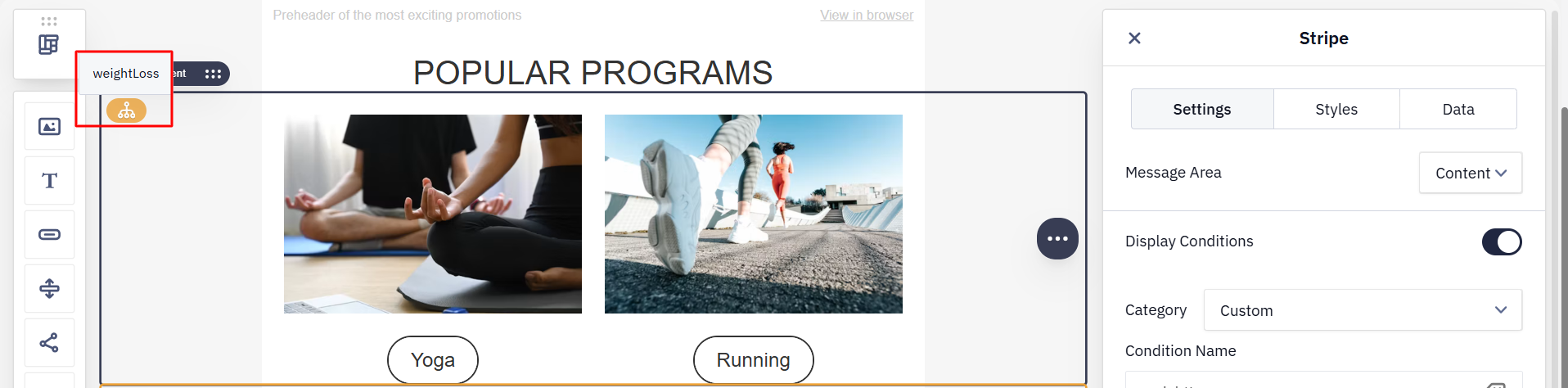
Note: If the condition value is missing or does not match, the block is not displayed. To show alternative content for such contacts, use
<!--#else-->directly in the HTML code of the template. The editor interface supports simple conditions only — for more complex constructions (nested conditions,#else, loops, array checks), work in HTML. See Velocity in Messages for details.
How to Test Conditions Before Sending
The testing method depends on the data source your condition uses.
If the condition uses contact fields — use one of the following options:
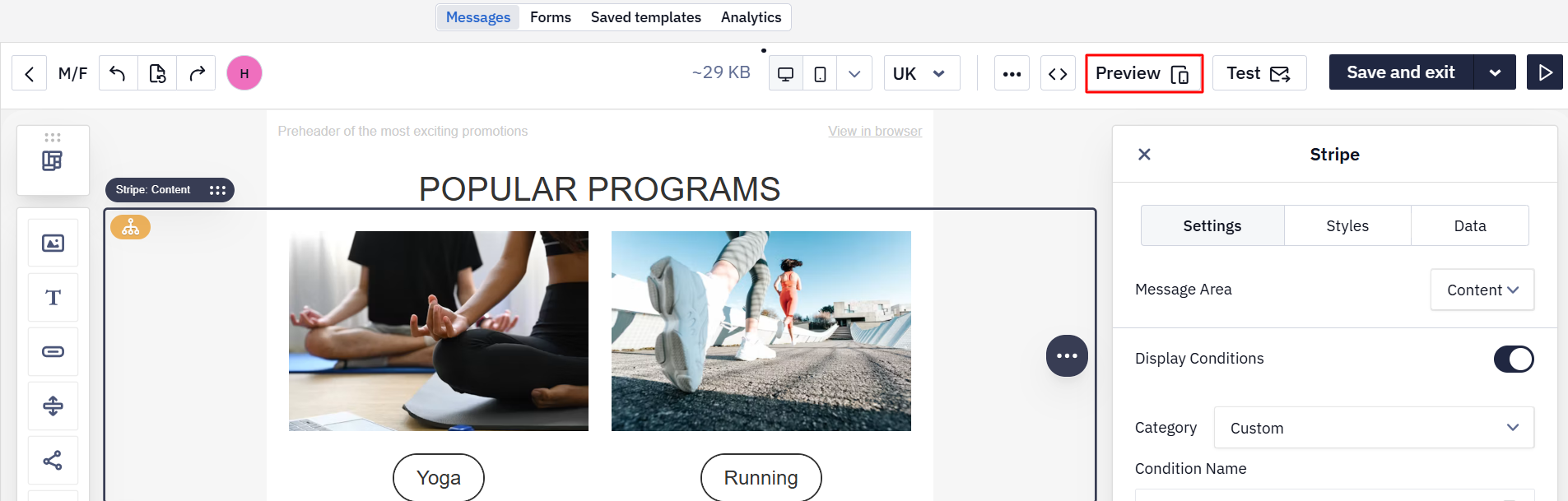
- Preview → Select contact — shows the email as a specific contact will see it. Choose a contact whose profile has the field value used in the condition.
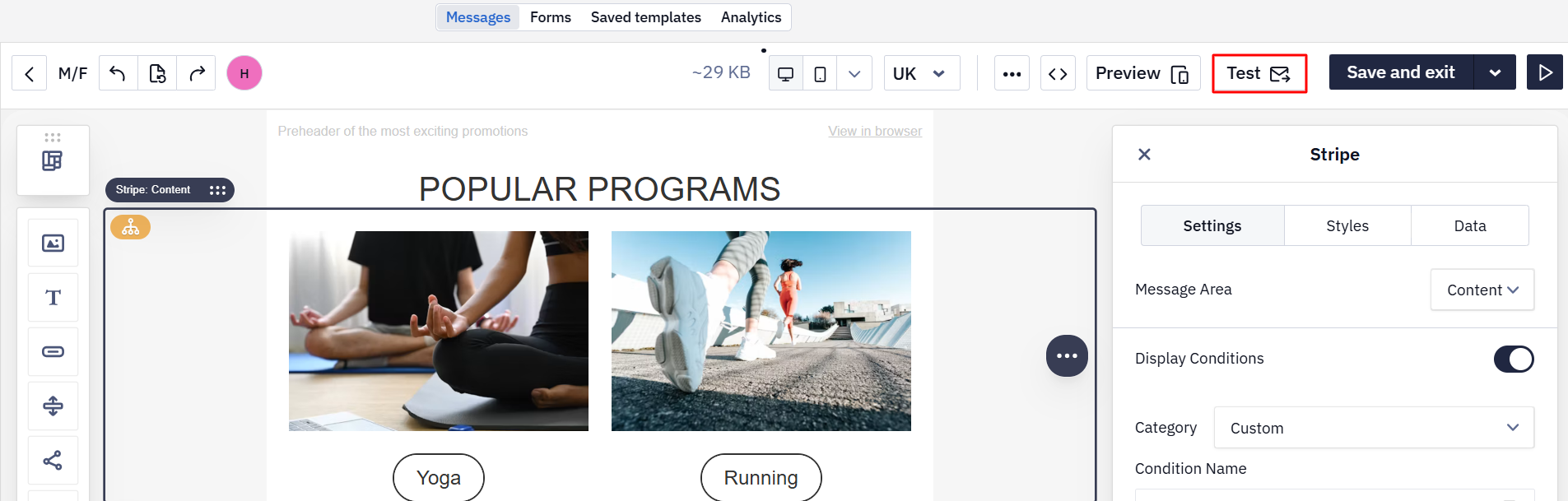
- Test → enter an address → Send. Make sure the contact with that address has the required field value.
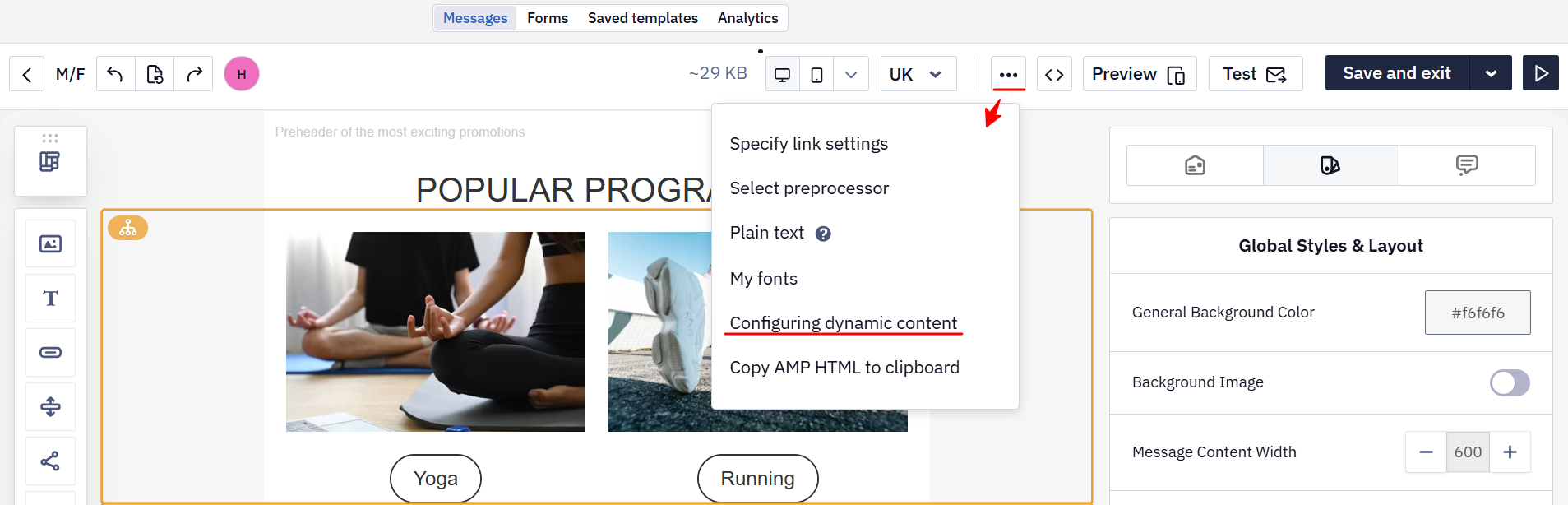
If the condition uses event parameters or external source data — click ··· in the top toolbar, select Configuring dynamic content, paste the parameters in JSON format, and click View message. See Testing and Troubleshooting Velocity for details.
Related Articles
Updated 4 days ago