
What's New for September
In September, we made it easier to engage users inside your app, get up and running faster, and check that your emails work for every reader. You can now:
- tell a whole story in one In-App message;
- integrate the SDK faster with the help of an AI agent;
- check emails for accessibility before sending;
- explain workflows to your team right on the canvas;
- turn off open tracking on your own;
- give every prize in a game its own result page;
- create emails from any example with the Reteno Agent.
You can review the August updates in the previous digest; the latest SDK versions are available in the release notes.
In-App Messages
Multi-Page In-App Messages
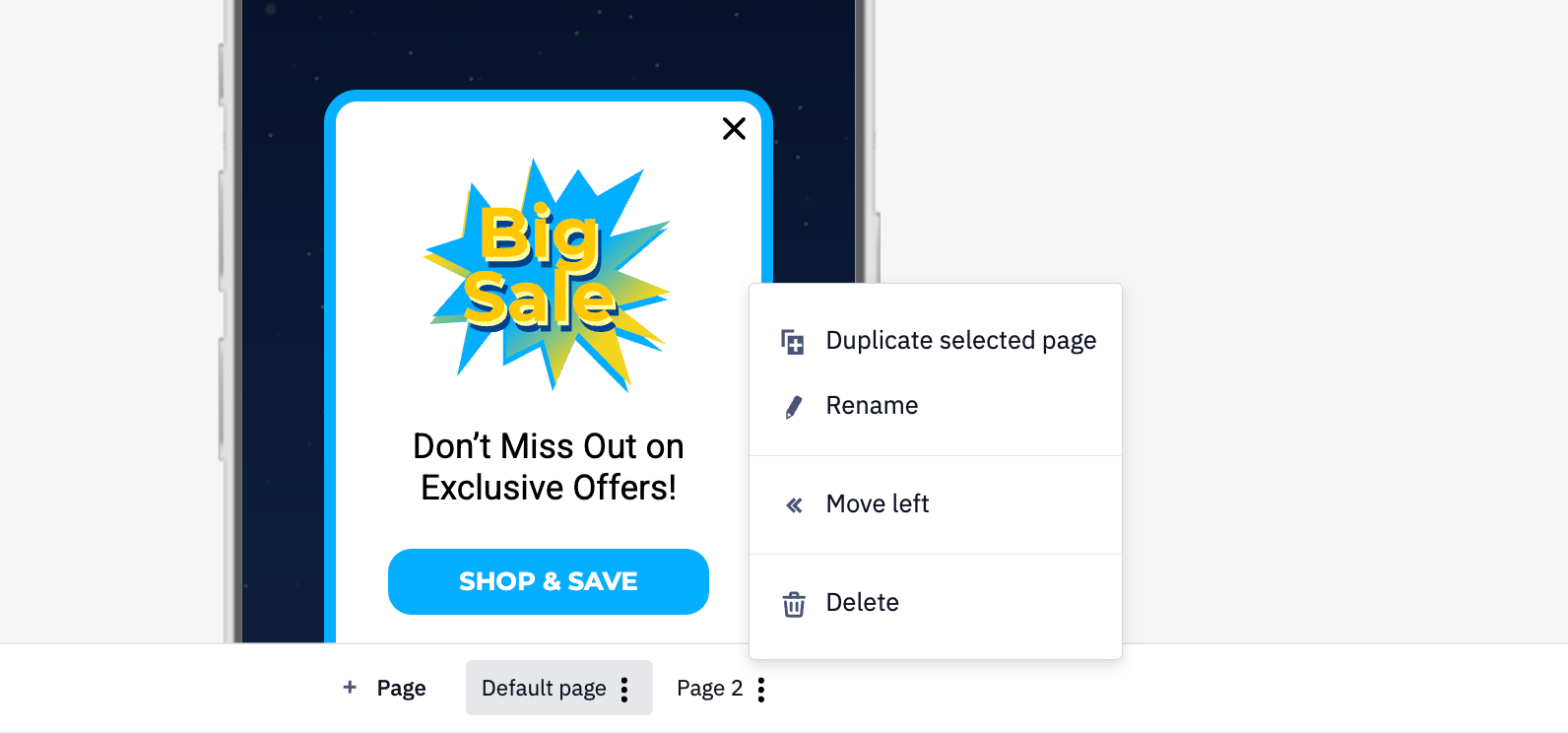
An In-App message appears inside your app while the user is in it. One In-App message can now contain up to 20 pages, so a multi-step onboarding, a short survey, or a plan comparison fits into a single message.
Click + Page to duplicate the current page right after itself, and use the page menu to rename, move, or delete pages. Set up navigation in the Action on click settings of a button, an image, or the whole page: select Next page or Previous page.
See Creating an In-App Message.
Countdown Timer and Social Icons
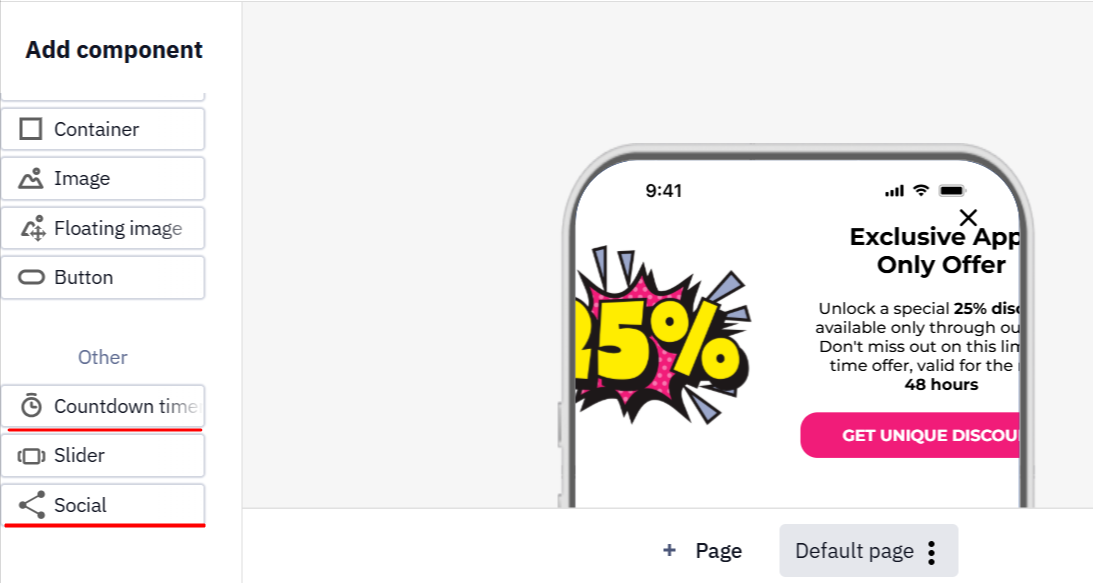
Two new In-App components replace image workarounds:
- Countdown timer shows how much time is left until an offer ends. The Time settings window with the format and end date opens as soon as you add it.
- Social adds a row of icons linking to your pages, with configurable platforms and icon size.
See Creating an In-App Message.
SDK
AI-Assisted SDK Integration
Developers can now hand SDK integration to a coding agent such as Claude Code, Cursor, or Codex. Copy the prompt from the integration page, and the agent reads a runbook that walks it through inspecting the project, integrating the SDK, and verifying contact registration and push delivery through the Reteno MCP before reporting the task as done. Runbooks cover iOS, Android, React Native, Flutter, Expo, Cordova, and Ionic; Unity isn't covered yet.
See AI-Assisted SDK Integration.
Email Editor
Email Accessibility Checker
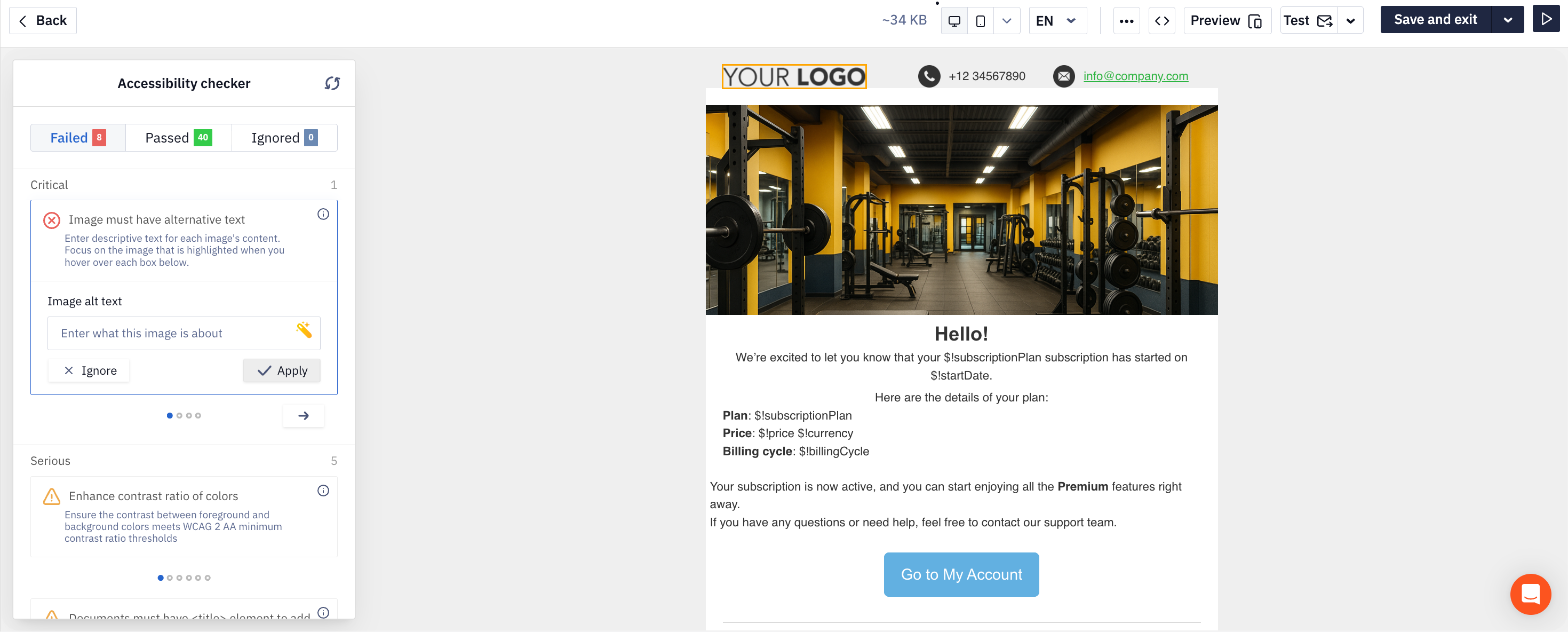
Accessibility is how easily people with visual impairments, color blindness, or cognitive differences can "read" an email with specialized software. For example, it gets harder when an image has no text description or a button just says "Here" with no specifics.
You can now find such weak spots before sending and fix them. Open the email in the editor or on the preview screen, click the arrow next to the Test button, and select Run accessibility test. Fix each issue manually, apply the suggested fix, or ignore it; for image alt text, AI can generate a description.
See Accessibility Checker in the Email Editor.
Turn Off Open Tracking in Settings
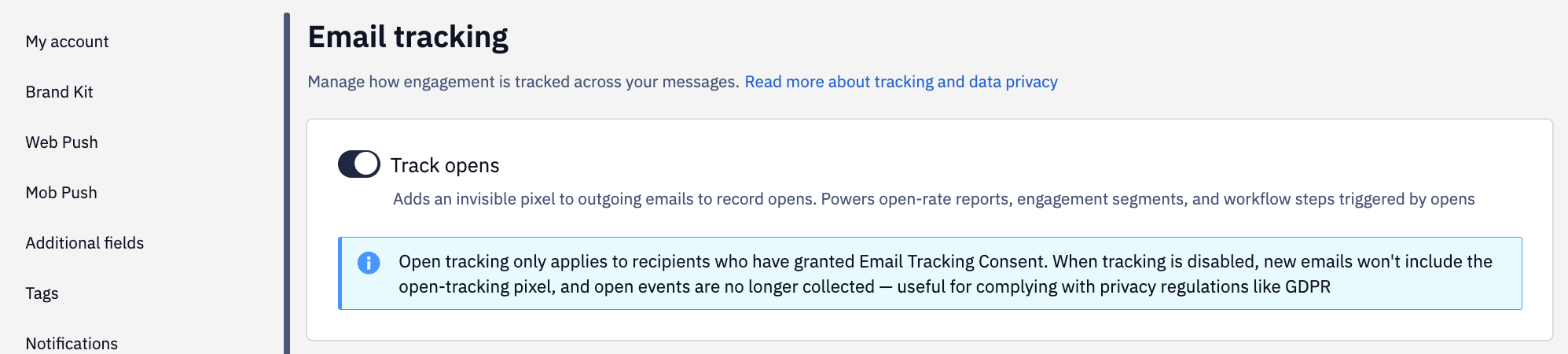
Reteno counts email opens with a hidden tracking pixel. Some companies can't use it because of their privacy policy or GDPR requirements. In Settings → Email tracking, you can control this pixel yourself: turn off the Track opens toggle, and the pixel will no longer be added to emails, and opens, along with the metrics based on them, won't be counted.
Protection Against Accidental Unsubscribes by Bots
Gmail, Outlook, and other mailbox providers show an unsubscribe button next to the sender's address. It relies on the List-Unsubscribe header that Reteno adds to every email and appears only in emails that pass domain authentication. Some anti-spam bots visit every header link (a GET request), which used to unsubscribe contacts who never clicked anything. Opening such a link now shows a confirmation page, and the contact is unsubscribed only after clicking its button. One-click unsubscribe from the mail client (a POST request) works as before.
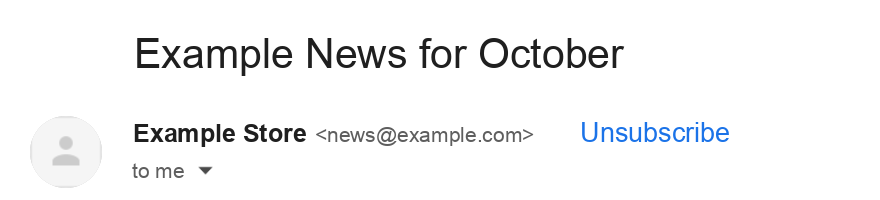
See Unsubscribe Forms.
Quick Selection of Test Recipients
The first test-sending screen shows up to 10 addresses you test with most often, each added with one click.
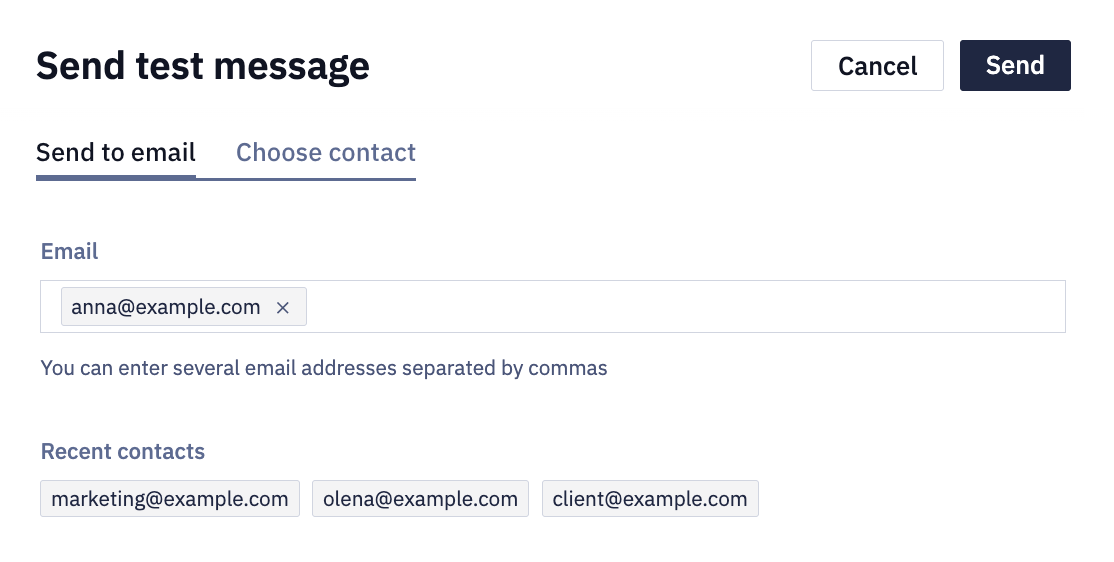
See Creating an Email.
Clearer Link Settings
The link settings panel for a message has been regrouped: the Track URL's switch turns on click tracking for this message, and next to it you configure UTM tags, Custom tags for another analytics system, and Use for all language versions.
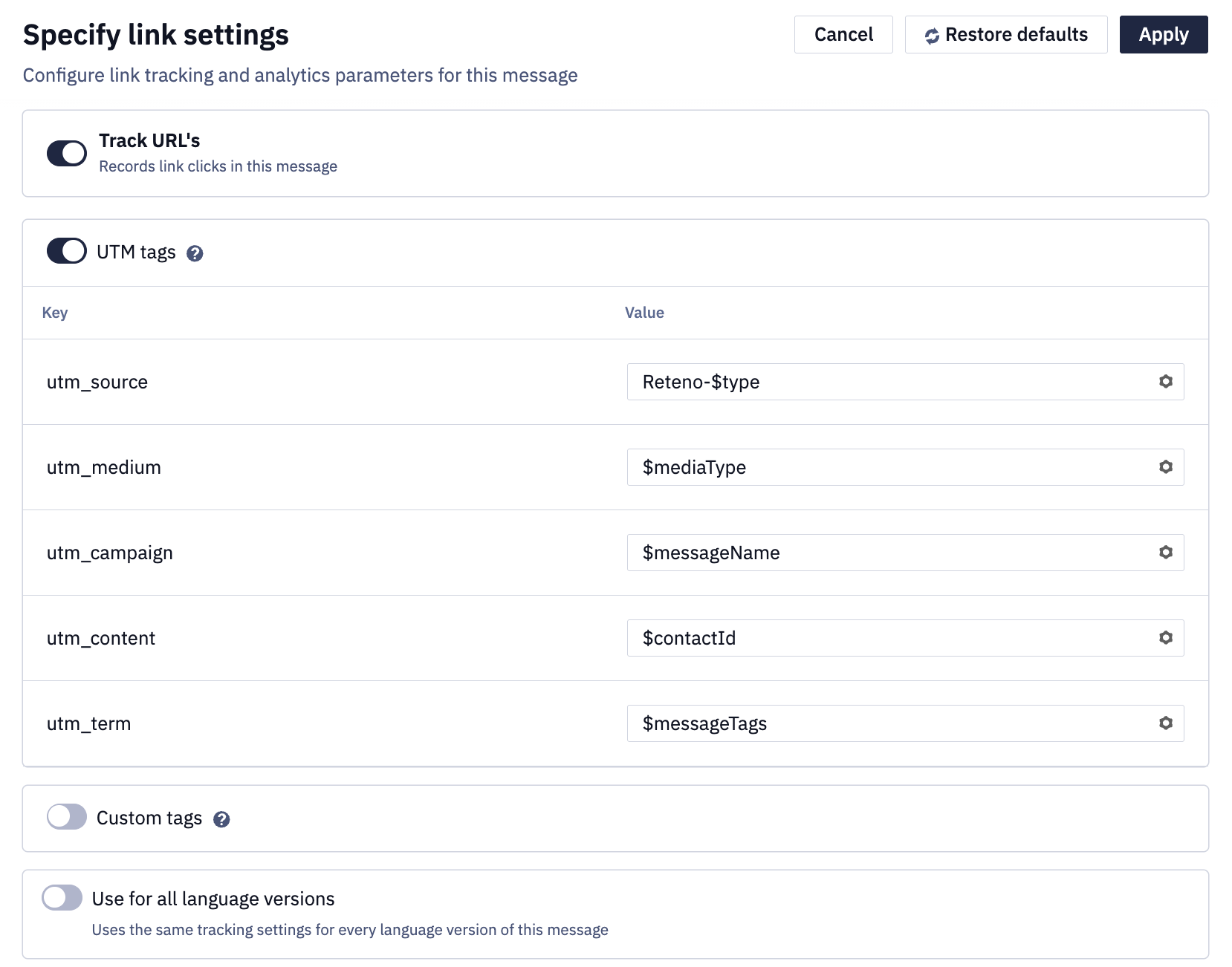
See Setting Up UTM Tags.
Module Details in the Tooltip
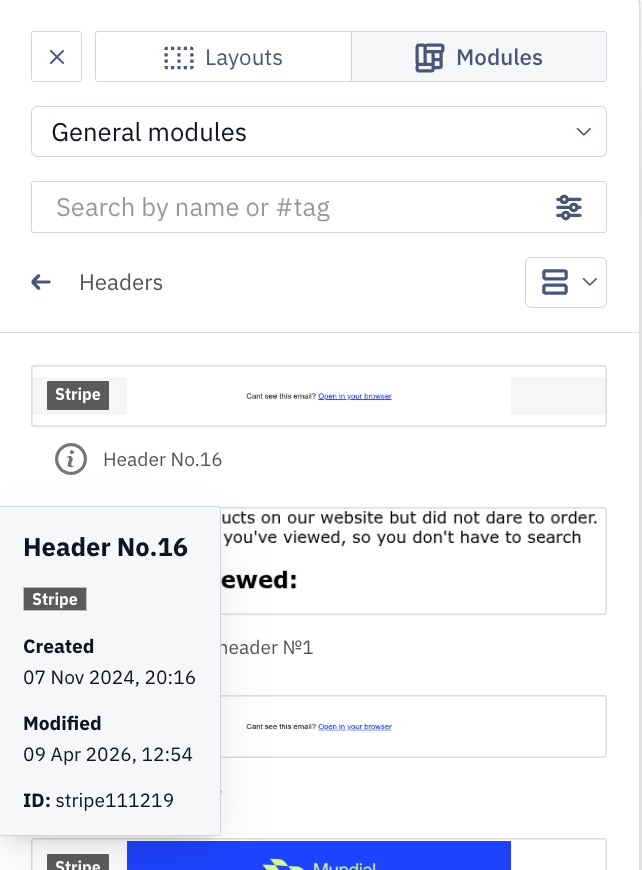
A module's tooltip now shows its ID, creation date, and last modified date.
Deleting a Sender with a Replacement
If an email or SMS sender is used in messages, Reteno warns you on deletion and offers to pick another sender so your campaigns keep running.
See Adding a Sender Name.
Workflows
Notes in Workflows
Click the Add sticky note icon on the workflow editor's top panel to leave a note next to any part of a workflow — handy for explaining logic to teammates or handing a workflow over. Drag a note anywhere, change its color, or delete it. Notes are saved and copied with the workflow and don't affect its execution or the pre-activation check.
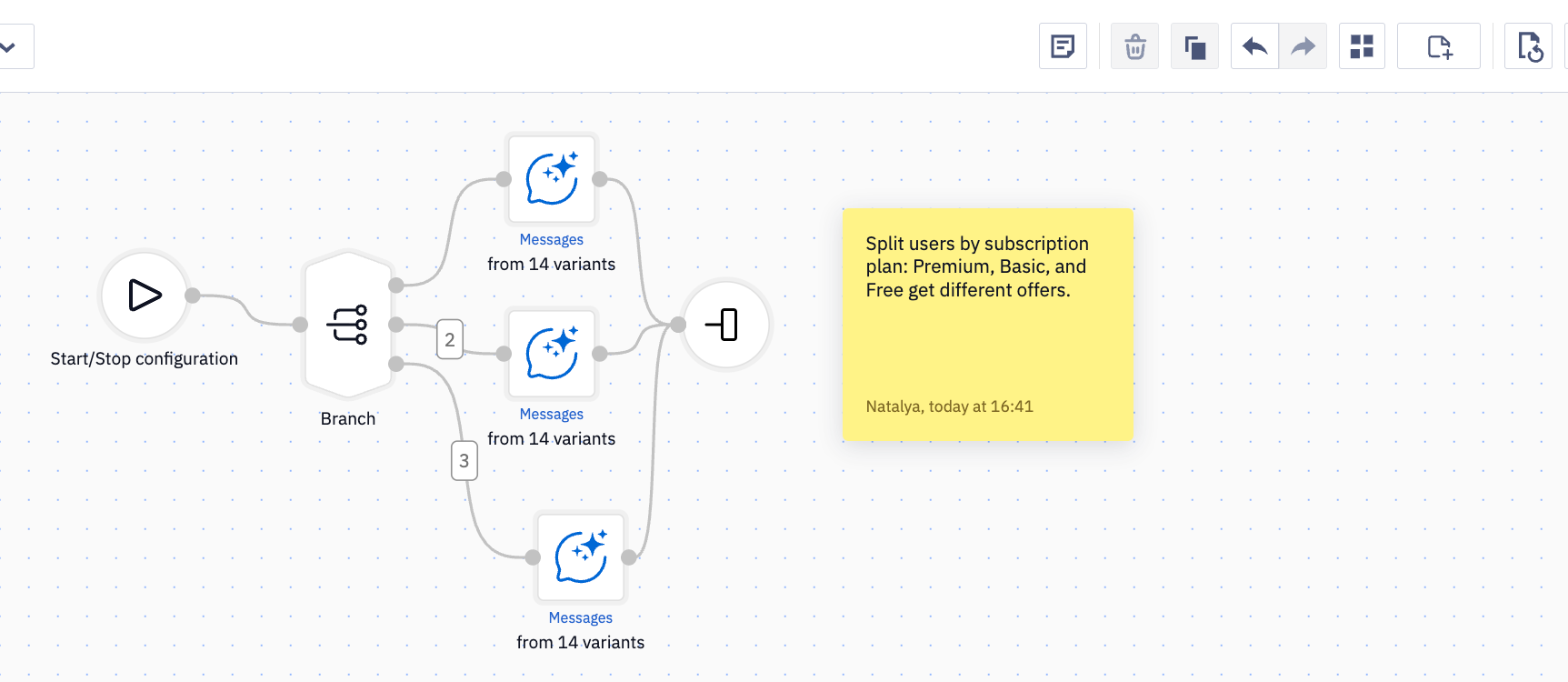
See Building and Editing Workflows.
Compare an External Event With the Start Event Parameter
In the Branch block's External event rule, an event parameter can now be compared with the same parameter of the event that started the workflow. For example, a workflow started by lesson_started with lesson_id=42 can check whether the user sent lesson_completed for that exact lesson — no need to store IDs in contact fields, even when a user works through many lessons at once.
See Using Branch Block.
Date Checks in the Branch Block
For event parameters and contact fields of the Date or Date with time type, the Branch block now offers the is today, is tomorrow, during, and was operators. For example, users whose subscription renews today or tomorrow get a reminder, and everyone else follows another branch.
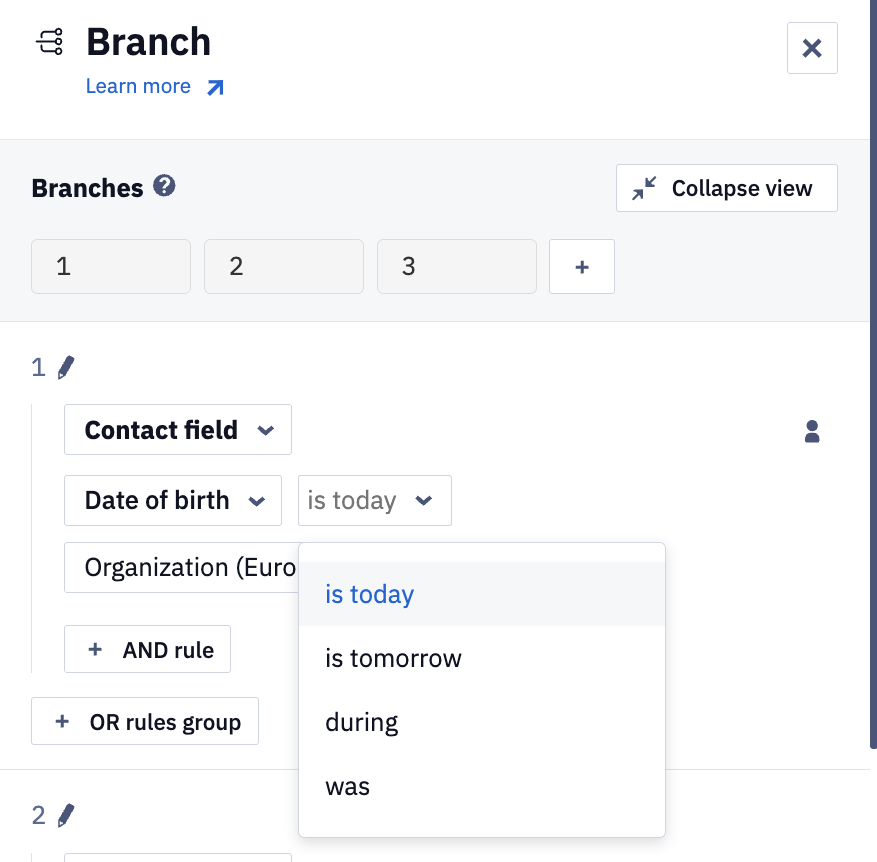
See Using Branch Block.
Wait for a Status in Minutes
With Wait for status enabled, the Sent?, Delivered?, Opened?, and Clicked? blocks hold a user until the status appears. The Maximum wait time can now be set in minutes — for example, send a push if the email isn't opened within 15 minutes.
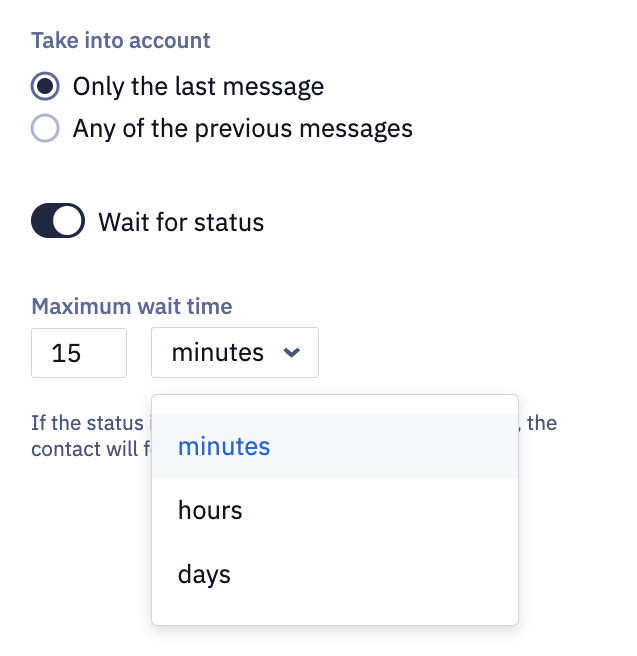
See Conditions Blocks.
All Pre-Activation Issues in One Panel
When activation finds issues, the Before activating the workflow panel opens. Fix the errors lists blocking errors, each with an explanation and a button that leads to the fix; Check warnings lists non-critical issues you can accept and activate anyway.
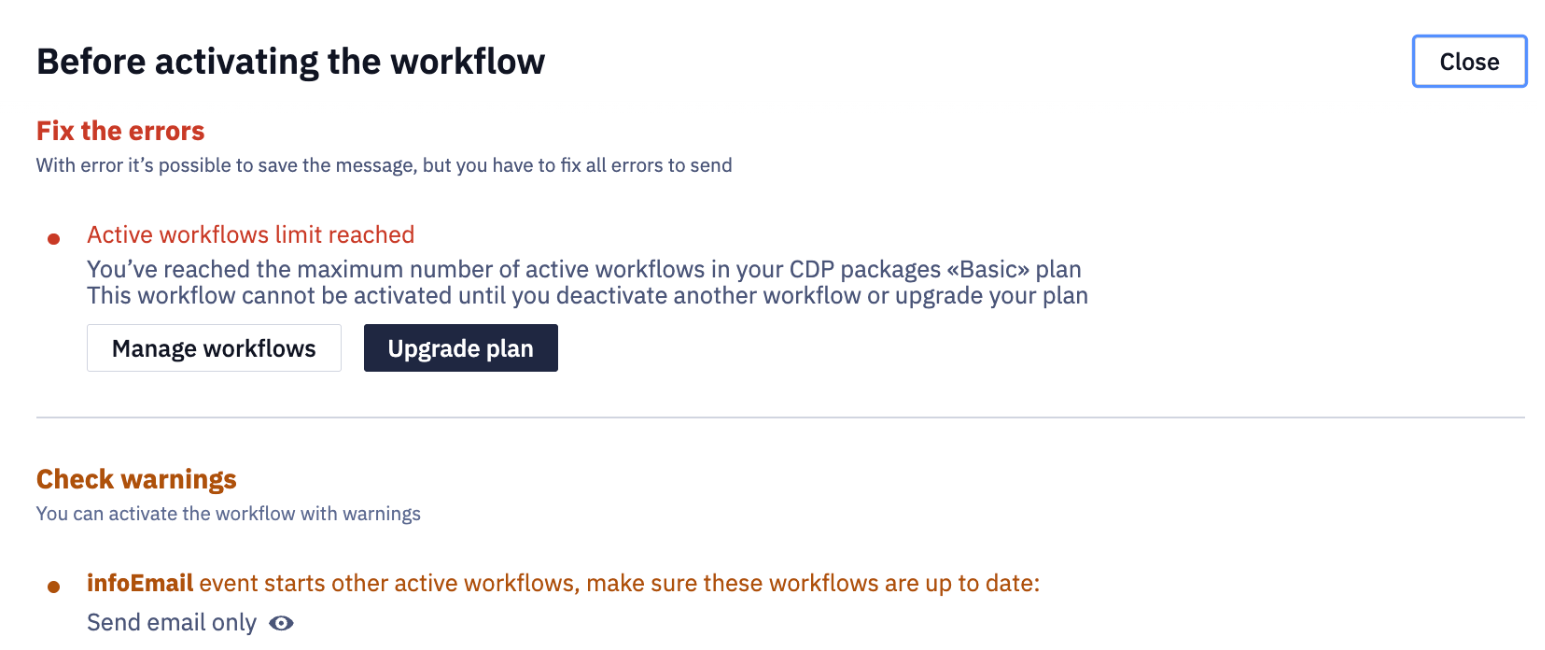
See Building and Editing Workflows.
Messages in Any Channel in the Workflow Editor
You can now create or edit a message in any channel right from the sending block: App Inbox and Web Push join Email, Mobile Push, and SMS, so there's no need to open a separate tab.
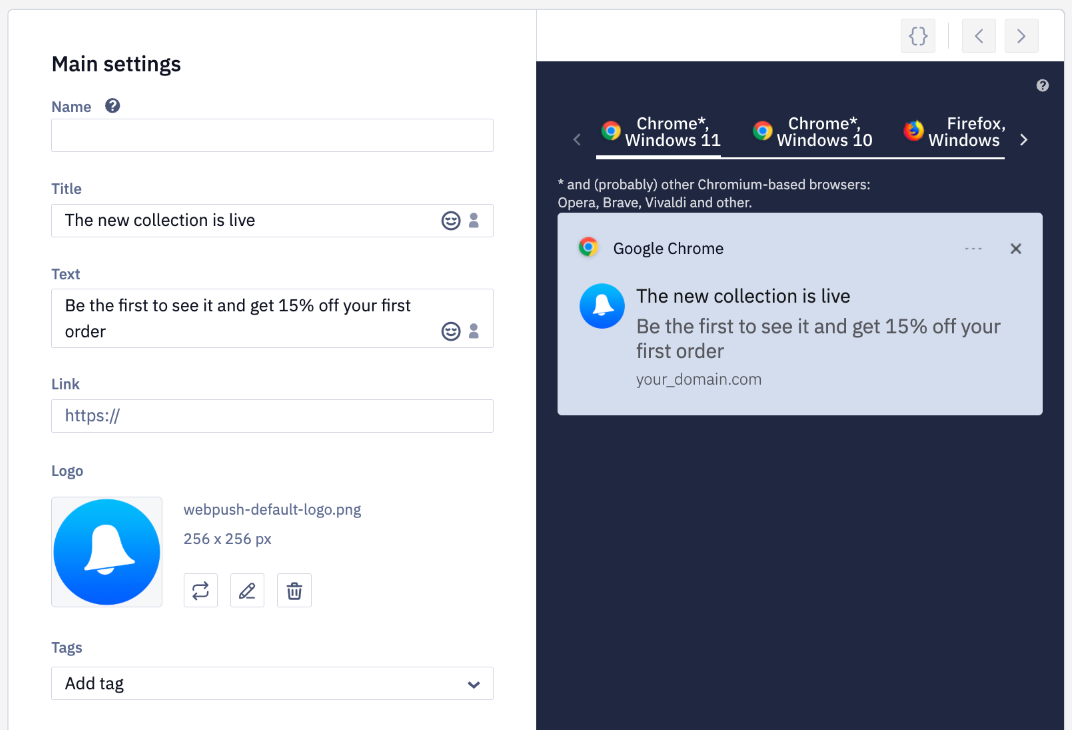
See Sending Blocks.
Custom Period in Launch History
Select Custom period and set the start and end date and time; the filter works by launch start date.

See Using Workflow Launch History.
Faster Work with Large Workflows
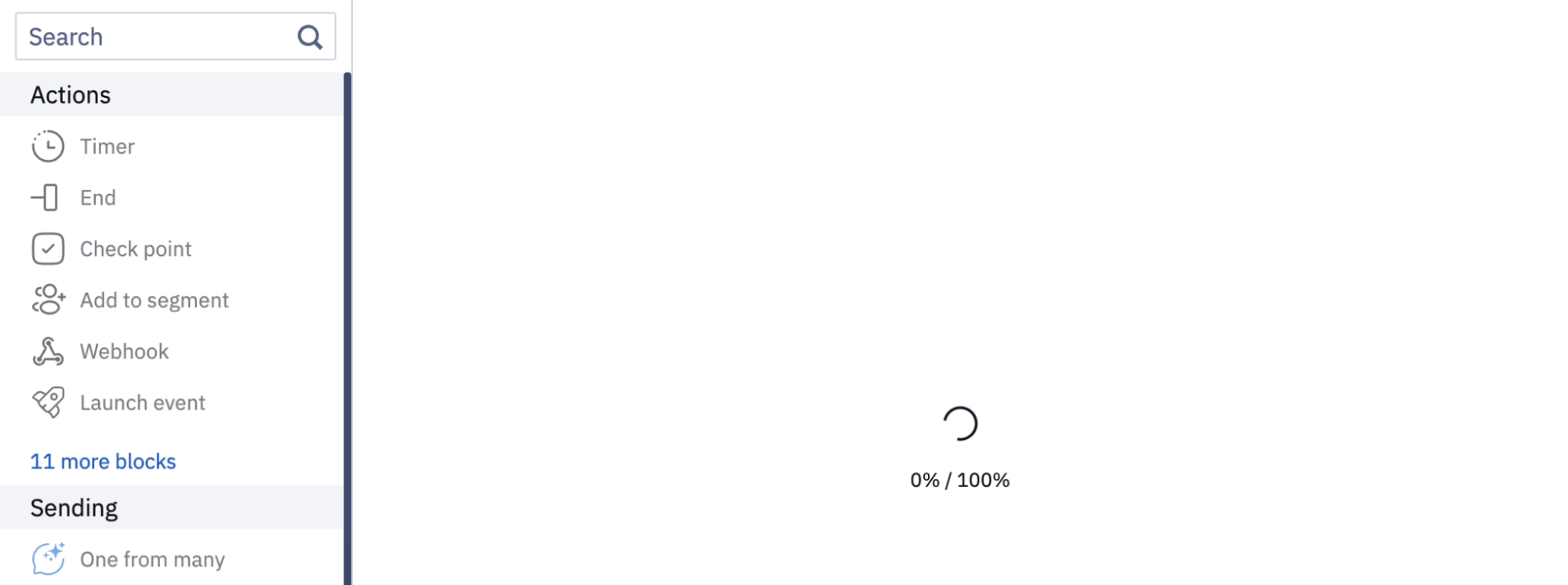
Large workflows load gradually with a progress indicator and don't block the browser, even while the AI assistant builds a workflow.
Error for an Unknown User
If an event carries an externalCustomerId that matches no contact, the launch is no longer marked successful. In launch history, it appears on the With errors tab with the note Contact not found by externalCustomerId. The action was not executed.
See Using Workflow Launch History.
Widgets
A Separate Result Page for Each Prize
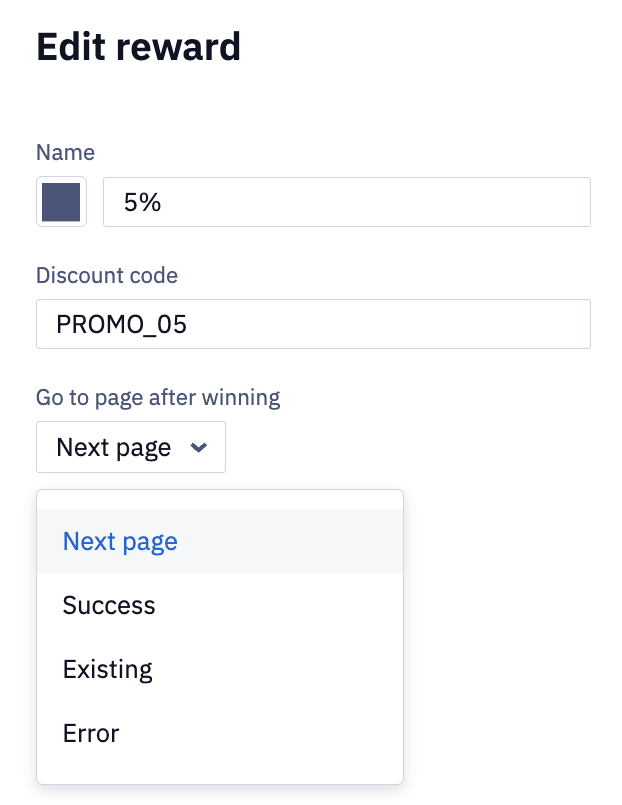
A gamified widget is a popup with a game, such as a spin-the-wheel or a scratch card, where a visitor wins a prize for leaving their contact details. For each prize in the reward pool, you can now pick the page that opens after winning in the Go to page after winning field; by default, it's the Next page, as before.
The Run the game button action now works for all game components, not just Spin the wheel and Slot Machine, and lets you select the Existing and Error pages, just like a regular form submission.
See Widgets Gamification.
Contact Fields on Several Widget Pages
The Email, Phone, First Name, and Last Name fields can now appear on different pages of one widget — for example, on each branch of an NPS survey. The same field still can't be added twice to one page.
See Setting Up Widgets for Your Site.
Separate Text Styling on Mobile
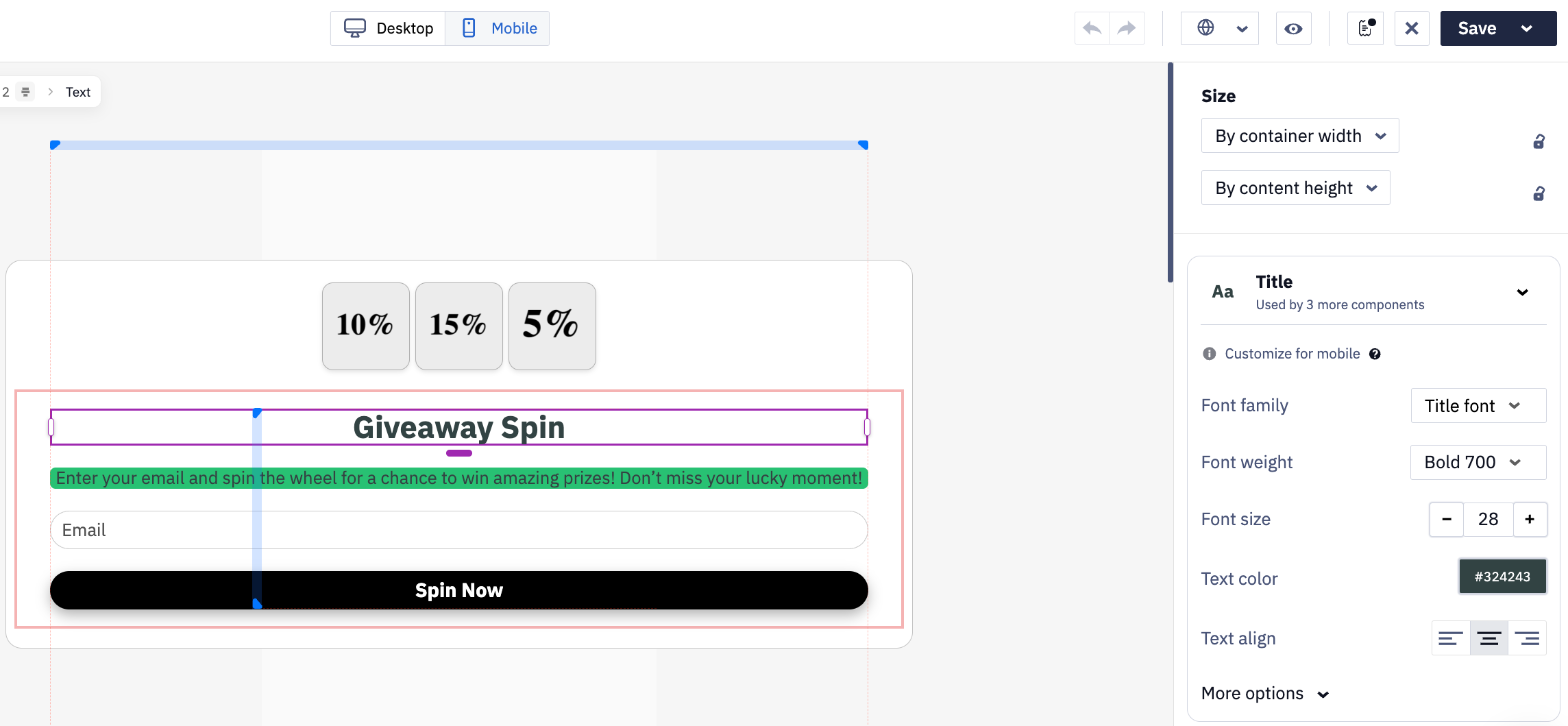
Switch to the widget's mobile version, select text, and change properties such as font size or color — no separate mobile text style needed. Changed properties stop syncing with desktop until you click Reset; existing widgets with different styles show a Different style on mobile notification.
See Setting Up Widgets for Your Site.
Fractional Win Chance
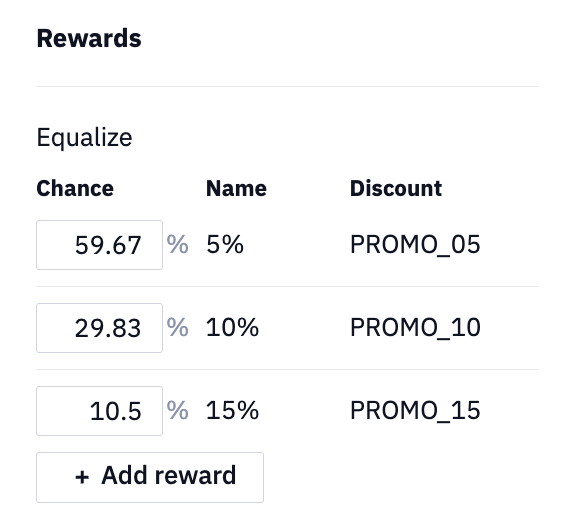
A prize's win chance can now be a fractional number, with a minimum of 0.01%. Reward pool settings moved to the top of the right panel, and prize names accept any text.
See Widgets Gamification.
Spin-the-Wheel Text
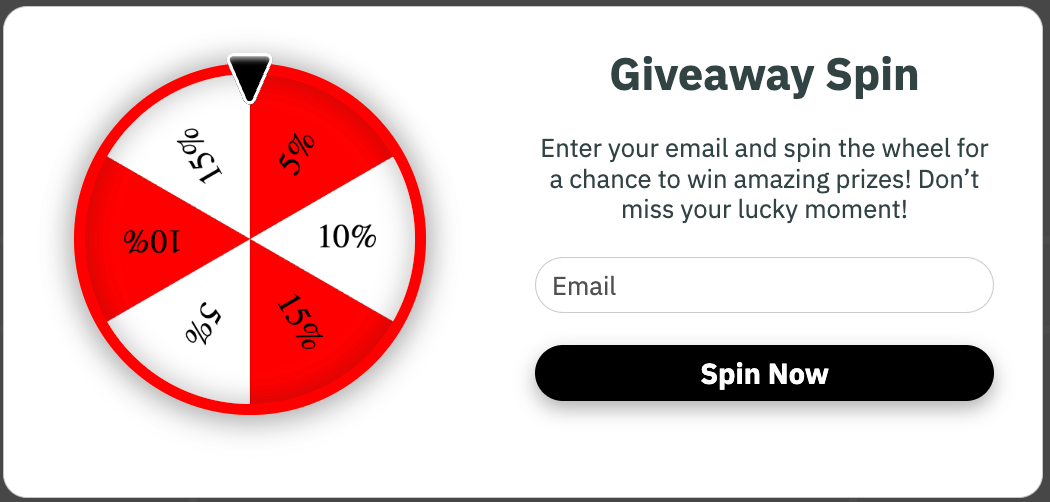
Text stays within its sector and switches between black and white to match the sector color; the pointer is always black with a white outline.
Other Widget Improvements
- Proportional resizing: drag a component's corner to change width and height together. See Setting Up Widgets for Your Site.
- No accidental popup closing: a backdrop click closes the popup only when both press and release happen on the backdrop, and never during an active game. Esc and the close button always work.
- More accurate view counting: a view is recorded once at least 10% of the widget is on screen, so view counts may drop and conversion rates rise. See Widget Analytics.
Reteno Agent
Create an Email From a Reference
Give the agent an existing Reteno email or template, editor JSON, HTML and CSS, or a screenshot, and choose how closely to follow it:
- Exact reproduces the reference's content, structure, styling, and mobile layout as closely as the editor allows;
- Tailored keeps the subject, the main CTA, and the intended action, and adapts the rest to your Brand Kit;
- Creative (default) uses the reference as inspiration for a new email for your goal.
The result is a native, editable Reteno draft.
See Reteno Agent in Slack: Use Cases.
Custom Fonts in Agent-Created Emails
The agent now applies your brand's fonts to headings, body text, and buttons — from the Brand Kit or from your brief. For a font that isn't in the Brand Kit yet, give its name with a stylesheet or a hosted font URL; Google Fonts are supported. The agent can also change fonts in an existing email while keeping its copy, images, and links.
See Brand Kit Settings.
Schedule Campaigns by Time Zone or in Batches
Ask the agent to schedule a bulk email for a set hour in each recipient's time zone ("Friday at 7 PM") or to send it in batches ("1,000 emails per hour"), and to change the time or pace of an already scheduled campaign. The two options can't be combined in one campaign yet.
See Reteno Agent in Slack: Use Cases.
Voice Messages
Send the agent a voice message instead of typing: mention it in an audio message, or reply with audio in a thread where it's already active. The agent transcribes the request and handles it like text.
See Why Use the Reteno Agent in Slack.
API
SMS Part Count in Webhooks and the API
The smsParts field — the number of parts an SMS was split into, each billed separately — is now passed in contact activities: in webhooks and in the Get contacts activity response.
See Webhooks to Follow Up Activities.
Event Source: SDK or API
The event window's Source field now shows SDK for events from the mobile SDK and API for events sent through the API, even if an API event carries SDK-like parameters such as appVersion or deviceCategory. This makes integration issues easier to trace.
See Creating Events.
Updated 21 days ago