
Managing Warm-up Campaigns in Slack
The Reteno agent finds, inspects, previews, creates, stops, and repairs Warmy warm-up campaigns. Ask in ordinary language, and the agent works with the campaigns in your selected Reteno organization, including campaigns your team set up earlier.
A warm-up campaign schedules existing Reteno emails to Warmy seed addresses — mailboxes kept for warm-up activity. You choose the sender, the emails, the dates, and the total daily volume.
This article covers Warmy seed campaigns. Reteno's automatic domain warm-up and domain-level sending limits are described in Domain Warm-up.
Before You Start
You need:
- a Slack channel connected to Reteno, with warm-up campaign management available;
- access through that connection to the organization you want to manage;
- existing Reteno emails and a configured sender — see Setting Up Email Domain Authentication.
Mention @Reteno to start a request. If the agent shows an organization selector, choose the organization for the thread, and continue related requests in the same thread so the campaign context stays available.
Access follows the selected organization. You manage only campaigns in an organization your Slack connection is authorized to use, and teammates with access to that organization manage its campaigns too. Passing another organization's campaign ID does not grant access to it.
The examples below use [email protected], email message IDs 12345, 12346, and 12347, and warm-up campaign ID 42. Replace [START_DATE] and [END_DATE] with dates in the YYYY-MM-DD format. The volumes are there to show the controls — agree your own with your Reteno team.
What You Can Ask For
| Operation | Example request | Result |
|---|---|---|
| List | Show our warm-up campaigns. | Finds campaigns in the selected organization. |
| Inspect | Show the schedule and status of warm-up campaign 42. | Reads its settings, sender readiness, and individual scheduled sends. |
| Preview | Preview this warm-up plan without creating it. | Checks the selected emails and the available capacity. Saves and sends nothing. |
| Create | Create the campaign using the plan we just previewed. | Saves the campaign, reserves capacity, and schedules real sends. |
| Stop | Permanently stop warm-up campaign 42. | Cancels unstarted sends and releases their reservations. |
| Repair | Repair the remaining schedule for warm-up campaign 42. | Rechecks current and future reservations and can add emails. |
Creation, stopping, and repair follow your Slack approval settings.
Find and Inspect a Campaign
- @Reteno Show all Warmy warm-up campaigns in the selected organization. Include each campaign's ID, name, sender, status, dates, and daily volume.
- @Reteno Show warm-up campaigns that are blocked or degraded. Explain what needs attention for each one.
- @Reteno Show warm-up campaign 42. Include the sender, email message IDs, date range, daily start time and timezone, total daily volume, and sender readiness. Summarize scheduled sends by date and explain any errors.
The response separates the campaign's overall status from the status of each scheduled send. A warm-up campaign ID identifies the schedule, and an email message ID identifies an email used in that schedule — they are different identifiers.
Preview a Campaign
Provide the following:
| Setting | What to provide |
|---|---|
| Name | A descriptive campaign name, up to 255 characters. |
| Sender | The exact From address used by every selected email. |
| Emails | From 1 to 50 existing Reteno email message IDs from the selected organization. |
| Start and end dates | An inclusive range of 1 to 185 days. The start date cannot be earlier than today in Europe/Kyiv. |
| Daily start time | A time in Europe/Kyiv, such as 17:00. The default is 17:00. |
| Daily volume | A positive whole number for the campaign's total sends per day, at least equal to the number of selected emails. |
Campaign dates and start times use Europe/Kyiv, including its daylight-saving changes. These controls offer no other scheduling timezone.
@Reteno Preview only a Warmy warm-up campaign with these settings:
Name: Newsletter warm-up
Sender: [email protected]
Email message IDs: 12345, 12346
Start date: [START_DATE]
End date: [END_DATE]
Daily start time: 17:00 Europe/Kyiv
Total daily volume: 200

Check that both emails use this sender. Show the planned sends per email
per day, whether capacity is available, and whether the sender is ready.
Do not create the campaign yet.
The agent checks the emails themselves, their From addresses, and the current seed availability. Resolve an inaccessible email or a sender mismatch before creating the campaign.
The daily volume is shared across the emails. With two emails and a daily total of 200, each one gets 100 planned sends per day. When the total doesn't divide evenly, the extra sends rotate between the emails across days. The daily total stays the same throughout the campaign, and it doesn't increase automatically.
A preview saves no campaign, registers no sender, reserves no capacity, and sends nothing. Capacity can change between the preview and the creation.
Create the Campaign
After reviewing the preview, reply in the same thread:
@Reteno Create the Newsletter warm-up campaign exactly as previewed.
After creation, show the campaign ID, saved schedule, total daily volume,
and sender readiness. Tell me whether sender activation will delay sending.
Creating a campaign schedules real sends. There is no separate launch step, and a saved campaign is not a draft. The agent checks capacity again at creation.
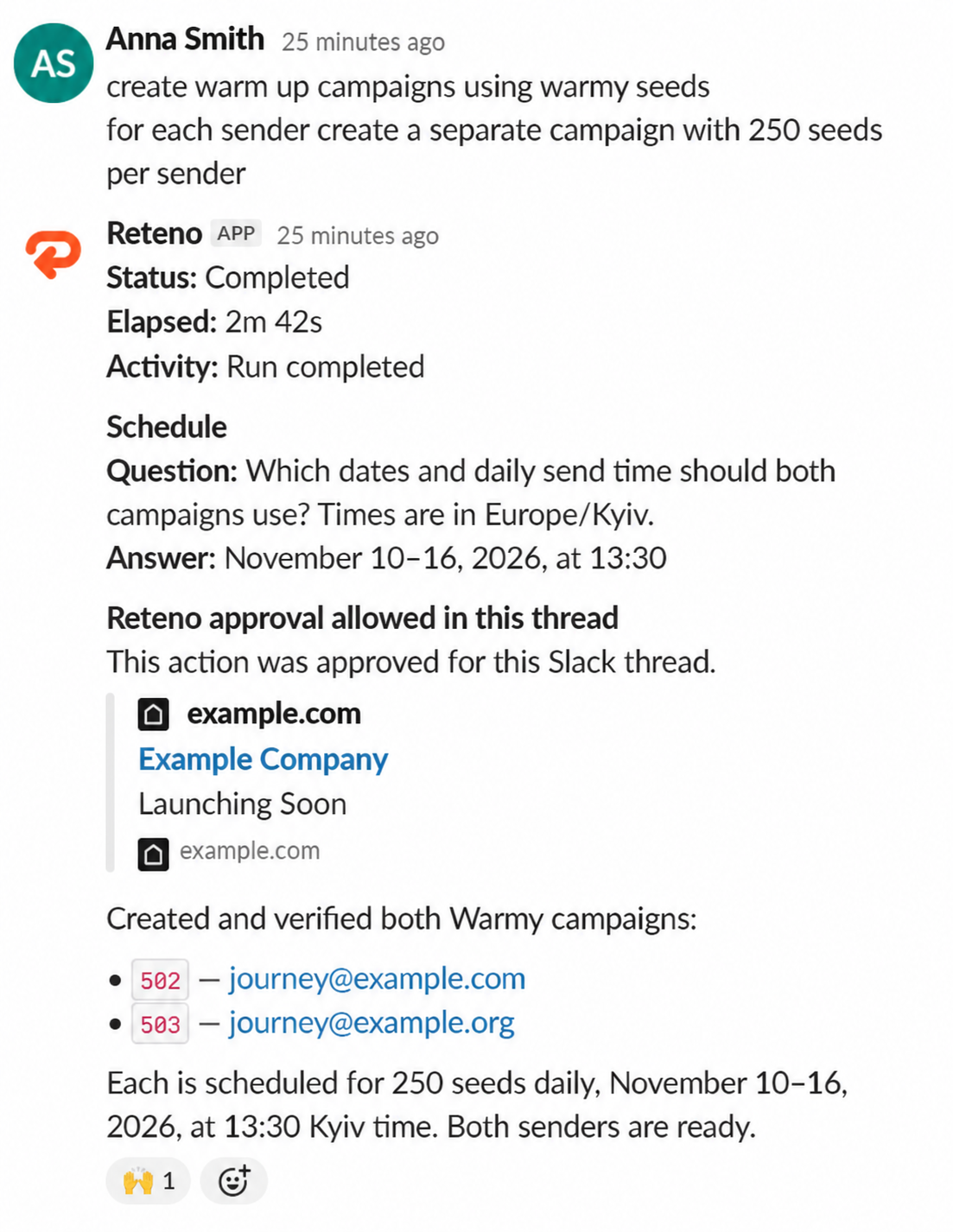
A campaign belongs to one sender. To warm up several senders, ask for a campaign per sender — the agent creates them in one run and reports a campaign number for each.
If the request leaves out the dates or the daily send time, the agent asks for them before creating anything and names the time zone it will use.
Approval Request
When a Reteno approval needed card appears, review the organization and the requested change. For a creation, check the sender, the emails, the date range, the time, and the daily total.
- Allow once approves that request.
- Allow in this thread, where available, allows the same kind of operation for this organization and thread while the permission stays active. Later requests covered by it proceed without another card.
- Deny prevents the requested change.
The person who requested the change responds to the card. A teammate's access to the same organization doesn't let them approve someone else's warm-up request.
Sender Activation
Reteno registers new senders with Warmy automatically, and activation takes at least an hour after registration. A saved campaign can be active while its sender is still awaiting registration or activation, so the scheduled time may pass before sending begins.
Check readiness separately from the campaign status:
- @Reteno Is the sender for warm-up campaign 42 ready? Show any registration or activation delay and the earliest availability time if it is known.
If a creation response is interrupted or unclear, check for the saved campaign before requesting another one:
- @Reteno Check whether the Newsletter warm-up campaign from my previous request was created. Show the existing campaign if it was. Do not create a second campaign.
Monitor Progress and Results
- @Reteno Show today's progress for warm-up campaign 42. Separate pending, running, completed, blocked, and failed sends. Include planned volumes and explain anything preventing the remaining sends.
Campaign statuses are:
| Status | Meaning |
|---|---|
| Active | The campaign is enabled. Sending still depends on its dates, sender readiness, and available reservations. |
| Degraded | Some of the remaining scheduled sends are blocked, and valid sends continue. |
| Blocked | All remaining open sends are blocked. Read the reported reason before attempting a repair. |
| Stopped | The campaign is permanently stopped. Sends that already started and their history remain. |
A completed send means the send operation was submitted successfully. Planned volume and completed send operations don't establish how many emails were delivered — request the actual results separately:
@Reteno Show actual Warmy results for warm-up campaign 42 from
[START_DATE] to [END_DATE]: sent, delivered, opened, clicked, bounced,
spam complaints, and unsubscribes. Keep planned volume separate.
Include the reporting timezone, data freshness, and any incomplete coverage.
Actual results come from Reteno reporting. Missing or unmatched reporting data is shown as incomplete rather than as zero. Reporting dates follow Reteno's reporting timezone, so check it when you compare results with the Europe/Kyiv campaign schedule.
Reports in the Account
Warm-up sends run as bulk campaigns, so each one also appears in your Reteno account under Campaigns → Reports → Email → Broadcasts. The name starts with Warm-up and continues with the organization, the sender, the date, and the email message ID.
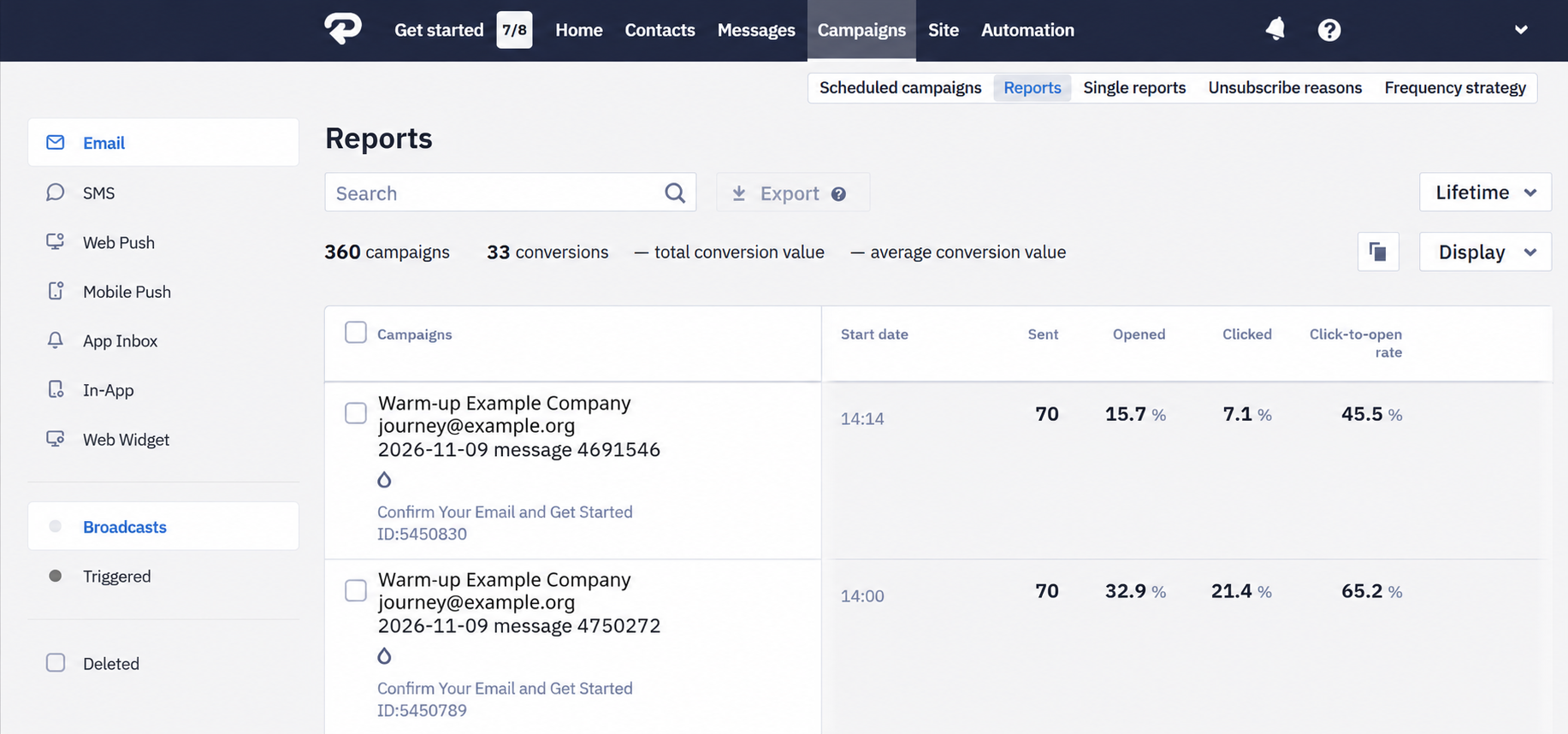
These campaigns go to seed addresses only and contain no real recipients. Take that into account when you read figures across the whole list — the warm-up entries add their own sends and deliveries to it, although no subscriber received those emails.
The report of such a campaign carries the subject, the sender, and the message ID of the email you chose, and counts its sends, opens, and clicks. Warm-up figures therefore sit in that email's numbers next to the ones it earned from real subscribers. If you need an email's own statistics to stay clean, give the warm-up campaign a copy of it.
Seed addresses arrive as a contact group of their own. Its name starts with Warm-up and continues with the organization ID, the sender, the date, the warm-up campaign number, and the email message ID — that number is how you match a group or a report in the account to the campaign the agent reports in Slack.
Repair a Campaign or Add Emails
A repair rechecks current and future seed reservations. Use it for an active, degraded, or blocked campaign that still has current or future scheduled dates. When enough eligible seed addresses are available, the repair makes blocked sends eligible to run.
Inspect the problem first:
- @Reteno Explain why warm-up campaign 42 is blocked. Show the affected dates and emails, and whether a repair could help. Make no changes yet.
Then request the repair:
- @Reteno Repair the current and future reservations for warm-up campaign 42. Afterward, show which sends are ready and which remain blocked.
You can also add an existing email that uses the campaign's sender:
- @Reteno Add email message 12347 to warm-up campaign 42 and repair its remaining schedule. Verify that it uses the same sender. Show the revised per-email allocation and any dates that could not be updated.
Adding an email keeps the campaign's total daily volume unchanged: the system redistributes that total across the emails for eligible days where sending hasn't started. Days with work already underway or completed keep their existing allocation.
A repair can enable real scheduled sends and follows the approval process. It doesn't guarantee new capacity, replay completed sends, restart a stopped campaign, or change the campaign's sender, name, dates, start time, or daily total.
Stop a Campaign
@Reteno Permanently stop warm-up campaign 42. Cancel its unstarted sends
and release their reservations. Confirm the final status and tell me
whether any sends were already running.
Stopping is permanent. Sends that already started are not recalled, and their results remain available. Repeating a stop request is safe.
These controls offer no pause or resume. To send again after stopping, preview and create a separate campaign with the schedule you need.
Troubleshooting
| Situation | What to do |
|---|---|
| The campaign isn't found | Check the selected organization and use the campaign ID from the campaign list. If the organization is unavailable, ask your Reteno administrator to check the access. |
| Warm-up management is unavailable | Ask your Reteno team to check that the Slack connection has this capability and is connected to the intended organization. |
| An email can't be used | Check that it exists in the selected organization and that its From address matches the campaign sender exactly. |
| The campaign is saved but hasn't sent | Ask for sender readiness, activation timing, scheduled dates, and individual send errors. An active status alone doesn't confirm sending. |
| A preview or creation reports insufficient capacity | Try a lower daily total or a shorter date range in a new preview. Ask your Reteno team about a persistent capacity shortage. |
| A repair leaves sends blocked | Read the remaining errors. A repair cannot allocate unavailable seed addresses, and your Reteno team may need to resolve a capacity or provider issue. |
| You need to change the daily total, sender, or dates | These controls don't edit those settings on an existing campaign. |
| The reported results are incomplete | Ask which dates or sends lack reporting data and when the available data was refreshed. Don't substitute planned volume for actual sends or deliveries. |
Related Articles
Updated about 3 hours ago