
AI Assistant in the Workflow Editor
The AI assistant is a chat built into the workflow editor that helps you create, analyze, and edit workflows using natural language prompts. Instead of manually adding and configuring each block, describe the logic you need, and the assistant will build it directly in the editor.
The AI assistant is currently in beta.
With the AI assistant, you can:
- Create a workflow from your own description.
- Edit a workflow — add or remove blocks and change connections, timers, conditions, and settings.
- Analyze a workflow — check its logic, block settings, and structure and get suggested fixes.
- Get help with blocks, workflow settings, and prompt wording.
The assistant works as a chat. Describe your task, for example: Build a reactivation workflow for users who have not opened the app for 14 days. Send a push notification, then send an email 2 days later if there is still no app session. If more information is needed, the assistant will ask follow-up questions about channels, messages, timing, and conditions.
The assistant responds in the language of your prompt.
How to Open the Chat and Navigate Between Screens
- Go to Automation → Workflows and open the required workflow or create a new one.
- Enable the AI Chat toggle in the top toolbar. The assistant panel will open in the editor.
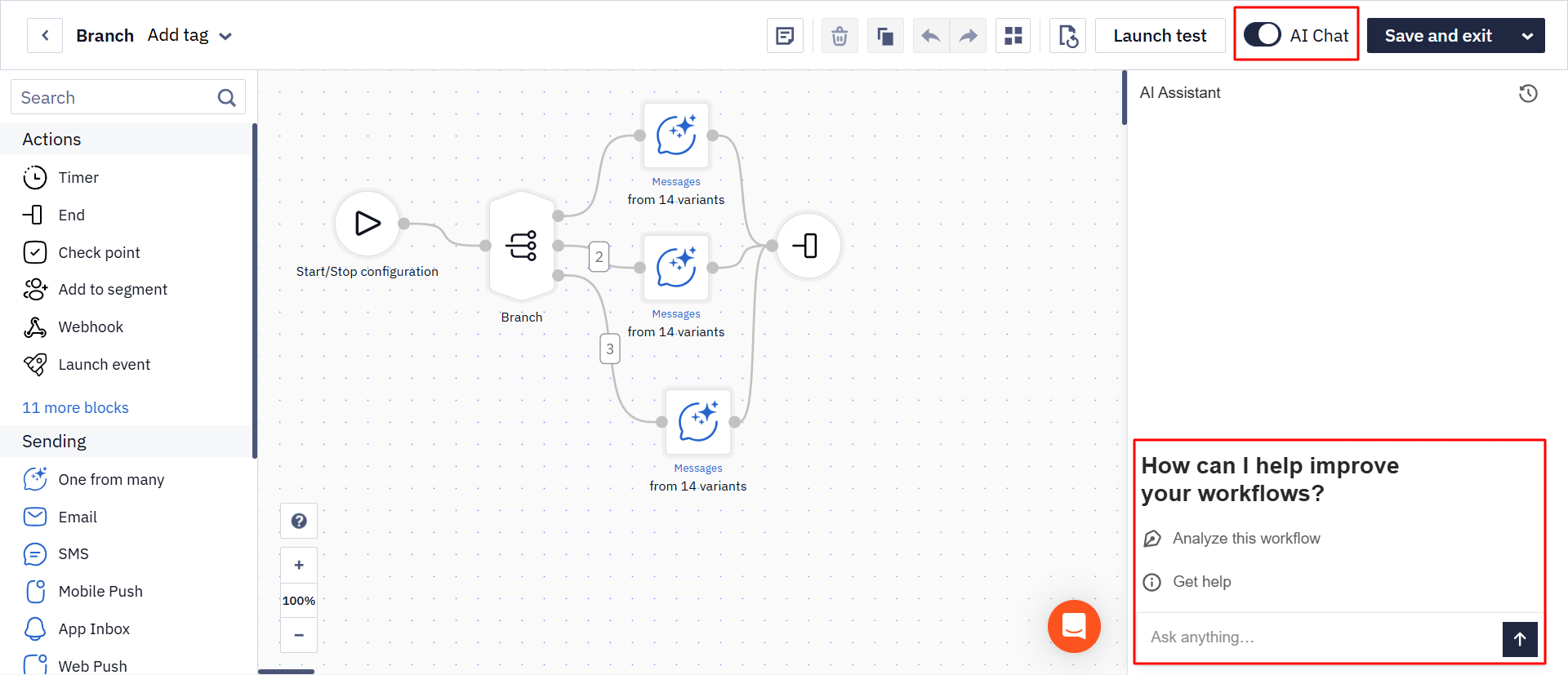
The start screen provides the following quick actions:
- Analyze this workflow — analyze the open workflow.
- Get help — get tips on writing prompts.
You can also describe your task directly in the chat field.
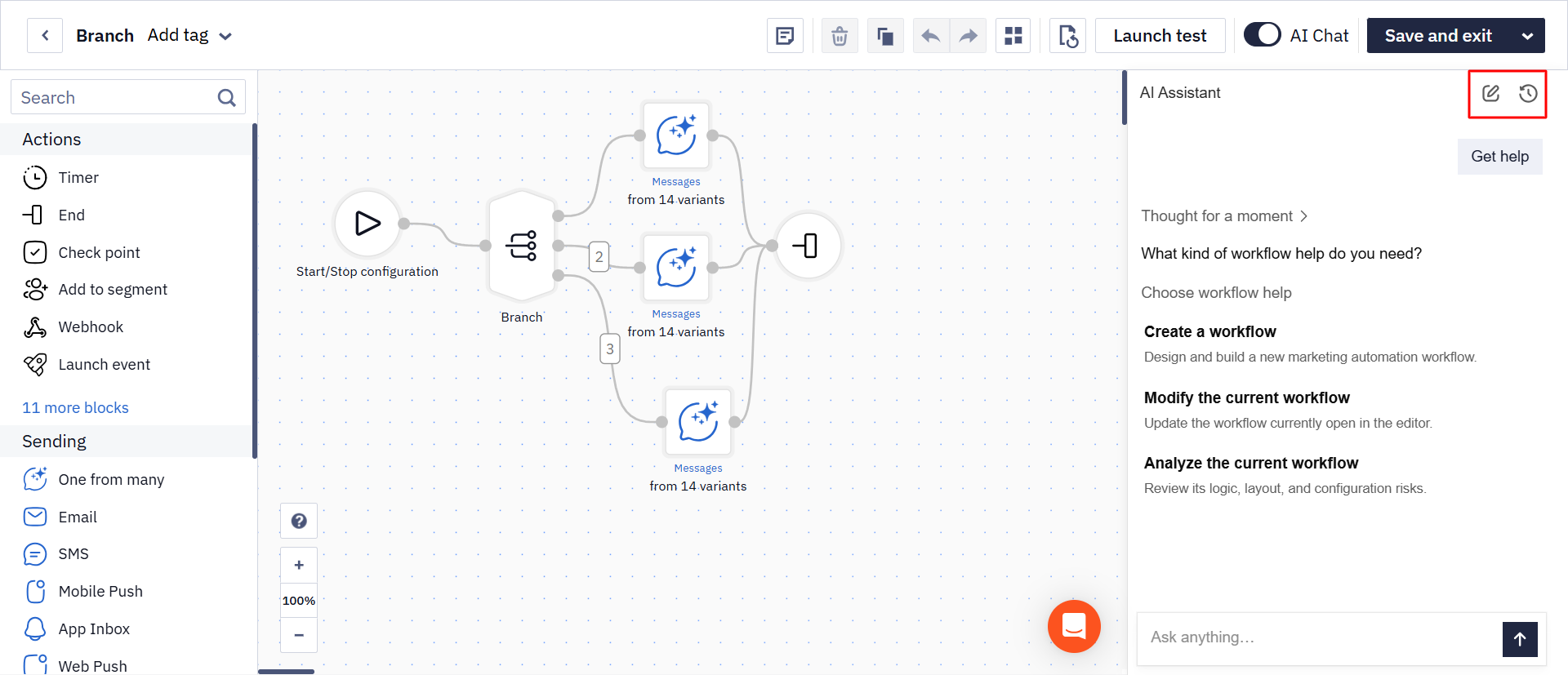
Navigation buttons are available at the top of the panel:
- Click the new chat icon to return to the start screen with quick actions.
- Click the history icon to view your previous chats with the assistant.
How to Work With the Assistant
To create or edit a workflow:
- Describe the required logic in the chat.
- Answer the assistant's follow-up questions if needed.
- Review the suggested logic or changes.
- After the changes are applied, test the workflow.
Get Help
Select Get help to view tips on writing prompts.
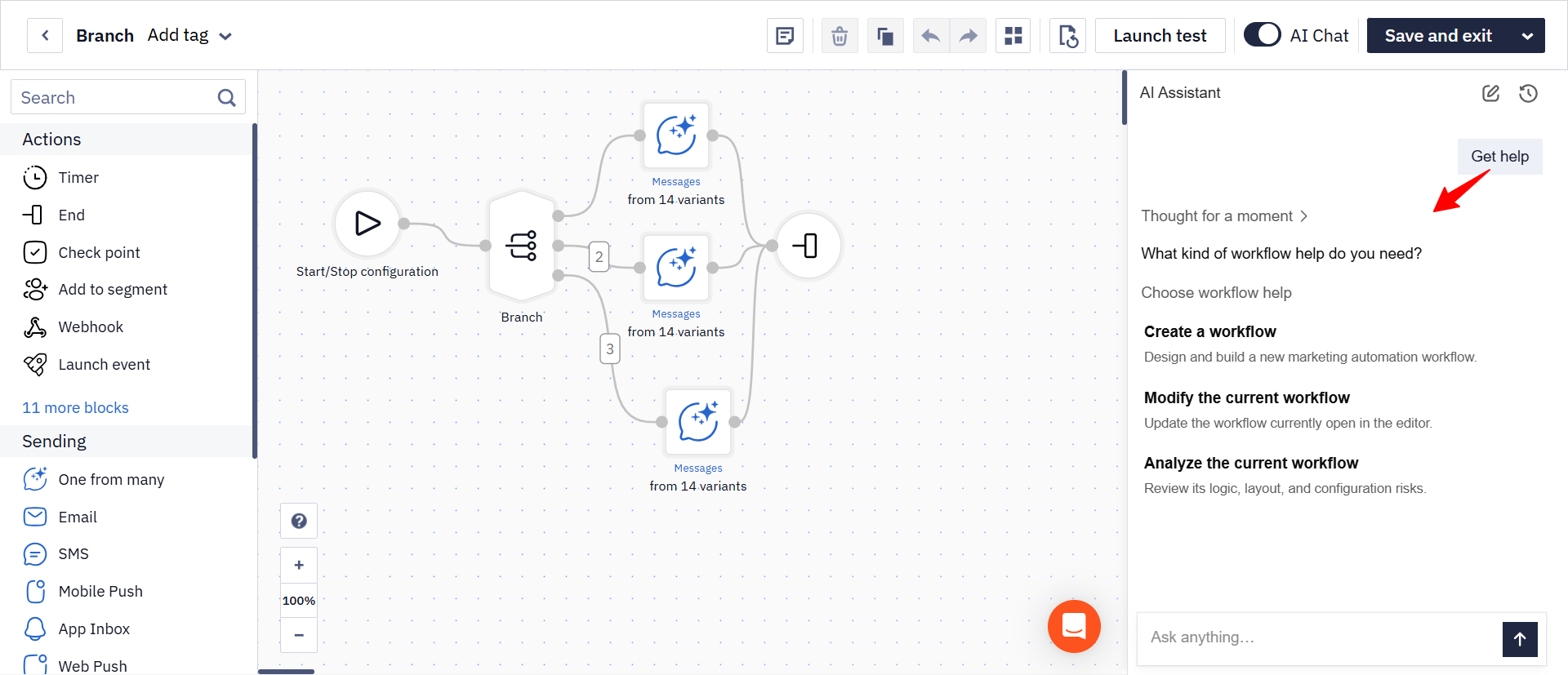
You can also ask questions about workflow blocks and settings directly in the chat. For example:
What is the difference between the Condition and Branch blocks?
Which block should I use to check whether a user opened a push notification?
How do I stop a workflow after a subscription starts?
Related Articles
Updated 8 days ago