
What's New for October
Black Friday is ahead — the busiest sending season of the year. October updates help you get ready: hand segments, emails, and workflows to the Reteno Agent in Claude and Codex, preview dynamic content in any channel before sending, configure widgets more flexibly, and set up workflow conditions without extra segments.
If you missed the previous digest, see What's New for September 2026; for the latest SDK versions, check the release notes.
Reteno Agent
The Agent Now Creates Segments, Emails, and Workflows
The biggest Reteno Agent update for Claude and Codex so far — version 0.4.0. The agent can now create and edit the core Reteno entities — segments, emails, and workflows — through the Reteno plugin, just as in the Slack agent. The plugin includes the skills that guide the agent through these tasks; a direct MCP connection provides the tools, but not the skills.
The new count_segment_contacts method answers "how many users match these conditions?" without creating a saved segment. Conditions can combine profile fields, custom fields, events, time periods, occurrence counts, and exclusions — for example, users who opened the app at least twice in the last 30 days. With this, the agent covers all core Reteno objects: contacts, messages, workflows, segments, and events.
For details, see Integrating Reteno with AI Agents.
Messages
Dynamic Content Preview for SMS, Push, and App Inbox
Previously, you could check dynamic content before sending only in Email. Now it is also available in SMS, Mobile Push, Web Push, and App Inbox.
Turn on the Preview as toggle and select a contact: any contact in your account or one from a selected segment — for example, the audience of an upcoming campaign. You can move to the previous or next contact in the list, so it is easy to check the message for different recipients. Variables and dynamic expressions are processed by the same rules as at sending. For SMS, you immediately see how many parts the message will have after the data is inserted: a short variable can expand into a long name — and that is an extra billed part.
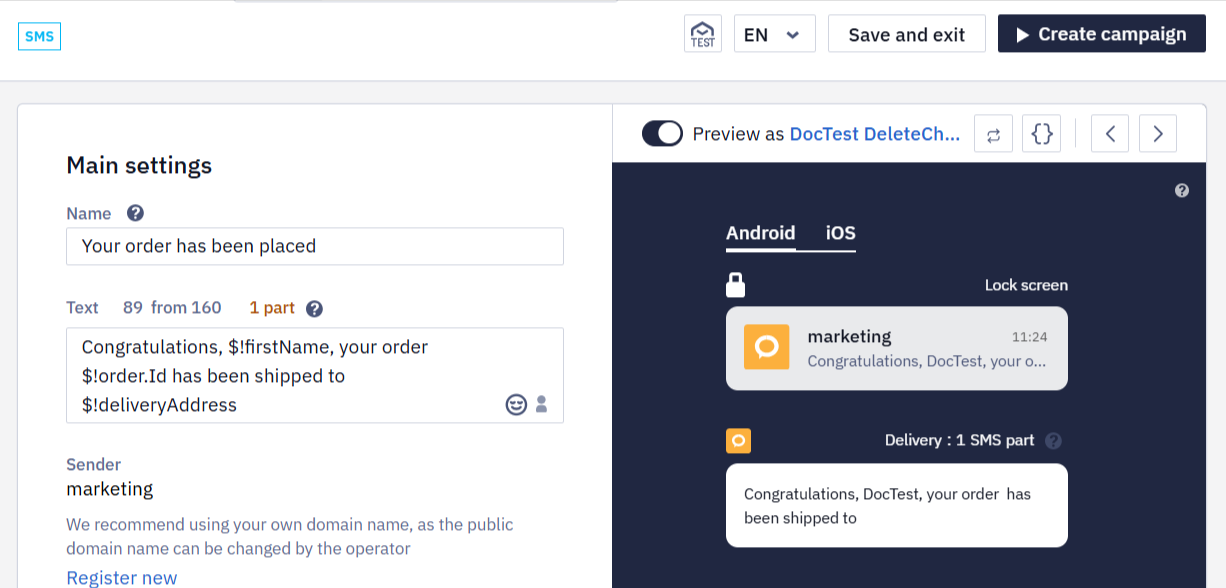
For details, see Dynamic Content Preview.
Velocity Error Highlighting
During the preview, the editor separates code errors from missing data:
- Velocity code is interrupted — the execution stopped because of an error. When the position is known, the editor names the line and column.
- No content for this contact — not an error: the code works, but the data source returned no content for the selected recipient.
After you fix the code, the preview result updates automatically.
Email: Resizable Components Panel
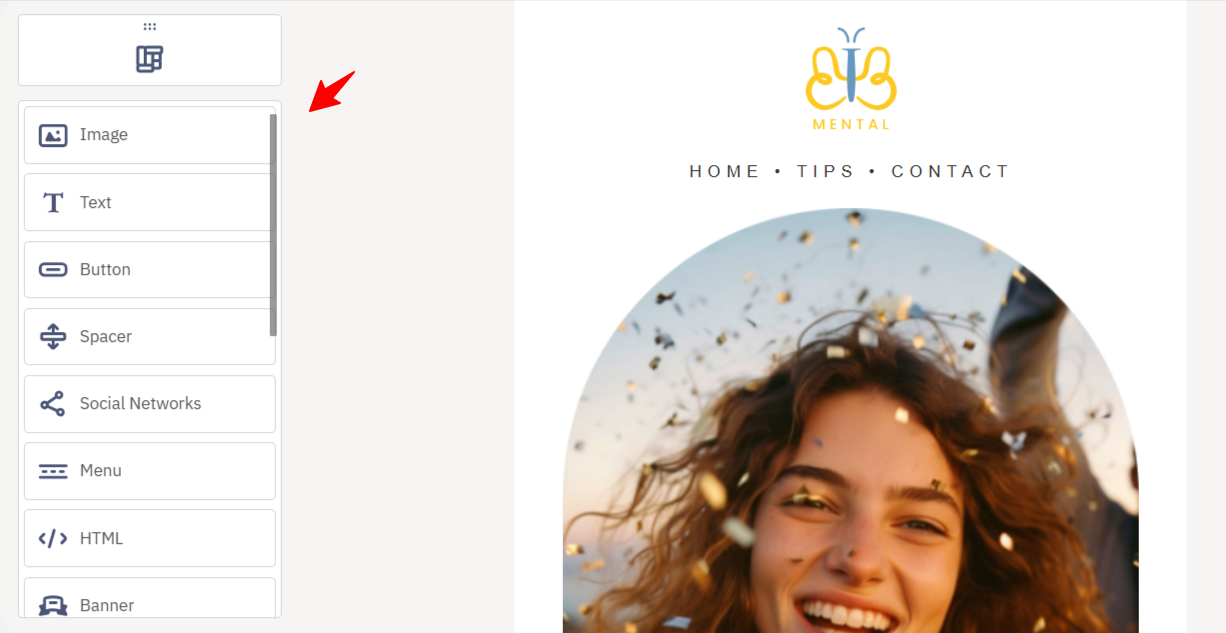
You can now expand or collapse the components panel in the email editor by dragging its edge. The expanded view shows icons with component names; the collapsed one shows icons only.
Workflows
Start on a Date from a Contact Field
The Start on Date block now has the From the contact field date source. A workflow can start based on a Date with time field value — at that moment or a set period before it. The start time is taken from the field or set manually.
When the time comes from the field, the workflow starts in the contact's time zone, or in the organization's time zone if the contact's one is unknown. For a manually set time, apply the contact's time zone with the Use contact's time zone checkbox — it is now also available for the From the event parameter option. If the field is empty, the workflow execution for that contact stops at this block, and the launch history shows the With errors status.
For example, you can remind users three days before their trial ends, without passing the date in a separate event.
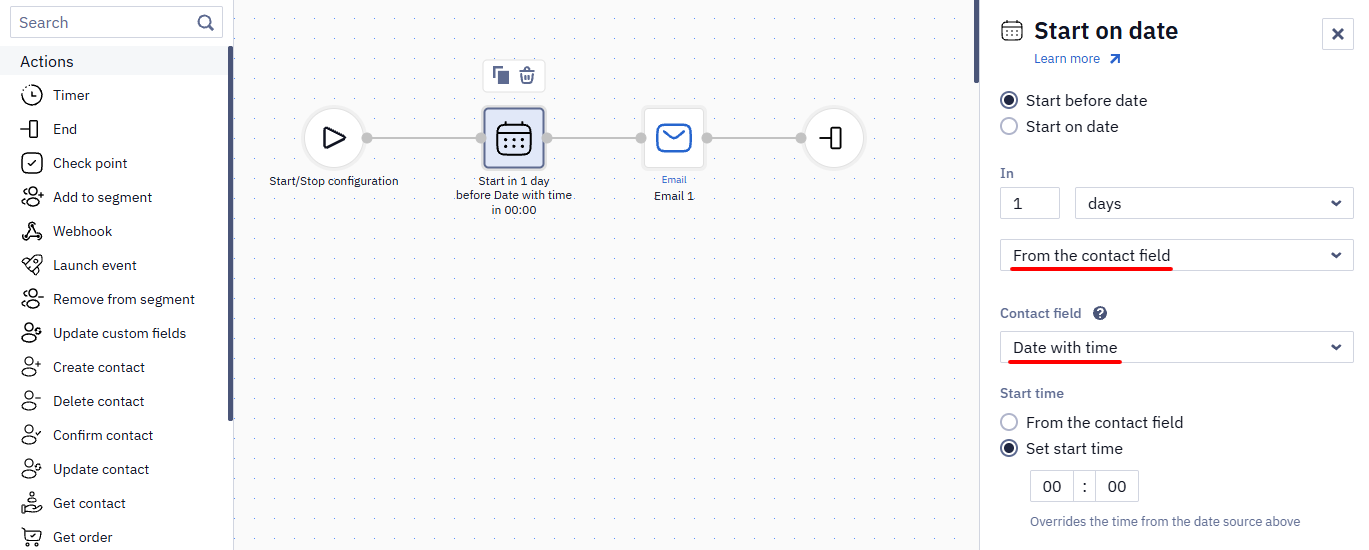
For details, see Actions Blocks.
Create Events and Tags Right in the Editor
You can now create and edit events in the Start block settings, as well as in the Branch, Check event, and Launch event blocks. Tags can be created wherever you select them, including the One from many block, without leaving the workflow editor.
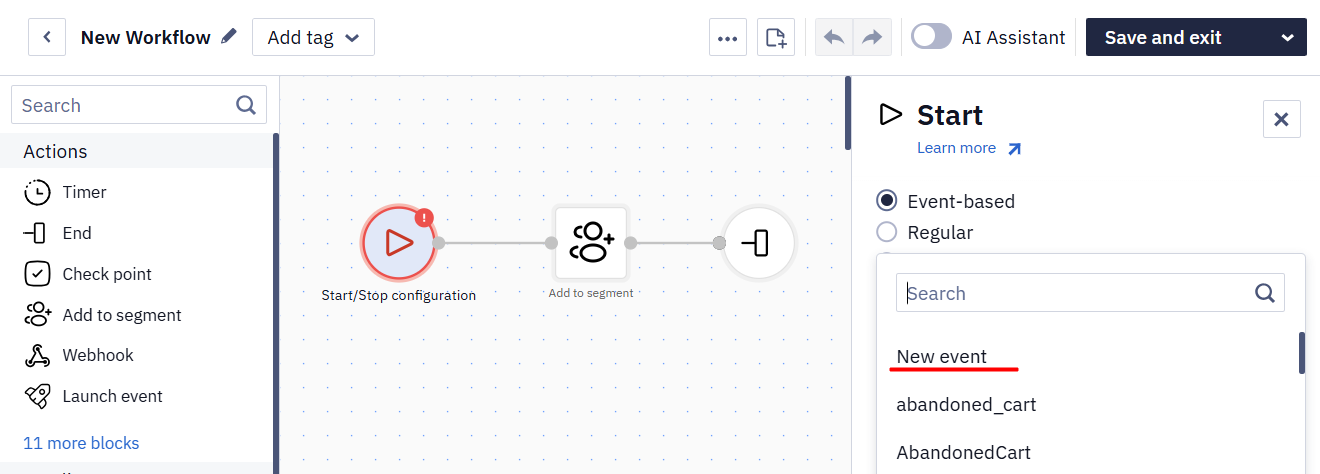
For details, see Creating Events and Adding Tags.
Regular Workflows Without a Segment Size Limit
At launch, the system fixes the segment's contact list and gradually processes every contact — 10,000 contacts every 10 minutes.
If the previous launch is still running, the next scheduled one is skipped. Contacts added to the segment after processing has started will enter the next launch.
For details, see Launching a Regular Workflow for a Segment.
Event Count in Branch Rules
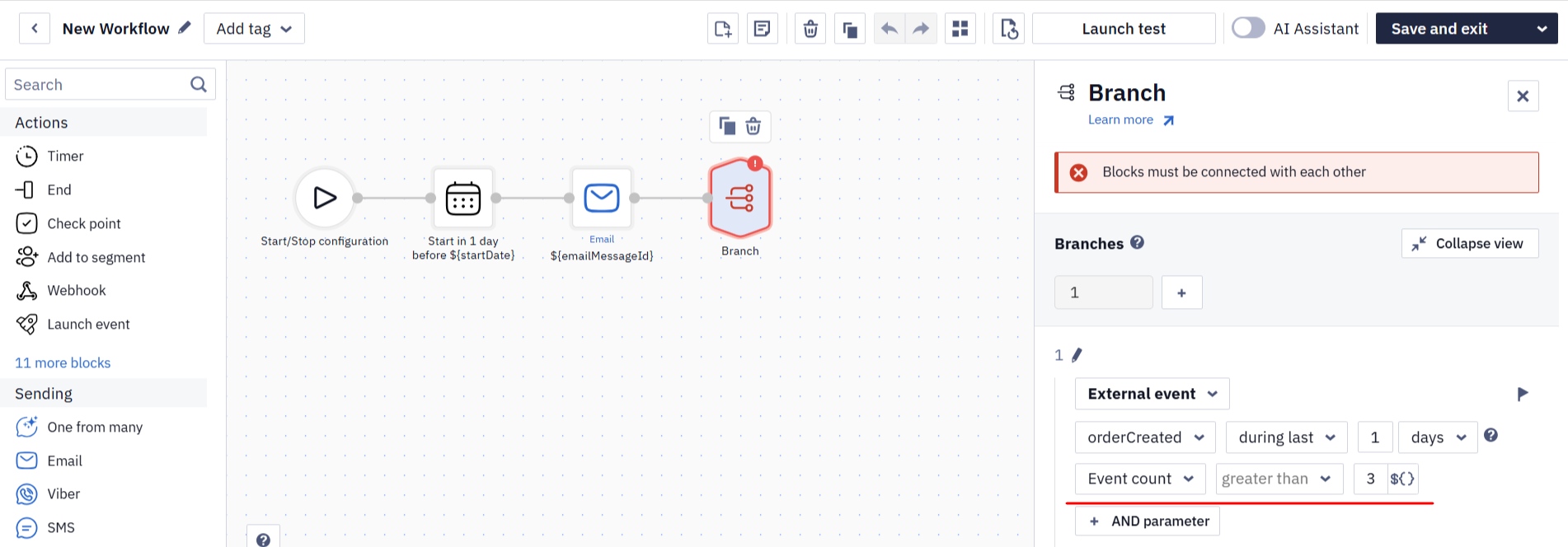
The External event rule of the Branch block now has the Event count parameter that checks how often an event occurred within the selected period. For example, send an offer only to those who started a workout at least three times in a week. One rule can contain only one such condition.
Previously, this required a segment membership check, and segment recalculation can take up to 15 minutes. Now no extra segment is needed.
For details, see Using the Branch Block.
Other Workflow Improvements
- Country and market conditions. The Country (countryCode) and Market ID (marketId) contact fields are now available in the Branch and Check values blocks, as well as in other workflow settings where a contact field can be selected.
- Fewer confirmations from the AI Assistant. When you edit an existing workflow, the assistant shows one summary confirmation of the structure and parameters instead of asking about every step; creating a workflow from scratch has not changed. The assistant can also create and edit Start on Date blocks, including the contact's time zone setting.
Widgets
Updated Countdown Timer
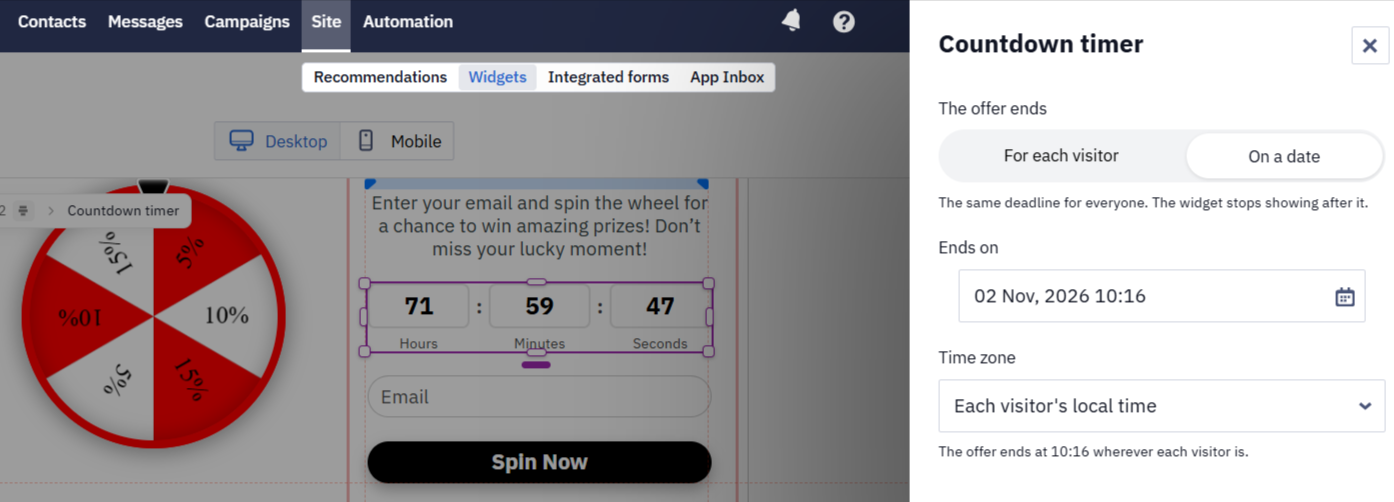
The timer settings now offer two ways to define when the offer ends:
- For each visitor — the countdown starts when a person sees the widget. Choose a duration from 5 minutes to 24 hours or set your own, and define what happens when the time runs out: show the widget again on the next visit, after a pause, or do not show it again.
- On a date — the countdown ends at a set moment. By default, it uses Each visitor's local time, but you can pick a specific time zone.
For details, see Setting Up Widgets for Your Site.
Redesigned Rewards in Gamification
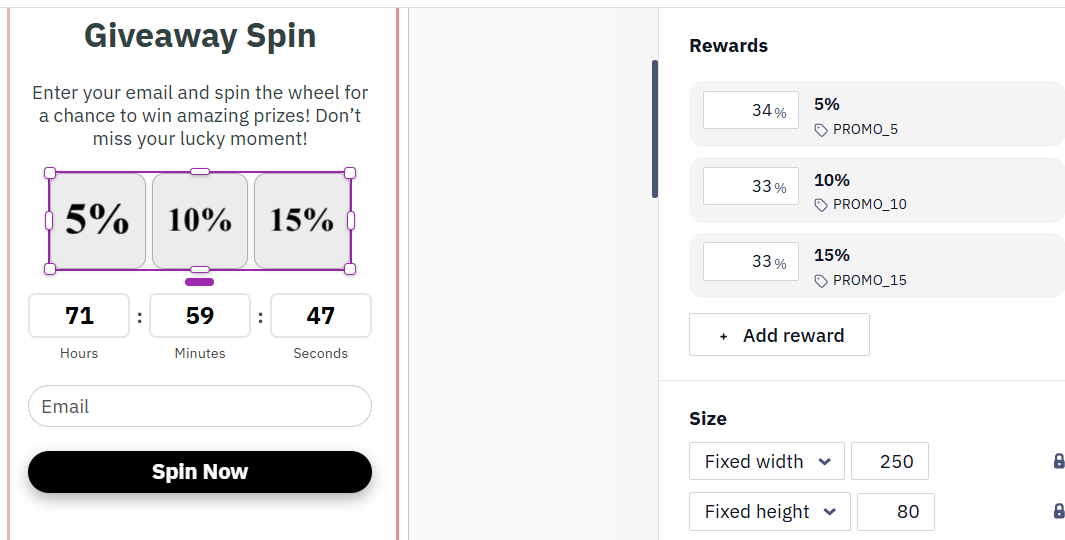
Each reward in the reward pool is now a separate card with its name, win chance, and promo code information, if there is one. Errors that block widget publishing (for example, an expired discount or missing promo codes) are shown right on the reward cards.
For details, see Widget Gamification.
Widgets Adapt to Mobile Screens
A widget is no longer cut off on mobile screens after being saved in the desktop view: the editor takes the sizes of both versions into account regardless of which one you edited. For existing widgets, simply re-save them in the editor.
Other Widget Improvements
- Updated display conditions interface. It is now easier to tell configured conditions from empty ones and those with errors. The widget display logic has not changed.
- Clearer text style menu. The style menu now shows which settings each style applies.
Events
The Missed Events Button Appears in More Cases
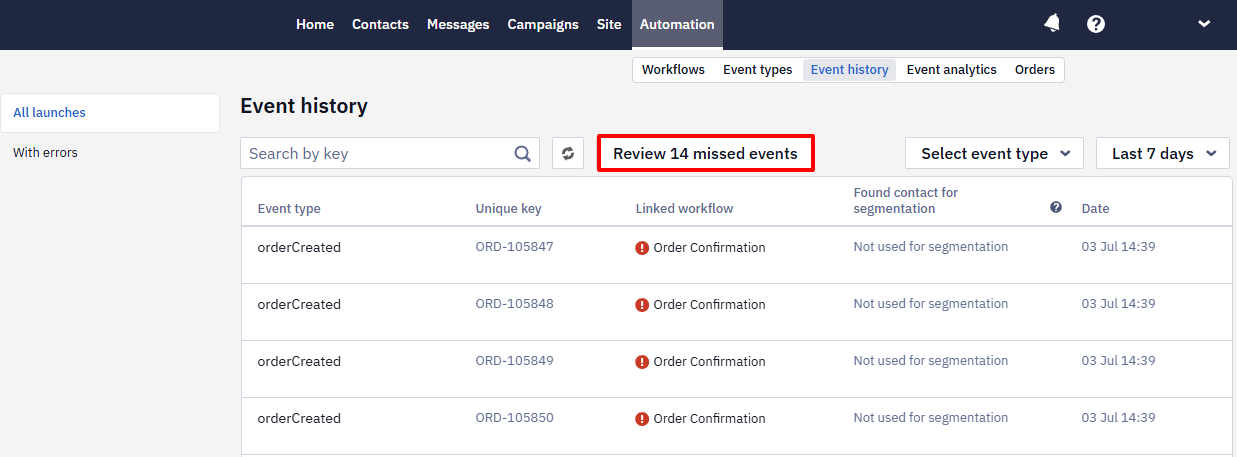
The Review missed events button in the event history now appears not only after a plan upgrade, but also when the number of contacts no longer exceeds the limit or when paid extra workflow launches are enabled.
To re-process missed events, open their list and click Process events. They are not launched automatically.
For details, see Creating Events.
Account Settings
Business Settings in One Place
The My organisation page is now called My business. Besides the account settings, it hosts the business profile that used to be a separate section. You can create the profile from your website data instead of filling everything in manually, and then review and edit your company info, visual identity, and brand voice.
For details, see Business Profile Settings.
Other Updates
- Contacts. The message preview in a contact's activity history now shows the ID of the workflow that sent the message.
- Universal Links for iOS. To open campaign links in your iOS app, you upload an apple-app-site-association file when setting up a destination domain. The platform now accepts files without the apps array, as Apple's current documentation prescribes. Files with the old structure are still supported, so existing setups need no changes.
If you do not see these updates in your account or have questions about how the system works, contact us at [email protected].
Updated about 2 hours ago