
Gmail Summary Cards and Email Markup
Gmail sometimes displays a compact summary of an email — a summary card — either above the message body or directly in the inbox. Common examples include order and package-tracking cards, flight and hotel reservation cards, and promotional Deal cards.
These cards can be generated through two different mechanisms. It is important to distinguish between them because senders can control only one.
Two Different Mechanisms
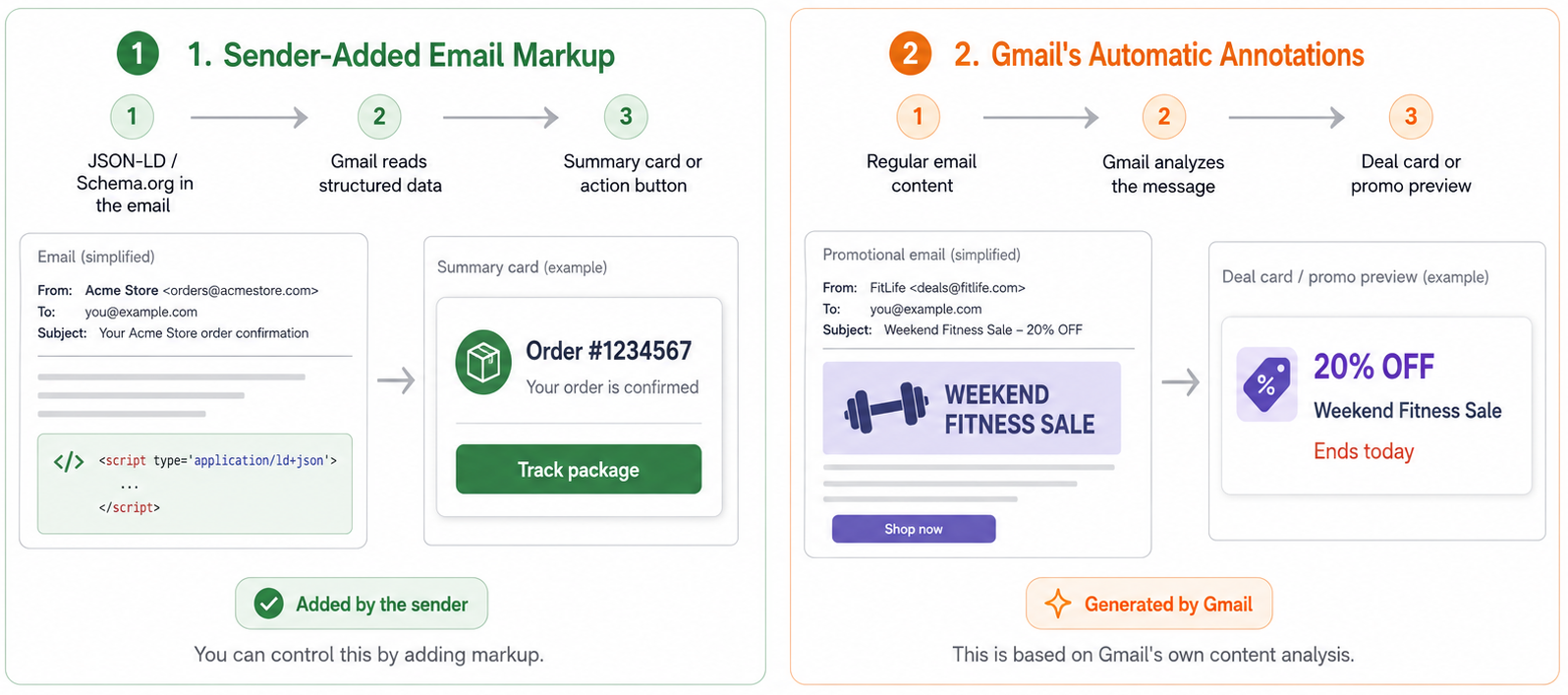
1. Sender-Added Email Markup
You can add structured data to an email so Gmail can recognize it and display a card or an action button, such as Track package or View reservation.
The markup uses the Schema.org vocabulary in JSON-LD format. Google describes the supported types in its Gmail Markup / Actions in Gmail documentation.
Like AMP for Email, this is a sender-configured feature. You add the markup to the email yourself, and interactive Go-to action buttons also require you to register your sending domain with Google.
Informational markup that creates a card without an action button does not require registration. However, Gmail requirements and behavior may change, so check the current Google documentation before relying on a particular type of markup.
Gmail markup is not limited to orders and travel reservations. It can also be used for promotional content. To control how a deal or discount is represented instead of relying on Gmail's automatic detection, check Google's documentation for the currently supported Schema.org types. Reteno does not prescribe or validate which type you use.
ImportantGmail processes markup only in messages that pass SPF and DKIM authentication. Whether a card is displayed may also depend on sender reputation.
Before using markup, make sure your sending domain is authenticated. Even correctly added markup may not appear when the domain is not authenticated.
2. Gmail's Automatic Annotations
Gmail can also generate a summary card automatically by analyzing the content of an email. No structured data from the sender is required.
This is why a Deal card may appear in a campaign even when you have not added any markup.
ImportantThis mechanism is controlled entirely by Google. Reteno does not add or manage automatic Gmail annotations, so they cannot be enabled or disabled in Reteno or by the support team.
If a card appears or fails to appear unexpectedly, this may be the result of Gmail's automatic content analysis rather than a Reteno delivery or template issue. Gmail ultimately decides whether to display the card.
Adding Markup to a Reteno Email
Reteno does not provide a dedicated no-code interface for Schema.org email markup. Add the markup as HTML code, in the same way as any other custom code block.
- Go to Messages → Messages → Email and open an existing email or create a new one.
- In the code editor, add a
<script type="application/ld+json">block containing your markup.
The block is not displayed as visible content in the email. Gmail reads it on the server while processing the message.
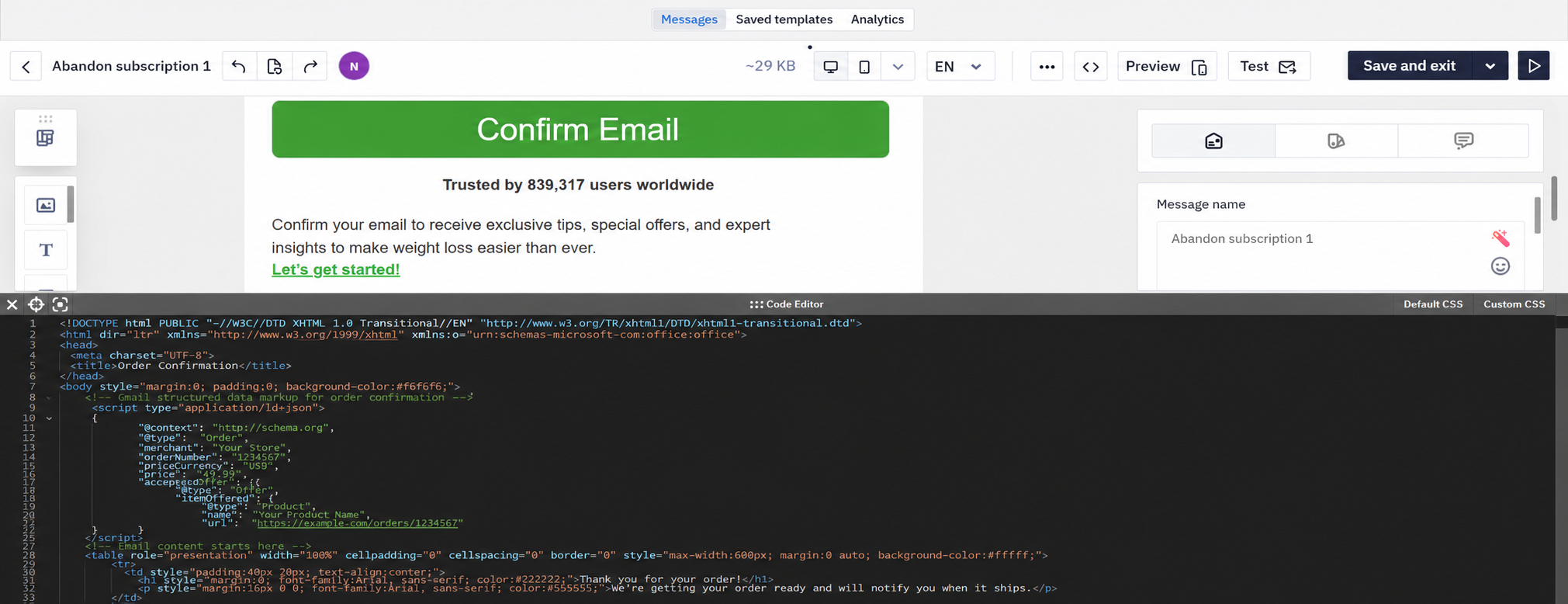
NoteReteno preserves the
<script type="application/ld+json">block when the message is saved.Whether Gmail displays a card depends on the validity of the markup, domain authentication, and other Google requirements. Markup with an action button also requires sender registration with Google.
Example markup for an order confirmation:
<script type="application/ld+json">
{
  "@context": "https://schema.org",
  "@type": "Order",
  "merchant": "Your Store",
  "orderNumber": "1234567",
  "priceCurrency": "USD",
  "price": "49.99",
  "acceptedOffer": {
    "@type": "Offer",
    "itemOffered": {
      "@type": "Product",
      "name": "Your Product Name"
    }
  },
  "url": "https://example.com/orders/1234567"
}
</script>
You can personalize markup values with Velocity, just as you would in other parts of the template. For example, you can insert an order number or price from event parameters.
Testing and Registration
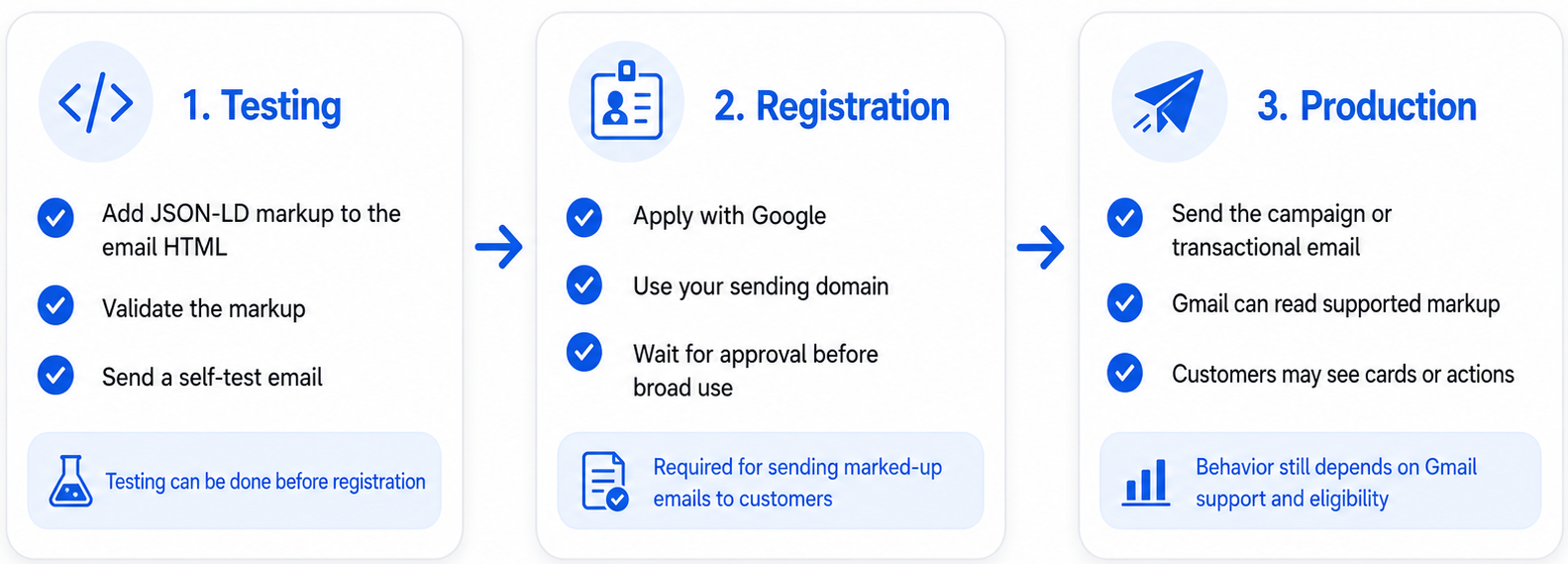
- Validate the JSON-LD syntax before sending the email. You can use a general Schema.org validator, such as Schema Markup Validator. Gmail will not recognize an invalid block, but the email itself may not display an error.
- Send a test email to your own Gmail account and check whether the card appears. Because Reteno sends the markup without modifying it, this test helps you verify how Gmail processes messages from your domain.
ImportantA test email may not display a visible card even when the markup is configured correctly.
Informational markup without an action button may affect only Gmail's internal categorization. For example, the message may appear under Purchases without any visible changes in the inbox.
A single test message from a low-volume or unregistered sender may also be displayed differently from messages sent by established senders. Therefore, the absence of a visible card does not necessarily mean that the markup failed.
To verify authentication, open Show original in Gmail and make sure that SPF and DKIM have the PASS status. If both checks pass, domain authentication is not the reason the card is missing.
-
For markup that adds a clickable action rather than only an informational card, register the sender with Google. You must submit the application yourself because Reteno does not apply for or manage the registration on your behalf.
The process is similar to AMP sender registration: send a real email containing the markup from your production domain to Google's review address, complete the registration form, and wait for approval.
-
Refer to Google's Gmail Markup documentation for the current list of supported types, requirements, and testing recommendations. Google may change these conditions independently of Reteno.
Related
- How to Apply for Sending AMP-Powered Emails
- Customizing an HTML Email Template
- Using Velocity in Email
Updated 11 days ago