
Choosing the AI Backend for the Reteno Agent in Slack
The Reteno Agent can run on different AI backends. You can choose which one powers your new Slack threads, while every thread you already have keeps the backend it started with.
By default, new threads run on Reteno-managed AI. You can also run the agent on your own OpenAI or Anthropic (Claude) account by providing your own API key — in that case, usage is billed to you.
How Backend Selection Works
- Your choice applies only to new threads.
- A thread is locked to its backend when it is created and keeps it for its entire life.
- Threads you already have are not affected when you change the setting.
- Changing the backend takes effect on the next new thread you start.
Available Backends
Three backends are available. Choose based on who should pay and how much setup you want:
| Backend | Choose this when | Billed to | Limits | Setup on your side |
|---|---|---|---|---|
| Reteno-managed AI (default) | You want to start right away with no setup | Reteno | Monthly cap, default $50 | None |
| Your own OpenAI key | You prefer OpenAI and want usage on your own account | Your OpenAI account | Whatever you set in OpenAI | Provide an API key |
| Your own Anthropic (Claude) key | You prefer Claude and want usage on your own account | Your Anthropic account | Whatever you set in Anthropic | Provide an API key |
Only the managed backend has a Reteno-side cap; the others use the limits you set with the provider. When the managed cap is reached, the agent pauses until the next month. If a Claude request fails, the agent does not automatically switch back to the managed AI.
Before You Start
- You already work with the Reteno Agent in a Slack channel.
- To use your own OpenAI or Anthropic key, you need an account with that provider, with API access and active billing.
- Your Reteno manager applies the change — you don't switch the backend yourself.
How to Switch Backends
- Decide which backend you want — Reteno-managed AI, your own OpenAI account, or your own Anthropic (Claude) account.
- If you want to use your own account, generate an API key in it and have it ready — see Generating an OpenAI API Key or Generating an Anthropic API Key below.
- Contact your Reteno manager and tell them which backend you'd like to use. If you're providing your own key, share it securely — never in a public Slack message.
- Once the change is applied, every new thread you start uses the selected backend. Your existing threads keep their original backend.
Generating an OpenAI API Key
To run the agent on your own OpenAI account, create an API key there. Usage is billed to your OpenAI account.
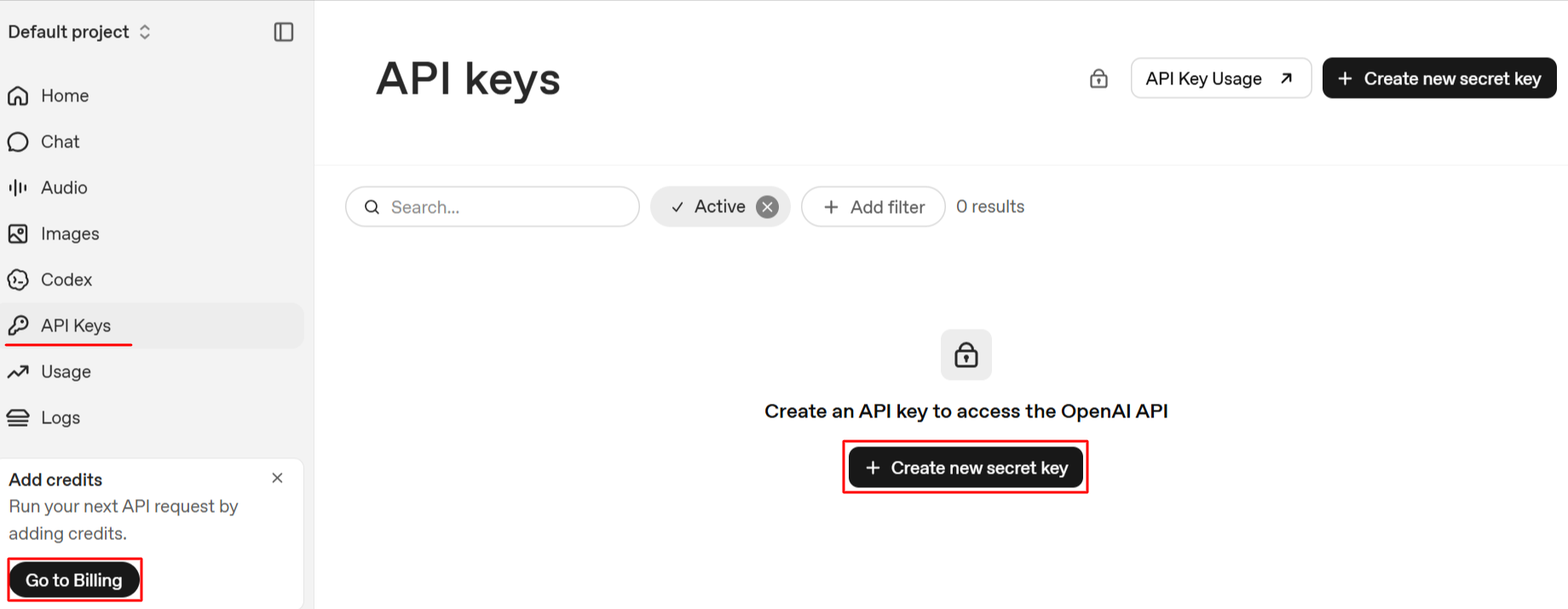
- Sign in to the OpenAI Platform at platform.openai.com.
- Set up billing. Open Billing, add a payment method or credits, and — optionally — set a monthly budget. Without billing in place, the key won't work.
- Open API keys and click Create new secret key. Give it a descriptive name, for example
reteno-agent. - Copy the key immediately — OpenAI shows it only once.
- Share the key with your Reteno manager as described above.
Generating an Anthropic API Key
To run the agent on Claude, create an API key in your Anthropic account. Usage is billed to your Anthropic account.
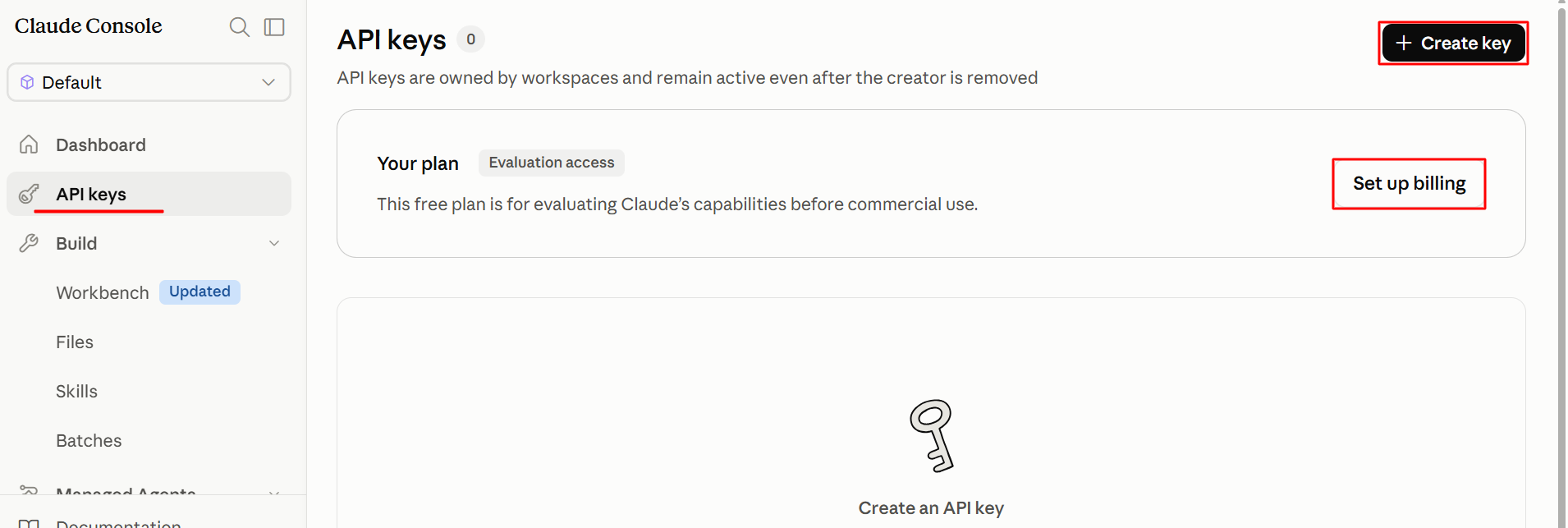
- Sign in to the Anthropic Console at console.anthropic.com (also reachable at platform.claude.com).
- Open API Keys.
- Set up billing: add a payment method or prepaid credits, and — optionally — set a monthly spending limit. Without billing in place, the key won't work.
- Click Create Key. Give it a descriptive name, for example
reteno-agent. - Copy the key immediately — Anthropic shows it only once.
- Share the key with your Reteno manager as described above.
Treat the Key Like a PasswordAnyone with your API key can use your OpenAI or Anthropic account. Use a key dedicated to Reteno rather than reusing an existing one, and set a spend limit in the provider's console so usage can't run away. If a key is ever exposed, revoke it in the provider's console and create a new one.
Billing and Usage
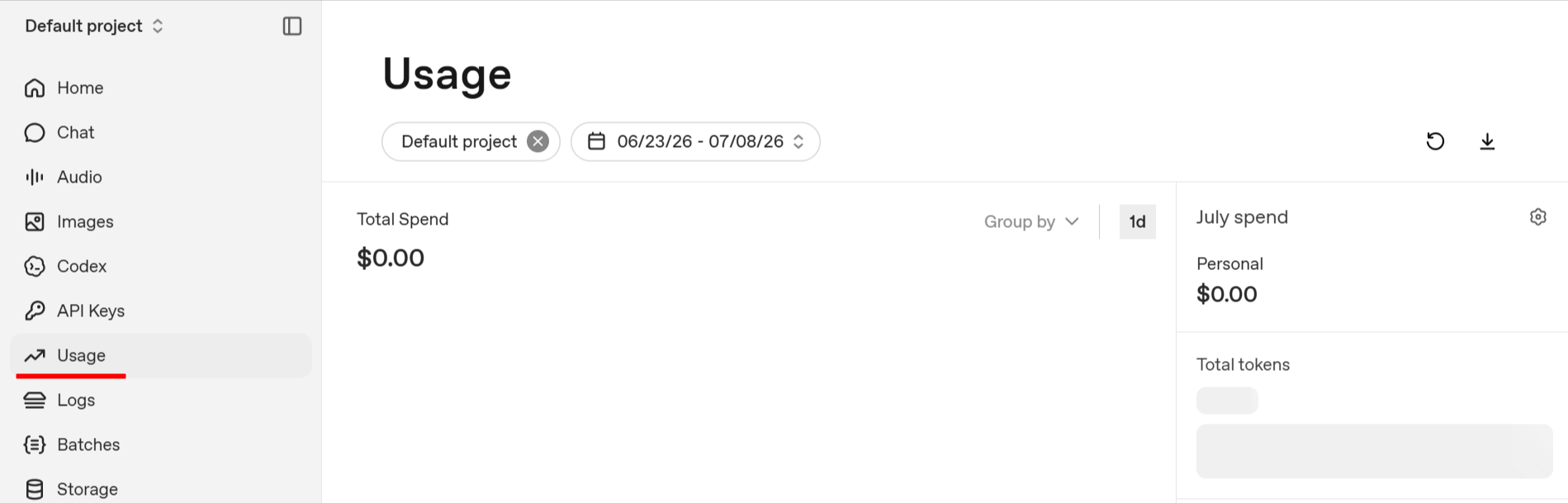
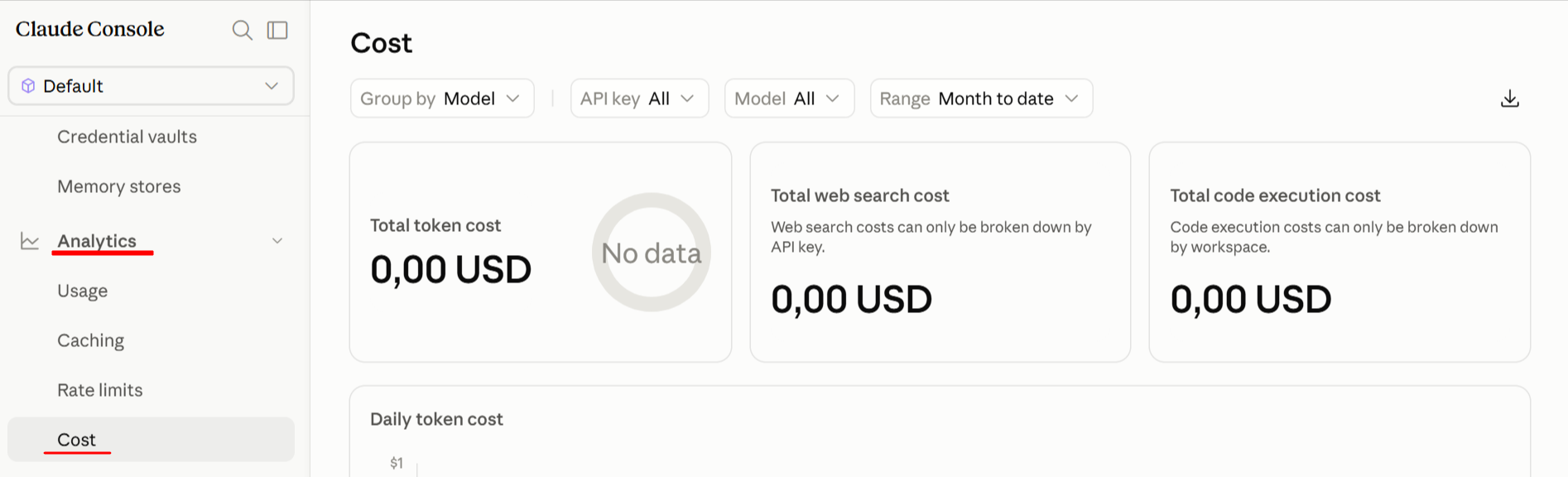
When you use your own key, your provider bills you directly. You can track spend in the provider's console:
- OpenAI under Usage
- Anthropic under Analytics → Cost
Reteno-managed AI usage counts against your monthly cap and pauses once the cap is reached.
How to Check
After your Reteno manager applies the change, start a new thread — it runs on the selected backend. Threads you created before the change keep their original backend. Your Reteno manager can confirm the active backend for your account.
Troubleshooting
- Your key is rejected — Make sure billing is set up in your provider's console (OpenAI or Anthropic). Without a payment method or credits, the key won't work.
- The agent stops responding on your own key — Your key may have been revoked or expired, or you may have reached a spend limit in your provider account. Check the key's status and spend limit in the provider's console.
- The managed agent stops responding — You may have reached your monthly cap. It resumes next month, or you can ask your Reteno manager to adjust the cap.
- A new thread uses the old backend — The change applies only to threads created after it takes effect. Existing threads keep their original backend.
Related Articles
- Integrating Reteno with AI Agents
- Reteno Agent in Slack: Use Cases
- Why Use the Reteno Agent in Slack
Updated 4 months ago