
Contact Blacklist
A blacklist is a contact category in the Reteno system that is excluded from campaigns because messages can't be delivered to those contacts. Most often, it includes non-existent, full, or inactive mailing addresses.
System Blacklist vs. Local Blacklist
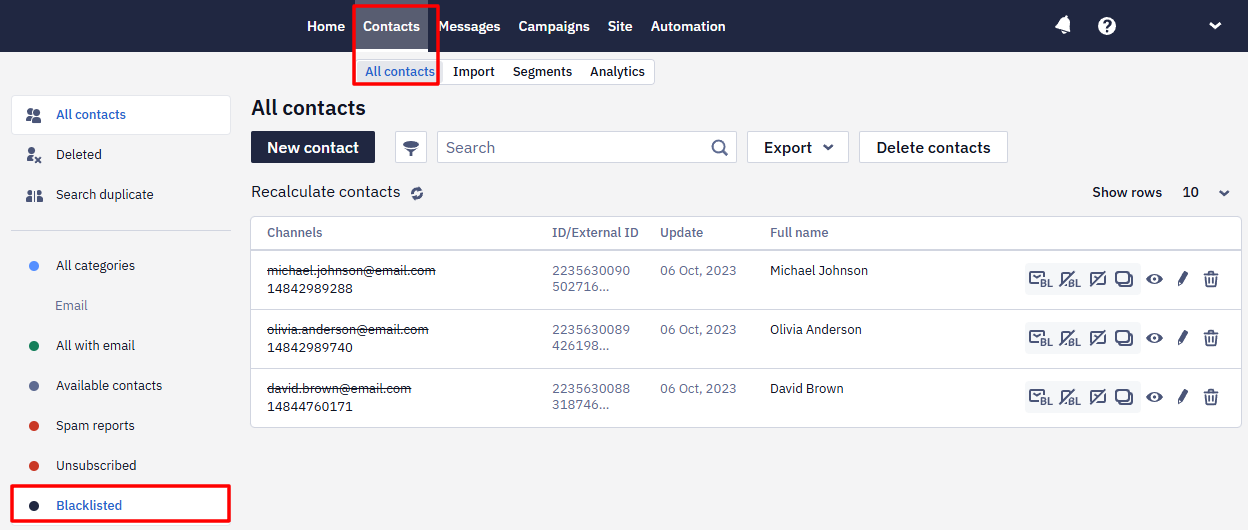
Reteno has two kinds of blacklist. Both are shown the same way — as crossed-out emails or phone numbers under Contacts → All contacts → Blacklisted — but they work differently:
- System blacklist — managed automatically by Reteno. It includes addresses that mailbox providers reported as non-existent, full, or inactive, as well as spam traps. It is end-to-end across the whole Reteno system (shared across organizations), so an address already blocked in the system stays blocked when you add it. You cannot add to or remove from the system blacklist yourself — only Reteno support can, after verification.
- Local blacklist — managed by you, within your account only. A user with the Admin role can add or remove emails and phone numbers through the interface. It does not affect other accounts. See Contact Management Options for the steps.
The rest of this article describes the blacklist behavior common to both.
What Blocked Contacts Look Like?
Blacklisted contacts are displayed as crossed-out emails or phone numbers.
How Do Contacts Get Blacklisted?
Suppose you or someone from another organization in Reteno previously sent emails to addresses that the mailer responded to as not existing. In that case, these contacts are marked accordingly in the system.
Contacts can be blacklisted at any of the following stages:
- with manual import;
- during import via API;
- when sending messages;
- when an Admin adds an address to the local blacklist manually (see Contact Management Options);
- temporary blocking, when a mailbox returns an error that it is full or frozen due to inactivity.
An address goes to the blacklist after an actual send: the message leaves, the mailbox provider returns a hard bounce, and the address is blocked. A soft bounce doesn't blacklist it. The two are told apart by the SMTP response code — 5.x.x for hard bounces and 4.x.x for soft ones — with exceptions: 5.1.2, the no-such-domain error, doesn't block the address right away, because the domain's DNS may still be fixed. An address in a domain you have never sent to isn't blacklisted either: without a send there is no bounce.
Note that the system blacklist is end-to-end across Reteno, so an email or phone number that is already blocked in the system stays blocked when you add it.
What Does Temporarily Blocking a Contact Mean?
If, when trying to send a newsletter, an error status is received indicating that the mailbox is full or inactive, the contact is temporarily blacklisted:
- the first error blocks the address for a day,
- the second — for 2 days,
- the third — for 3 days,
- the fourth — for 90 days.
Automatic address unlocking occurs once a day, at night.
The interface doesn't show which error in the sequence an address is on, so you can't tell how long it stays blocked. If the address works again, contact support — they can remove it from the blacklist without waiting for the automatic unlocking.
Can You Add Contacts to the Blacklist Yourself?
It depends on which blacklist:
- Local blacklist — yes. A user with the Admin role can add emails and phone numbers to the local blacklist directly in the interface. This affects your account only. See Contact Management Options.
- System blacklist — no. You can't add contacts to the system blacklist yourself, but you can send a request to [email protected]. Our specialists can blacklist or unsubscribe individual contacts or whole segments (emails and phone numbers) after moderation.
How to Understand Why a Contact Is Blacklisted?
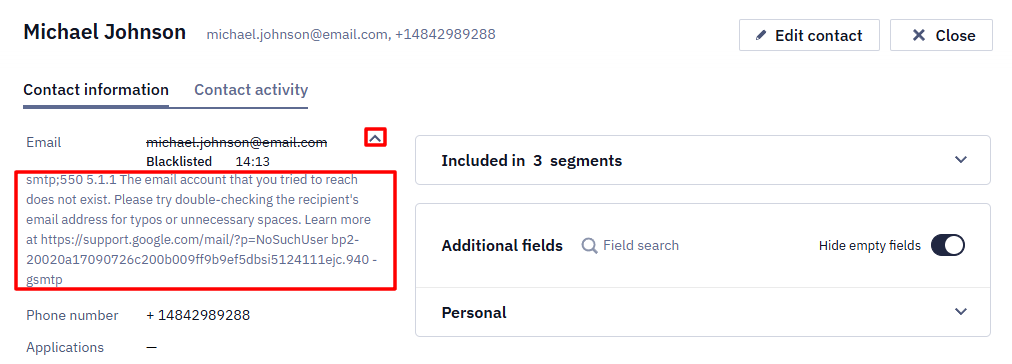
To find out the reason a contact was blacklisted, open the contact card by clicking the row with their data. For example, in the screenshot below you can see the mailer's response that the email does not exist.
What Happens to Contacts After They Are Blacklisted?
These emails are not included in further campaigns, so they don't affect your sender reputation. They are simply stored in Reteno and can be deleted or restored at the account owner's request. In the contact's message statuses, such addresses are marked BLACKLISTED: they were in the blacklist at the moment of sending.
A delivery error on its own doesn't stop the next sends: messages keep going to the address until the contact unsubscribes, reports spam, or lands on the blacklist.
An address that is on the blacklist isn't accepted when a contact subscribes: the required field in the widget is filled in, but the address doesn't appear in the contact. Importing such an address or adding it manually works differently — the address is written and simply stays blocked. If an email from a form wasn't saved, check the blacklist first.
Such contacts stay in the database until you delete them: neither blacklisted nor unsubscribed contacts are removed automatically. To clean the database on a schedule, add the Delete Contact block to a workflow.
How to Find a Blacklist in Reteno?
You can find the blacklist in the following tabs of the Contacts section.
- All contacts
To see which contacts have been blacklisted, go to Contacts → All contacts and click Blacklisted in the left-hand menu.
The blacklist is displayed for emails and phone numbers. Click the blacklist in the relevant channel to view the addresses or numbers it includes.
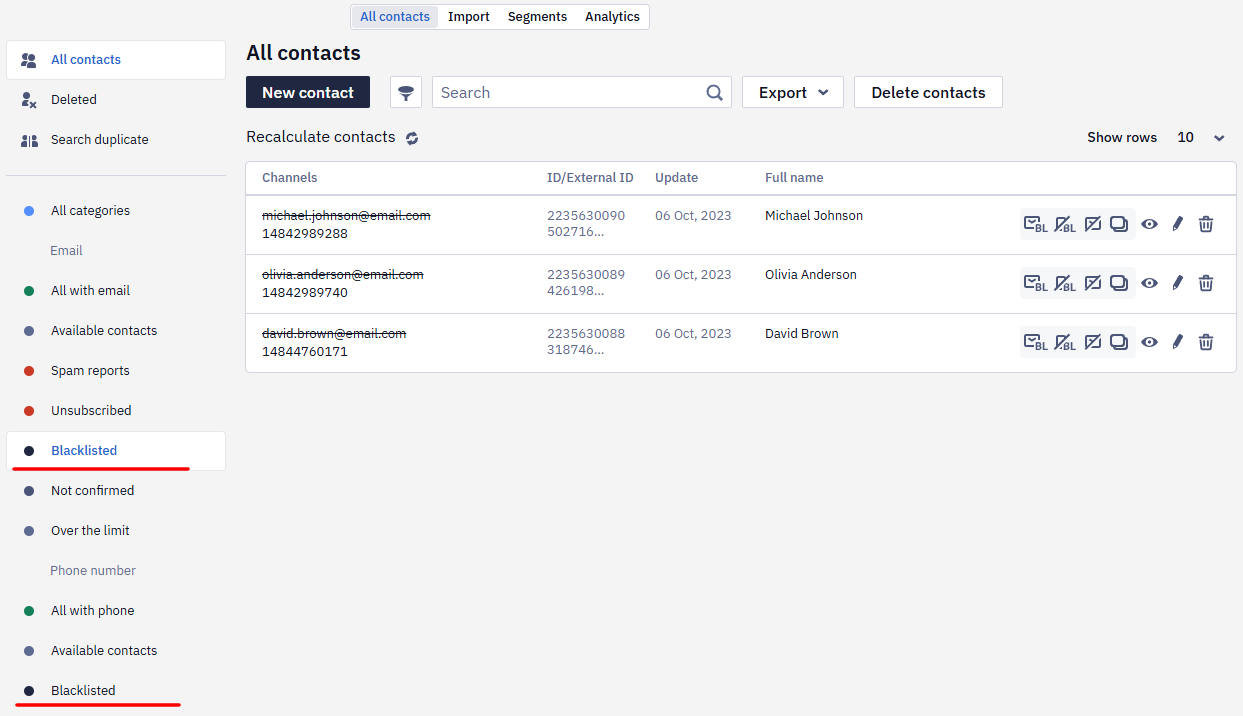
Click the Recalculate contacts button to determine each channel's blocked contacts.
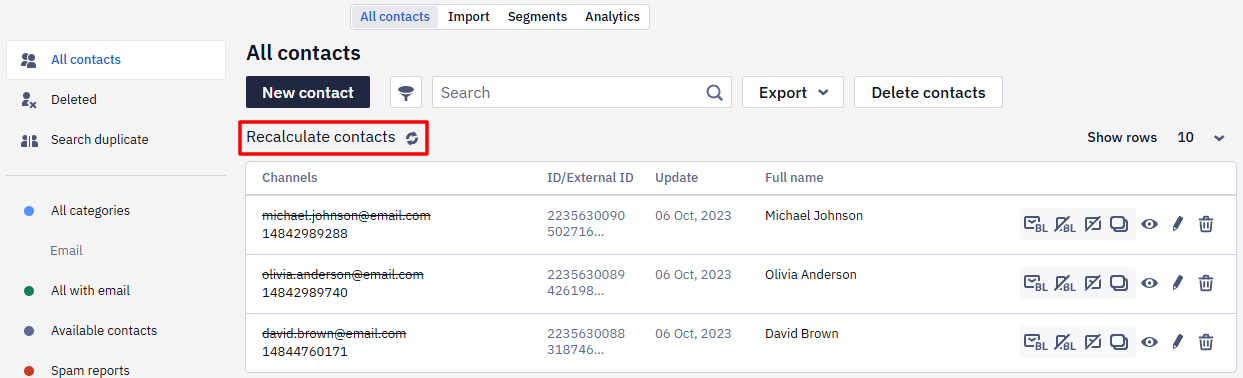
On this tab you can also perform various actions with individual contacts — for example, edit, delete, and view the reasons for being blacklisted.
- Analytics
Here you can see the contact list structure by activity:
- active;
- inactive;
- lost;
- never sent.
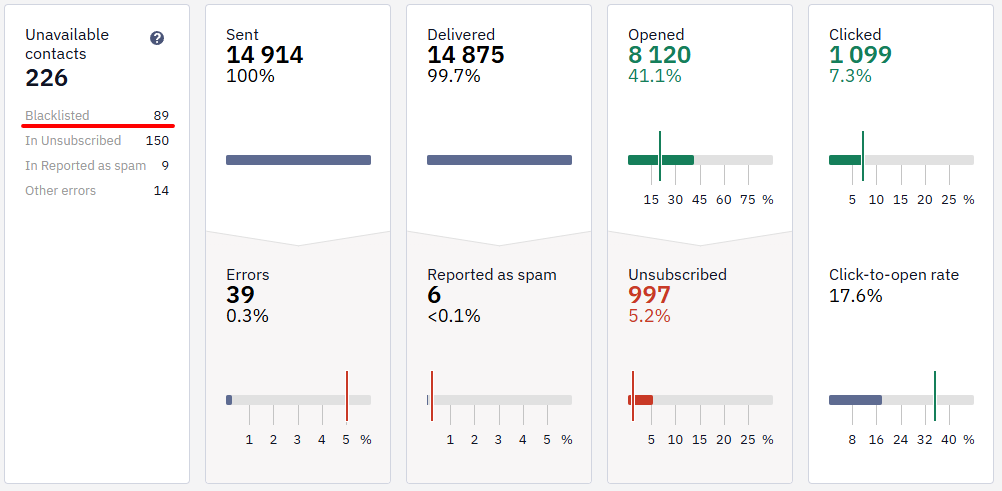
You can see the number of contacts in the blacklist in the last two categories. The Lost subscribers segment includes contacts who previously received messages from you and were later blocked. The Never sent segment includes contacts that haven't received any messages because they were immediately marked as blacklisted.
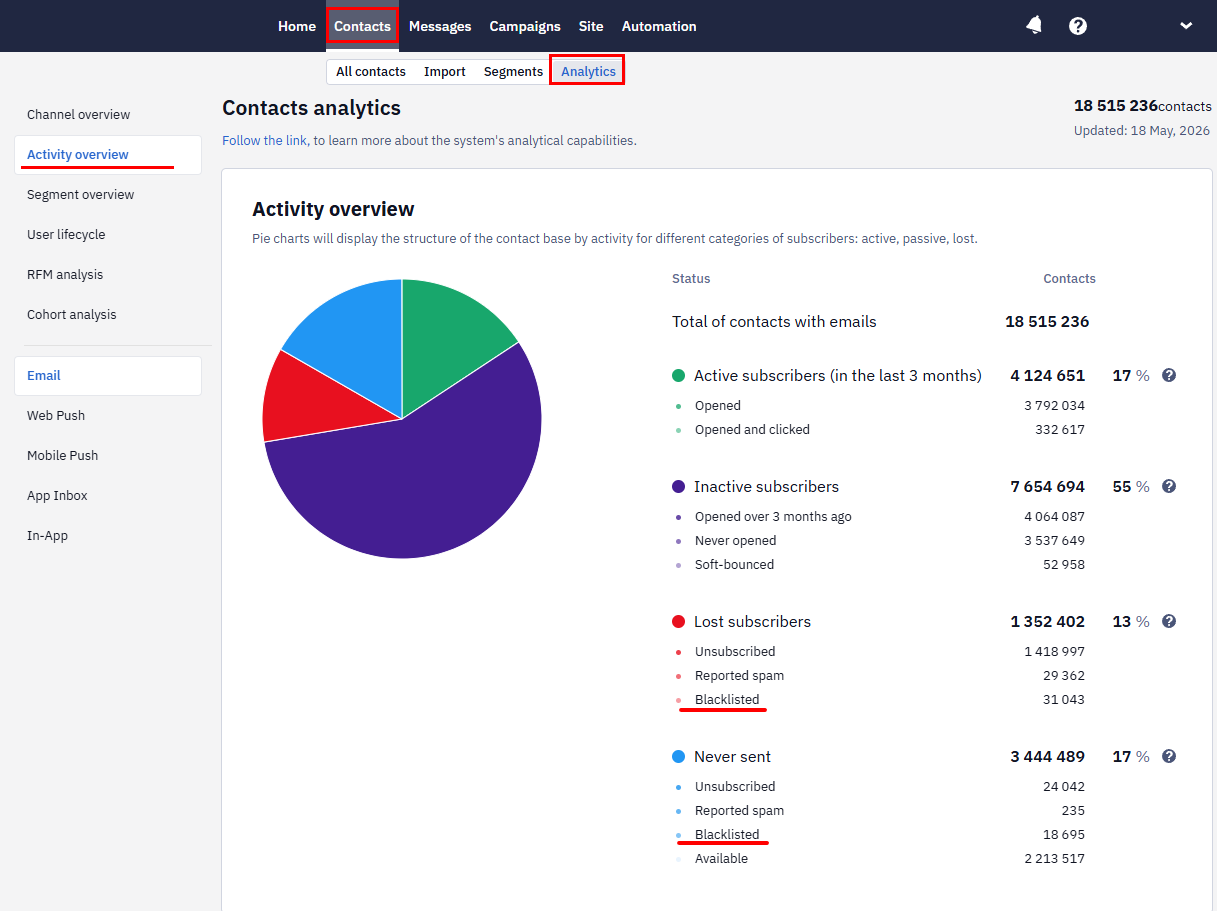
Click the diagram elements to see the structure of each segment. You can also download contacts from each segment.
How Does the Blacklist Category Differ from Undelivered?
Undelivered is a sending status that occurs when an email exists but the message can't be delivered — for example, because of temporary blocking, a full mailbox, or a mail server failure.
The status covers several different reasons, and the reason decides what happens next. If it puts the contact on the blacklist — an unsubscribe, a spam complaint, a frozen mailbox — the system stops sending to that contact. If it doesn't, the contact stays available and later messages are still sent.
Contacts who have unsubscribed are not messaged again. In a workflow the check runs at the sending step: the contact reaches the block, the system sees the unsubscribe, and the message isn't sent.
NoteAn
INVALID_DATA_IN_MESSAGEerror caused by a non-ASCII email address doesn't always result in a hard bounce status. In such cases, the contact may not be marked as undeliverable and can stay marked as sendable.
What Actions Can Be Taken with Blacklisted Contacts?
You can:
- edit a contact and view its activity — including updating its fields through the API: the contact stays blacklisted;
- recalculate quantities in channels (email, phone);
- analyze the number of such contacts in your base (Lost, Never sent) and export them to lists;
- explore the reasons for being blacklisted;
- delete.
How to Remove Blacklisted Contacts from the System?
You can delete individual blacklisted contacts or all of them together.
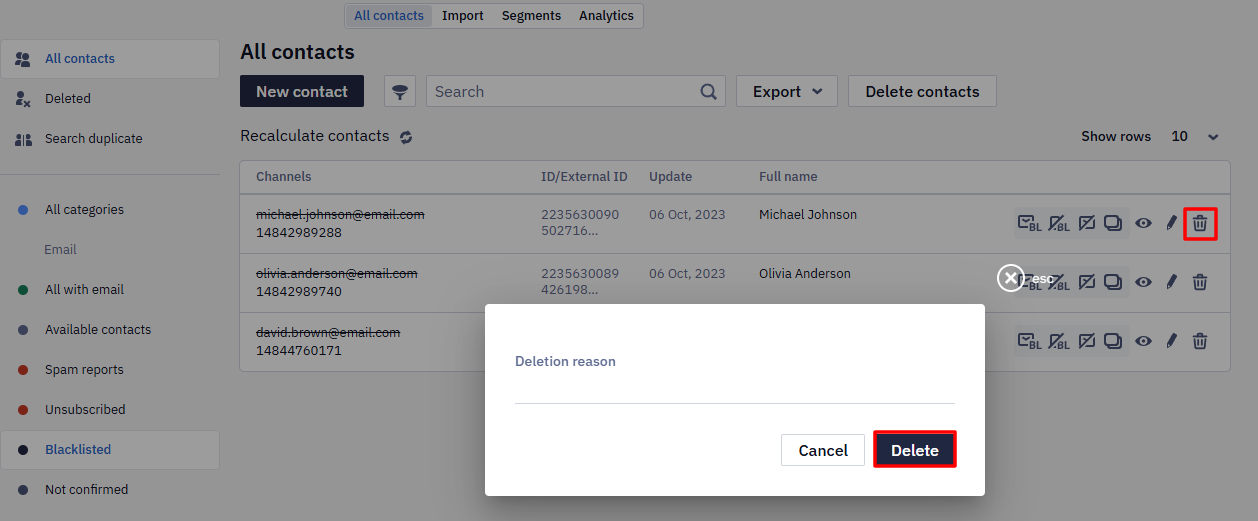
To remove individual contacts, go to All contacts. Select the Email or Phone number tab, find the contact, and click the delete icon (trash can) in their row. You can add a reason for deletion in case you restore the contact later. Click Delete.
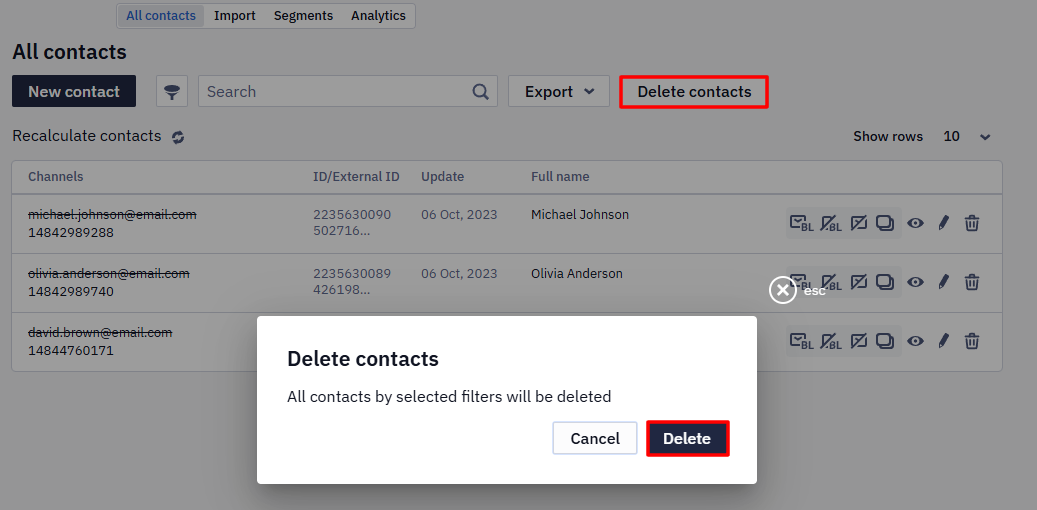
To delete all blacklisted contacts, go to the blacklist in one of the channels (email or phone number) in the All contacts section. Click Delete contacts, then click Delete.
How to Export Blacklisted Contacts?
- Export to a pre-created segment from the All contacts section
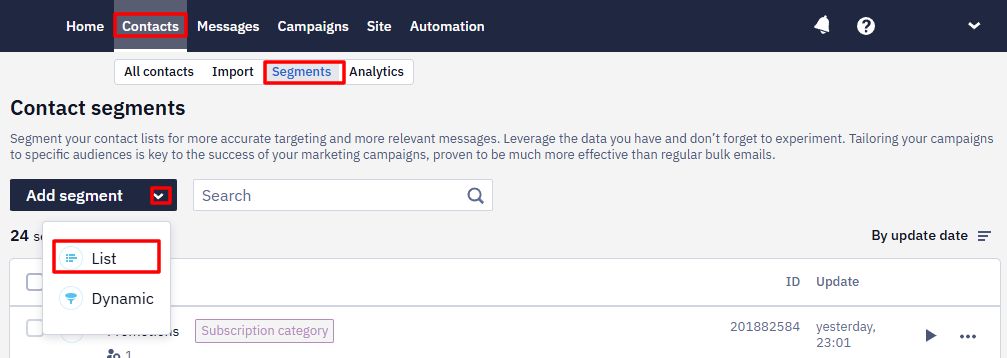
Create a segment to upload contacts to by clicking Contacts → Segments → Add segment → List (create without contacts).
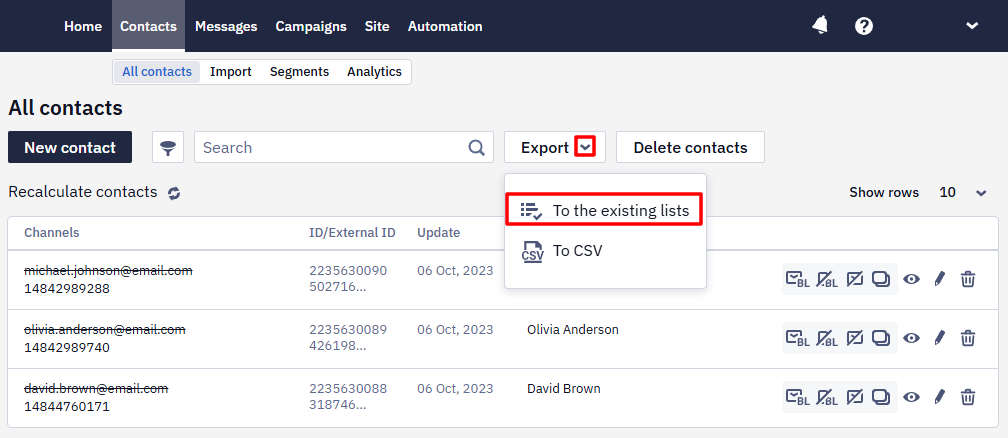
Then, in the All contacts section, click the Blacklisted category in the channel you need (email or phone number), click Export → To the existing lists, and select the created segment.
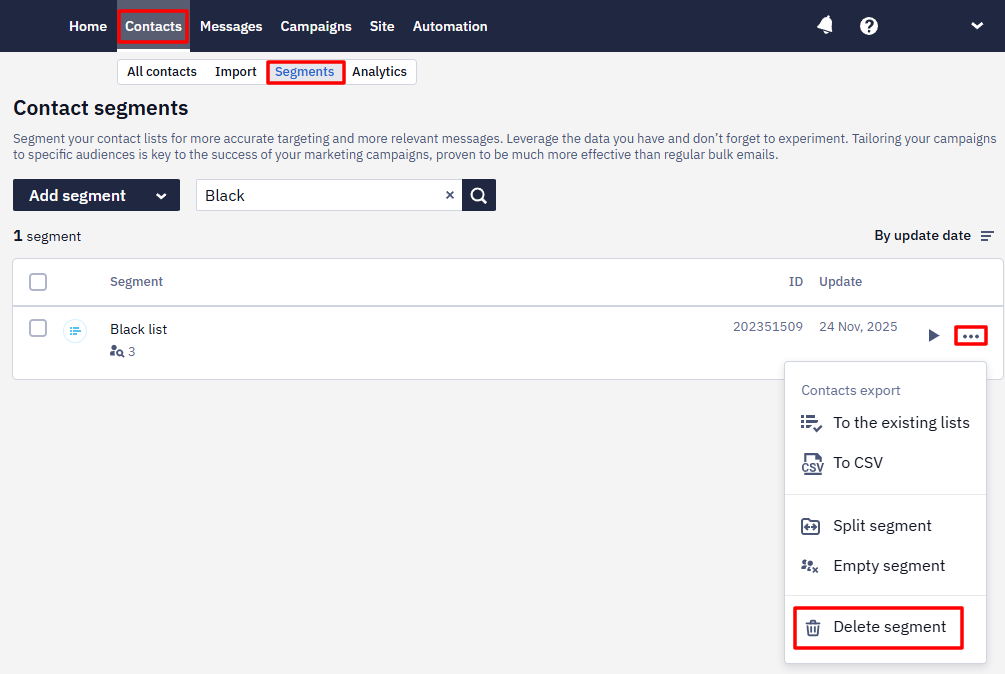
To delete the segment, click the three-dot icon and select Delete segment.
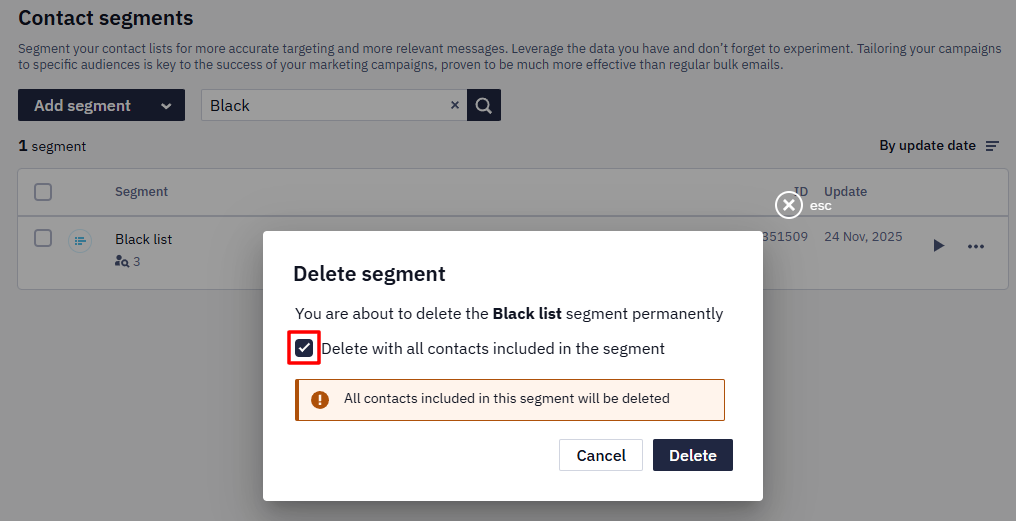
Confirm deleting the segment with contacts by selecting the checkbox and clicking Delete.
- Export to a file from the All contacts tab
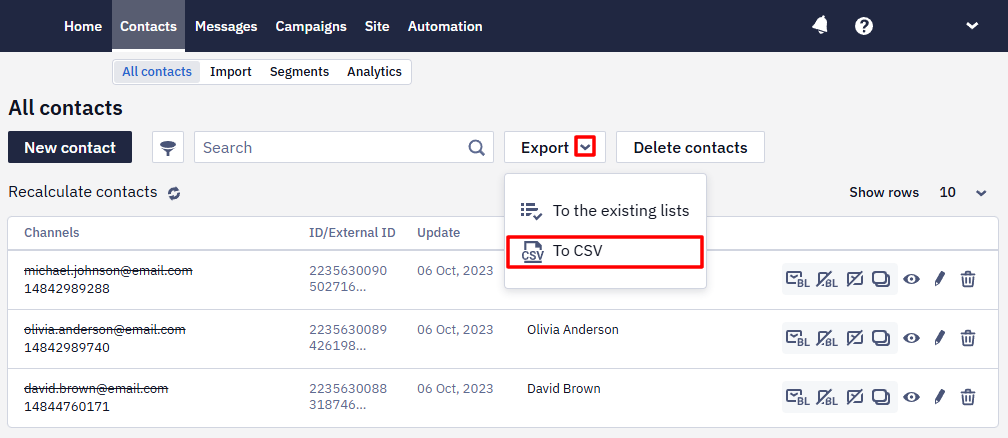
To download contacts to a separate file, select Export → To CSV in the blacklist category of the channel you need.
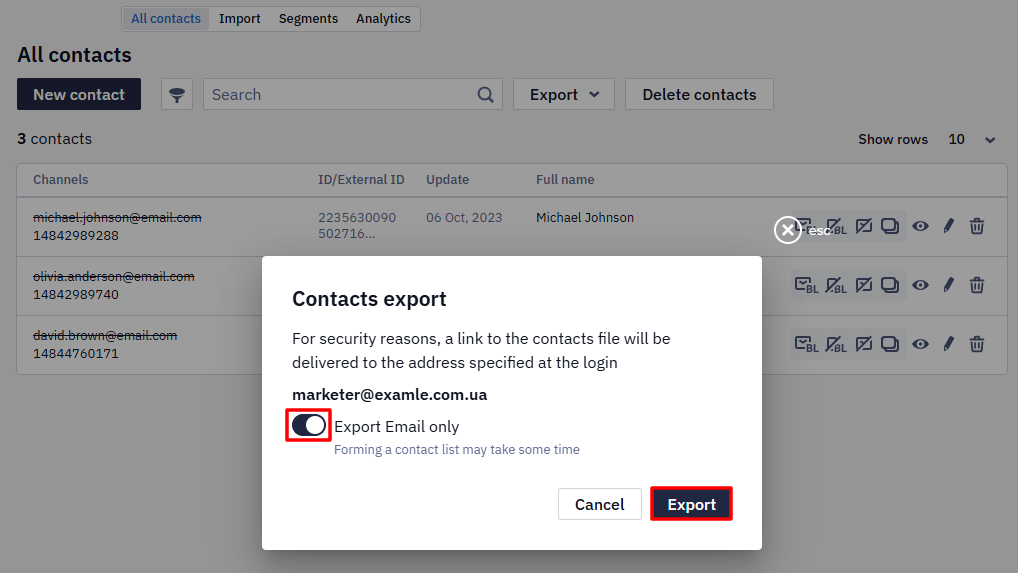
Then click Export. If the Export Email only option is active, your file will contain only email addresses. To get all contact data stored in Reteno, turn off this option.
- Export to a segment from the Analytics tab
Open the Analytics tab. Click the Blacklisted category in the segment of lost contacts or those to whom messages were never sent. Edit the name and click Create a segment.
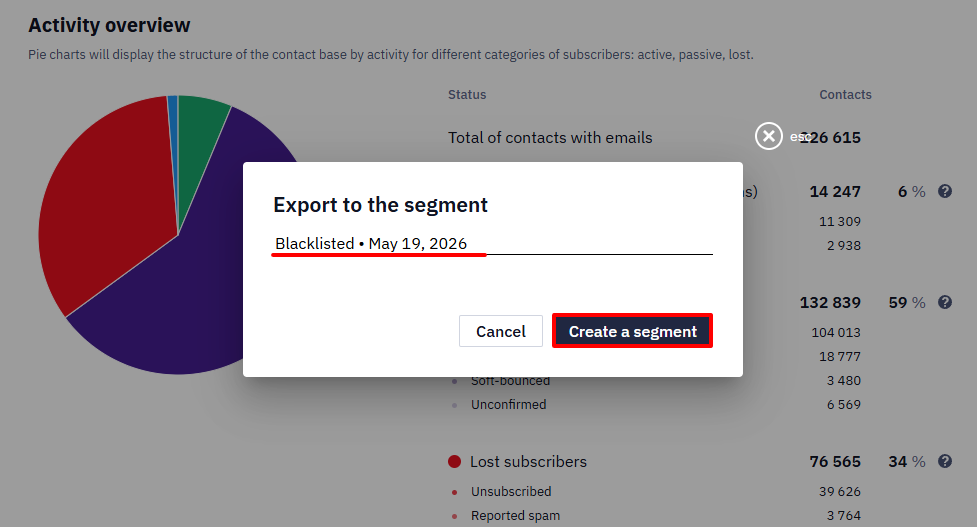
The created segment will appear in the Segments section. You can delete it like a list created from the All contacts section.
What Happens When Deleting Contacts?
When you delete a contact or a segment along with its contacts, they are moved to the Deleted section. The system keeps the contacts' statuses, but the contacts no longer appear on the All contacts tab.
In this case, when you re-import, the system recognizes that these are blacklisted contacts and won't send campaigns to them.
How to Recover Deleted Contacts?
You can recover deleted addresses and phone numbers in one of the following ways:
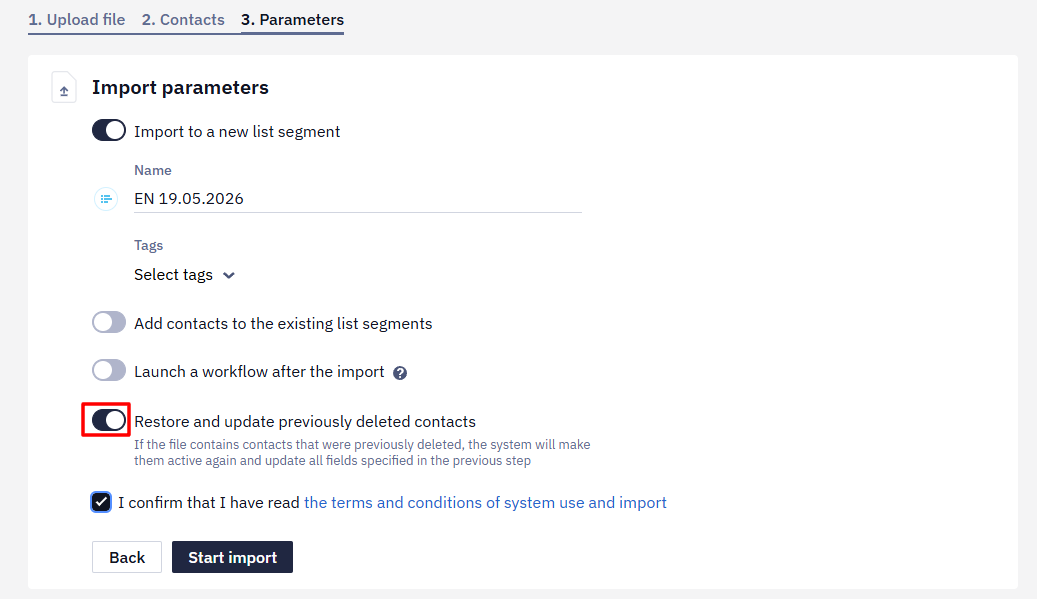
- When importing, enable the Recover and update previously deleted contacts option.
- Click the recovery icon (rounded arrow) in the contact's row in the All contacts → Deleted section.
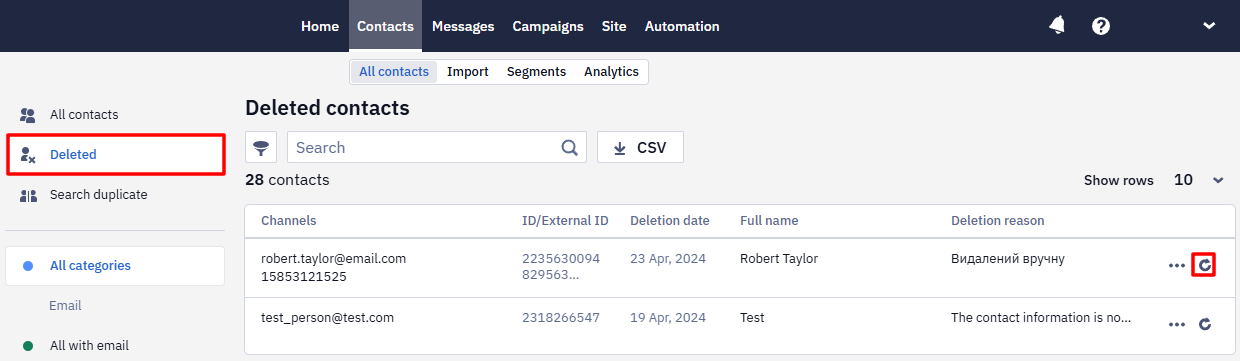
The contact will appear on the blacklist again.
How to Make a Blacklisted Contact Active?
It depends on the blacklist:
- Local blacklist — an Admin can remove the contact from the local blacklist directly in the interface. See Contact Management Options.
- System blacklist — you can't activate these contacts yourself. Send a request to our technical support and attach proof that the contact consented to your campaigns — a screenshot of your correspondence or records from your subscription form, for example.
What Happens When Removing Contacts from the Blacklist?
After a contact is removed from the blacklist — by an Admin (local) or by our support team (system) — you can use them in future campaigns again.
Checking a Contact's Subscription Status via API
Through the API you can't find out whether a contact is unsubscribed from all campaigns, and you can't retrieve the list of such contacts. The API only manages the list: add contacts to it with Add emails to unsubscribed list and remove them with Remove emails from unsubscribed list. Viewing the list and the status is available only in the account interface.
The Get contact and Search contacts methods return the contact card, but not the full system email subscription and blacklist status.
If you maintain your own consent field — an additional contact field your system fills in, for example — it isn't updated automatically. To keep it current, add an Update contact field step to a workflow triggered by the unsubscribe event; see Unsubscribe Forms for the details. Don't confuse that field with the system suppression status — they are maintained independently.
Updated about 12 hours ago