
What's New for July
July focused on faster workflow automation and more precise personalization. You can now:
- optimize workflows with One from Many while keeping generated messages under review;
- react to engagement as soon as a message status arrives;
- build workflows faster by copying start and stop settings and editing messages without leaving the workflow editor;
- tailor app journeys by country and market, and personalize In-App messages and widgets;
- automate more work with API improvements.
You can review the June updates in the previous digest; the latest SDK versions are available in the release notes.
Workflows
Wait for Message Statuses
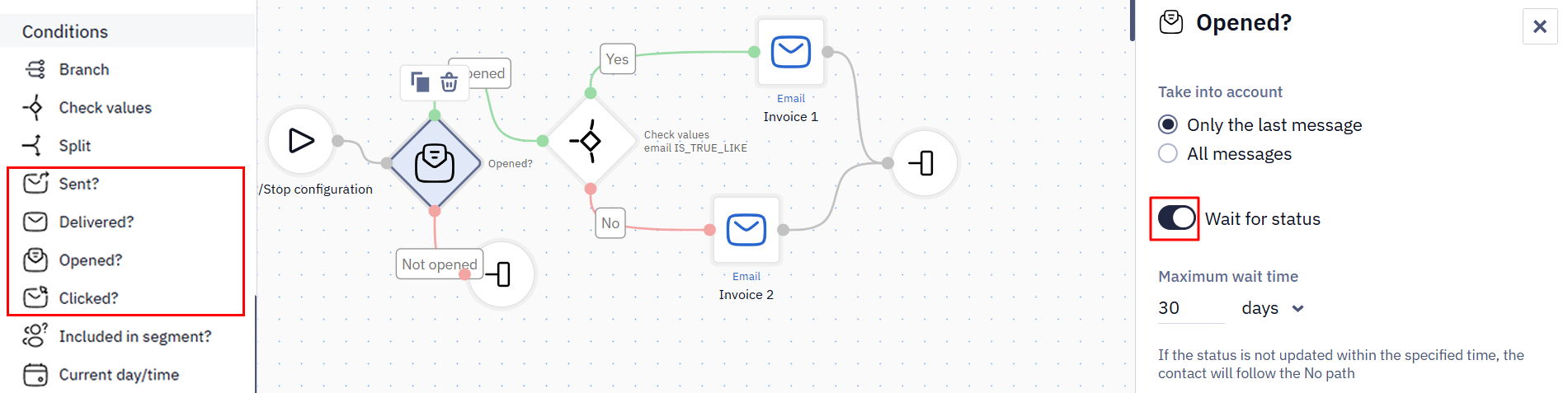
The key change is that the Sent?, Delivered?, Opened?, and Clicked? blocks can now wait for a status instead of checking it only once. Enable Wait for status to hold the contact from the moment it reaches the block until the required status appears.
The maximum wait time — up to 30 days — is a deadline, not a fixed pause. If the status arrives earlier, the contact immediately follows the Yes branch; if it does not arrive before the deadline, the contact follows No. The block does not look back for statuses received before the contact reached it.
This is especially important for abandoned-subscription flows: as soon as a user opens the first email, the workflow can immediately send the second instead of waiting for a timer to expire. The same approach works for workout-plan emails and challenge reminders.
For configuration details, see Conditions Blocks.
Create and Edit Messages in the Workflow Editor
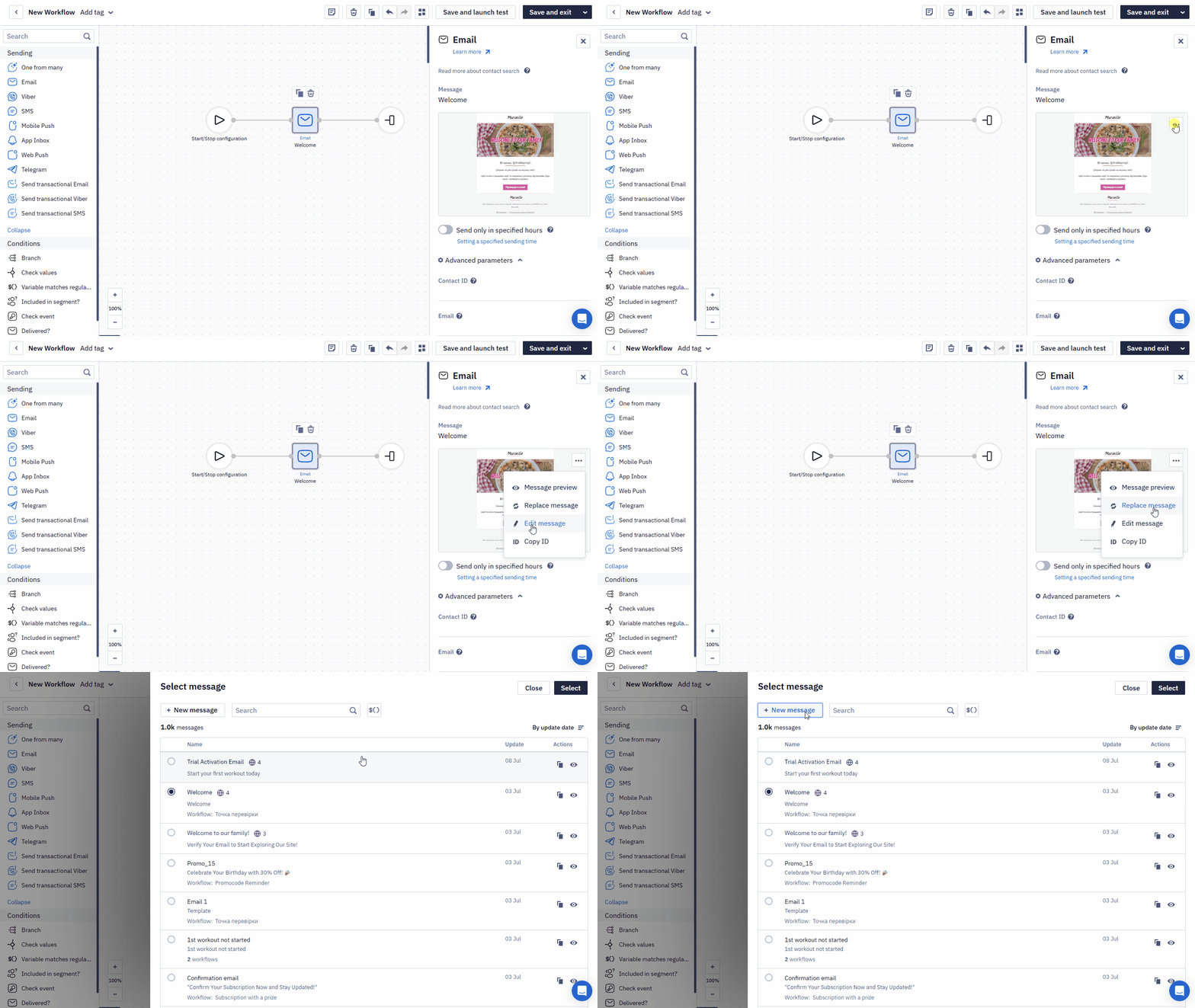
Email and Mobile Push messages can now be created and edited directly from the workflow editor. Change the message name, subject or title, and content without losing the workflow context.
Proactive Optimization for One from Many
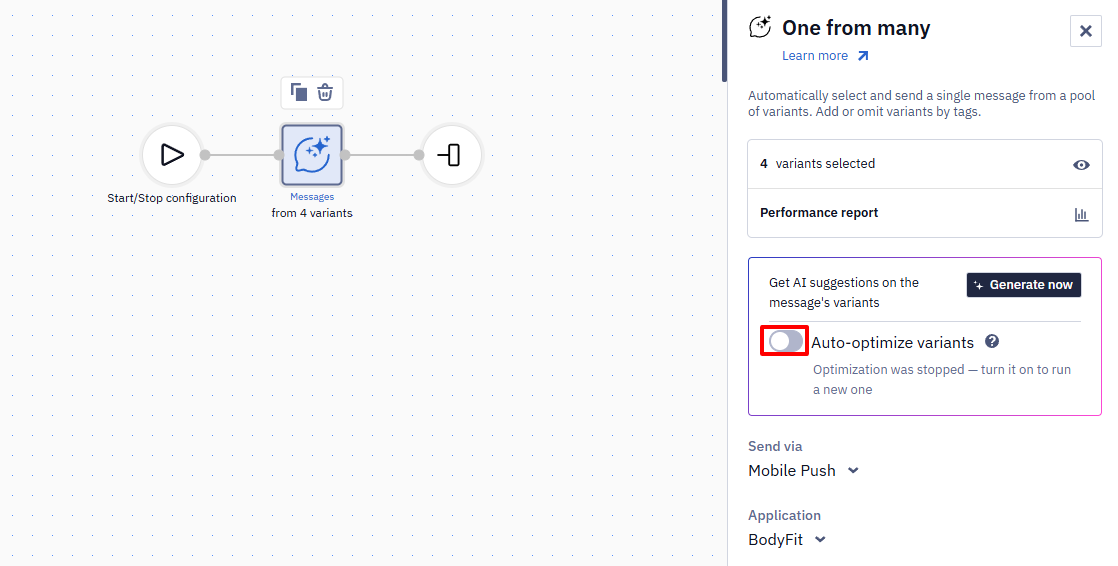
The One from Many block can now generate new message variants for each group, maintain the target number of variants, and stop underperforming options. Before the next optimization cycle, review every generated message and either accept or reject it. While at least one message is awaiting moderation, the block is highlighted in the workflow editor and optimization remains paused. This reduces manual work while keeping every generated message under your control.
See Using One from Many Message Block.
View Block Configuration in Workflow Launch History
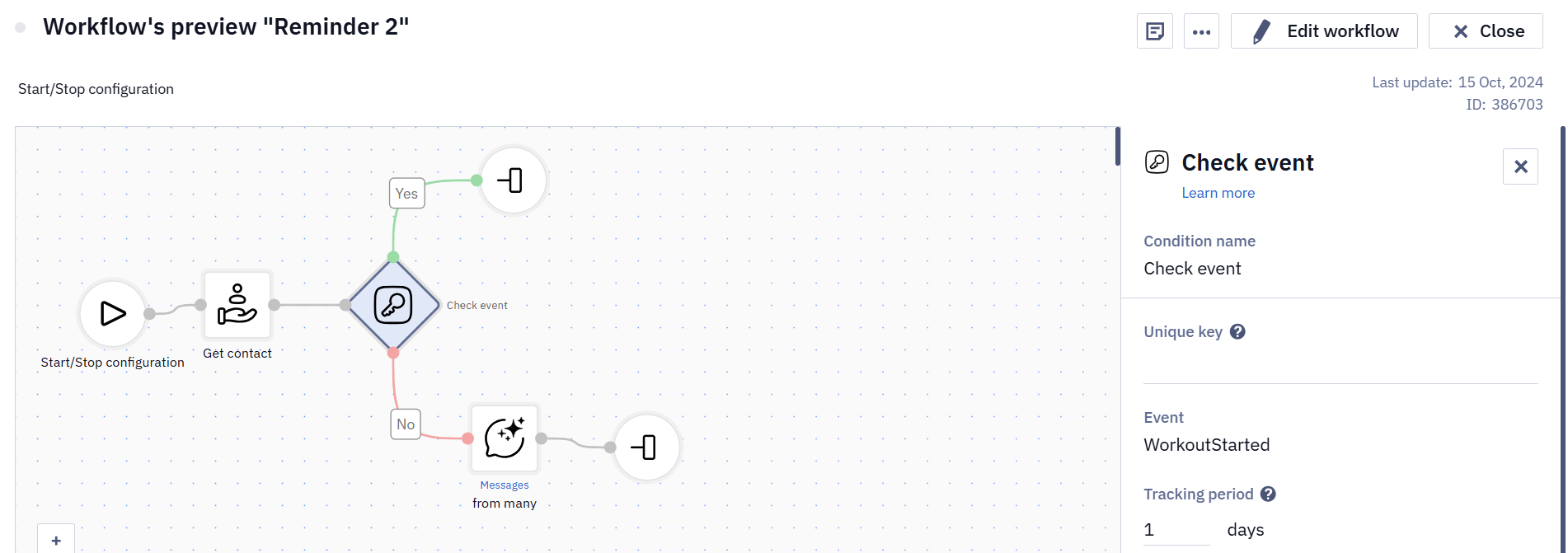
In workflow launch history, you can now see the configuration of each block. This makes it easier to check workflow logic and analyze previous launches without switching to edit mode.
See Using Workflow Launch History.
Other Workflow Improvements
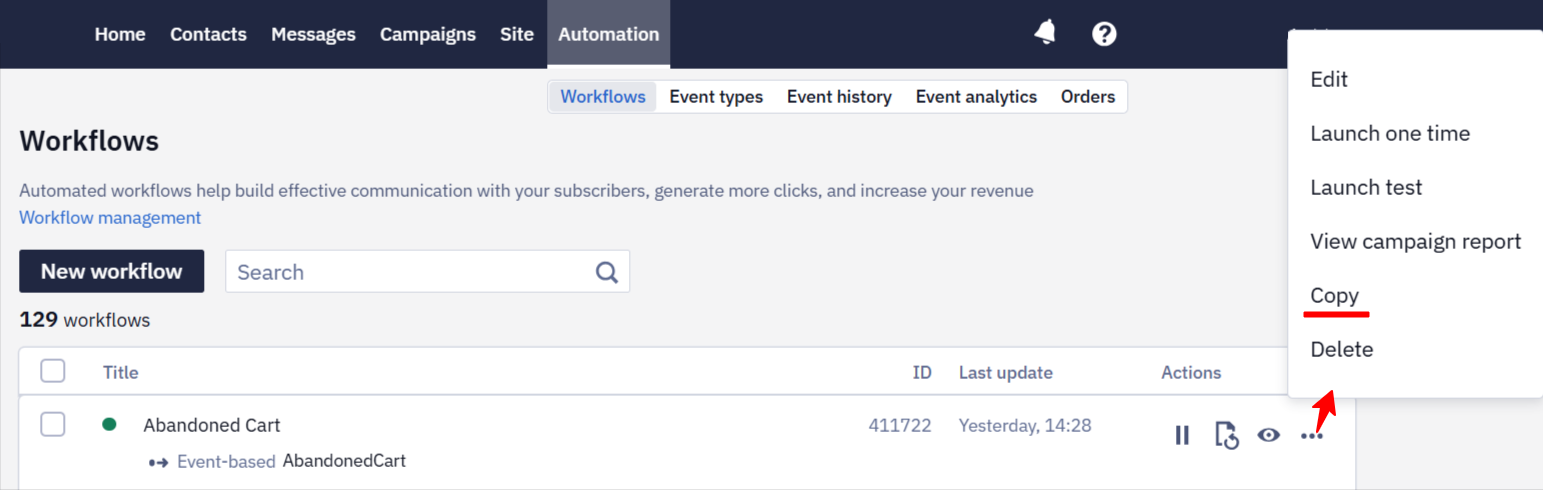
- Copy a workflow together with its launch type, start event, and stop conditions. See Configuring Workflow Start/Stop Conditions.
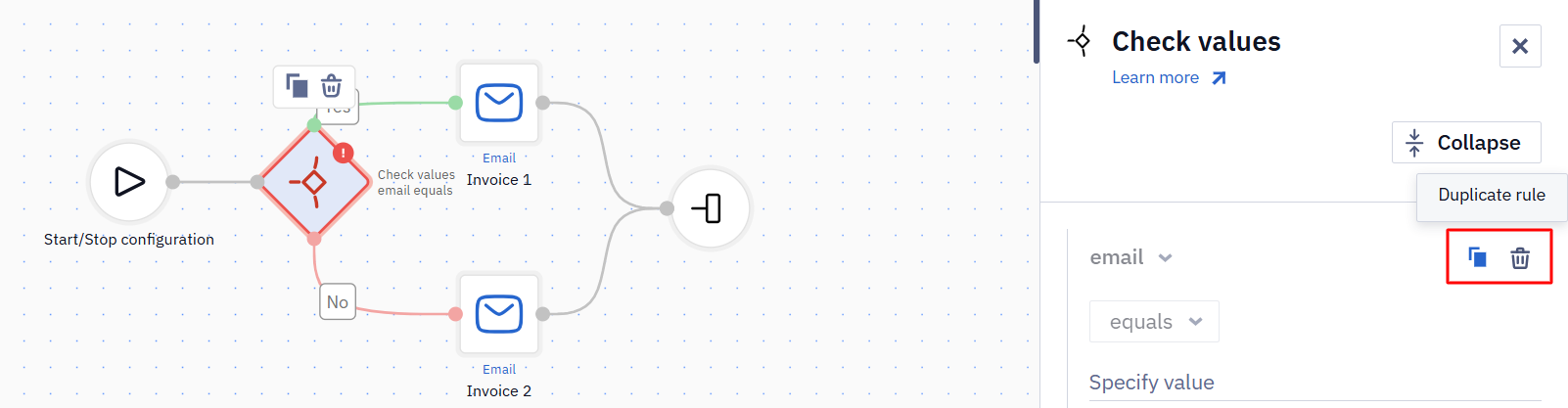
- Duplicate or delete individual rules in the Branch and Check values blocks. See Conditions Blocks.
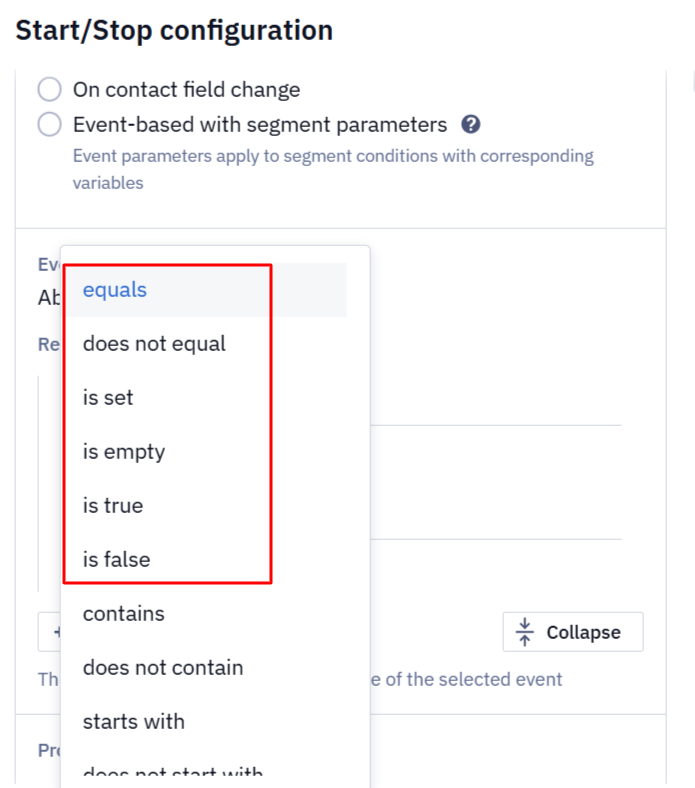
- Check event parameters in workflow start and stop conditions with the is true and is false operators. They evaluate parameters whose value is
trueorfalsewithout requiring a comparison value; equals, does not equal, is set, and is empty are also available. See Configuring Workflow Start/Stop Conditions.
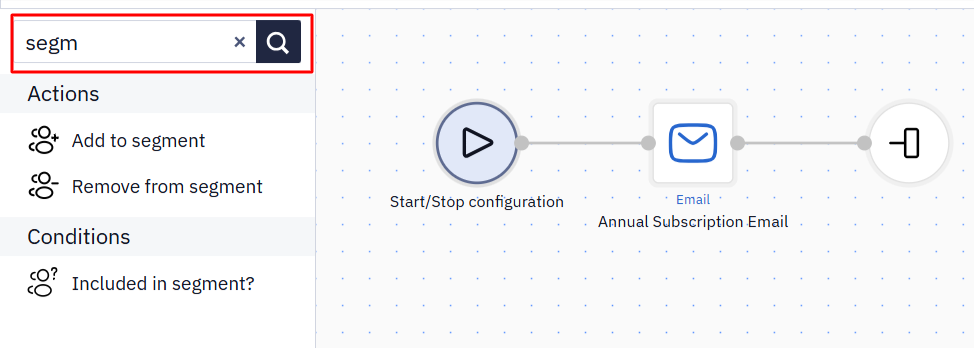
- Find actions, messages, and conditions from the block-panel search. See Workflow Blocks.
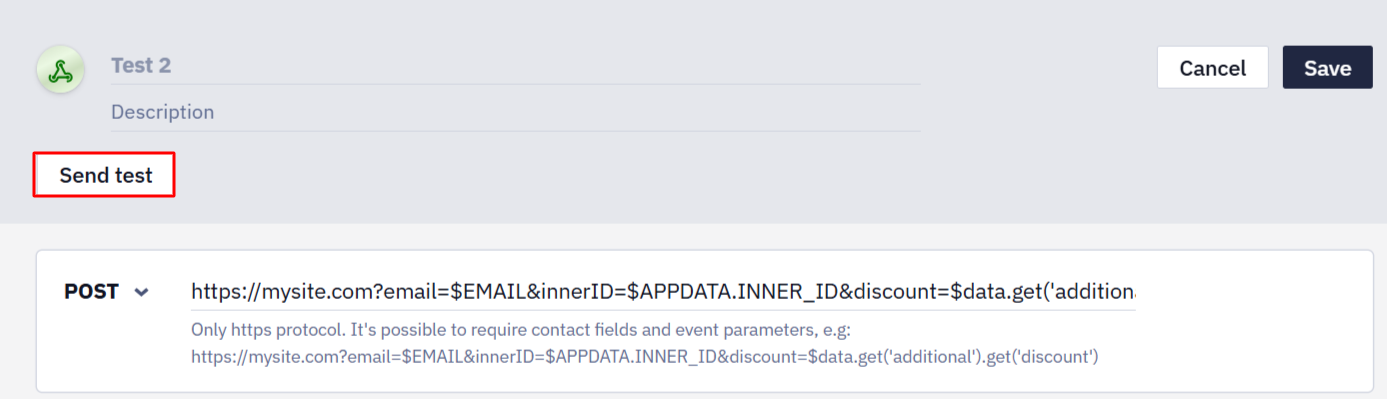
- Test webhooks with contact fields, custom fields, and event parameters. See Webhooks in Workflows.
Events
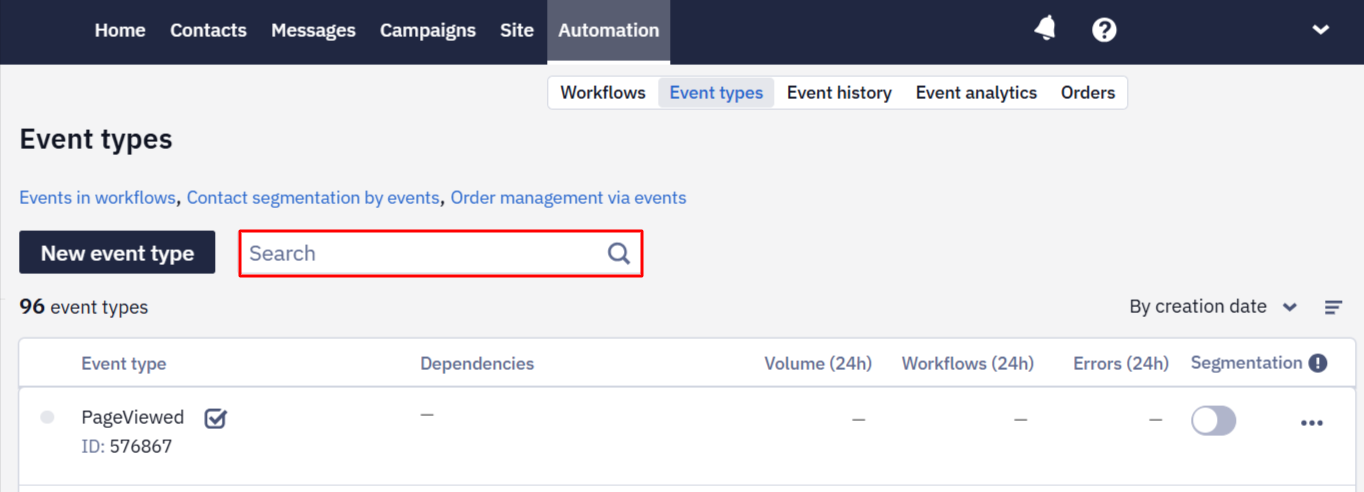
Find Event Types by ID
In the event types list, you can now find an event type by name or numeric ID. Search works both with and without the id: prefix, making it easier to locate the right event type when several have similar names.
See Creating Events.
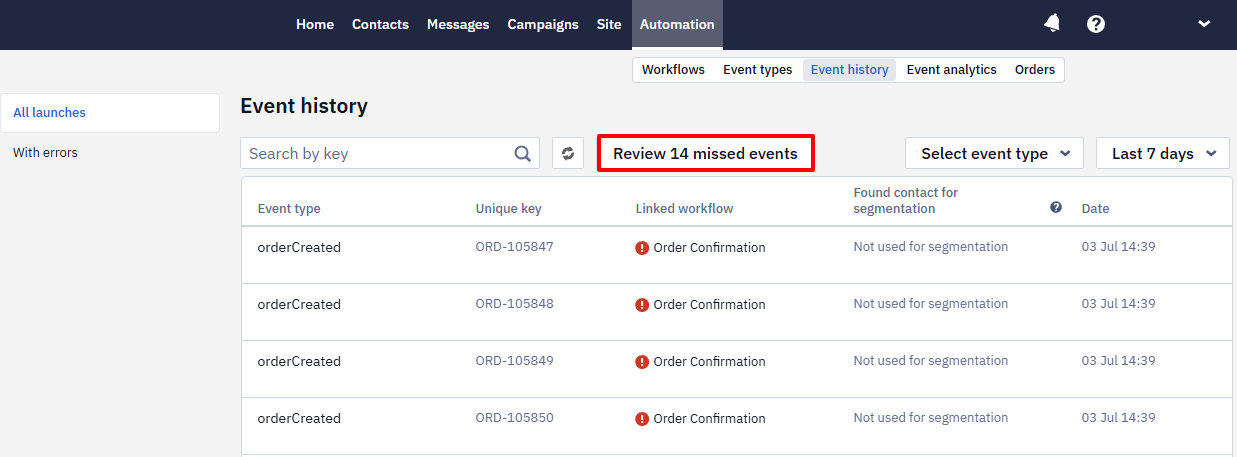
Filter Events That Did Not Start a Workflow
If an event should trigger a workflow but the contact, workflow-launch, or active-workflow limit has been exceeded, the workflow does not start immediately. A banner on the Automation → Event history page shows how many events were affected. Select Review missed events to open the list. The new All reasons filter lets you select the exceeded limit, then choose the relevant events and click Process events after resolving it. Events older than 30 days are removed from the list automatically.
Personalization and Segmentation
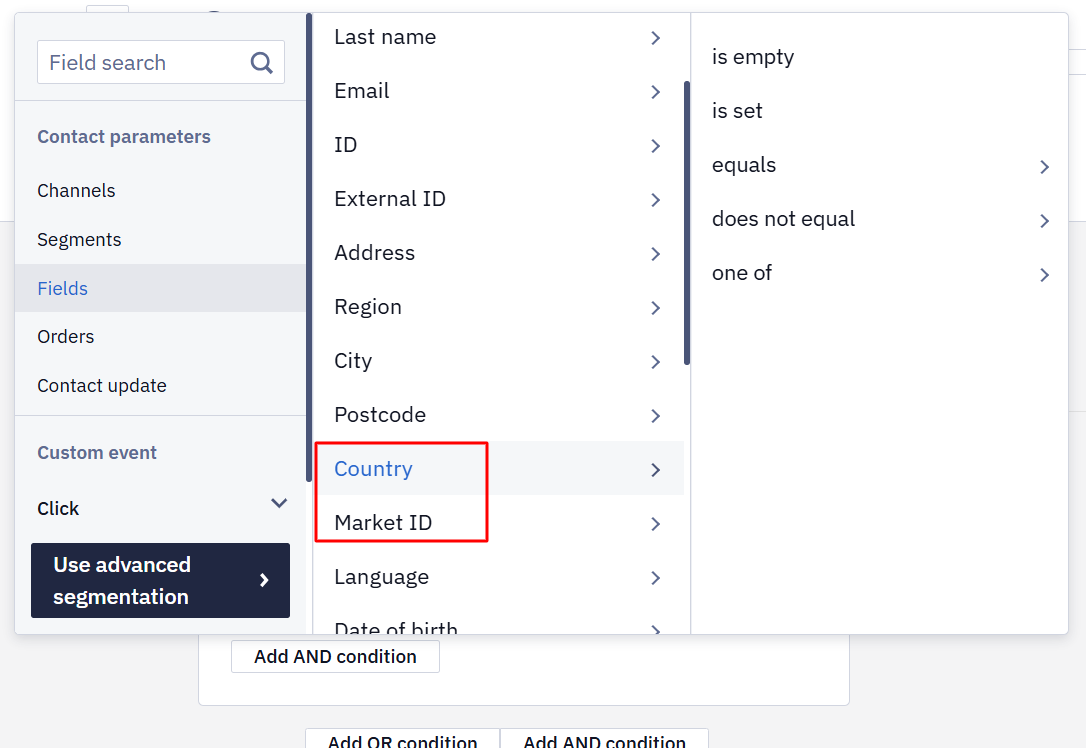
Segment Contacts by Country and Market
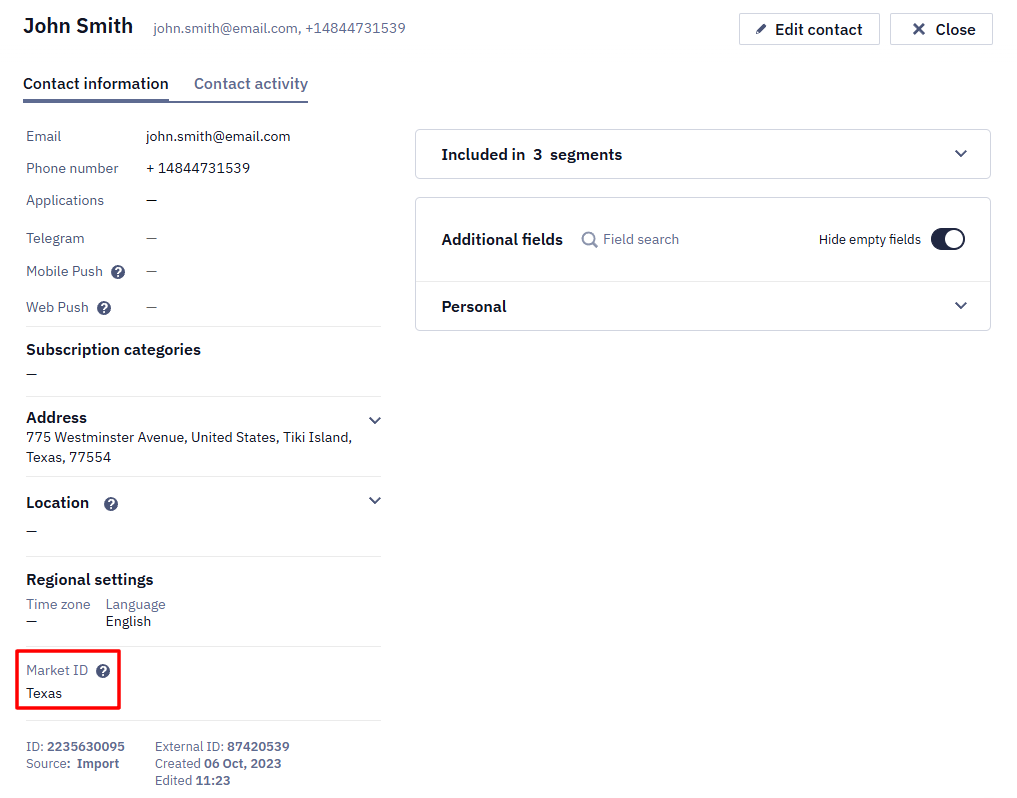
In the dynamic segment builder, Contact parameters → Contact fields → Personal data now includes Country and Market ID. Search helps you find a country value. Both fields support is empty, is not empty, equals, does not equal, and one of.
Use these conditions to tailor onboarding, plans, languages, and region-specific offers to each app audience.
Market-Aware Recommendations
When a market feed is configured and a contact has a Market ID, Reteno passes that identifier automatically in recommendation requests for broadcast, single, and test sends. This can support localized offers for membership add-ons, training plans, or wellness products. Contacts without a Market ID continue to use the existing recommendation behavior.
Email Editor
Improve Images With AI
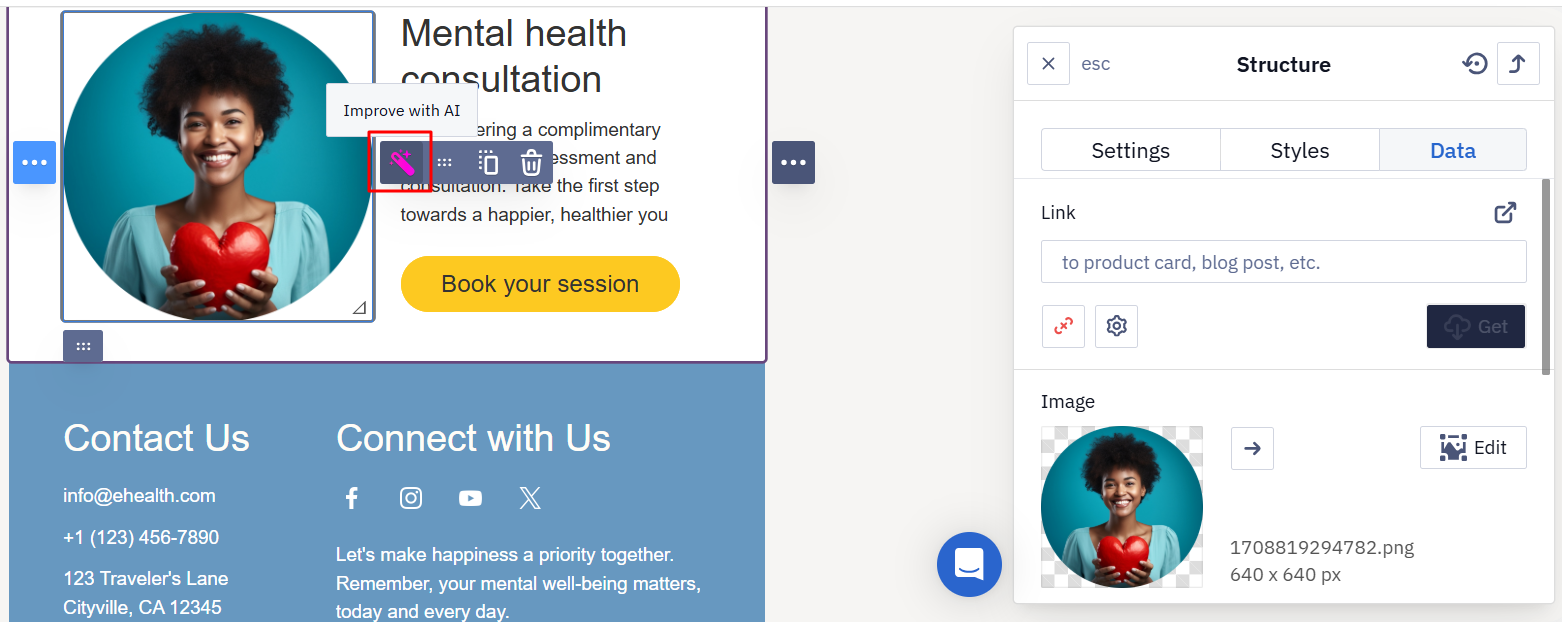
The image toolbar in the Email editor now includes Improve with AI. Select an image and click the magic-wand button to improve its quality automatically — without exporting it to a third-party service and uploading it again.
Short Links in the Plain-Text Email Part
URLs in the text/plain part of an email can now be processed as short links. This makes click tracking more consistent between the HTML and plain-text versions.
In-App Messages
Custom Fonts in the In-App Editor
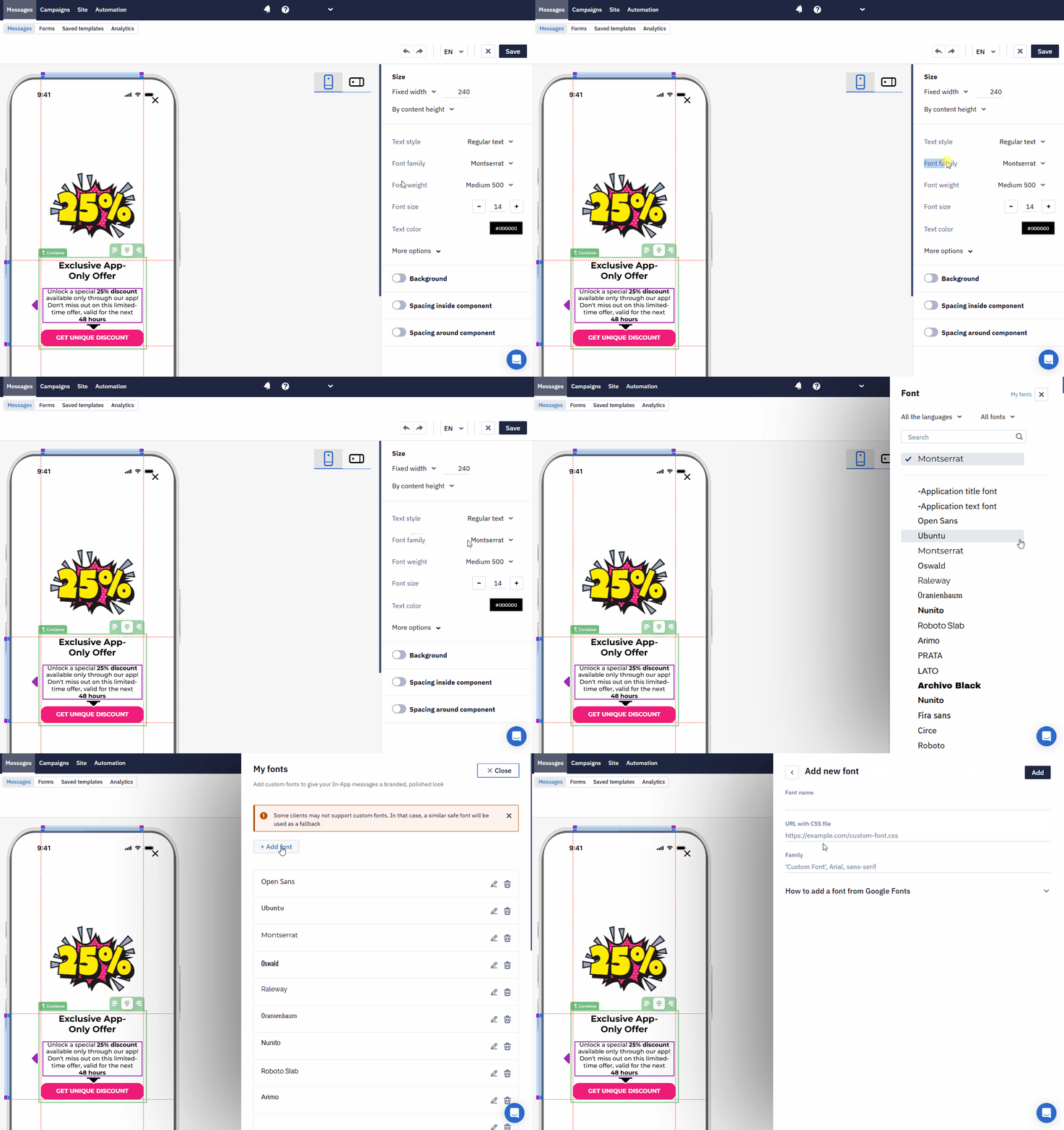
The In-App editor now includes a My fonts flow. Add and manage custom fonts, validate font source URLs, and apply brand typography without switching to the HTML editor. If a font cannot be loaded, the message falls back to a system font.
More Flexible Velocity Personalization
In-App messages opened from a Mobile Push can now resolve context keys as root-level variables and use fallback syntax such as ${key|'altKey'}. Contact fields are also available case-insensitively, which helps keep personalization consistent across channels.
Widgets
Autofill Widget Fields
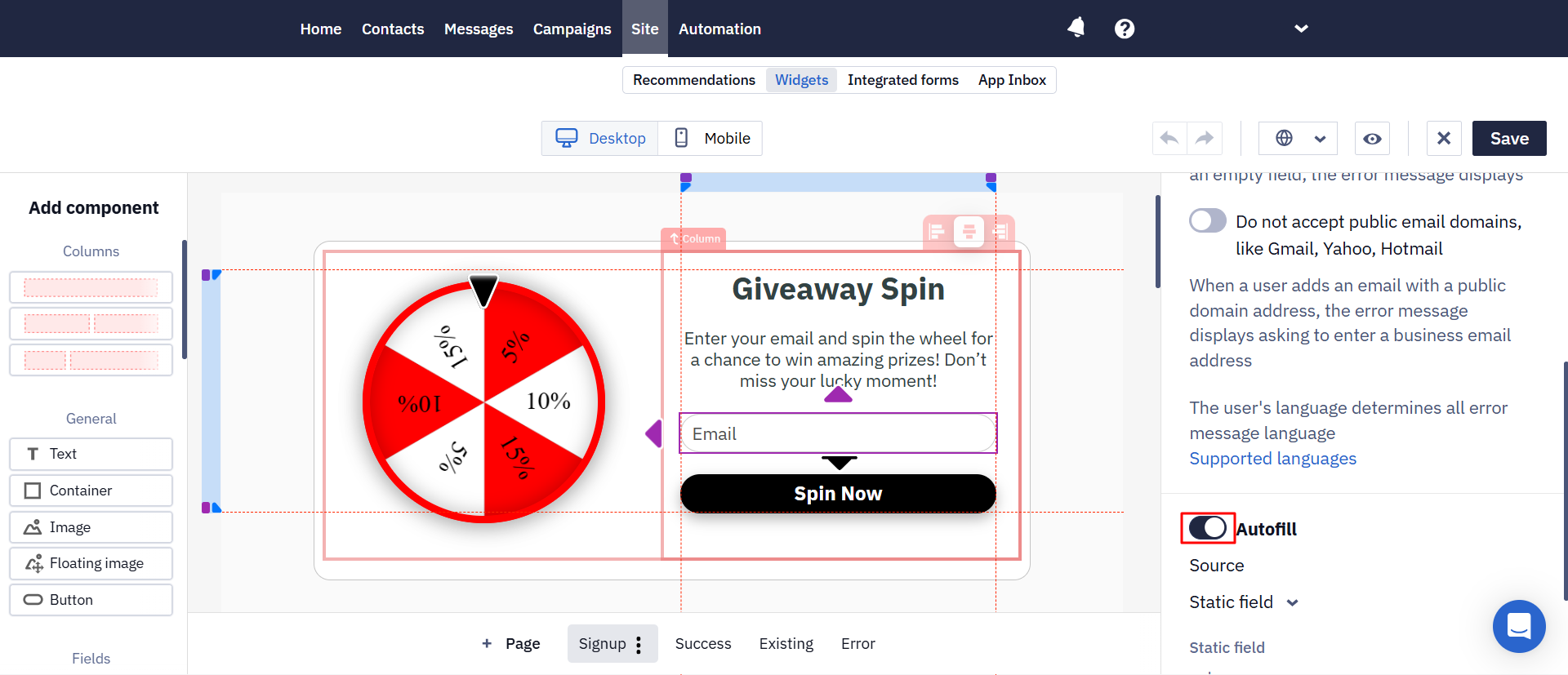
Widget fields in web-to-app and lead forms can now be populated from URL parameters, JavaScript variables, local storage, cookies, and the data layer. This lets you reuse known visitor data and reduce the number of fields users must complete manually.
Format Text Directly in a Widget
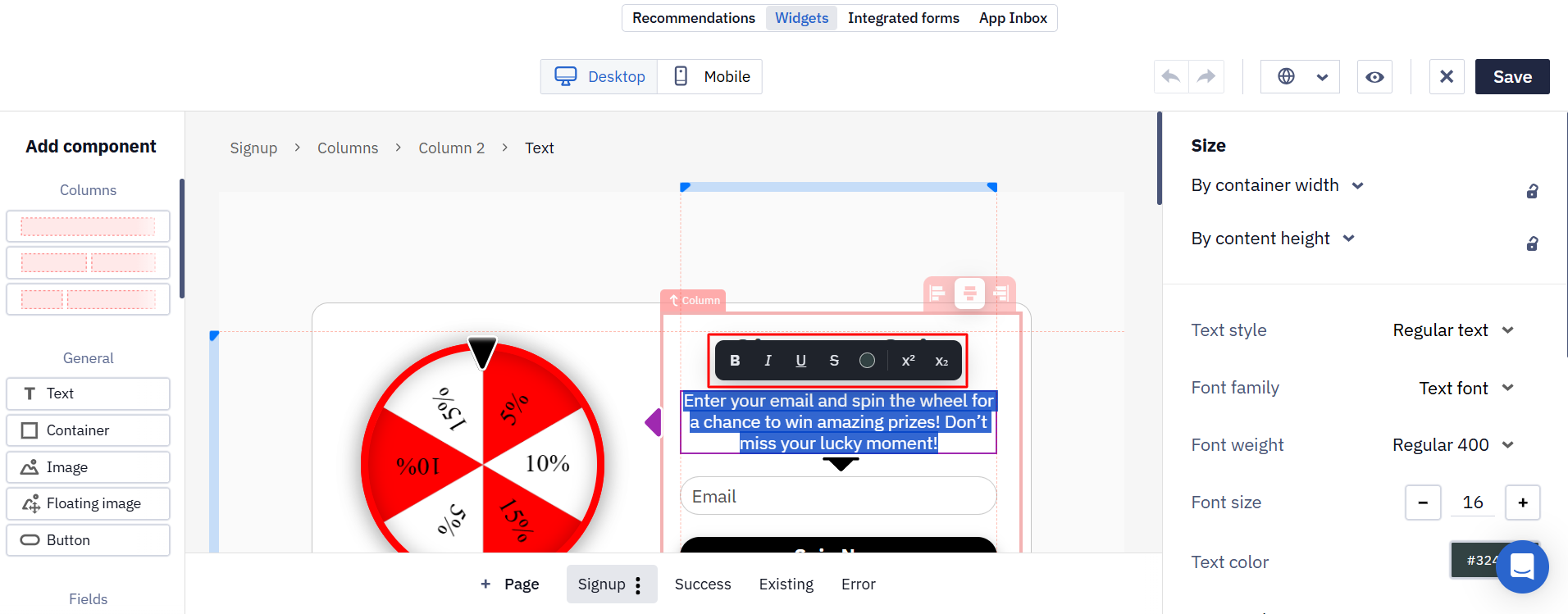
Inline formatting and text-color controls are now available in the widget editor. Style trial discounts, quiz copy, challenge signups, and membership-upgrade offers without switching to additional settings.
API
Get Additional Contact Fields
The Get additional fields method returns additional contact fields in a simplified structure, including field IDs, names, personalization keys, types, allowed values, and validation attributes. This makes it easier for external integrations to read the custom-field schema and validate contact data correctly.
Save an Email as a Template
The Add base Email message method now supports the boolean template parameter. Set it to true to save the email as a reusable template. If set to false or omitted, the email is created as a regular message in the general message list. Integrations can now create the required email type without an additional step in the Reteno interface.
Updated 3 months ago