
Dynamic Links in Email
A dynamic link is a button or text URL that changes per contact — a link that carries the contact's language, an external ID, or the paywall plan they just tapped in your app. Reteno builds these links from two data sources, and the method differs by source:
- Contact fields — inserted with merge tags, such as
%FIELDNAME%, directly in the Link field. - Event parameters — inserted with Velocity, such as
$!data.get('paramName'), and referenced in the Link field.
Use this quick rule to choose the correct setup:
| Data source | Example | Link type | What to enter |
|---|---|---|---|
| Contact field | %PERSONAL.LANGUAGE% | Site | A literal URL with a merge tag inside |
| Event parameter with a full URL | $!data.get('checkoutUrl') | Other | A Velocity expression or variable that returns the complete URL |
| Event parameter with a partial value | $!data.get('plan') | Site | A literal URL with a Velocity value inside |
The examples below use a fictional fitness app, FitPulse, to show each pattern in a real triggered email. For the full data model, see the Data Transfer & Personalization Overview and Velocity Overview.
Contact Field in a Link
When the value belongs to the contact profile and does not depend on a specific event — email, name, language, an externally stored ID — use a merge tag. Type it straight into the Link field of the button, with the Link type set to Site. No Velocity is needed.
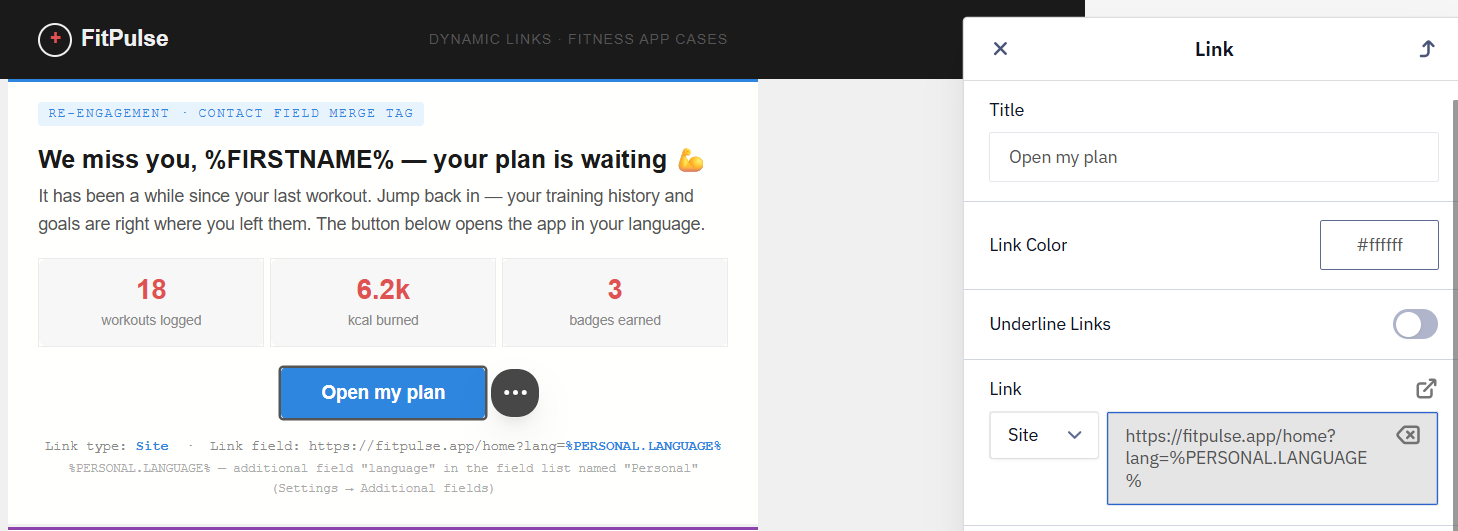
In this re-engagement email, the Open my plan button sends each contact to the app in their own language:
https://fitpulse.app/home?lang=%PERSONAL.LANGUAGE%A standard field is used by its bare name, for example %EMAIL% for the email address. %PERSONAL.LANGUAGE% is an additional field — the field language stored in the field list named Personal. Every attribute you store beyond the standard fields, such as name or email, belongs to a field list under Settings → Additional fields, and its merge tag has the form %LISTNAME.FIELDNAME%.
PERSONAL is the name of that list, not a prefix shared by all additional fields. A field in another list uses that list's name, for example %TRAININGAPP.GOAL%.
Use this merge-tag form in link fields. In the message body and in Velocity conditions, contact fields are written as Velocity variables instead, such as ${externalCustomerId} — see the Contact Field Variables Cheat Sheet.
A ${field} variable placed in a link field can still resolve in the preview and in a test send, but it is not substituted in real campaigns — use the %FIELDNAME% form there.
Because the list and field names determine the merge tag, copy each tag straight from Settings → Additional fields or insert it through the personalization menu in the editor rather than typing it by hand.
At send time, the merge tag is replaced with the value from each contact's profile. If the contact has no value for that field, the tag resolves to an empty string.
Event Parameter in a Link
Event data — such as the plan a contact tapped on your paywall, an orderId, a custom_token, an auth_url, or a one-time checkout link — is not stored on the contact profile, so a merge tag cannot access it. Read it with Velocity instead:
$!data.get('paramName')The Paywall Case
A contact opens FitPulse, taps the Annual plan on the paywall, but does not finish checkout. To act on that, your app sends an event that records which plan they tapped:
{
  "eventTypeKey": "PaywallPlanSelected",
  "params": {
    "externalCustomerId": "a7c9f9b8-d3a2-401c-8b93-7f3d4f91bfa2",
    "plan": "annual",
    "price": 59.99,
    "checkoutUrl": "https://fitpulse.app/checkout?plan=annual&session=sess_9f3a2c"
  }
}
That event triggers a follow-up email, and its button links straight back to the plan the contact tapped — so you capture what they did on the paywall and carry it into the link.
In production, avoid putting raw personal identifiers in visible URLs. Use a signed token, a session ID, or Secure Link for sensitive destinations.
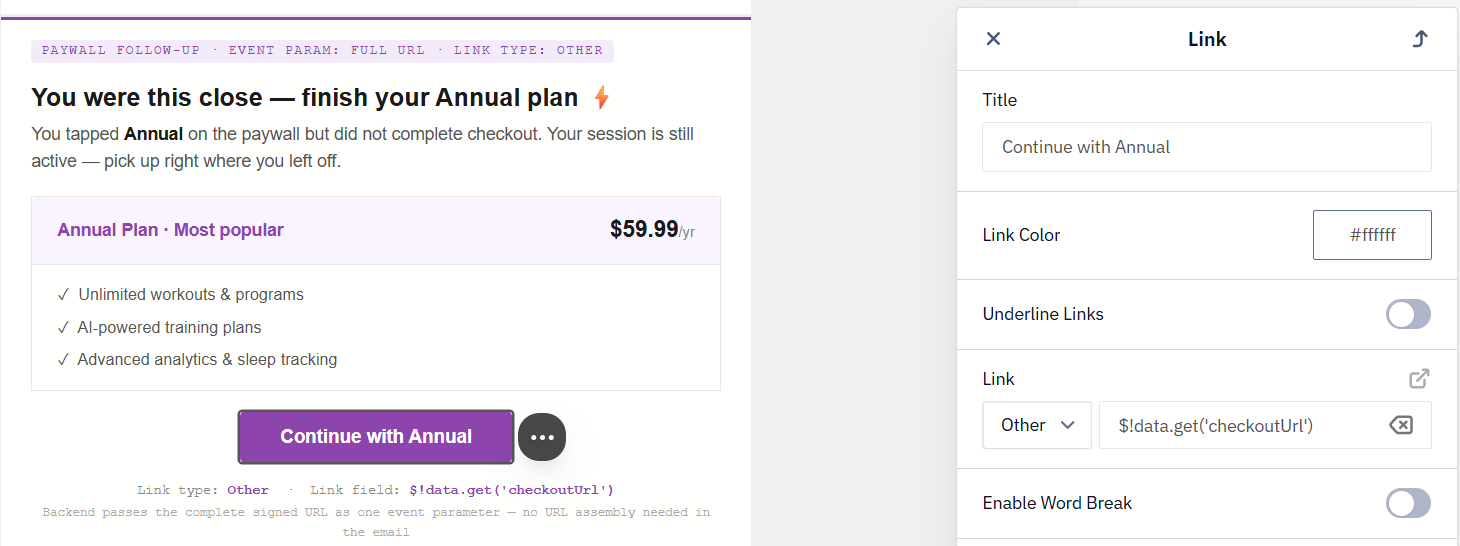
Put the Velocity expression directly in the button's Link field and set the Link type to Other:
$!data.get('checkoutUrl')The Link type tells Reteno how to interpret the value:
- Other — for a Velocity expression or variable that holds the complete URL, such as
$!data.get('checkoutUrl'). - Site — for a literal URL that has a variable or merge tag inside it, such as
https://fitpulse.app/checkout?plan=$!data.get('plan').
NoteThe Link field accepts a Velocity expression directly when the Link type is Other. If a bare
$!data.get(...)does not resolve, check that the type is Other and not Site — under Site, the field expects a literal URL. Event-parameter links also resolve only when the message is sent from the workflow the event triggered: a plain test send (the TEST icon) carries no event payload, so$!data.get(...)renders empty and the button has no destination. To test end to end, trigger the workflow with a real event.
Account Login Case
A dynamic link can also send a contact back to their account, dashboard, or personal page.
For a regular login page with non-sensitive context, such as language, build the URL directly in the Link field and set the Link type to Site:
https://fitpulse.app/login?lang=%PERSONAL.LANGUAGE%For a personalized or passwordless login session, generate the complete URL in your app or backend, pass it as an event parameter, and set the Link type to Other:
$!data.get('loginUrl')Avoid putting raw contact IDs, email addresses, or permanent tokens directly in visible URLs. Use a short-lived signed token, a one-time session link, or Secure Link for sensitive destinations.
Full URL vs. Partial URL
Choose the shape that matches what the event delivers:
- Full URL — your app passes a complete link as one parameter, such as
checkoutUrl. Reference it directly with the Link type set to Other. - Partial URL — the event delivers only an identifier, such as
plan. Build the rest of the path around it and set the Link type to Site:
https://fitpulse.app/checkout?plan=$!data.get('plan')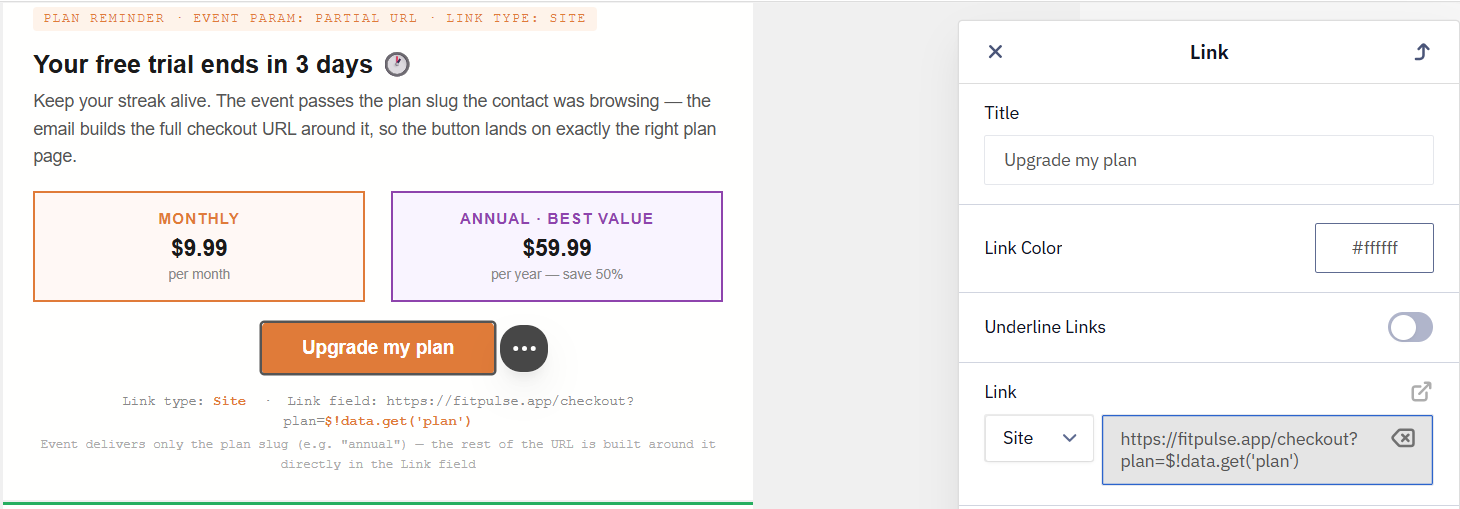
NoteEvent parameters are available only in triggered messages — those sent from a workflow the event launched — not in bulk campaigns. Parameter names are case-sensitive. Confirm the exact name in Automation → Event history by opening a real event and copying its parameters.
Fallback for an Empty Value
If an event parameter is empty at send time, the link may break or send the contact to an invalid destination. Guard against it with a Velocity block placed before the button that sets a default when the value is missing:
<!--#if($!data.get('plan') && $!data.get('plan') != '')
  #set($plan = $!data.get('plan'))
#else
  #set($plan = 'all')
#end-->
Then reference $plan in the Link field, with the Link type set to Site — a missing plan now sends the contact to the full paywall instead of a broken URL:
https://fitpulse.app/checkout?plan=$planThe $ Sign and Special Characters
A literal $ immediately followed by a number — a plan price such as $59.99 shown next to a dynamic value — is misread as the start of a Velocity variable and breaks the tag. Print the dollar sign with ${esc.d}, which outputs a literal $:
${esc.d}59.99Combine it with a dynamic price the same way — ${esc.d} prints the sign, the variable prints the amount:
${esc.d}$!data.get('price')When a dynamic value may contain spaces or special characters — a workout name like Full Body Strength, a search query, anything passed into a query parameter — encode it so the URL stays valid. Wrap the value in $esc.url in a block before the button:
<!--#set($program = $esc.url($!data.get('programName')))-->Then reference it in the Link field, with the Link type set to Site:
https://fitpulse.app/program?name=$programIf you pass the contact's address in a query parameter, encode it with $esc.url(). Without encoding, a + can turn into a space once the link is opened.
$esc.url($email) encodes + as %2B and @ as %40:
https://example.com/r?email=$esc.url($email)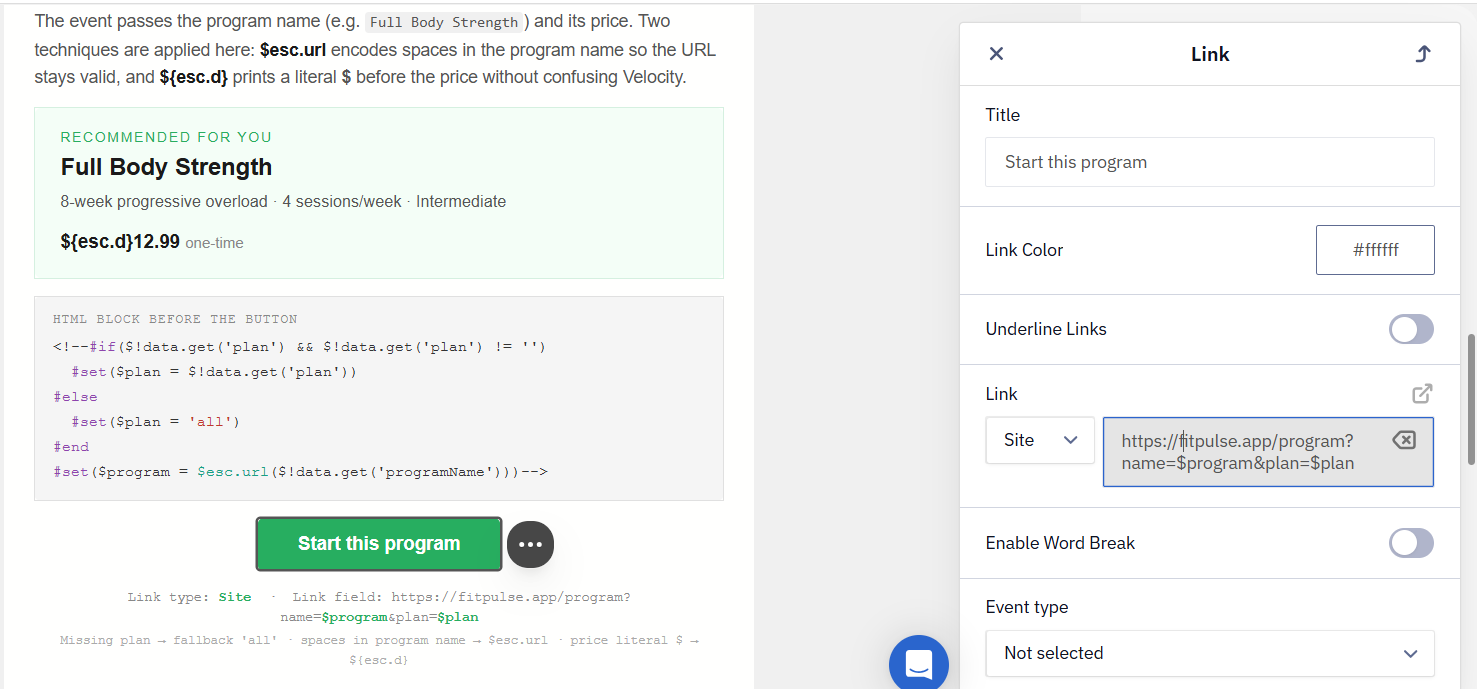
Link Wrapping and Click Tracking
Reteno wraps links that have URL tracking enabled so it can track clicks. URL tracking is on by default; you can turn it off per message in the link settings. When it is on, the preview shows a long wrapped URL on the tracking domain, not your original link.
The wrapping domain is set at the account level: a new account starts on the shared sn.am domain and switches to a subdomain of esclick.me once the account becomes trusted. You can replace it with your own proxy domain so links look consistent with your brand — add a CNAME record pointing to ssl.esclick.me. See Creating Proxy Domain for URL Shortening.
Links in messages that were already sent under sn.am stop working.
Disabled click tracking and segmentationTurning off link wrapping / URL tracking disables click tracking for every link in the email. Those clicks are never registered, so segmentation by "clicked a link" will not see them.
NoteA Velocity variable defined with
#setand placed inside a statichrefin the HTML code is not substituted: the link is stored separately and wrapped into the tracking URL before Velocity is applied, so the variable stays in the URL as literal text. Instead, assemble the entire address in a#setdirective and use the resulting variable as the link value:#set($url = 'https://example.com/auth/reset/' + $!data.code)Then reference
$urlas the link.The
|default-value syntax — in a merge tag (for example,%FIELD|default%) or in Velocity ($!data.get('param')|default) — works in the message body but breaks when used inside a button or text link, because link wrapping alters the URL. There's no confirmed way to keep this fallback syntax working inside a URL. Disabling link wrapping / URL tracking for the email is one workaround — but that turns off click tracking for every link in the email, not just the one carrying the fallback value, so weigh that tradeoff before using it.
Changing the wrapper domainA new proxy domain applies only to emails sent after the change. Links in already-sent emails keep the previous domain. A separate wrapper per app or brand requires separate accounts.
Secure Link
When a link carries sensitive data — contact identifiers, tokens, signed keys, or links to a personal page or a specific paywall session — use Secure Link. It is disabled by default and enabled on request through support. Dynamic links and personalized static links are converted into a secure link even when you don't mark them with the Secure link checkbox.
Once enabled, a Secure link checkbox appears in the button settings. With it on, the link is converted at send time into a redirect:
https://esclick.me/sl?u=target_link&iid=sent_mail_identifier&h=hashThis works in test campaigns, triggered campaigns, broadcasts, the browser view, and per-message reports.
Short Links and Dynamic URLs
Whether a link can be shortened depends on whether its address starts with a protocol.
An address that starts with https:// counts as static, even when it contains personalization. Such links are stored separately from the message and get an identifier, and the short key is built from that identifier at send time.
An address assembled from an expression without a protocol — $data.get('link') or $link, for example — is dynamic. It stays in the message as an expression and is substituted only at the moment of sending, so it gets no identifier and there is nothing to build a short key from. Such links are wrapped as a secure link, in the redirect format shown above, rather than a short one — in every channel except SMS. Bulk campaigns have a further exception, described below.
Personalized static links are wrapped as a secure link too. Within one campaign, the short keys of contacts with nearby identifiers differ by only a few characters, so someone else's personalized link could be guessed by brute force — the secure link prevents that.
For a dynamic CTA you have three options:
- Build the URL upstream. Assemble the full link in advance, write it to a contact field or pass it as an event parameter, then reference that ready-made URL. The shortener can then shorten it.
- Skip the short link for dynamic CTAs. Keep the full dynamic URL — it is still click-tracked through link wrapping when the value comes from the message's own context, such as an event parameter or a data source.
- Build the final URL in your app or backend. Generate the complete link and send it as an event parameter, ready to use — as with
checkoutUrlin the paywall case above.
A URL assembled in Velocity is a separate case: in a bulk campaign it isn't wrapped at all. See Testing and Troubleshooting Velocity.
UTM Tags and Dynamic Parameters
Reteno can append UTM tags to links automatically, configured at the account level under Settings → Links with the UTM tags slider. For correct channel labeling, utm_medium uses the $mediaType value by default.
A value you enter manually always takes priority over the account-level UTM, even when the slider is on. So if utm_source shows a Reteno default (such as reteno-trigger) instead of your own value, auto-UTM filled it — set utm_source per message to override: on the top bar, click the three dots → Specify link settings, and enter the values next to the keys without the $ sign.
Several parameters are available as keys you can add without building them by hand — for example $messageId, $contactId (to track a specific contact in analytics), and $messageName. For example, utm_content=$messageId renders the ID of the send, so you can trace a click back to a specific message. For the full setup, see Setting Up UTM Tags.
Message-level UTM values are configured separately from the button URL.
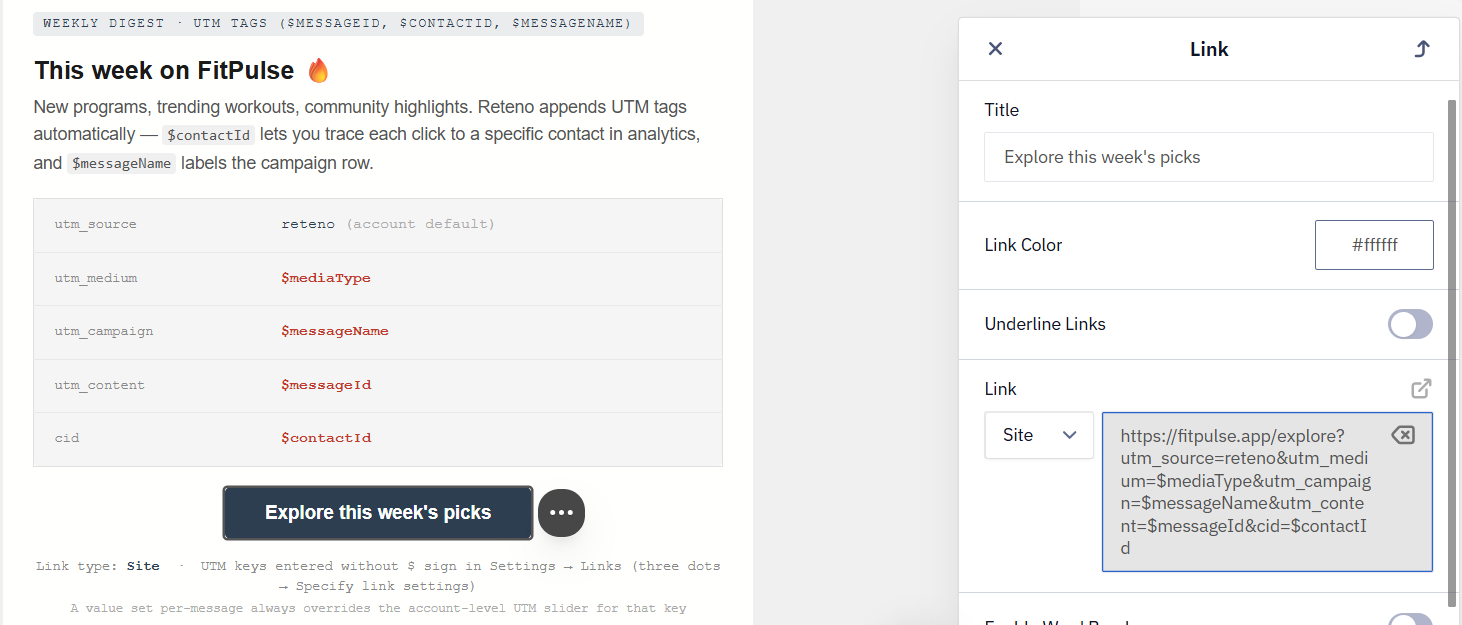
NoteWhen an email is copied or created from a template, its UTM tags are copied with it. Check the tags on each new email so two messages do not report into one row.
Test the Link Before Sending
Confirm a dynamic link resolves correctly before you launch the campaign:
- In the email editor, open Additional settings → Configure dynamic content and paste a test JSON payload with the parameters your link uses.
- Click Preview message and check that the rendered button URL contains the expected values, with no leftover
$variables or empty parameters. - For a contact-field link, send a test email and click the button to confirm the destination. For an event-parameter link, trigger the workflow with a real event instead — a plain test send carries no event payload, so the value renders empty.
To copy a realistic payload, open a real event in Automation → Event history and copy the contents of its params object.
See Also
- Velocity Overview
- Contact Field Variables Cheat Sheet
- Contact Identifiers and Matching
- Creating Proxy Domain for URL Shortening
- Setting Up UTM Tags
Updated 11 days ago