
Creating and Editing Workflows with AI
The AI assistant in the workflow editor helps you create and edit workflows using natural language descriptions. Describe the logic you need in the chat — the assistant will determine the required blocks and connections and ask follow-up questions if needed.
To learn how to open the AI assistant chat and navigate between screens, see AI Assistant in the Workflow Editor.
Prepare Messages and Segments in AdvanceThe assistant does not create messages or user segments — it adds existing messages and segments to workflow blocks. Prepare them before you start, or temporarily use any existing ones and replace them later.
How to Write a Prompt
The more details your prompt includes, the more accurately the assistant can build the workflow. When possible, specify:
- Start condition — the event or other condition that should start the workflow, such as trial start, missed workout, subscription cancellation, or a long period of app inactivity.
- Channels and their sequence — for example, Mobile Push, In-App Message, App Inbox, Email, or SMS.
- Messages — the IDs or names of the messages to use for each channel.
- Timing — delays between actions, such as 30 minutes, 24 hours, or 3 days.
- Conditions and branches — for example, whether the user opened the app, completed a workout, started a trial, canceled a subscription, or belongs to a specific segment.
- Workflow goal — onboard new users, bring users back to workouts, convert trial users, prevent churn, or encourage subscription renewal.
You can start with a short prompt:
Build a workout reminder workflow using Mobile Push and App Inbox.
If more information is needed, the assistant will ask which messages to use, when to send them, and under which conditions the workflow should continue or stop.
To reduce the number of follow-up questions, describe the logic in more detail from the start:
When a user misses a scheduled workout, send Mobile Push 12345. If there is no app session within 24 hours, send App Inbox message 67890. Stop the workflow when the user completes a workout.
Choosing a Workflow Trigger
If you are not sure where to start, ask the assistant to show the available start options — for example:
List available trigger workflows
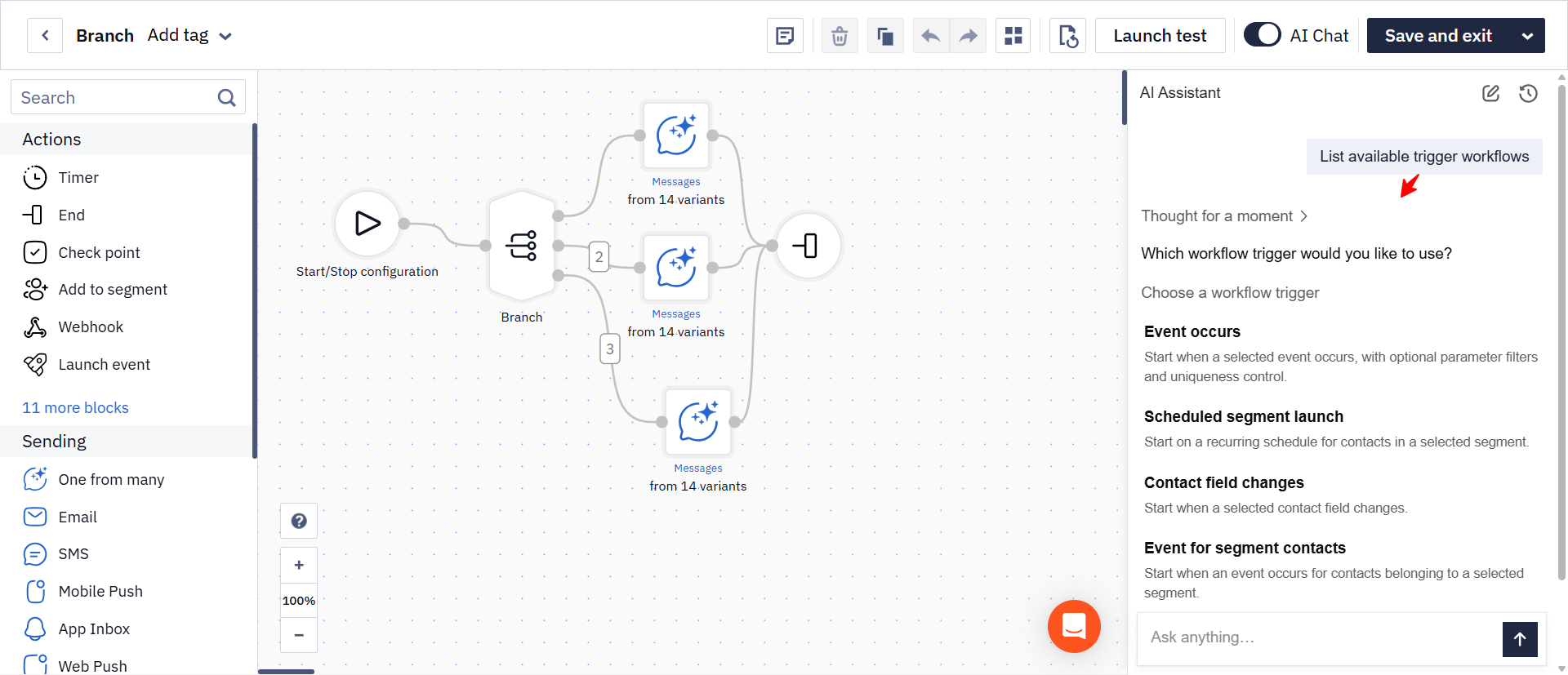
The assistant will suggest workflow triggers to choose from, including:
- Event occurs — start when a selected event occurs, with optional parameter filters and uniqueness control. Example: start the workflow when a user completes their first workout.
- Scheduled segment launch — start on a recurring schedule for contacts in a selected segment. Example: send a weekly progress summary to the segment of active subscribers every Monday.
- Contact field changes — start when a selected contact field changes. Example: start the workflow when the subscription status field changes to canceled.
- Event for segment contacts — start when an event occurs for contacts belonging to a selected segment. Example: start the workflow when a trial user misses a scheduled workout.
Choose a trigger and continue describing the workflow logic — the assistant will build the workflow from it.
Editing a Workflow
To edit the open workflow, describe the required change in the chat. The assistant will ask for details if needed and apply the changes in the editor.
What the assistant changes goes into the same action history as your own edits, so undo rolls it back as well.
Editing Active WorkflowsChanges to an active workflow may affect users who are already moving through it. The result depends on where each user is in the workflow and which blocks, connections, conditions, or timing settings were changed. Review the updated logic and test the workflow before applying changes.
The assistant can:
- add and remove blocks;
- change connections between blocks;
- change timer delays;
- edit settings within blocks;
- change workflow start and stop conditions;
- rearrange blocks to make the workflow easier to read.
For example:
Add an App Inbox message 24 hours after Mobile Push if the user has not opened the app.
Stop the workflow immediately after the user completes a workout.
Arrange the blocks from left to right to make the workflow easier to read.
Prompt Examples
Below are examples of tasks you can describe to the assistant in natural language. Use them as a starting point for your own prompts.
For a Workout Reminder Workflow
| Task | Example Prompt |
|---|---|
| Send App Inbox if a push notification was not opened | If the Mobile Push was not opened and the user did not open the app, send an App Inbox message |
| Check push delivery and app session | Check Mobile Push delivery: if it was not delivered, send an email. If it was delivered, wait 24 hours and check whether the user opened the app |
| Stop the workflow after a workout | Stop the workflow as soon as the user completes a workout so no unnecessary reminders are sent |
| Send a follow-up if there was no app session | If the user did not open the app after the first reminder, send a follow-up Mobile Push |
| Send messages through multiple channels | If the user does not open the push notification, send an App Inbox message and then an email |
| Create a reminder series | Send a series of Mobile Push and App Inbox messages up to three times, with delays of 1 day and 3 days, until the user completes a workout |
For the Branch Block
The Branch block routes users into different workflow branches based on conditions.
| Task | Example Prompt |
|---|---|
| User goal | Send different messages based on the user's fitness goal |
| Training level | Send different onboarding messages to beginner, intermediate, and advanced users |
| Subscription status | Send different messages to trial, paid, and canceled users |
| App platform | Send different messages based on whether the user is on iOS or Android |
| Missed workout type | Send different reminders based on the type of missed workout |
| Workout count | Send different messages based on how many workouts the user completed this week |
| Preferred workout time | Send a message based on the user's preferred training time |
| Churn risk | Send different retention messages based on the user's churn-risk segment |
If the Result Does Not Match Your Expectations
If the workflow logic does not match your task, continue the conversation in the current chat and clarify what needs to be changed. For example, specify the block, connection, timing, or condition.
If the assistant cannot add the required message or segment, check that it exists in the account and provide its exact name or ID.
After making changes, test the workflow before launch.
Related Articles
Updated 11 days ago