Reteno Agent in Slack: Use Cases
The Reteno agent handles a wide range of tasks through natural language. Below are the most common ways teams are using it today — each one a real scenario where switching to the agent saves time and keeps work visible to the whole team.
For a full list of available capabilities, see Integrating Reteno with AI Agents. To understand how the agent works in Slack, see The Reteno Agent in Slack: How It Works.
Troubleshooting
Something looks off. Open rates dropped, a campaign didn't send, or a contact isn't showing up where you expect. Instead of digging through the platform manually, ask the agent directly.
Example prompts:
- @Reteno Did any workflow show a significant drop in deliverability in the last 7 days?
- @Reteno Show me the Bounce and Spam rates for workflow ID 1234 this month.
- @Reteno Why might contact ID 58821 not be receiving messages?
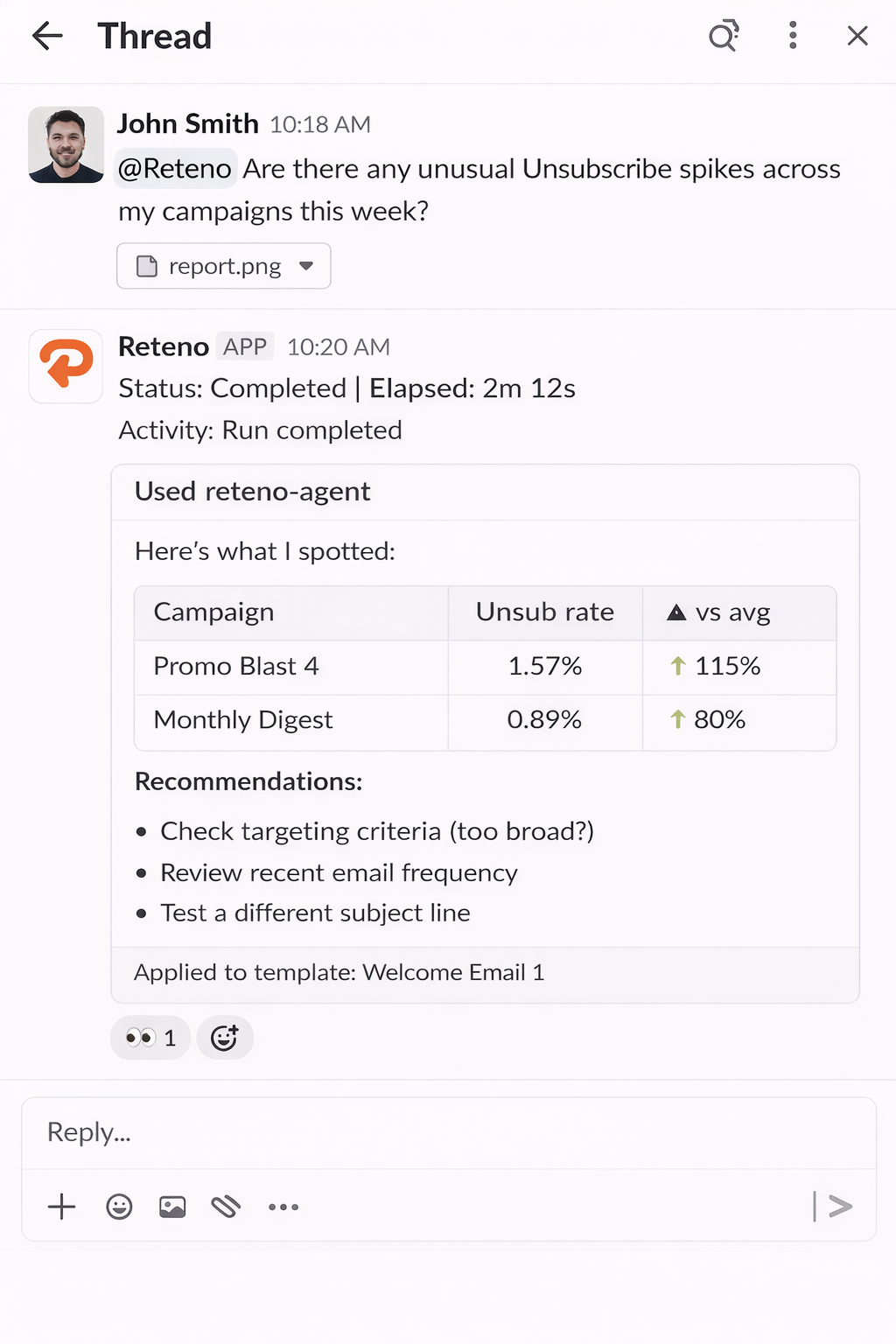
- @Reteno Are there any unusual Unsubscribe spikes across my campaigns this week?
- @Reteno Are sends happening right now? Show me the last 24 hours of send activity.
- @Reteno We're seeing webhook errors on our side. Are sends actually going out from Reteno, or is something broken on the platform?
The agent pulls the relevant data, surfaces the anomaly, and gives your team a shared starting point for the investigation — all in one thread.
Email Localization
You need a language variant for an existing email template. Instead of opening the editor, finding the template, and translating manually, ask the agent to do it in the thread.
Example prompts:
- @Reteno Open template ID 3935987 and add a German language variant. Translate all visible text into German.
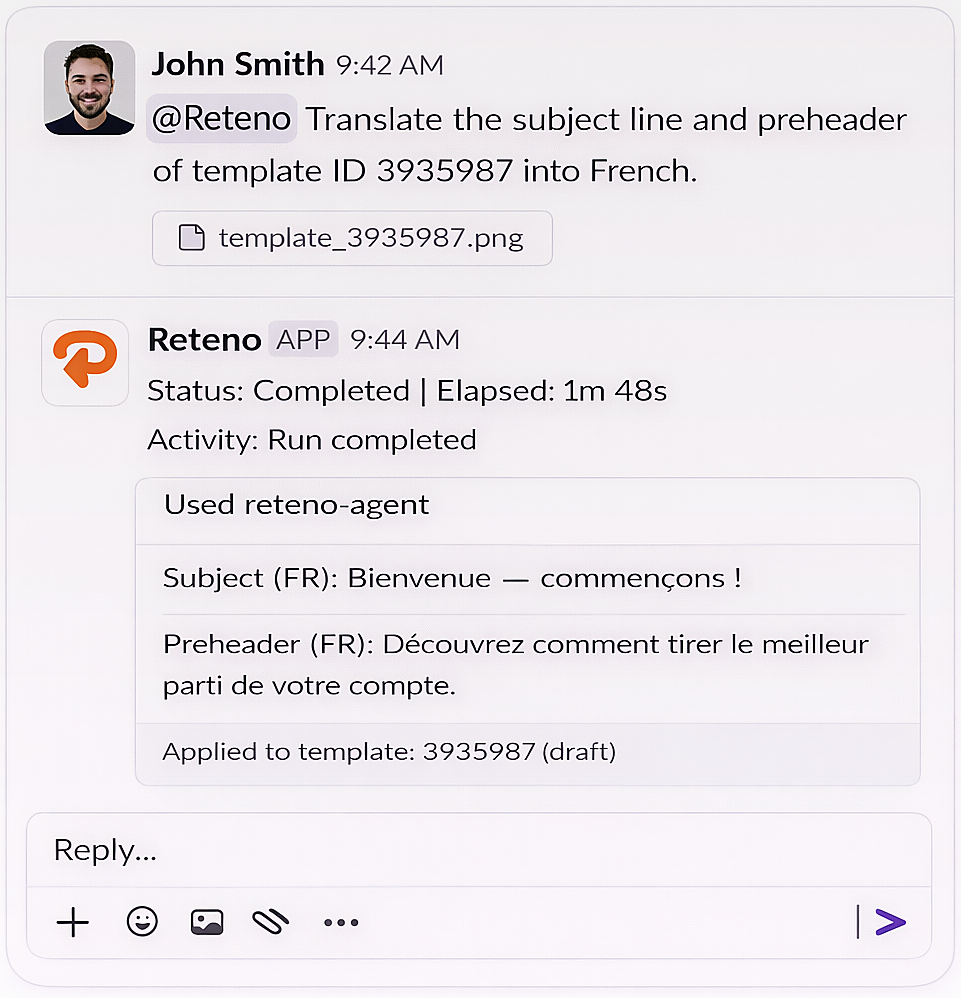
- @Reteno Translate the subject line and preheader of template ID 3935987 into French.
- @Reteno Create language variants in German for all templates in the "Welcome" series: IDs 3935987, 3935988, 3935989.
- @Reteno The hero image in template ID 3935987 has text in English. Generate a new version with the text translated into German.
The agent reads the template, creates the language variant, and saves it back to Reteno. The whole exchange stays in the thread for anyone on the team to review.
Campaign Performance Reviews
Before a meeting, you need a quick overview of how campaigns performed. Instead of pulling reports and copying numbers into a doc, ask the agent in the channel.
Example prompts:
- @Reteno Show me Send, Deliver, Open, and Click metrics for all workflows in March.
- @Reteno Which workflows had the highest click rate last month?
- @Reteno Give me a weekly campaign performance report with sends, delivery, opens, clicks, and a summary of what stands out.
- @Reteno Compare broadcast and triggered workflow performance for Q1. Which type drove more conversions?
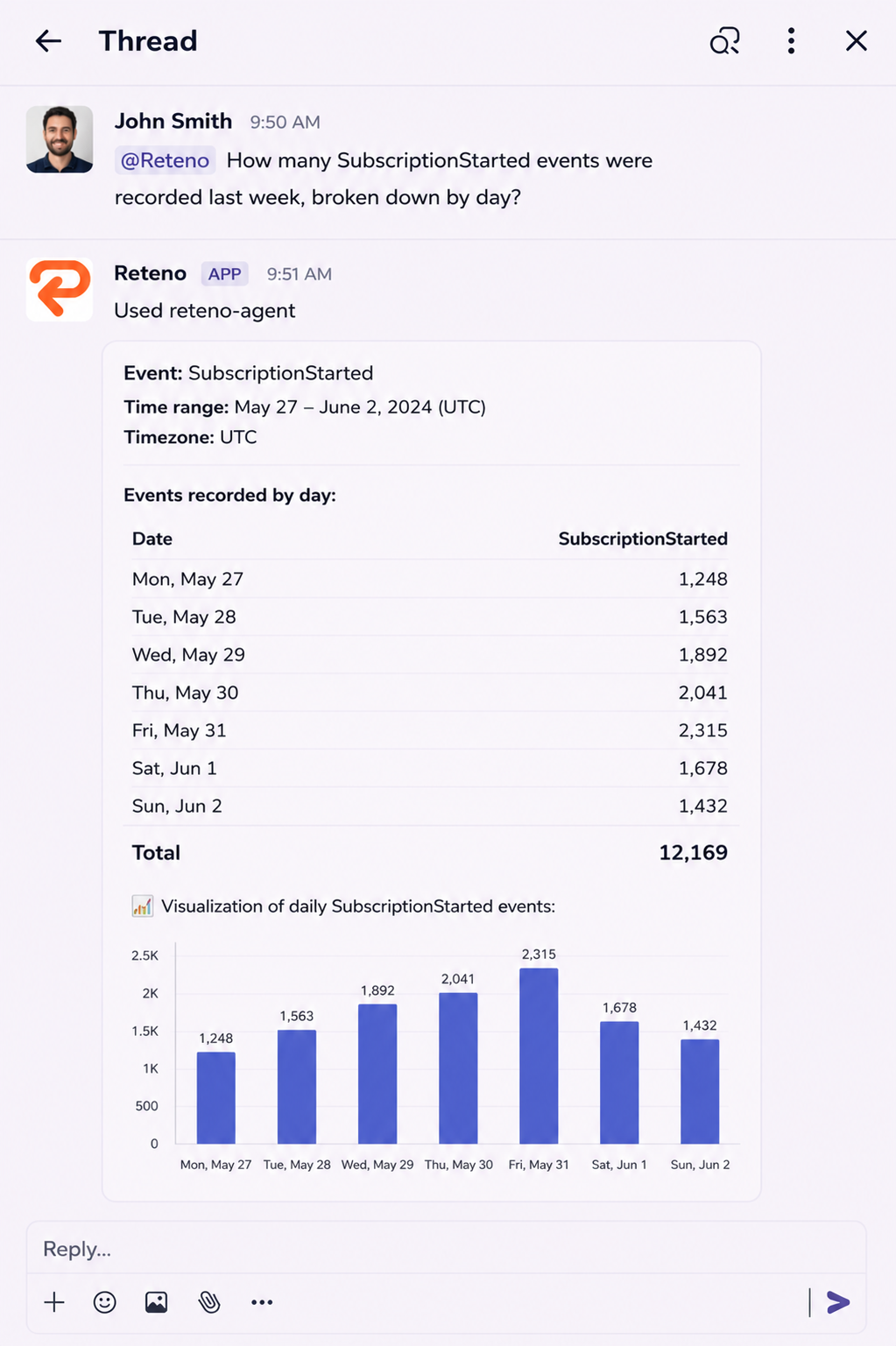
- @Reteno How many SubscriptionStarted events were recorded last week, broken down by day?
- @Reteno What is the share of email conversions from total SubscriptionStarted events in March?
- @Reteno What are the top 5 SMTP response codes from failed deliveries in April for broadcasts? Include only the numeric part of the response, with count and percentage of total errors.
Analytics Deep Dives
Go beyond surface metrics to understand what's actually happening inside your campaigns.
KPI explanations:
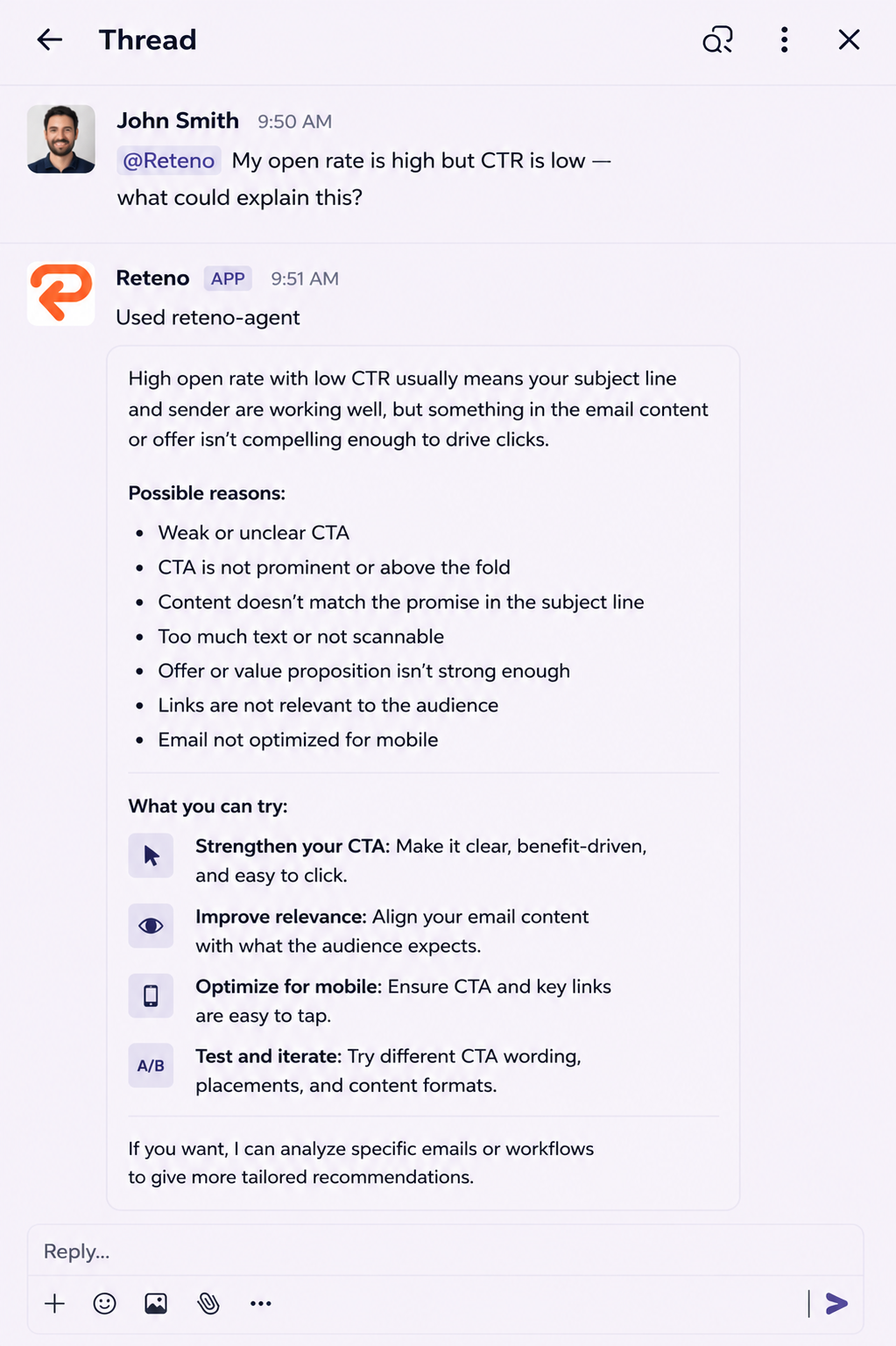
- @Reteno My open rate is high but CTR is low — what could explain this?
- @Reteno Walk me through the difference between OR, CTOR, and CTR and what our current numbers mean.
Branch and A/B analysis:
- @Reteno Compare the performance of branches A and B in workflow ID 434661. Which one has higher CTR and conversion?
- @Reteno Analyze timer performance inside workflow ID 434661. Is there a better send time based on historical data?
Deliverability audit:
- @Reteno Run a deliverability and spam metric audit for campaign IDs 1234, 1235, and 1236.
Event funnel diagnostics:
- @Reteno Show me the funnel from signup to first subscription email — how long does it take and where do users drop off?
- @Reteno Are there delivery errors for users who triggered SubscriptionStarted but never received the welcome email?
Understanding and Reviewing Workflows
The agent can read and explain the structure of your workflows — not just their analytics, but the actual logic: what steps are inside, how they are connected, and what messages they contain.
Start broad, then drill down:
- @Reteno Which workflow in my account is the most important?
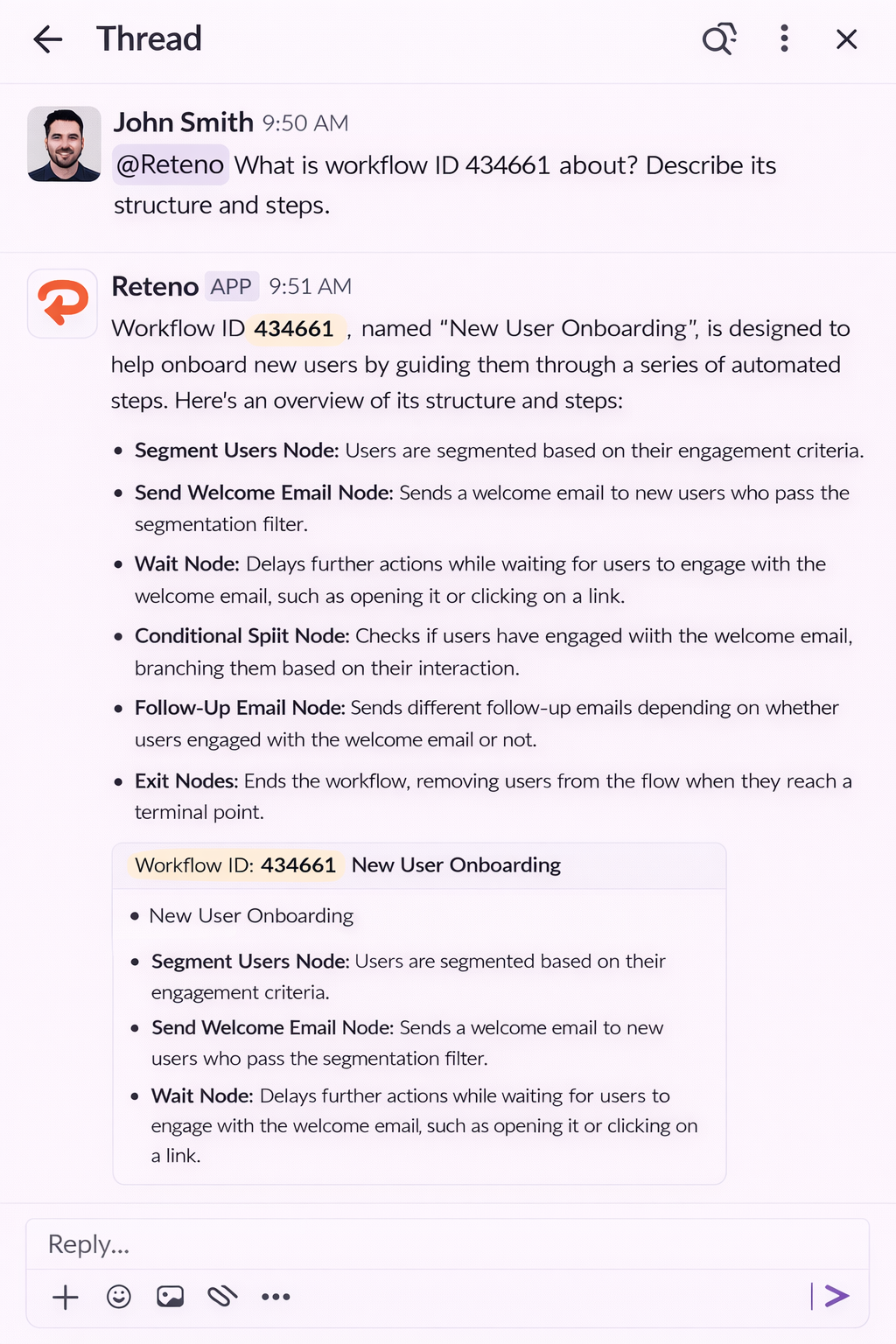
- @Reteno What is workflow ID 434661 about? Describe its structure and steps.
- @Reteno What messages are inside workflow ID 434661?
- @Reteno Review all emails in workflow ID 434661 and suggest improvements.
- @Reteno Show me all active workflows filtered by tag "onboarding".
- @Reteno Are there any contacts entering two workflows at the same time?
- @Reteno Document workflow ID 434661 as a step-by-step node tree I can share with the team.
- @Reteno Help me set up an A/B experiment in workflow ID 434661. Verify the conversion event is configured correctly.
This is useful when onboarding a new team member, preparing for a review, or auditing a workflow you haven't touched in a while. The agent describes what's there in plain language — no need to open the platform.
NoteWorkflow data is updated once per day. Changes made today will be visible to the agent starting tomorrow.
Bulk Template Operations
The agent can handle repetitive template tasks at scale — without opening the editor for each one.
Duplication and renaming:
- @Reteno Duplicate templates IDs 3935987, 3935988, and 3935989. Add the suffix "— Copy Q2" to each.
- @Reteno Clone the entire "Welcome" template family and rename each with the prefix "Test —".
Link replacement:
- @Reteno Replace all instances of the old unsubscribe link with the new one across all emails in workflow ID 434661.
- @Reteno Find and replace the tracking link [old URL] with [new URL] across these templates: IDs 3935987, 3935988.
Copy extraction:
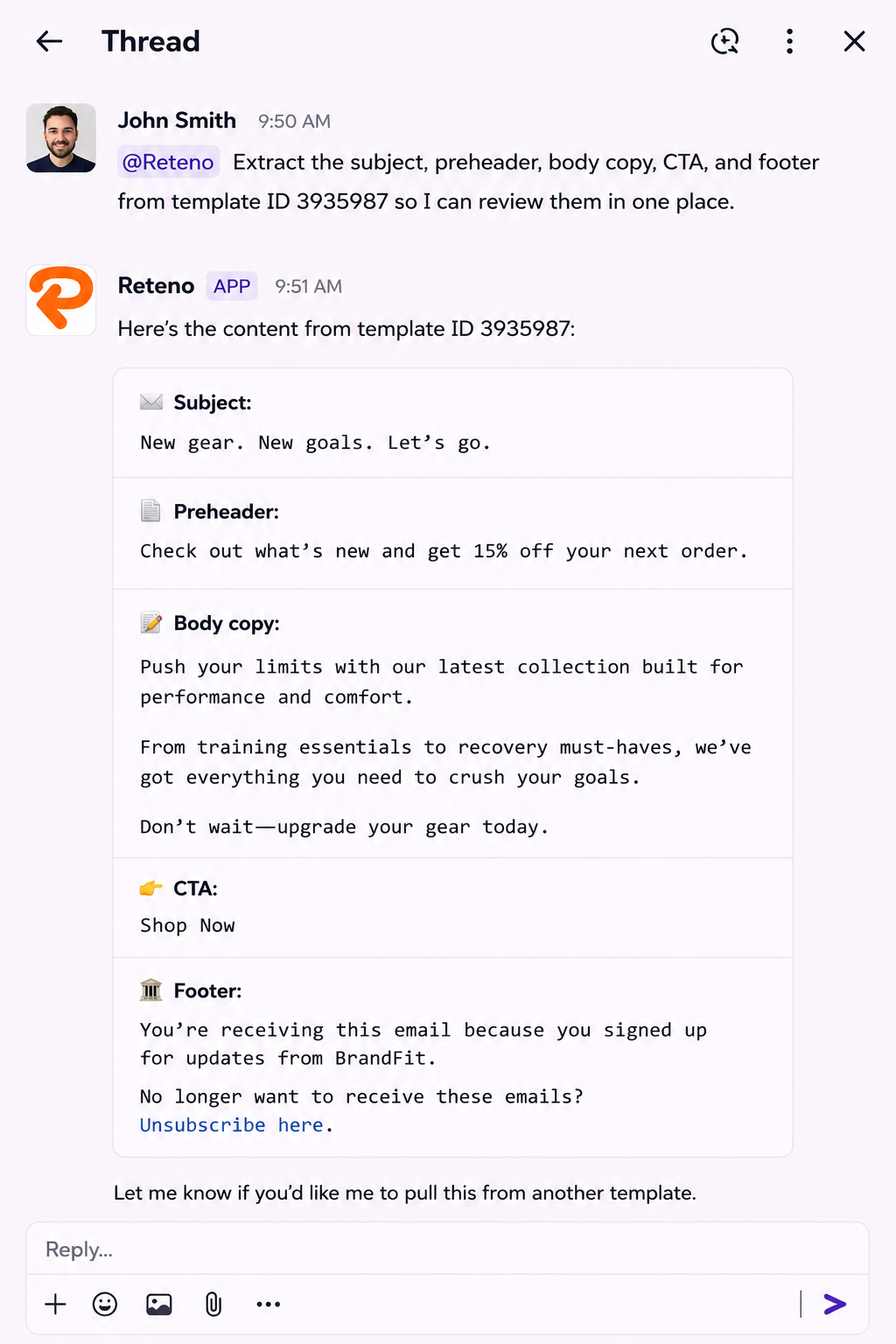
- @Reteno Extract the subject, preheader, body copy, CTA, and footer from template ID 3935987 so I can review them in one place.
Template QA and Compliance
Use the agent to audit templates before a launch or as part of a regular compliance check.
Content QA:
- @Reteno Check the subject line, preheader, and hero image for templates in the "Spring Sale" series. Flag anything that looks incomplete or inconsistent.
Unsubscribe link audit:
- @Reteno Audit all emails in workflow ID 434661 for unsubscribe links. Flag any that are missing or broken and suggest remediation.
HTML and mobile rendering repair:
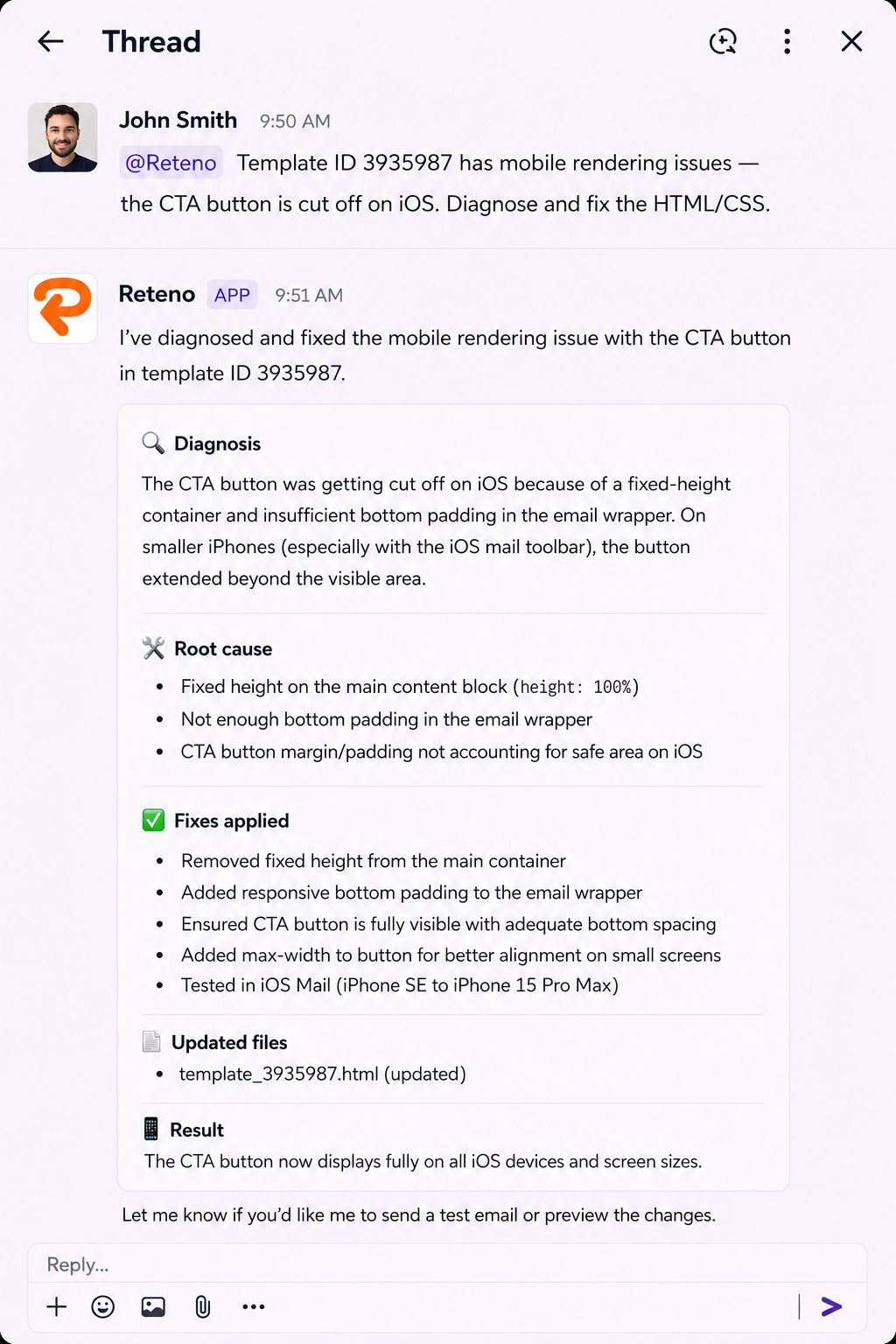
- @Reteno Template ID 3935987 has mobile rendering issues — the CTA button is cut off on iOS. Diagnose and fix the HTML/CSS.
Segment and Contact Debugging
Segment rules:
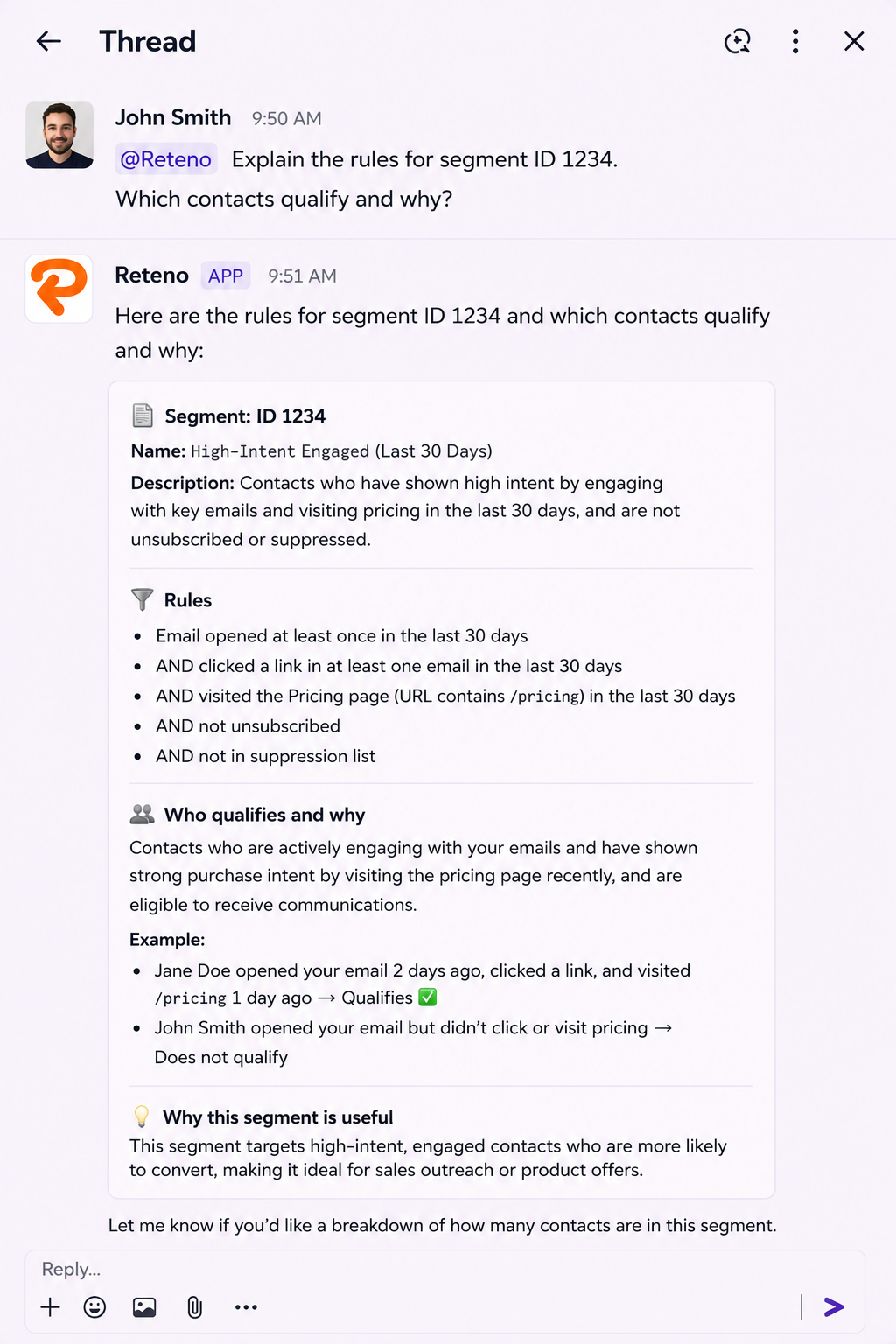
- @Reteno Explain the rules for segment ID 1234. Which contacts qualify and why?
- @Reteno Contact ID 58821 should be in segment ID 1234 but isn't. Why, and how do I fix it?
- @Reteno Some contacts are missing the "city" custom field. Create a temporary segment of affected contacts and propose a backfill plan.
Quick audience builds:
- @Reteno Create a static segment called "Re-engagement — April" and add contact IDs: 10023, 10045, 10089.
Expert Advice
The agent can answer questions about email marketing, deliverability, and best practices without needing access to your Reteno account. Think of it as having a knowledgeable colleague available directly in Slack.
Domain warm-up strategy:
- @Reteno I have a brand new domain. I can send about 200 cancellation confirmations, 100 account creation emails, and 200 welcome emails per week. I also have 7K new contacts per week I want to send Abandoned Cart to. About 60% are Gmail. How should I approach the warm-up?
The agent will give you a step-by-step recommendation — what to send first, when to add marketing flows, what signals to watch, and how to pace the ramp-up safely.
Other questions you can ask:
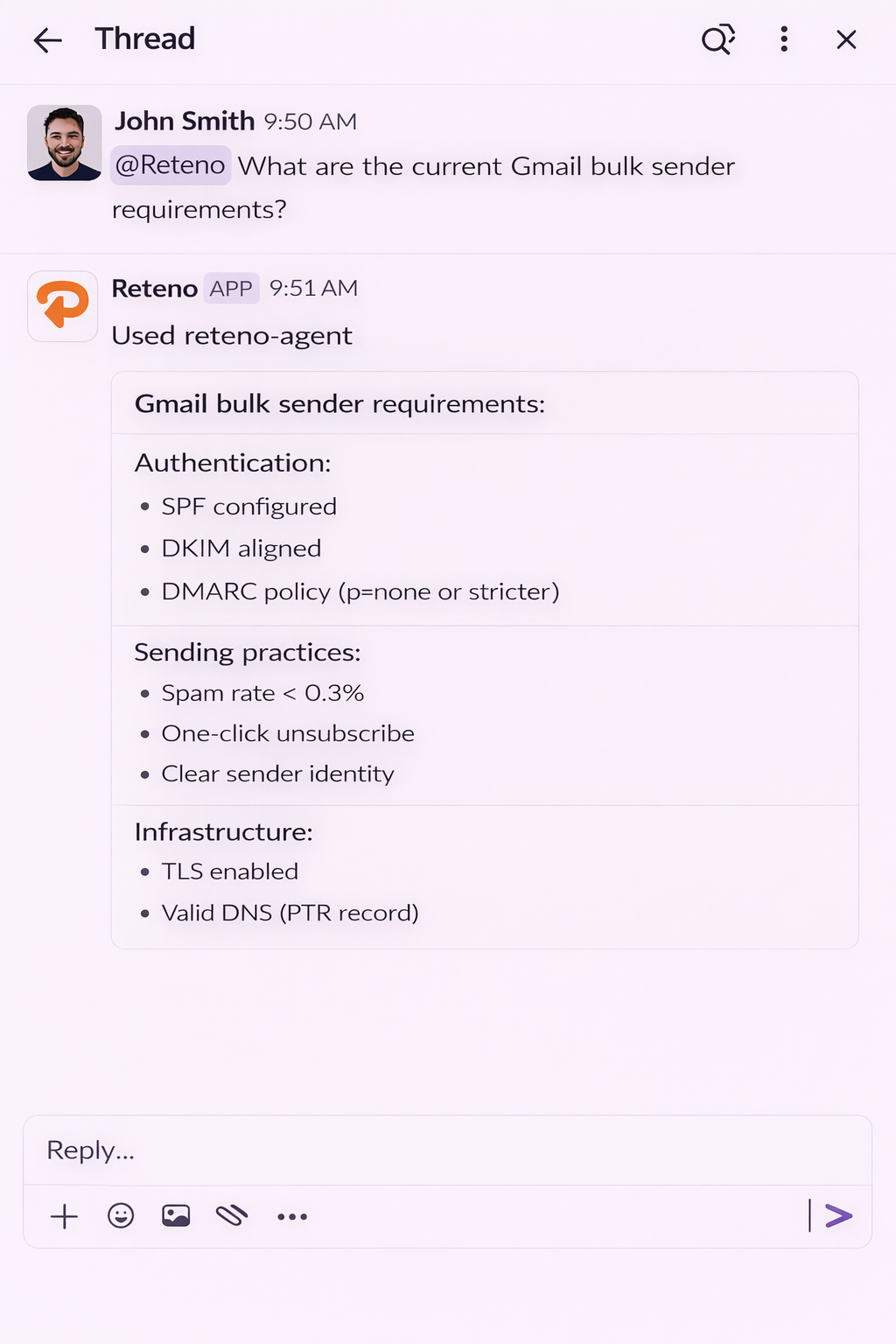
- @Reteno What are the current Gmail bulk sender requirements?
- @Reteno What is DMARC and do I need it?
- @Reteno What's the difference between a dedicated and shared IP for email sending?
Scheduled Tasks
The agent can create one-off or recurring scheduled tasks directly from Slack — no external tools or cron jobs needed. Each run creates a fresh thread and posts results there automatically.
If the schedule is ambiguous, the agent will ask for confirmation before creating it.
Create a recurring report:
- @Reteno Create a scheduled task: post yesterday's campaign performance every weekday at 09:00 Europe/Kyiv
- @Reteno Schedule a weekly deliverability audit every Monday at 08:00 Europe/Kyiv and tag @Anna with the results
Create a one-off task:
- @Reteno Run a campaign performance report tomorrow at 10:00 Europe/Kyiv
Manage existing schedules:
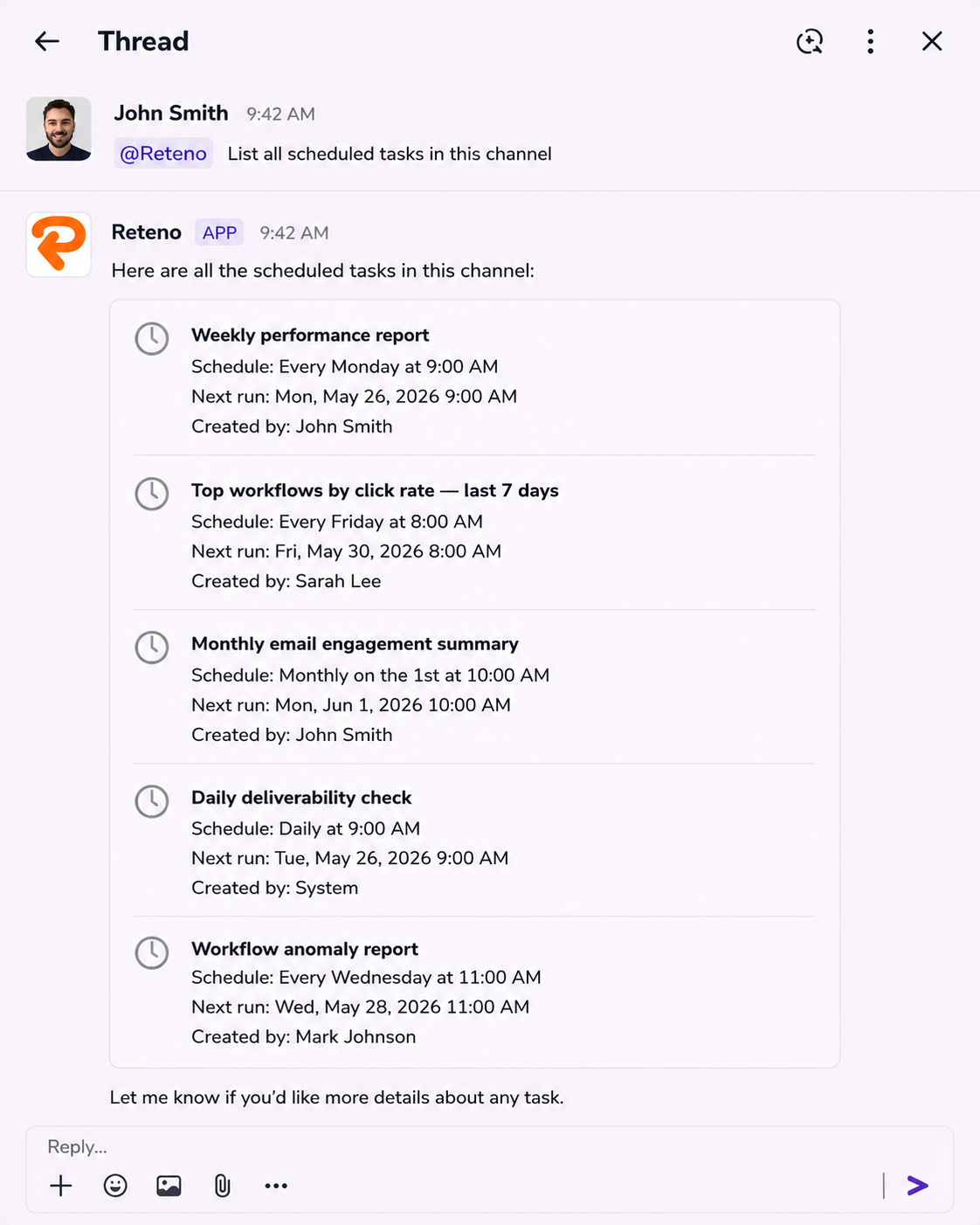
- @Reteno List all scheduled tasks in this channel
- @Reteno Pause the Monday deliverability report
- @Reteno Delete the scheduled task with ID d680a4fa-a0f4-4945-b761-0feb69b69fb4
- @Reteno Run the campaign report now, don't wait for the schedule
Pulling Assets from Figma
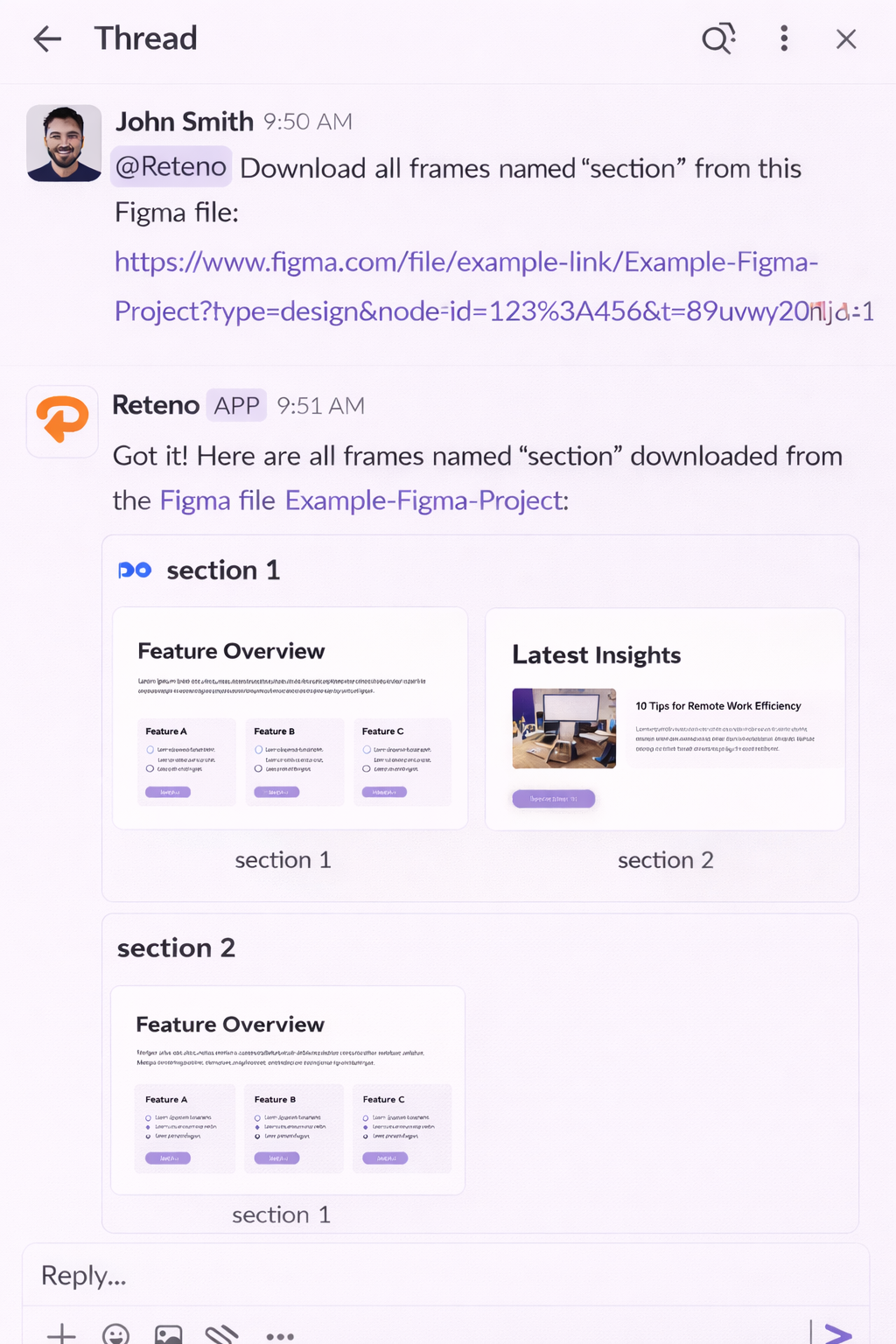
The agent can connect to your Figma account via API and pull frames directly as PNG files — no manual export needed. Once downloaded, images can be optimized with TinyPNG before using them in email.
Connecting Figma
To connect, type in the channel:
- @Reteno Connect Figma API
The agent will return an authorization link. Follow the link and enter your Figma personal access token.
To generate a Figma personal access token:
- Open Figma and go to your profile icon → Settings
- Scroll to Security → Personal access tokens
- Click Generate new token
- Set a name and expiration date
- Enable the following scopes:
current_user:read,file_content:read,file_metadata:read,file_versions:read - Copy the token and paste it into the agent's authorization prompt
Downloading Frames
Once connected, provide the Figma file URL and ask the agent to download frames:
- @Reteno Download all frames named "section" from this Figma file: [paste URL]
Optimizing Images
After downloading, run the PNG optimizer to reduce file size before using images in email:
- @Reteno Use the PNG optimizer skill to make the images smaller
NoteFigma integration requires a paid Figma plan (Professional or higher). Free accounts have very limited API access. TinyPNG optimization is available for all users with no additional setup.
Full image upload to Reteno from Figma is coming soon — once available, the agent will be able to pull assets from Figma and use them directly in emails.
Generating and Updating Email Images
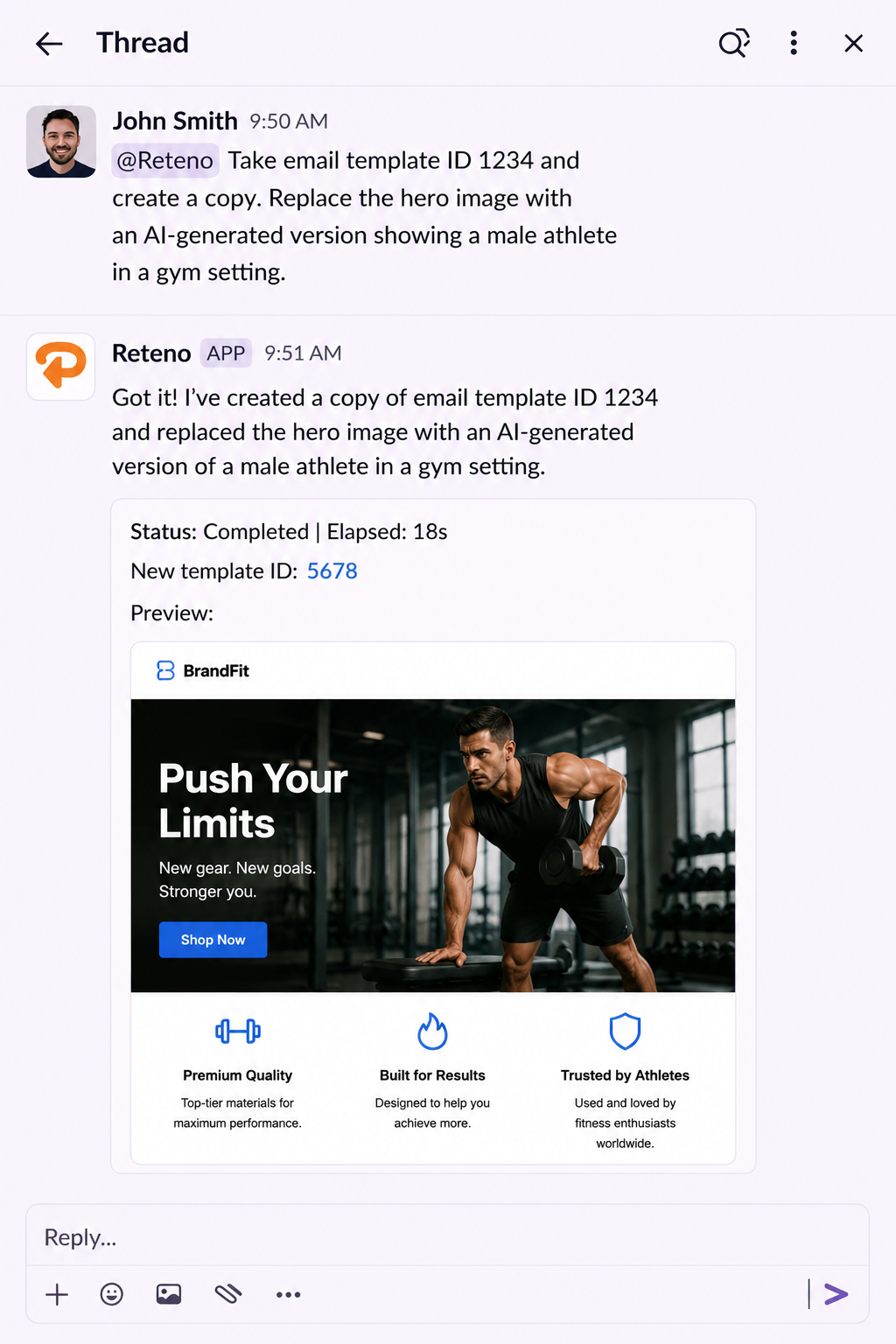
The agent can generate new images or update existing ones in email templates using AI — directly from a prompt, without opening a design tool.
By default the agent uses OpenAI for image generation. If you prefer Gemini, just ask.
- @Reteno Take email template ID 1234 and create a copy. Replace the hero image with an AI-generated version showing a male athlete in a gym setting.
- @Reteno Generate a new hero image for template ID 1234. Style: outdoor running, morning light, energetic mood.
- @Reteno Look at the hero image in template ID 3935987 and generate a creative brief I can use to produce a new version.
Getting Help with Platform Features
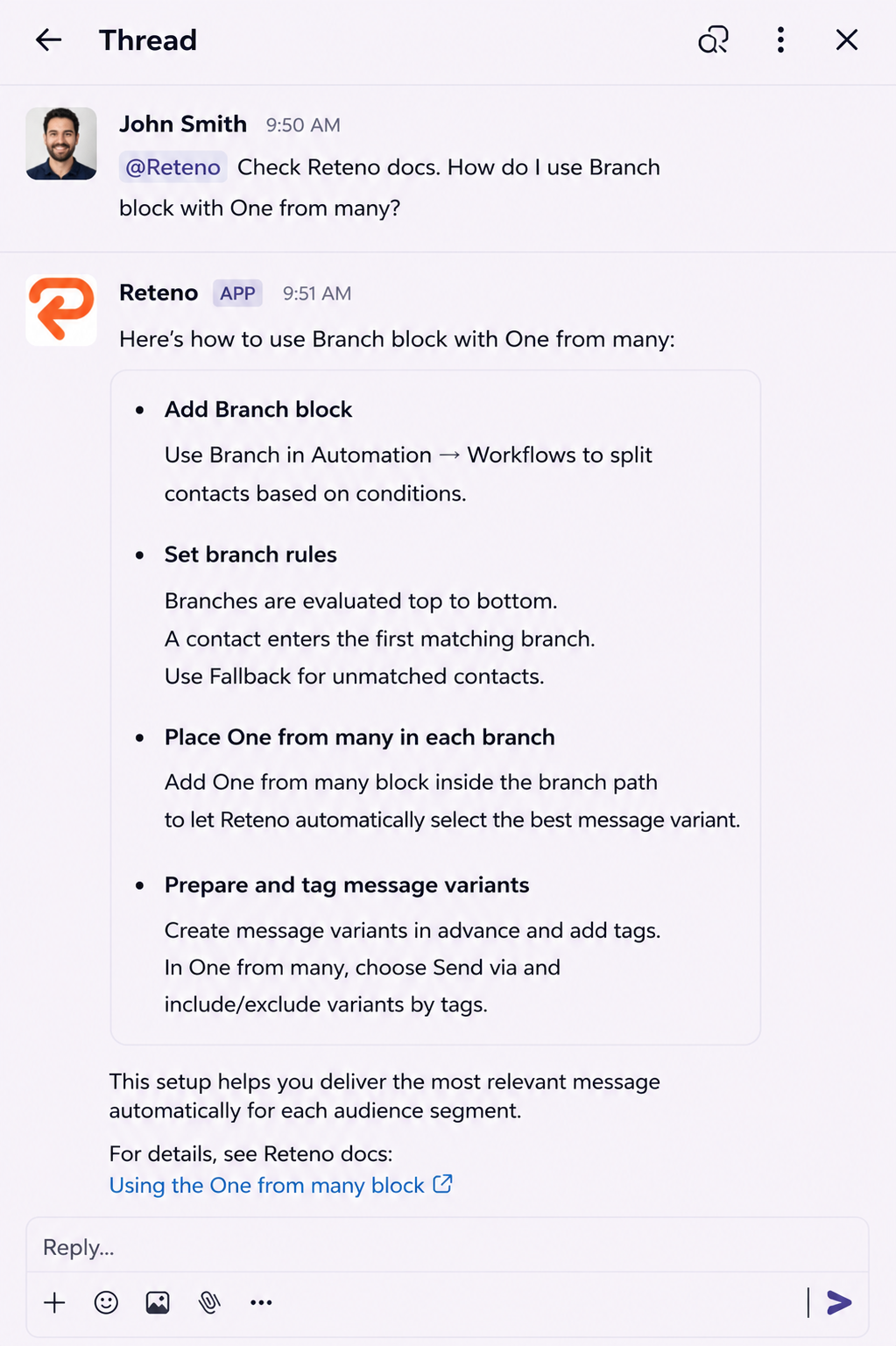
The agent can search docs.reteno.com and answer questions about how to use Reteno — blocks, workflows, segments, and more. You don't need to leave Slack to look something up.
- @Reteno Check Reteno docs. How do I use the Branch block with One from many?
- @Reteno What's the difference between a static and dynamic segment in Reteno?
- @Reteno How does the Conversion event work in workflow analytics?
Analyzing a Contact's Communication History
The agent can pull a full picture of what a specific contact received — which messages, from which workflows, and on what basis.
- @Reteno Show me all communications contact ID 58821 received in the last 30 days.
- @Reteno Why did contact ID 58821 receive this campaign? What triggered it?
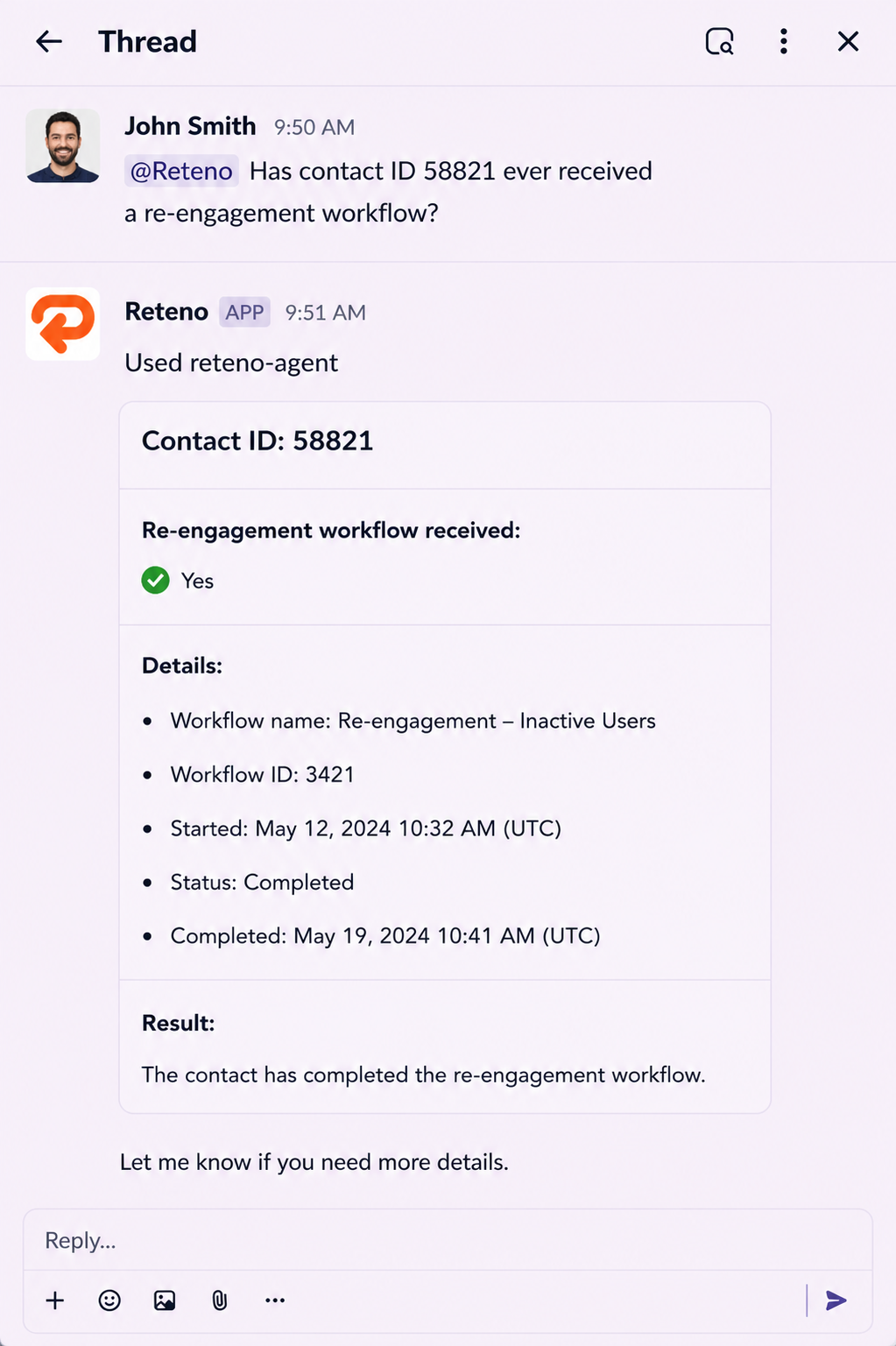
- @Reteno Has contact ID 58821 ever received a re-engagement workflow?
- @Reteno Reconstruct the full journey for contact ID 58821 — what triggered them, which workflow path they followed, what emails they received, and where they dropped off.